- VEED reviewed: browser-based video editor with Hebrew subtitles, translation, dubbing, avatars, and noise removal. Plans, pricing, privacy, and comparison with CapCut and Descript.
According to VEED's privacy policy, content uploaded on the free plan may be used to improve its services, including training AI models, but content uploaded through the mobile apps is excluded. Free-plan users who object must either delete their account or upgrade to a paid plan.
One-click Hebrew subtitles, inside the browser, with nothing to install. On the $20/month plan they are unlimited, up to a fair-use cap of 50 hours per month. But VEED cannot dub into Hebrew, and content uploaded on a free account may be used to train its AI.
That is exactly the gap worth understanding before choosing a video editor for your business: what the tool promises on its homepage versus what is actually written in the language list, the pricing page, and the privacy policy. Anyone who starts from the first page ends up disappointed in month two.
This guide was built from VEED's official pricing page, its Help Center (subtitles and dubbing languages, translation, Clean Audio, Eye Contact, avatars, Fabric 1.0), its product pages, and its privacy and content policies, all verified on September 15, 2026. The comparisons to CapCut and Descript are based on our separate guides to those tools.
In short
| Question | Short answer |
|---|---|
| What it is | Browser-based video editor with AI: subtitles, translation, dubbing, avatars, text-to-video, Eye Contact, noise removal |
| How much it costs | Free with watermark. Creator $20/month ($116/year), Pro $44 ($257), Studio $70 ($414), Enterprise by quote. Per user |
| What you are paying for | Watermark removal, export quality, unlimited subtitles, and AI credits that do not roll over to the next month |
| Hebrew | Subtitles and translation: yes, officially. Dubbing into Hebrew: no. Hebrew interface: no |
| Best for | Marketing and training teams producing talking-head videos, tutorials, and multilingual content, from the browser |
| When to skip it | Reels from templates on mobile (CapCut), long-form transcript editing in English (Descript), sensitive material on a free account |
What is VEED?
VEED is a video editor that runs in the browser, with a broad layer of AI tools on top of it. You upload a video or record your screen and camera, edit on a timeline, add automatic subtitles, and export. No installation, from any computer.
Definition: VEED is an online video editor made by Veed Limited of London. It combines timeline editing, screen and camera recording, automatic subtitles and translation, and credit-based AI tools: dubbing, talking avatars, text-to-video generation, camera-gaze correction, and background noise removal.
In 2026 VEED's positioning has shifted. The homepage presents it as AI video creation for social media, with a prompt box at the center, not just as an editor. In practice there are two products inside the same account: a conventional editor anyone can figure out in minutes, and a generative studio that consumes credits.
That distinction matters for a business. The editor, subtitles, and recording are the foundation you pay a subscription for. The dubbing, avatars, and generative video draw from a quota, and that is where the monthly bill starts moving.
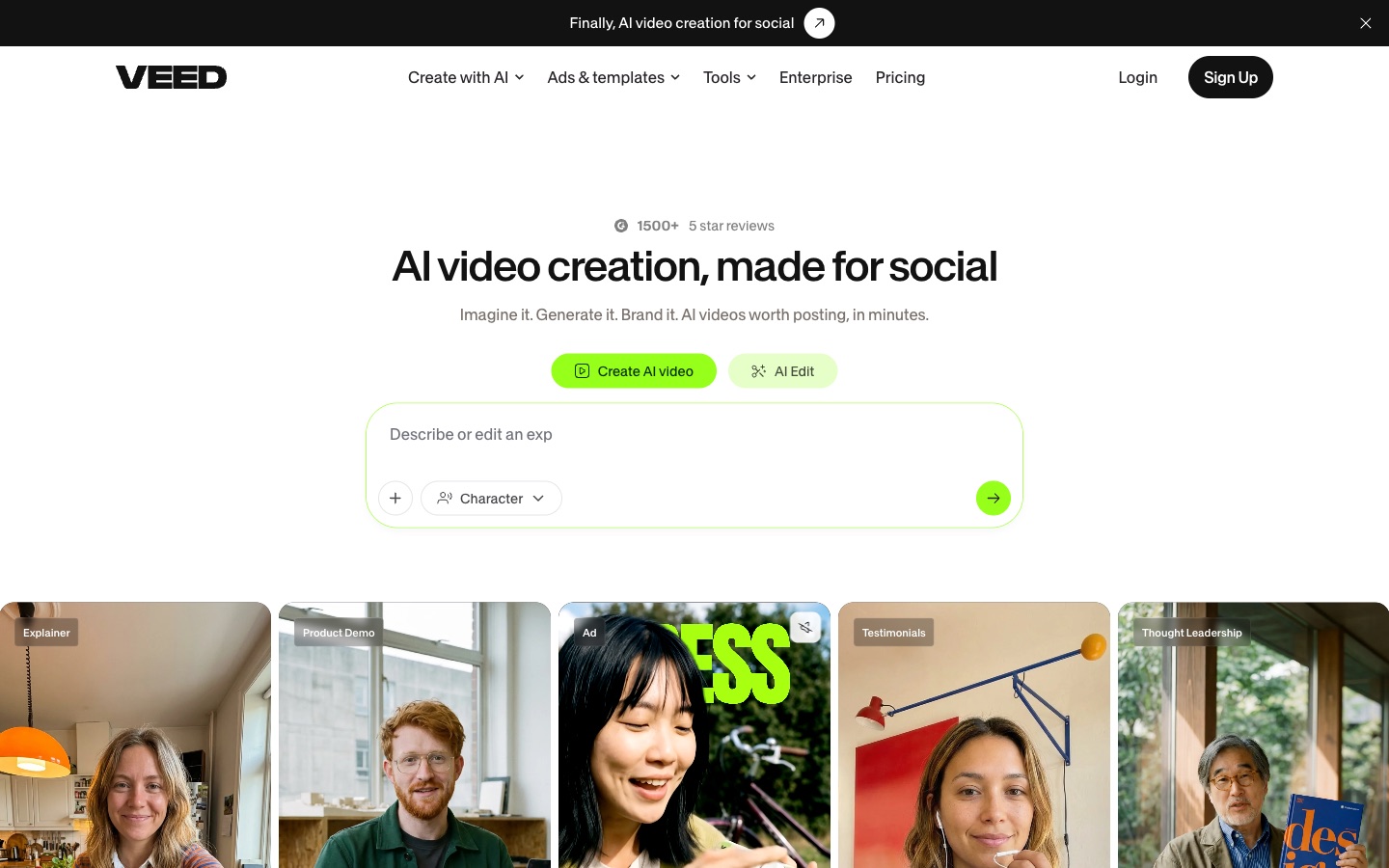 VEED's official homepage, captured on September 15, 2026. Credit: VEED
What can VEED do?
The editor itself is straightforward, and the power is in the tools surrounding it. Here are the core capabilities according to the product pages and Help Center, each paired with one business use case.
- Browser-based editing. Trimming, text, audio, images, and resizing for social platforms. Use case: a marketing manager editing on a work computer with no permission to install software.
- Automatic subtitles. Select the spoken language and click Auto-subtitle. Words the system is unsure about are flagged in orange for review. Use case: an Instagram tip video watched without sound.
- Subtitle translation. Enable Add translation and choose a target language. According to the pricing page, Pro and above translate to more than 50 languages. Use case: the same product video with English subtitles for an international audience.
- AI dubbing. Upload a video, choose a target language and voice, with optional lip-sync (beta). Use case: a training recorded in Hebrew that also goes out in English.
- Talking avatars. Type a script of up to 20,000 characters and choose a character. One character on screen, and each generation consumes credits. Use case: a short explainer video without standing in front of a camera.
- Text-to-video and image-to-video. The video generator surfaces models including Veo 3, Kling, Sora, and VEED's own Fabric 1.0. Use case: an atmospheric shot for an ad instead of a shoot.
- Eye Contact. Corrects gaze so the speaker appears to be looking directly into the camera. Use case: someone reading from a teleprompter who looks like they are speaking straight to the viewer.
- Clean Audio. Removes background noise, sharpens speech, and balances levels. Use case: a recording made in an open-plan office that sounds like a studio.
- Screen and camera recording, and teleprompter. Record your screen and yourself together, in the browser. Use case: demoing a system to a new client.
- Brand Kit. Fonts, colors, images, audio, and watermarks saved across all projects. Use case: every employee produces a video that looks like the company.
Most tools are marked on the pricing page as a "one-time trial" on the free plan. Enough to know whether they work on your material, not enough to work with them.
How to get started: step by step
Six steps from raw footage to a video with Hebrew subtitles, on the free account. This is the exercise worth doing before spending a single shekel.
- Open a free account. Go to veed.io and sign up. Nothing to install.
- Upload or record. Upload a short talking-head clip of one to two minutes, or record yourself directly in the recording tool. On the free account, files are limited to 1 GB and exported videos to 10 minutes.
- Add subtitles. Go to the Subtitles tab, select Hebrew as the spoken language, and click Auto-subtitle. The free plan gives 10 minutes of subtitles per month, so do not spend them on a 15-minute video.
- Proofread. Go through the words flagged in orange, correcting names, professional terms, and foreign words. This is the step that determines whether the video looks professional.
- Style. Choose a subtitle style, a font that renders Hebrew correctly, and right or center alignment. Check any line that contains an English word.
- Export and review. Export (free plan: 720p with watermark) and watch the video from start to finish as a viewer, not as an editor.
Want to try Clean Audio or Eye Contact? Test them once on the same video, because that is the only trial the free account gives you.
Hebrew and RTL
Hebrew subtitles and translation are officially supported; Hebrew dubbing and a Hebrew interface are not. Right-to-left alignment is not described in the documentation, so test it yourself.
What is supported according to official documentation:
- Hebrew transcription for subtitles. In the Help Center's language list, Hebrew is marked for both subtitle creation and translation.
- Translation from and into Hebrew. Same list. VEED's Hebrew subtitles page claims 95% accuracy. That is a marketing claim from the company, not a measurement we conducted on Hebrew.
- Dubbing from a Hebrew-language video. Hebrew appears in the list of 72 source languages for dubbing.
What is not supported:
- Dubbing into Hebrew. Hebrew does not appear in the list of 29 target languages. An English video will not come out dubbed in Hebrew.
- Hebrew interface. According to the official site's language settings, it is offered in English and several other languages, and Hebrew is not among them.
- Hebrew AI voices and avatars. Not officially listed on the pages we reviewed. Check in your account before building a script around this.
What to test before paying:
- Mixed-language line. "I switched to VEED last month": check that the foreign word does not jump to the wrong position.
- Punctuation. Periods and question marks that drift to the left side of the line.
- Fonts. Some decorative fonts do not include Hebrew characters.
- Dynamic subtitles. A style that highlights one word at a time may run left to right. Test it on a Hebrew sentence.
- SRT file. Anyone downloading a subtitle file (Pro and above, according to the Help Center) should open it in YouTube or the target player and check it there.
My rule in every workshop, for every foreign editor: after any Hebrew text edit, watch the clip once as a viewer. Most RTL bugs are caught in a single viewing.
How much it costs: every plan from the official site
Free with a watermark, and Creator at $20/month as the first paid tier. Annual billing saves up to 51% according to the page. Prices verified on September 15, 2026 in US dollars, per user.
| Plan | Price | What you get | Limitations |
|---|---|---|---|
| Free | $0 | Editor, screen and camera recording, 10 minutes of automatic subtitles per month, 2 GB storage | Watermark, 720p, videos up to 10 minutes, files up to 1 GB, AI tools as a one-time trial |
| Creator | $20/month, or $116/year (approx. $9.67/month) | No watermark, 1080p, unlimited automatic subtitles, full media library, 500 credits/month (6,000 on annual), 5 GB | Dubbing and translation as a one-time trial, limited Brand Kit |
| Pro | $44/month, or $257/year (approx. $21.42/month) | Everything in Creator, export up to 4K, multiple Brand Kits, translation into 50+ languages, up to 12 hours of AI voice per month, 6 hours of dubbing per year, 2,500 credits/month (30,000 on annual), 50 GB | Up to 3 editors |
| Studio | $70/month, or $414/year (approx. $34.50/month) | Everything in Pro, custom templates, up to 80 hours of AI voice per month, 12 hours of dubbing per year, 15,000 credits/month (180,000 on annual), unlimited storage | Up to 5 editors and 1 reviewer |
| Enterprise | By quote | Custom credits, team and data management, review mode, privacy controls, SSO, dedicated account manager | Through sales |
What you are actually paying for. Three things. The first is the watermark and export quality, which disappears on Creator. The second is seats: according to the pricing FAQ, the price multiplies by the number of editors in a workspace. The third is AI credits: according to the page, the quota refreshes with the subscription and does not carry over to the next period, so anyone who needs more upgrades their plan.
Two notes that save money. Subtitles on paid plans are "unlimited," but with a fair-use cap of 50 hours per month. And translation is counted in minutes: according to the pricing FAQ, translating a 30-minute video into one language uses 30 minutes, and adding another language uses another 30. The pricing FAQ also notes a 7-day trial for paid plans, with a credit card, and prices are shown in local currency where available.
The cheapest plan that works for a small Israeli business: Creator on annual billing, $116/year. It removes the watermark, unlocks unlimited Hebrew subtitles and 1080p, and that is what most businesses need for social video. Anyone who needs to download an SRT file, translate regularly, or dub needs Pro. Prices change, so check the official site.
Use Cases for Israeli Businesses
VEED is especially well-suited for talking-head videos, training content, and multilingual material. Five scenarios by role, all general examples.
Business owner: A one-minute weekly tip video, recorded in front of a computer. Eye Contact fixes your gaze when you're reading from a teleprompter, Clean Audio removes the air conditioner in the background, and Hebrew subtitles are added in one click. On Creator, that's a weekly video with no external editor.
Marketing: One product video that ships in three versions: Hebrew subtitles for Instagram, English subtitles for LinkedIn, and both vertical and square formats. The brand kit keeps every version looking identical. Anyone who regularly pulls clips from long webinars should also look at the OpusClip guide.
Operations: An internal system training video combining screen recording and camera, with subtitles, so a new employee can watch without headphones. When the system changes, you re-record only the section that changed.
HR: An onboarding video for employees who don't speak Hebrew. Record in Hebrew, then dub into English or another language from the target list. Check in advance that the language you need is on the list of 29 supported languages, and remember that regular dubbing requires Pro. For training videos where an avatar is the centerpiece, compare the Synthesia guide as well.
Sales: A short personalized video for a prospect, a screen recording of the proposal with your face in the corner. No styled subtitles, no effects, the main thing is getting it out today.
VEED vs. CapCut vs. Descript: An Honest Comparison
Three AI-powered editors, and for an Israeli business the deciding difference is Hebrew support and where you edit. VEED data from the official website (September 15, 2026); CapCut data from our CapCut guide; Descript data from our Descript guide.
| VEED | CapCut | Descript | |
|---|---|---|---|
| Where you edit | Browser, plus iOS app | Mobile, desktop, and browser | Mac, Windows, and browser |
| Editing method | Timeline plus AI tools | Timeline plus templates | From the transcript |
| Price | Free with watermark; $20-$70/month per user | Free core; Pro around $20 | Free (one hour/month); $16-$65/month |
| Hebrew subtitles | Yes, officially, including translation | Yes, built-in | No (Latin-alphabet languages only) |
| Dubbing into Hebrew | No | Limited, per our guide (July 2026) | No |
| Strength | Translation, dubbing, talking-head videos, screen recording from the browser | Reels, templates, trends | English-language podcasts and webinars |
| Weakness | Watermark on free, credits that run out | ByteDance privacy, long-form editing | No Hebrew transcription |
When to choose each one:
- VEED when you work from a computer with no installation, when the video is a talking head or screen recording, and when you need the same content in multiple languages. Marketing and training teams.
- CapCut when the deliverable is a vertical reel from your phone, when templates and trends are part of the strategy, and when the budget is zero. For most small Israeli businesses, this is the starting point.
- Descript when the content is spoken, in English, long, and edited most efficiently from text: a podcast, webinar, or interview.
The combination that makes sense for a small team: CapCut for phone reels, VEED for training content and other-language versions. For a broader category overview, there is the AI video tools guide. And anyone who has no raw footage at all and needs an explainer video from a prompt, with stock footage and voiceover, will find that in the InVideo guide.
Privacy and Limitations
On the free plan, your content may be used for AI development; on paid plans, the policy does not state this. That is the core difference every business needs to know, alongside a few real limitations of the tool.
What the Privacy Policy says (last updated January 6, 2025):
- Content use on a free account. VEED may use personal information contained in content uploaded on the free plan to develop and improve its services, including training AI models. Content uploaded through the mobile apps is excluded.
- Objecting. You can object, but then you can no longer continue on the free plan: you either delete your account or upgrade.
- International transfers. Some of VEED's vendors are located outside the UK and the European Economic Area; transfers rely on adequacy decisions and approved contracts.
- Deletion. Information with no legal basis for retention is deleted, but anonymized data derived from it may be kept.
What the AI content policy says: Images you create with AI belong to you, and VEED does not claim copyright over them, but it does receive a license to host them and use them for marketing and product improvement. Impersonating a person or entity through AI avatars or voice is prohibited.
What not to upload: Videos containing identifying information about customers or patients, recordings of people who have not consented, internal organizational materials, and another person's face or voice without written permission. For organizations with privacy requirements, Enterprise offers privacy controls and data management; it is worth asking them for the list of sub-processors.
Honest limitations:
- Credits run out. Dubbing, avatars, and generative video all draw from an allowance that does not roll over to the next month.
- No dubbing into Hebrew. A business that wants to take English content and release it dubbed in Hebrew needs a different tool, such as checking the ElevenLabs guide.
- One avatar on screen. According to the help center, one character per video, no appearance changes, and each regeneration consumes credits again.
- Fabric 1.0 is short. According to the help center, up to 30 seconds per clip. For longer pieces, combine multiple clips.
- Eye Contact does not fix everything. If the speaker is looking too far from the camera, the correction is disabled to avoid looking artificial. It works best with a speaker close to the camera in good lighting.
- Lip sync for dubbing is in beta, takes longer to process, and downgrades the video to 1080p.
Common Mistakes
Most mistakes with VEED are money mistakes, not editing mistakes. Here are the ones that repeat:
- Paying before testing Hebrew. Run subtitles on a real Hebrew video in the free account, with technical terms and English words mixed in, and only then decide.
- Burning the free 10 minutes on one long video instead of three short ones that show how the tool handles different content.
- Buying Creator for dubbing. On Creator, dubbing and translation are a one-time trial. Anyone who needs them regularly needs Pro.
- Forgetting the per-user pricing. Three editors on Pro means three subscriptions.
- Uploading sensitive material to a free account, when the policy permits using it for AI development.
- Exporting without a final review of the Hebrew subtitles, then discovering reversed punctuation after the video is already live.
Frequently Asked Questions
What is VEED?
A browser-based video editor that requires no installation, with an AI layer: automatic subtitles, translation, dubbing, avatars, text-to-video generation, eye contact correction, and background noise removal. Behind it is Veed Limited, a British company based in London.
Does VEED support Hebrew subtitles?
Yes. According to the official language list in the help center, Hebrew is supported for both subtitle generation (transcription) and translation. Right-to-left alignment is not described in the documentation, so check lines that mix Hebrew and English before exporting.
How much does VEED cost?
According to the pricing page (checked September 15, 2026): free with a watermark; Creator at $20/month or $116/year; Pro at $44/month or $257/year; Studio at $70/month or $414/year; Enterprise by quote. Pricing is per user. Prices change, so check the official website.
Can you use VEED for free?
Yes, with limitations: 720p export with a watermark, videos up to 10 minutes, 10 minutes of automatic subtitles per month, and 2 GB of storage. AI tools like Clean Audio and Eye Contact are available for a one-time trial.
Can VEED dub into Hebrew?
No. According to the help center, Hebrew appears on the list of source languages for dubbing but not on the list of 29 target languages. That means you can dub a Hebrew video into English, but not an English video into Hebrew.
VEED or CapCut?
CapCut is strong for phone reels, templates, and trends, and its core editor is free. VEED is strong for browser-based work, translation, dubbing, and talking-head video tools. For most small Israeli businesses that live on Instagram, CapCut is enough. For a team producing training content and multilingual material, VEED.
Is it safe to upload business materials to VEED?
For regular marketing content, generally yes. According to the privacy policy, content on the free plan may be used for AI development, and data may be transferred outside the UK and the EU. Do not upload materials containing customers' personal information to a free account, and for sensitive content look into Enterprise.
Does VEED work on a phone?
It runs in a browser, and according to the pricing page there is also an iOS app. The help center also documents an app version called LITE. For longer editing sessions with Hebrew subtitles, a computer is more comfortable.
The Bottom Line
VEED is a practical browser editor for talking-head videos with Hebrew subtitles, no installation required, and a low learning curve. It is not the tool for template-based reels, and it cannot dub into Hebrew.
To return to where we started: one-click Hebrew subtitles are genuinely not the interesting part. The interesting part is knowing, before you pay, what is included in the subscription versus what draws from credits, and what happens to content you upload to a free account. Anyone who checks those three things in the first week pays for what they actually need and not for what the page promises.
Want to work through this inside the guide? The interactive VEED course for 9.90 ILS is part of the interactive AI courses series. And for phone reels, there is also a CapCut course.
Further reading: CapCut: The Complete Guide · Descript: The Complete Guide · HeyGen: The Guide · TurboScribe: Hebrew Transcription · AI Video Tools
Sources
All pages were checked on September 15, 2026. Prices and quotas change, so check the official site before making any decisions.
- VEED official pricing page (plans, monthly and annual prices, credits, feature comparison table, pricing FAQs on credits, subtitles and translation, seats, trial, and currency): https://www.veed.io/pricing
- Official homepage (positioning as AI video creation for social media): https://www.veed.io/
- Help center, supported languages for subtitles and translation (Hebrew: transcription and translation): https://support.veed.io/en/articles/6971225-languages-we-support-for-subtitle-generation-and-translation
- Help center, supported languages for dubbing (72 source languages, 29 target languages, Hebrew as source only): https://support.veed.io/en/articles/12781545-supported-languages-for-dubbing
- Help center, adding automatic subtitles (steps, words highlighted in orange, speaker detection in Pro, downloading subtitle file): https://support.veed.io/en/articles/11172739-how-to-add-subtitles-to-your-video-automatically
- Help center, subtitle translation (steps, one-time trial on Free and Creator, credits): https://support.veed.io/en/articles/11508601-how-to-translate-your-subtitles
- Help center, AI dubbing tool (quotas by plan, lip sync in beta, 1080p, processing times): https://support.veed.io/en/articles/10406623-how-to-use-the-ai-dubbing-tool
- Help center, Clean Audio (steps, one-time free trial): https://support.veed.io/en/articles/11662250-how-to-use-the-clean-audio-tool
- Help center, Eye Contact (steps, limitations, one-time free trial): https://support.veed.io/en/articles/11172032-how-to-use-the-eye-contact-correction-tool
- Help center, avatars and talking characters (20,000 characters, one character, credits): https://support.veed.io/en/articles/8222240-how-to-create-ai-avatars-or-talking-characters
- Help center, Fabric 1.0 (up to 30 seconds per clip, credits): https://support.veed.io/en/articles/12302080-how-to-use-fabric-1-0
- AI video generator page (available models): https://www.veed.io/tools/ai-video
- Hebrew subtitle generator page (95% accuracy claim, SRT and VTT files on paid plans): https://www.veed.io/tools/auto-subtitle-generator-online/hebrew-subtitles
- Screen recorder page: https://www.veed.io/tools/screen-recorder
- Privacy policy (use of free-tier content for AI development, mobile app exclusion, transfers, deletion, updated January 6, 2025): https://www.veed.io/privacy
- Content policy for AI tools (ownership of output, license for hosting and marketing, impersonation prohibition): https://www.veed.io/terms-of-use/ai-tools
Yaakov Tzedek is an AI lecturer, consultant, and organizational AI implementation specialist, and leads the Daily AI Tip community. Join the WhatsApp group.
Frequently asked questions

Yaakov Tzedek
An Israeli AI lecturer, consultant and implementer who has supported 100+ organizations in AI implementation and lectured for 200+. Official content partner of Meta, Google, Canva and TikTok, featured on Israel's Channel 13.
More about Yaakov →