
- InVideo AI explained: video from prompt with script, stock, voiceover and captions, command editing, Agent Two and 200+ models. Pricing, Hebrew support, rights and comparisons.
According to InVideo's help center, manual editing on the InVideo Editor timeline does not consume any credits at all. Only agent work and generation with AI models counts. The same help center notes that the agent is set to Always allow by default, meaning it generates without asking for approval until you change the setting.
A complete video from a single prompt: script, stock footage, voiceover, music, and captions. According to the official website, more than 25 million users have already done this with InVideo, and within the same account there are now more than 200 AI models for video, image, and audio. But anyone who opens it in 2026 discovers a different product from what they knew, and a pricing page that varies from tab to tab.
The homepage no longer talks about "video from text." It talks about Agent Two, an agent that plans, generates, and edits, and about a browser-based timeline editor that accepts instructions in plain language. And on the site itself, three official pages show three different pricing structures.
This guide was built from InVideo's official pricing page, product pages, help center, terms of service, and privacy policy (all verified on September 15, 2026): what the tool does, how to get to your first video, what happens with Hebrew, what it costs and exactly what you are paying for, who owns the rights to your video, and when CapCut, VEED, or HeyGen is a better fit.
In short
| Question | Short answer |
|---|---|
| What is it | A browser-based AI video platform: video from a prompt, text-command editing, an agent that edits a timeline, and 200+ models |
| How much does it cost | Free with a weekly quota. On the pricing page: Starter $20, Plus $50-$60, Max $100-$150, per seat per month |
| What are you paying for | Credits: every generation with a model and every agent task. Manual editing and downloading do not consume credits |
| Hebrew | Translation and voiceover: Hebrew appears on the language lists. Automatic Hebrew captions: not officially confirmed, check for yourself |
| Rights | The output is yours and commercial use is permitted under the terms. Stock footage is subject to the suppliers' licenses |
| Best fit | Businesses that need explainer videos, ads, and faceless content, quickly, without a camera crew or raw footage |
What is InVideo?
InVideo is a browser-based AI video platform. You describe what you want, and the system writes a script, selects stock footage or generates visuals, adds a voiceover, music, and captions, and delivers a video you can then edit with words.
Definition: InVideo (official stylization: invideo AI) is a cloud service for AI video creation. It combines a prompt-to-video generator, text-command editing, a professional timeline editor with an agent called Agent Two, a stock library (iStock, Storyblocks, Shutterstock), voiceover and voice cloning, avatars, and access to more than 200 video, image, and audio models. You pay by credits.
In 2026, the product effectively has two layers within the same account. The older layer is the generator: a prompt goes in, a video comes out, and a command box called Magic Box refines it ("delete scene," "change accent"). The newer layer is invideo Editor: a multi-track browser timeline that, according to the help center, was built in the style of Premiere and DaVinci, with an agent in the left panel that acts directly on the clips.
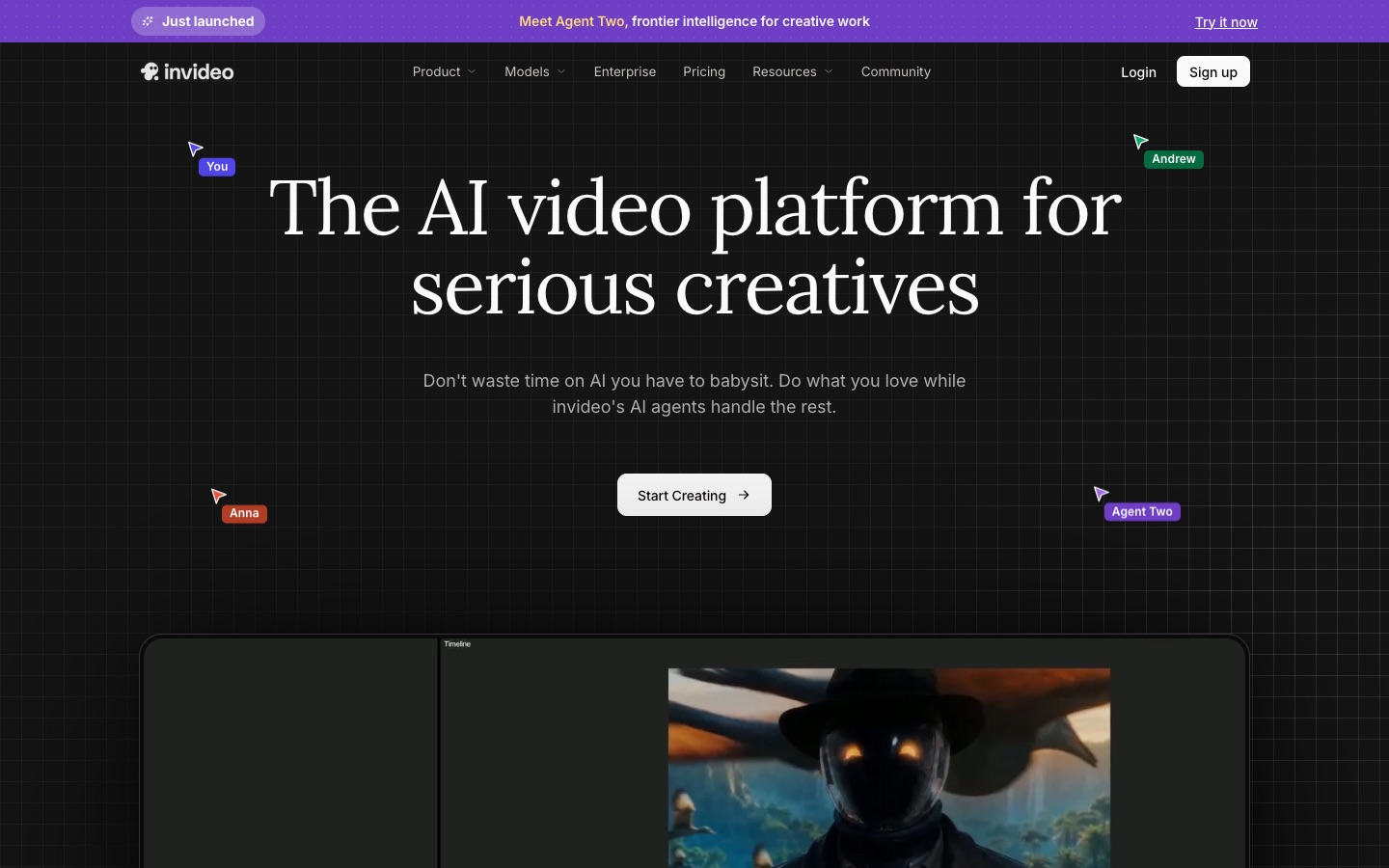 The official InVideo homepage, captured on September 15, 2026. Credit: invideo
The generator is for people who have no raw footage; the editor and the agent are for people who do. Both layers draw credits from the same wallet.
What can InVideo do?
Generate a video from scratch, edit it with words, and run leading video models without opening a separate account for each one. These are the core capabilities according to the product pages and help center, with one practical business use case alongside each.
- Video from a prompt (AI Video Generator). According to the product page, the system writes a script, adds visuals, voiceover, captions, and music, and you set length, platform, and accent. Use case: a one-minute explainer for a new service, no shoot day required.
- Text-command editing (Magic Box). Write "change the accent," "delete scenes," or "add a funny intro," and the video updates. Use case: three versions of the same ad, each with a different opening, in ten minutes.
- Agent Two and invideo Editor. An agent that takes instructions like "trim to 60 seconds," "clean up the silences," or "color-match the two shots," and works directly on a real timeline. Every change is a clip you can move or undo. Use case: an hour of event footage turned into a draft video.
- 200+ models in one place. According to the help center and the model list on the site: Veo 3.1, Sora 2, Kling, Seedance, Wan, Hailuo, and for images, Nano Banana Pro and Ideogram. Use case: a cinematic product shot for an ad, without a separate subscription to each model.
- Stock library. According to the product page, more than 16 million images and video clips. According to the help center, the AI selects from Storyblocks, Shutterstock, and iStock. The first two are unlimited; iStock counts against a monthly quota. Use case: a brand video for an industry that is hard to film, such as logistics or healthcare.
- Voiceover and voice cloning. AI voices in 50+ languages according to the product page, and voice cloning from a recording of at least 30 seconds according to the voice-cloning page. Cloning someone else's voice requires their consent, with a verification process. Use case: a video series in the CEO's voice, without sitting them in front of a microphone every week.
- Avatars (AI Twins). According to the avatars page, you upload a 60-second video or a YouTube link, record consent, and receive a digital likeness. A studio-grade avatar requires 30 minutes of footage or more. Use case: product videos for an online store featuring a consistent "presenter."
- Dynamic captions (Dynamic Text). Word-by-word synchronized transcription and captions, in 50+ languages and 10+ styles, with export up to 4K. Use case: a talking-head video for Instagram that works without sound.
- Video translation. According to the translator page, 50+ languages, with Hebrew on the list. One important limitation from that same page: you can only translate videos that were created in InVideo. Use case: an English version of a marketing video built in the tool.
- Sharing and export. Real-time collaborative editing, a review link with frame-accurate comments, MP4, audio-only, and an open project file for Premiere, Final Cut, or DaVinci. Use case: an agency that prepares a draft for a client and hands it off to an editor for finishing.
How to get started: step by step
Six steps from a free account to your first 45-second video, without burning credits on trial runs. The order matters: set spending controls first, then create.
- Open a free account. Go to invideo.io and sign up, no credit card required. According to the help center, the free quota resets every Monday at midnight UTC, which is 02:00 or 03:00 Israel time.
- Set generation approval. In the agent chat box, switch the permission from Always allow to Always ask before generating. From that point on, every generation shows you the prompt, model, length, and aspect ratio for manual confirmation.
- Write a full prompt. Topic, audience, platform, length, voiceover type. For example: "A 45-second vertical video for Instagram, aimed at small business owners, about three invoicing mistakes, female voiceover, calm tone." According to the help center, a line starting with settings: signals an important instruction to the AI, for example to restrict iStock usage.
- Review the draft and edit with words. Watch it once all the way through, then one command at a time: "delete the third scene," "trim the intro," "replace the music with something quieter." A focused command beats a list of ten fixes.
- Swap generic stock footage for your own material. Upload a photo of your office, product, or team, and replace it manually on the timeline. According to the help center, manual editing does not consume credits, and it is also what turns a stock video into something that actually looks like your business.
- Export and check what it cost. Export the MP4 and watch it as a viewer, not as an editor. Then open Project Usage in the project menu and see how many credits the video consumed. That number tells you which plan you actually need.
Hebrew and RTL
Hebrew translation and voiceover appear on the official lists; Hebrew captions and a Hebrew interface are not officially confirmed. So test on a short video before you commit to building Hebrew content on InVideo.
What the official pages say:
- Translation. In the FAQ of the video translator page, Hebrew appears on the language list alongside Spanish, French, Japanese, and others, out of more than 50 total.
- Voiceover. The generator page mentions AI voices in 50+ languages. A full list of Hebrew voices does not appear on any page we reviewed.
- Dynamic captions. The help center mentions 50+ languages without listing them. A previous official InVideo help article listed Hebrew among the languages that did not yet have captions; that article no longer exists (verified September 15, 2026). In other words, there is no current official confirmation either way.
- Interface. No Hebrew interface is mentioned officially. Plan to work in English.
What is likely to break, as with any foreign editor:
- Mixed-direction lines. A sentence like "We switched to InVideo last month" (where the product name is Latin) may render with the Latin word in the wrong position.
- Punctuation. Periods and question marks that drift to the left side of the line.
- Word-by-word highlighting. Styles that highlight each word as it is spoken may run left-to-right on Hebrew text.
- AI-written script. A Hebrew script that the generator writes on its own tends to sound translated. It is better to write it yourself, or with a language model, and paste it in.
What to test in 15 minutes on the free account: a 20-second video with a Hebrew voiceover, one sentence that includes an English word, a number, and a date. Listen to the pronunciation, check the caption direction, then translate to English to see the result in the opposite direction.
If the Hebrew captions do not meet the bar, there is a workflow that does: generate the video in InVideo without captions, produce a Hebrew voiceover in ElevenLabs if the built-in voice is not natural enough, and add automatic Hebrew captions in CapCut.
How Much It Costs: Every Plan from the Official Site
Starter at $20 per seat per month is the first paid tier on the pricing page, and the real cost is determined by credits. Prices are in dollars, verified on September 15, 2026, and subject to change.
| Plan | Price | What You Get | Limits |
|---|---|---|---|
| Free | $0 | Limited credits for trial, access to models and image generation (per the help center) | Weekly quota that resets, watermarked exports |
| Starter | $20 per seat per month, same price monthly or annually | 400 credits per seat, full timeline editor, 100 premium stock clips, 20GB | Agent Two at Lite level only, selected models, Seedance 2.0 Fast and Mini only, up to 5 seats |
| Plus | $60/month monthly, $50/month annually, per seat | 2,000 credits per seat, Agent Two at Lite, Pro and Ultra levels, all models, 200 premium stock clips, 60GB | Up to 10 seats |
| Max | $150/month monthly, $100/month annually, per seat | 5,000 credits per seat (10,000 or 15,000 available), all models, 500 premium stock clips, 200GB, lowest cost per credit | Up to 20 seats |
| Team | $79/month monthly, $65/month annually, per seat | 1,600 credits per seat, multiple workspaces, 200 stock clips per seat, 80GB, 24/7 support, no training on your data | Minimum 5 seats, up to 30 |
| Scale | $215/month monthly, $150/month annually, per seat | 4,000 credits per seat, 400 stock clips per seat, 160GB, basic SSO and indemnification | Minimum 5 seats, up to 30 |
| Enterprise | Quote-based | Custom credits, unlimited seats, SOC 2, SSO, indemnification | Through sales |
An important note: the official site is not consistent. The pricing page shows the table above. The product pages (video generator and avatars) still show individual plans named Plus at $17/month annually ($204/year, 750 credits), Max at $83/month ($996/year, 3,900 credits) and Generative at $167/month ($2,004/year, 8,000 credits), with 4, 16 and 40 avatars and voice clones, and 100, 200 and 1,000 iStock clips. And the billing pages in the help center show a third set of names: Basic at $9, Pro at $30 and Ultra at $80. What controls is the price shown at checkout.
What you are actually paying for. Credits. According to the pricing page, a credit is a "currency" consumed when generating video, using generative models and AI features, not on downloads. According to the same page, a Seedance 2.0 Fast video costs roughly 30 credits per 5 seconds, and an image in Nano Banana Pro costs roughly 2.5 credits. According to the model pricing page, Veo 3.1 costs between 32 and 192 credits per clip of 4 to 8 seconds, depending on resolution and audio. Three rules from the official pages: plan credits do not roll over to the next month; InVideo reserves the right to change credit costs without prior notice; and users who run out of credits can purchase additional credits starting at $5, valid for 12 months but expiring when the subscription expires.
Three more details that save money. According to the help center, prices are in dollars and the card is charged in ILS at the bank rate, and on Apple and Google apps the displayed price may differ due to fees and taxes. Refunds are available within 7 days of purchase or renewal, and only if nothing has been created or downloaded. Canceling a subscription does not trigger a refund, it only stops the next charge.
The cheapest plan that works for a small Israeli business: start free, produce two videos and check in Project Usage how many credits each one consumed. If you work mainly with stock, manual editing and fast Seedance videos, Starter at $20 may be enough. If you need Veo or Kling, the agent at Pro level, or more than two or three generative videos per month, you need Plus, and on annual billing that is $50 per month. Prices change, so check the official site.
Uses for Israeli Businesses
InVideo is especially well suited when there is no raw footage, or when there is far too much of it. Five scenarios by role, all general examples.
Business owner: explainer video for a new service. A prompt with the three things the customer needs to know, a voiceover, and stock that fits the niche. Replace two shots with real footage of the business and export. Instead of a production costing thousands of shekels: one evening and a Starter subscription.
Marketing: three versions of one ad. Generate a base video, then ask Magic Box for three different openings: a question, a number, and a story. Run all three as an A/B test in the campaign and pick the winner. For a single cinematic product shot, it is worth running a model like Veo, and reading the Veo guide first.
Operations: short procedure videos. Record the screen or the workstation, upload to the InVideo Editor, and ask the agent: "Build a one-and-a-half-minute video, preserve the original order of the instructions." The agent cuts; you verify no important step was removed.
HR: a recruitment video for a role. A prompt about the role, the culture and the office, with a voiceover in the recruitment manager's own voice after voice cloning from a 30-second recording, with her consent. Anyone building a training series with a recurring presenter should also compare the HeyGen guide.
Sales: a customized video for a large prospect. A 40-second video naming the prospect's company, the problem that came up in the call, and the solution. Send a view link instead of a file, and read in the comments what the prospect asked.
InVideo vs. CapCut, VEED and HeyGen: An Honest Comparison
The difference is where you start: InVideo from a prompt, CapCut and VEED from footage, HeyGen from an avatar. InVideo data is from the official site (September 15, 2026); the rest is from our guides on CapCut, VEED and HeyGen.
| InVideo | CapCut | VEED | HeyGen | |
|---|---|---|---|---|
| Starting point | Prompt or raw footage for the agent | Phone footage and templates | Footage, screen recording | Script and avatar |
| Entry price | Free with weekly quota; Starter $20 per seat | Free core; Pro in the $20 range | Free with watermark; Creator $20 | Free 3 videos/month; Creator $29 |
| Billing model | Credits per generation | Subscription | Subscription + AI credits | Subscription + credits |
| Hebrew subtitles | Not officially confirmed | Yes, built in | Yes, officially | Not detailed in our guide |
| Hebrew voiceover and dubbing | Hebrew in the translation language list | Reasonable Hebrew voices | Hebrew dubbing not supported | Hebrew dubbing in paid plans |
| Strength | Video without footage, 200+ models, word-based editing | Reels, templates, trends | Talking-head and tutorial videos from the browser | Talking avatar and localization |
| Weakness | Inconsistent pricing, credits run out, Hebrew unconfirmed | ByteDance privacy, long-form editing | Credits, no Hebrew dubbing | Less suited for video without a presenter |
When to choose each one:
- InVideo when there is no footage at all and you need an explainer, an ad or faceless content, or when you want to try several video models from one account.
- CapCut when the deliverable is a vertical reel from a phone with Hebrew subtitles and the budget is near zero.
- VEED when the video is a talking-head or screen recording, in the browser, with subtitles and translation.
- HeyGen when the video needs a presenter that updates from text, such as training and onboarding content.
For a broad look at the category, see the AI video tools guide, and for anyone who wants to practice all of them in a logical sequence, the interactive AI video course.
Privacy and Limitations
InVideo commits to not training its own models on your content, but some of the third-party model providers it runs may be permitted to do so. That is the distinction every manager needs to understand before uploading business footage.
What the Privacy Policy and Terms of Service say (both updated July 8, 2026):
- Model training. InVideo does not use your content, inputs, outputs or designs to train its own models. It does use aggregated, de-identified usage data.
- AI providers at two tiers. Standard-tier providers are contractually prohibited from using your content for their own purposes. "Experimental"-tier providers may use content to improve their own models under their own terms. The list appears in the company's Trust Center.
- Face and voice. Creating an avatar or cloning a voice involves processing facial and voice characteristics, and per the terms requires explicit consent at a separate step in the product, which can be revoked.
- Retention and deletion. Content is deleted within approximately 90 days of account deletion. Payment records are retained for 7 years.
- Rights to the video. Ownership of the content remains yours; InVideo transfers to you whatever rights it holds in the output, and commercial use is permitted. Stock clips are subject to vendor licenses and carry no exclusivity. Legal indemnification for output appears only in Scale and Enterprise.
- Prohibitions. Using an avatar to impersonate someone in a misleading way or to create a deepfake that could cause harm is prohibited.
- Contracting party. Under the terms, for users outside the United States, Canada, Mexico and India the provider is Invideo Innovation Pte. Ltd. of Singapore. Minimum age 13.
What not to upload: footage containing identifying details of customers or patients, internal organizational materials, and the face or voice of anyone who has not given written consent. For organizations with security requirements, Enterprise offers an isolated environment, SOC 2 and SSO.
Limitations, honestly:
- Stock looks like stock. A video made entirely of stock clips looks generic. Replace at least two or three shots with real footage.
- The agent generates without asking, by default. Without changing that setting and without a per-project credit limit, a month's budget can be gone in one evening.
- Translation only for videos created in the tool. According to the translator page, a video edited elsewhere cannot be translated in InVideo.
- iStock counts in every new video. According to the help center, the same iStock clip used in a different video is counted again. Re-exporting the same video is not counted again.
- After cancellation, the watermark returns. According to the help center, a video created under a subscription and edited after downgrading to free will download with a watermark.
- Hebrew subtitles are unconfirmed. Anyone whose content is in Hebrew should test before paying.
Common Mistakes
Most mistakes in InVideo are credit mistakes, not creative mistakes. Here are the ones that repeat:
- Leaving the agent on Always allow. Switch to approval before generation before the first prompt, and set a credit limit per project.
- Choosing an expensive model for a draft. Veo 3.1 at 4K with audio for a shot that may not even make the cut. Start with Lite and fast models, then move to Pro for the final version.
- Buying annual before measuring anything. Two free videos and a look at Project Usage will tell you how many credits you actually need.
- Trusting the price on the product page. Three official pages, three price lists. Check at checkout.
- Publishing an AI-written Hebrew script without editing it. Write or refine the script before generating the voiceover, because every regeneration costs credits again.
- Uploading sensitive footage without checking which models are involved and what tier they sit at within InVideo.
Frequently Asked Questions
What is InVideo?
A browser-based AI video platform. You write a prompt and get a video complete with script, stock footage or AI visuals, voiceover, music and subtitles, and you edit it using text commands. In 2026, the platform added Agent Two, a professional timeline editor, and access to more than 200 models including Veo 3.1, Sora 2 and Kling.
How much does InVideo cost?
According to the pricing page (checked September 15, 2026): Starter at $20 per seat per month, Plus at $60 monthly or $50 annually, Max at $150 or $100, and business plans Team and Scale for teams of 5 and up. There is also a free plan with a weekly quota. Prices change, so check the official website.
Does InVideo support Hebrew?
Partially. According to the official video translator page, Hebrew is listed among the supported languages for translation, and voiceover is available in 50+ languages. There is no current official documentation confirming automatic Hebrew subtitles or a Hebrew interface, so test on a short video before paying.
Can I use InVideo for free?
Yes, without a credit card. According to the help center, the free plan provides limited credits that reset every Monday at midnight UTC. Videos exported without a paid subscription will carry a watermark.
Is InVideo content allowed for commercial use?
According to the Terms of Service (updated July 8, 2026), InVideo transfers to you the rights it holds in the output, and you are permitted to distribute and commercialize it. Stock footage is subject to the suppliers' licenses, without exclusivity. Legal indemnification for the output is offered only on the Scale and Enterprise plans.
Does InVideo train AI on my videos?
According to the privacy policy, InVideo does not use your content, inputs or outputs to train its own models. However, model providers classified by InVideo as "experimental" may use content to improve their own models under their own terms, so do not upload sensitive material.
InVideo or CapCut?
InVideo is the stronger choice when you have no raw footage: an explainer or ad from a prompt, with stock and voiceover. CapCut is stronger when you have footage shot on your phone and need a reel with subtitles and templates, and its core editor is free. Many businesses draft in InVideo and polish in CapCut.
The Bottom Line
InVideo is the fastest path for a business with no videographer and no raw footage to arrive at a video ready to publish, while also using the same account to try the leading video models. It is not the tool for a phone reel with Hebrew subtitles, and it demands discipline around credits.
To return to where this article began: a complete video from a single prompt is genuinely not the interesting part. The interesting part is three things to check in the first week: that the agent asks for confirmation before it generates, that Hebrew holds up on a 20-second video, and that the price on the payment screen matches what you expected. Whoever checks all three pays for videos, not for attempts.
Want to work through this inside the page? The interactive InVideo course for 9.90 ILS, part of the interactive AI courses series. And for manual polishing of a finished video, there is also a CapCut course.
Further reading: CapCut: The Complete Guide · VEED: The Complete Guide · HeyGen: The Guide · ElevenLabs: AI Voice in Hebrew · Kling: The Guide · AI Video Tools
Sources
All pages were checked on September 15, 2026. Prices, quotas and credit costs change, so verify on the official website before making a decision.
- Official pricing page (plans, credits, seats, credit and cancellation FAQs): https://invideo.io/pricing
- Official homepage: https://invideo.io/
- Video generator page (video from prompt, Magic Box, Plus, Max and Generative pricing): https://invideo.io/make/ai-video-generator/
- Video translator page (Hebrew listed among supported languages): https://invideo.io/make/video-translator/
- Voice cloning page: https://invideo.io/tools/ai-voice-cloning/
- Avatars page: https://invideo.io/make/ai-avatar-generator/
- Enterprise page: https://invideo.io/enterprise/
- Video model pricing page: https://invideo.io/help/billing/video-model-pricing/
- Subscriptions and refunds page: https://invideo.io/help/billing/subscriptions-and-refunds/
- Extra credits page: https://invideo.io/help/billing/extra-credits/
- Help center, introducing invideo Editor: https://help.invideo.io/en/articles/16819946-introducing-invideo-editor
- Help center, free manual editing and what uses credits: https://help.invideo.io/en/articles/16920220-is-invideo-editor-free-and-which-actions-use-credits
- Help center, giving the agent instructions on the timeline: https://help.invideo.io/en/articles/16920194-how-to-ask-ai-agents-to-edit-your-timeline
- Help center, how credits are charged when using AI agents: https://help.invideo.io/en/articles/14718313-how-credits-are-charged-when-using-ai-agents
- Help center, 200+ models: https://help.invideo.io/en/articles/14755439-agents-models-on-invideo
- Help center, dynamic subtitles: https://help.invideo.io/en/articles/14754637-adding-dynamic-text-to-your-videos
- Help center, free plan: https://help.invideo.io/en/articles/9380226-can-i-use-invideo-ai-for-free
- Help center, iStock consumption and how to control it: https://help.invideo.io/en/articles/9380474-how-is-istock-consumed-and-how-do-i-control-it
- Help center, watermarks in preview and export: https://help.invideo.io/en/articles/9387948-why-are-there-still-watermarks-on-my-video-if-i-m-on-a-paid-plan
- Help center, editing and downloading after downgrading to free: https://help.invideo.io/en/articles/10741590-if-the-video-is-created-on-the-paid-plan-can-i-still-edit-and-download-it-once-i-am-on-the-free-plan
- Help center, exporting: https://help.invideo.io/en/articles/16833840-exporting-your-video-audio-or-project
- Help center, refunds: https://help.invideo.io/en/articles/10025940-refunds-how-to-request-one-and-what-s-covered
- Help center, prices in dollars and billing in local currency: https://help.invideo.io/en/articles/11532410-do-prices-vary-by-country-and-can-i-pay-in-my-local-currency
- Terms of Service (updated July 8, 2026): https://invideo.io/terms-and-conditions/
- Privacy Policy (updated July 8, 2026): https://invideo.io/privacy-policy/
Yaakov Tzedek is an AI lecturer, consultant and organizational AI implementation specialist, and leads the Daily AI Tip community. Join the WhatsApp group.
Frequently asked questions

Yaakov Tzedek
An Israeli AI lecturer, consultant and implementer who has supported 100+ organizations in AI implementation and lectured for 200+. Official content partner of Meta, Google, Canva and TikTok, featured on Israel's Channel 13.
More about Yaakov →