
- What OpusClip is, how it turns a lecture, podcast or webinar into short clips with virality scores, captions, reframing and B-roll, all plans and prices (Free, Starter, Pro, Business), Hebrew support, privacy and a comparison with CapCut and Descript.
OpusClip charges for the minutes of video you upload, not for the number of clips you get out. According to the official help center, one credit equals one minute of the original video, a 4.5-minute video counts as only 4 credits (rounded down), while a 30-second video counts as a full credit.
One hour of webinar goes in, ten one-minute clips come out, each stamped with a virality score from 0 to 99. That's not even the interesting part.
The interesting part is what happens after the numbers appear. Most organizations I work with have an archive of lectures, webinars, and podcasts that nobody repurposes, because "there's no one to edit them." OpusClip solves exactly that bottleneck, and in the same breath opens two new ones: what to do when the webinar is in Hebrew, and how many of those ten clips are actually worth publishing.
This guide was built from OpusClip's official pricing page, product pages, help center, and privacy policy (reviewed September 14, 2026), and from the company's official feature-request board on everything related to Hebrew. What it is, how to get started, what it costs, what breaks in Hebrew, and when CapCut is the better choice.
In short
| Question | Short answer |
|---|---|
| What it is | A browser-based AI tool that cuts long video into short vertical clips, with captions and a virality score |
| Who it's for | Anyone who already has long video: webinars, lectures, podcasts, Zoom recordings |
| Price | Free, 60 minutes per month with watermark; Starter $15; Pro $29/month or $174/year; Business custom |
| What you're paying for | Minutes of uploaded video (1 credit = 1 minute), not the number of clips |
| Hebrew | Transcribed, but not on the official language list, and captions render left-to-right; RTL is planned |
| vs. CapCut | OpusClip selects and cuts, CapCut edits and captions. For an Israeli business, both together |
What is OpusClip?
OpusClip is an AI tool that takes a long video and returns short clips ready to publish. You upload a file or paste a YouTube link, the system analyzes the content, picks the moments it thinks will work on social media, cuts them, rotates them into vertical format, adds captions, and scores them.
Definition: OpusClip is a browser-based service (with mobile apps) that automatically converts one long video into several short clips: moment detection, cutting, 9:16 reframing with speaker tracking, animated captions, B-roll, a virality score per clip, and direct publishing or scheduling to social networks. You pay by minutes of source video.
The sentence that opens the official website sums up the promise: one long video, ten viral clips, ten times faster creation. According to that same page, more than 16 million creators and businesses use the tool. The tool was born in 2022 as a transcription-based clipping engine, and by 2026 its core model, ClipAnything, analyzes the image and audio as well, not just the words.
It's worth understanding the positioning right now: OpusClip is not a video editor. It has no timeline in the sense that CapCut or Premiere does. It is a machine that takes long raw material and returns candidates. The fine editing, and in Hebrew the captions too, happens afterward.
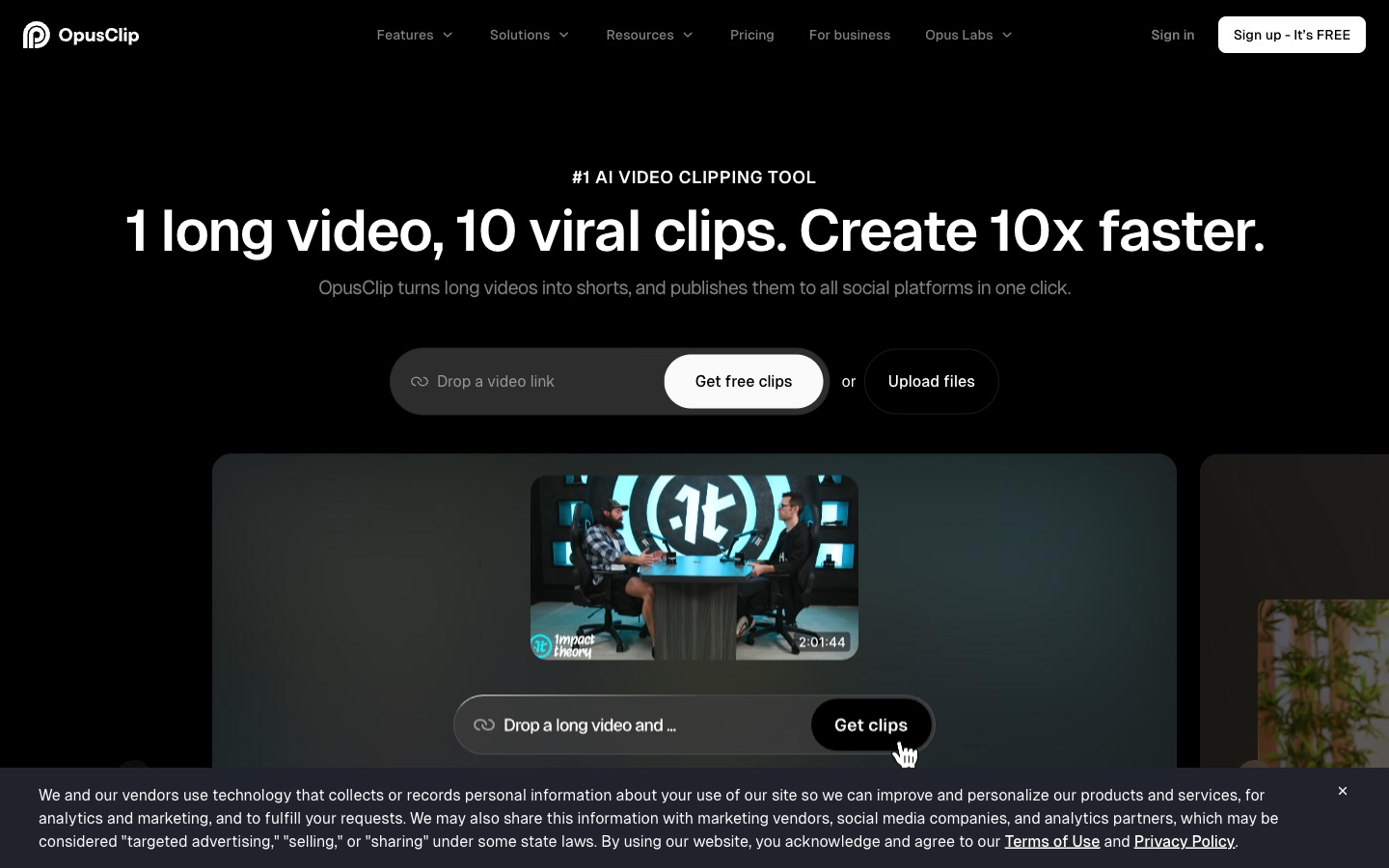 The official OpusClip website, captured September 14, 2026. Credit: OpusClip
What can OpusClip do?
The core is moment detection and cutting, and around it seven capabilities have been built, each saving one step of manual work. Here is the list as it appears on the official product pages, with the business use case next to each one:
- ClipAnything, moment detection across any genre. According to the product page, the model analyzes every frame using visual, auditory, and emotional cues: objects, scenes, actions, sounds, emotions, and on-screen text. You request in plain language ("every moment the audience laughs," "every step in the demo") and get clips even from video that is almost entirely silent. Business use: a 40-minute product demo becomes five clips of "how to do X."
- Virality Score. According to the help center, every clip receives a score from 0 to 99 based on four metrics: hook, flow, value, and trend. Available on Starter and Pro only. Business use: instead of watching all ten clips, you start with the top three.
- AI Reframe, tracking reframe. According to the product page, the system converts to 9:16, 1:1, or 16:9 and tracks a moving subject (a speaker walking across a stage, a ball in a game). You can direct it via prompt ("follow the face") or manually. Business use: a lecture shot with a wide-angle camera becomes a vertical reel without cropping out the speaker.
- Animated captions. According to the pricing page, in 20 or more languages, with emoji and keyword highlighting, and according to the homepage at over 97% accuracy. On the free plan they carry a watermark. Business use: an English clip is ready to publish without touching it. For Hebrew, see the dedicated section below.
- AI B-roll. According to the product page, the system adds atmosphere clips generated by AI or pulled from the Pexels stock library, in one click or based on a sentence you select. Available on Pro. Business use: a talking-heads podcast gets visuals that hold the eye.
- Brand Templates. According to the product page: font, colors, a graphic overlay, intro and outro cards, and a brand vocabulary. Starter gets one template, Pro gets two. Business use: every clip looks like it came from the same company, even when different people produce them.
- Publishing and scheduling to social networks. According to the social-account FAQ in the help center, Starter publishes immediately to YouTube, TikTok, and Instagram; Pro adds LinkedIn, a Facebook page, and X (beta), and allows scheduling up to 6 accounts per platform. Business use: a month of posts scheduled in a single day.
Alongside these, the Pro plan also includes a text-based editor and timeline, filler-word and silence removal, speech enhancement, video dubbing, export to Premiere and DaVinci, and input from more than ten sources (YouTube, Google Drive, Vimeo, Zoom, and more). According to the help center, the technical limit is video up to 10 hours and 30 GB.
How to get started: step by step
From sign-up to a first published clip takes about 20 minutes, and most of that is waiting for processing. Here is the workflow that works, including what to do in Hebrew:
- Open a free account at opus.pro. According to the pricing page, no credit card required, and you receive 60 credits per month. According to the official Reframe page there is also a 7-day Pro trial with 90 minutes, worth using to test the paid features.
- Choose the right video. For the first attempt: a lecture or webinar of 30 to 60 minutes, one or two speakers, clean audio. A Zoom recording with a shared screen for the entire duration is the worst choice for a first attempt, because there are no faces to track.
- Paste a link or upload a file. On the free plan the input is a local file only (up to 10 GB according to the pricing page); from Starter up, also a link to YouTube, Drive, or Zoom. Before clicking, move the "Processing timeframe" slider: according to the help center, this means you spend credits only on the portion you selected.
- Configure the request. Desired clip length (30 to 60 seconds for Reels), a topic or ClipAnything prompt ("moments where a practical tip is given"), 9:16 aspect ratio, and caption style. In Hebrew: turn captions off at this stage, see why in the next section.
- Filter by score. After processing you receive a ranked list of clips. The rule I give in workshops: watch only the top three in full, and check that the hook opens on a complete sentence, not mid-word. On Starter and up you can request reprocessing with a more precise prompt (Reprompt).
- Export or publish. On the free plan: download at 1080p with a watermark, and according to the pricing page, within 3 days, or the clips cannot be exported. On paid plans: direct publishing or scheduling. In Hebrew: download without captions, bring into CapCut, and run automatic captions there.
The first clip will take 20 minutes. After three webinars, the entire process drops to ten minutes of human work per hour of raw material.
Hebrew and RTL
Hebrew works in OpusClip halfway: the system understands what was said, but does not know how to display it correctly. This is the section that justifies a Hebrew-language guide, so here it is in full honesty.
What the official documents say. The list of supported languages in the help center (reviewed September 14, 2026) counts 25 languages: English, German, Spanish, French, Portuguese, Italian, Dutch, Russian, Polish, Indonesian, Ukrainian, Swedish, Turkish, Norwegian, Croatian, Romanian, Slovak, Greek, Danish, Finnish, Hungarian, Czech, Japanese, Korean, and Vietnamese. Hebrew is not on the list, and neither is Arabic. The pricing page refers to "20+ languages" without specifying.
What actually happens. On OpusClip's official feature-request board there is a request called "Hebrew and RTL usage," open since August 2023 with more than 60 supporters. Users report that Hebrew transcription is accurate, but the words in the captions are displayed left-to-right, in reverse order. In April 2026 the company updated the status to "planned," with no date.
What this means for your work:
- Moment detection works in Hebrew too. The internal transcription understands the content, so the choice of which segment to cut is reasonable. ClipAnything also relies on image and sound, which further reduces the dependency on language.
- Captions are broken. Do not publish Hebrew captions that came out of OpusClip without checking, and in practice it is better to turn them off and add them in another tool. Automatic Hebrew captions in CapCut work, and that is the workflow I recommend.
- The interface is English only. There is no Hebrew UI, and ClipAnything prompts should be written in English as well. Brand template text is better in English until RTL support arrives.
- Brand templates with Hebrew text (intro card, brand vocabulary): test on one clip before rolling it out to the entire team.
What to check when you read this guide: upload a 5-minute Hebrew video with captions turned on, and check three things: whether the order is still reversed, whether punctuation marks jump to the wrong side, and whether English words in the middle of a Hebrew sentence stay in place. If all three are correct, the feature has been implemented and you can skip the CapCut step.
Pricing: All Plans From the Official Site
Four tiers, and the variable that determines everything is how many minutes of video you upload per month. Data from the official pricing page and help center, September 14, 2026:
| Plan | Price | What You Get | Limitations |
|---|---|---|---|
| Free | $0 | 60 credits/month, clips up to 1080p, automatic reframing, captions with emoji and word highlights | Watermark, no editor, clips cannot be exported after 3 days, local file input only |
| Starter | $15/month (monthly only) | 150 credits, virality score, captions in 20+ languages, publishing to YouTube Shorts, TikTok, and Reels, editor, one brand template, filler word and silence removal, no watermark | Media deleted after 29 days, no scheduling, no B-roll, no team seats |
| Pro | $29/month, or $174/year ($14.50/month) | 300 credits/month (3,600/year, available immediately), 2 team seats, 2 brand templates, 6 social connections, AI B-roll, input from 10+ sources, export to Premiere and DaVinci, 9:16 / 1:1 / 16:9, publishing scheduler, custom fonts, speech enhancement, dubbing, limited API access | Credit top-up packs available (up to 15 packs) |
| Business | Contact for pricing | Everything in Pro, priority processing, custom credits and seats, custom brand assets, dedicated storage, API and integrations, MSA agreement, Slack channel support, enterprise security | Per agreement |
What you are actually paying for. According to the help center, one credit equals one minute of the original video you upload, regardless of how many clips come out. A video shorter than a minute is rounded up to one minute; a video with partial minutes is rounded down. Publishing to X costs one additional credit per post. On a monthly plan, credits are valid for 60 days, meaning they carry over into one additional month. On an annual plan, credits are valid for 12 months. Per the official terms of service, there are no refunds for a paid period, so start with monthly.
Translated into business numbers: a weekly 45-minute webinar is roughly 180 minutes per month. The free plan covers one webinar; Starter covers three; Pro covers all of them and leaves room for a podcast. And if you run only the good section of the webinar (using the processing range bar), the bill shrinks accordingly.
The cheapest plan that works for a small business: Starter, $15/month. It removes the watermark, unlocks the virality score and the editor, and 150 minutes is enough for two to three webinars per month. Move to Pro when you need one of three things: LinkedIn scheduling, B-roll, or a second person on the team. Prices change, so check the official site.
Use Cases for Businesses
OpusClip's value is with people who are already recording but not publishing. Five scenarios by role, all using synthetic examples:
Business owner: A consultant who runs a monthly lecture for their client community, one hour on Zoom. Instead of letting the recording collect dust in Drive, they upload it the next morning, filter the top three clips, add captions in CapCut, and publish one per week. One hour of content covers a month of posts, and what comes out is professional authority that compounds.
Marketing: A marketing manager who receives a 40-minute product webinar from the CEO, in English, for an international audience. Here OpusClip works end to end: English captions at high accuracy, a branded template with the logo, B-roll over the technical segments, and scheduled publishing to LinkedIn and YouTube from the Pro plan. Ten clips in one working day.
Operations and training: A training team recording internal walkthroughs of a new system. ClipAnything with the prompt "every step where someone shows how to do something on screen" extracts one-minute how-to segments that go into the internal knowledge base. The privacy section matters here: if the recording includes real customer data on screen, it does not go up to a cloud tool.
Human resources: A recruitment video. Three employees are interviewed for 20 minutes each about "why do you work here," and the footage is run with the prompt "personal and emotional moments." The virality score identifies the stories, not the generic sentences, and that is exactly what candidates want to see. Captions in Hebrew, in CapCut.
Sales: A sales rep who records (with consent) a 30-minute product demo for a prospect. With AI Reframe in 16:9 and filler word and silence removal, they get an 8-minute version they send to future prospects instead of scheduling a new demo. Not Reels, but the same engine.
The common thread: OpusClip handles the step that always gets stuck, choosing the moments and making the cut. For writing the next webinar script, use a language model. For voiceover on dubbed versions, use ElevenLabs. For music, use Suno. For a full review of video tools, see the guide to leading AI video tools.
OpusClip vs. CapCut vs. Descript: An Honest Comparison
These are three tools for three different jobs, and most businesses will need two of them. The comparison is based on the official pricing pages of all three (September 14, 2026) and our CapCut guide:
| OpusClip | CapCut | Descript | |
|---|---|---|---|
| What it is | Clipping engine: long to short, automated | Full video editor, mobile and desktop | Video and audio editor driven by transcript text |
| Strength | Moment selection, virality score, tracking reframe, scheduling | Automatic captions in Hebrew, templates, trends | Edit by deleting words, podcasts, filler word removal |
| Hebrew | Transcription yes, RTL captions no (planned) | Interface and captions in Hebrew, accuracy moderate to good | Not covered in official documentation |
| Free tier | 60 minutes/month, watermark, 3-day export window | Core editor free, 1080p without watermark | 60 minutes/month |
| Paid | Starter $15, Pro $29/month | Pro in the range of $20/month (per our guide, July 2026) | In the range of $16 to $65/month depending on plan (Hobbyist, Creator, Business) |
| Automatic clipping | The core feature | Auto Highlights, less granular | "Create Clips" from Creator tier and up |
When to choose which:
- OpusClip when you have an archive of long video that nobody is watching. It wins on selection and volume.
- CapCut when you are shooting short Reels from scratch, or when you need Hebrew captions. For an Israeli business, it is almost always the second step after OpusClip. The interactive CapCut course covers that side of the workflow.
- Descript when the main product is a podcast and you want to edit the full episode through text editing before clipping. According to its pricing page, full clip creation opens at the Creator tier.
Privacy and Limitations
Your content stays yours, but it passes through servers in the United States and is also used to improve the product. What the official documents say (September 14, 2026):
- Ownership: Per the terms of service, your ownership of the content is not affected. You grant OpusClip a license to translate, modify (for technical purposes), and reproduce the content in order to operate the service. For content you share publicly through the service, the license is broader.
- What is collected and why: Per the privacy policy, video, images, and transcripts are collected to provide editing and sharing services and to improve the product and services. Users in the European Union can opt out of using personal data for AI research and model development. For users outside the EU, the document does not explicitly present a similar option.
- Where: Per the policy, the service runs on Google Cloud servers in the United States. The official Trust Center lists SOC 2 Type 2, SOC 3, GDPR compliance, encryption in transit and at rest, and a list of sub-processors that includes Google and OpenAI, among others.
- Deletion: Per the policy, you can request deletion of personal data, including through a dedicated account deletion address. On the free plan, clips expire after 3 days anyway, and on Starter, media is deleted after 29 days.
What not to upload: recordings with customer data on screen, executive meetings, training sessions with financial data, and anything you would not send by email to a third-party vendor. The rule I give organizations for every cloud tool: content that is already intended for publication, yes. Internal content, only after reviewing the policy. For public sector and financial organizations, check regulatory requirements before adopting.
The honest limitations:
- Hebrew captions are broken, as detailed above. Until RTL support arrives, this is a half-workflow tool for Hebrew content.
- The score is an estimate, not a prediction. Four statistical measures based on what performs on social networks, primarily in English. A clip scoring 85 can start in the middle of a sentence.
- Generic clips from long webinars. When a speaker talks for 60 uninterrupted minutes without clear punchlines, even the best model returns segments that feel disconnected. The fix starts with the presentation itself: sentences that open and close within a minute.
- Credits burn on input. Upload an hour, you paid for an hour, even if only one clip is worth using. The processing range bar is your best friend.
- Cloud dependency and changing policy. The pricing page has changed several times over the past two years (the previous tier was called Essential), and there are no refunds. Monthly contract, not annual, until you know it sticks.
Common Mistakes
- Uploading a Zoom recording with a shared screen and expecting a good Reel. No face, no tracking, no clip. Record the speaker on a separate camera or switch to gallery view with video.
- Publishing Hebrew captions without reviewing them. The reversed order looks like a business mistake, not a tool mistake.
- Trusting the score without watching. Always watch the top three clips in full, from the first second to the last.
- Uploading the full hour when the good part is 20 minutes. The processing range bar saves two thirds of your credits.
- Paying annually on day one. Per the terms of service there are no refunds. One month on Starter reveals whether the workflow actually sticks in your organization.
- Forgetting the 3-day limit on the free plan. A clip that is not downloaded in time is gone.
- Publishing ten clips on the same day. The engine gives you ten. The feed wants one per day. The scheduler in Pro exists precisely for this.
Frequently Asked Questions
What is OpusClip?
A browser-based AI tool that takes a long video (webinar, podcast, lecture, YouTube link) and returns short, vertical clips ready for Reels, TikTok, and Shorts. It identifies the strongest moments, cuts them, rotates them to 9:16 with speaker tracking, adds animated captions, and assigns each clip a Virality Score. According to the official website, more than 16 million creators and businesses use it.
How much does OpusClip cost?
According to the official pricing page (checked September 14, 2026): Free with 60 credits per month and a watermark; Starter at $15 per month (monthly only) with 150 credits and no watermark; Pro at $29 per month or $174 per year with 300 credits per month (3,600 per year), a full editor, B-roll, a publishing scheduler, and two team seats; Business at custom pricing. One credit equals one minute of source video. Prices change, so check the official website.
What is the Virality Score?
A number from 0 to 99 that the system assigns to each clip, based on four metrics according to the official help center: hook, flow, value, and trend. It is only available on the Starter and Pro plans, and it is a statistical estimate, not a guarantee. A clip scoring 90 in Hebrew still requires a human review.
Does OpusClip support Hebrew?
Partially. Hebrew does not appear on the list of 25 supported languages in the official help center (checked September 14, 2026). In practice, according to the official feature request on the company's public board, the system does transcribe Hebrew, but captions are displayed left-to-right with reversed word order. The request for RTL support has had a "planned" status since April 2026. The workaround for now: use OpusClip for moment detection and reframing, then add captions in CapCut.
What is the difference between OpusClip and CapCut?
OpusClip is a clipping engine: you put in an hour and get ranked clips back. CapCut is an editor: you work on one video manually, with automatic captions that actually work in Hebrew. For an Israeli business, the winning combination is both: OpusClip for selecting moments and cutting, CapCut for Hebrew captions and polish. For anyone shooting short Reels from scratch, CapCut alone is enough.
What is ClipAnything?
OpusClip's clipping model that, according to the official website, analyzes every frame based on visual, auditory, and emotional cues rather than just the transcript. You describe what you want in plain language ("every moment where pricing is discussed") and get clips even from video with almost no speech: sports, vlogs, product demos.
What happens to the video I upload to OpusClip in terms of privacy?
According to the official privacy policy, the service runs on Google Cloud servers in the United States, collects video, images, and transcripts to provide editing and sharing services and to improve the product, and allows EU users to opt out of using personal data for research and model development. According to the terms of service, ownership of the content remains yours. My rule: content that is intended for publication anyway, yes. Internal recordings containing client information, no.
Is the free plan enough for a business?
For testing, yes. For regular use, no. 60 minutes per month is one webinar, the clips come out with a watermark, there is no editor, and they stop being exportable after 3 days. A business that publishes weekly will hit Starter ($15) within a month, and the moment you want a publishing scheduler, B-roll, or team seats, you will move to Pro.
The Bottom Line
An hour goes in, ten clips come out, and that is honestly not the interesting part. The interesting part is that OpusClip removes the one barrier that keeps organizations' video archives sitting in a drive: nobody wants to watch an hour to find one minute. The tool finds that minute, rotates it to vertical, and ranks it. In Hebrew it does half the work, and the other half, the captions, moves to CapCut until the planned RTL support arrives.
The practical recommendation: open the free account today, upload your most recent webinar tomorrow, and run the top three clips through CapCut the day after. After one month you will know whether this is a workflow that sticks in your organization, and if it is, Starter is the cheapest marketing expense you will make this year.
Want to practice this inside an interactive page? The interactive OpusClip course for 9.90 ILS, and all 33 interactive courses from the academy.
Sources
All facts in this guide were verified against the following sources on September 14, 2026:
- OpusClip official homepage (16 million users, ClipAnything, ReframeAnything, caption accuracy): https://www.opus.pro/
- Official pricing page (plans, credits, watermark, export limits, seats): https://www.opus.pro/pricing
- Help center, how credits work (1 credit = 1 minute, rounding, 60-day expiry, publishing to X): https://help.opus.pro/docs/article/how-are-credits-consumed
- Help center, plans and credits (60 / 150 / 300 minutes): https://help.opus.pro/docs/article/plans-and-credits
- Help center, Virality Score (0 to 99, four metrics, Starter and Pro): https://help.opus.pro/docs/article/virality-score
- Help center, supported video languages (25 languages, Hebrew not included): https://help.opus.pro/docs/article/video-languages-supported
- Official feature request board, "Hebrew and RTL usage" (planned status, April 2026): https://opusclip.canny.io/feature-requests/p/hebrew-and-rtl-usage
- Help center, social account FAQ (platforms by plan, 6 accounts per platform): https://help.opus.pro/docs/article/9432410-social-account-faq
- ClipAnything product page: https://www.opus.pro/clipanything
- AI Reframe product page (9:16, 1:1, 16:9, object tracking, 7-day trial): https://www.opus.pro/ai-reframe
- AI B-roll product page (AI and Pexels): https://www.opus.pro/ai-b-roll
- Brand templates product page: https://www.opus.pro/brand-templates
- Upload limits (10 hours, 30 GB): https://help.opus.pro/api-reference/limitation
- Official privacy policy: https://www.opus.pro/privacy-policy
- Official terms of service (ownership, license, no refunds): https://www.opus.pro/terms-of-service
- Trust center (SOC 2, GDPR, encryption, sub-processors): https://trust.opus.pro/
- Descript pricing page (for comparison): https://www.descript.com/pricing
- tzedek.me CapCut guide (Pro pricing, Hebrew): https://tzedek.me/blog/capcut-guide
Prices change, so check the official website.
Frequently asked questions

Yaakov Tzedek
An Israeli AI lecturer, consultant and implementer who has supported 100+ organizations in AI implementation and lectured for 200+. Official content partner of Meta, Google, Canva and TikTok, featured on Israel's Channel 13.
More about Yaakov →