- Complete LazySocial guide, updated November 4, 2026: bulk video and Reels scheduling for Instagram, Facebook, and TikTok, AI assistant, Claude and ChatGPT integration, WhatsApp groups, ads, Google Business, Shabbat mode, pricing, and comparisons with Buffer, Hootsuite, Metricool, Later, SocialBee, and Publer.
LazySocial has a city-based Shabbat mode: you cannot schedule a post during Shabbat or Jewish holidays, and the calendar shows exactly when you can publish again.
LazySocial is an Israeli AI-powered social media management tool: upload images and videos, get Hebrew copy for every network (including hashtags), and schedule to Instagram, Facebook, TikTok, YouTube, LinkedIn and your business WhatsApp groups, dozens of posts at once, on a calendar that knows the Jewish holidays and respects Shabbat. Those who prefer not to click through everything themselves can hand the work to the Personal Assistant (a paid add-on) or to Claude and ChatGPT via MCP (on the Agency plan), and simply approve. Around that core there is an inbox, an auto-reply bot, paid advertising and a monthly report. Pricing starts at 99 ILS + VAT per month, after a 3-day free trial with no credit card required.
The LazySocial feature list contains 59 tools divided across eleven categories, all available on every plan. That is not actually the interesting part. The interesting part is one small line at the top of the page: every network connection is official, with one exception. That exception, along with a few other lines worth reading before you pay, is what I detail here, complete with screenshots, pricing and comparisons to the familiar alternatives.
This guide was written from the public website (including the terms of service and privacy policy) and from inside the platform itself. Prices were verified on October 23, 2026 and again on November 4, 2026, and the screenshots were taken from inside the platform on October 24, 2026. As of November 4, 2026, the interface and website exist in Hebrew only (I found no language toggle or English version), and all page names, group names, post content and account names in the screenshots are blurred.
Want to try it yourself? LazySocial offers a free 3-day trial with no credit card, including two network connections. Registration requires mobile verification by SMS; at the end of the trial you either choose a plan or simply stop.
What you will find in this guide
The guide is long because the tool is broad. Here are shortcuts based on what you are looking for:
- Not a marketer and want it to run itself: Upload once and let it run, and The agent you hand all your content to.
- Have a webinar or recorded talk: One webinar, a month of content and Bulk video scheduling.
- Everything in the tool, in one table: All 59 tools by category.
- Paid advertising: Paid ads from inside the platform.
- Money and comparisons: What it costs, vs. Buffer and Hootsuite, and Hebrew vs. international tools.
- Before you decide: When LazySocial is not right for you.
In short
| Question | Short answer |
|---|---|
| What is it? | A Hebrew-language social media management tool: content calendar, multi-network scheduling, WhatsApp groups, inbox, bot, ads and reports |
| What does it cost? | Basic 99 ILS, Professional 199 ILS, Agency 499 ILS per month, before VAT |
| Is there a free plan? | No free plan. There is a 3-day trial with no credit card, including two connections |
| Many videos at once? | Yes. Select a folder in the media library, each file becomes a row, and you spread dates across them in one click (up to 200 MB per file) |
| Does it write descriptions and hashtags? | Yes. The assistant writes in Hebrew in the business's voice, and there is a hashtag button plus permanent business hashtags |
| An agent that does it for me? | The Personal Assistant inside the platform (paid add-on), or Claude and ChatGPT via MCP (Agency plan). Both ask for approval before every action |
| WhatsApp? | Meta's official WhatsApp Business API (templates, campaigns, bot), and groups and statuses via Green API, which is not official |
| Paid ads? | Meta, Google and TikTok campaigns in one screen, plus boosting an existing Facebook or Instagram post |
| Email reports? | A monthly report by link or PDF, and emails for events (failed post, new review, lead, etc.). I did not find an automatic weekly report |
| What is Israeli about it? | Hebrew, Jewish holiday calendar, Shabbat mode by city, "Closed on holidays" for Google Business |
| Interface language? | Hebrew only, as of November 4, 2026 |
| Who is it less suited for? | Anyone who needs a permanent free plan, an English interface, in-tool image and video creation, or who does not want an unofficial connection to their WhatsApp number |
Definition: A social media management tool is a platform you connect your business accounts to, from which you write, schedule and publish content, reply to comments and messages, and view analytics, all without opening each app separately. Each connection is made through the official API of the relevant network, authorized by you on that network's own screen.
Who it suits, and who it does not
In short: LazySocial suits an Israeli business that wants a consistent presence across several networks in Hebrew without spending time on it every day, and agencies managing multiple such businesses. It is less suited to anyone looking for a free tool, an English interface, or a tool that also creates the images and videos.
Particularly well suited for:
- Business owners who are not marketers, who have content (photos, videos, a recorded talk) but lack the time to upload it every day.
- Small businesses, clinics, coaches and service providers, who want regular posts across several networks, fast replies to messages, and Google reviews that do not go unanswered.
- Tech companies and B2B businesses, that publish mainly on LinkedIn, YouTube and Facebook and want to split long-form content (a webinar, a demo, a talk) into a series of short clips.
- Shabbat-observant businesses, that need to ensure no post and no bot reply goes out on Shabbat or on holidays.
- Agencies and social media managers, with client approval workflows, monthly reports and per-client permissions.
Less suited for: anyone who needs a permanent free plan, a team that works only in English, anyone who wants to create media inside the tool, and anyone who posts heavily on X (there is a quota). Full details are in the section "When LazySocial is not right for you".
Not a marketer: upload once and let it run
The short answer: yes, there is a tool like this in Hebrew. In LazySocial you teach the system about your business once from your website URL, upload your photos and videos, and spread them across weeks in a single click. From that point the posts go out on their own, even when you are away from your computer.
Most business owners I meet do not need a "content strategy." They need what they have already filmed to go up, on time, with reasonable copy, without them having to remember. Here is what "once" looks like in practice, based on the onboarding checklist the platform shows a new account:
- Teach the system about your business. Paste your website URL and the system fills in a description, services, contact details, logo and colors on its own. It is worth reviewing what it filled in and correcting it, because according to the screen the fields were populated only from what is written on the site.
- Connect your first network on that network's own authorization screen. No one sees your password.
- Set fixed publishing times (slots), for example Sunday and Wednesday at 19:00. From that point every new post automatically slots into the next available opening.
- Upload your media and distribute it in the "Schedule multiple posts" screen, with copy the assistant writes for each post.
- Let the bot reply to messages on WhatsApp, Messenger and Instagram, after testing it in the trial chat.
What is left for you: approve things, and read an email when something does not go through (a failed post, a disconnected account). One fair note: "zero work at all" is not quite right. The terms of service state explicitly that text generated by the assistant is a suggestion and that responsibility for what gets published is yours. Ten minutes a week reviewing the calendar is the fair price.
The agent you hand all your content to: the Personal Assistant and the Claude connection
The short answer: LazySocial does not have a separately named "agent." There are two ways to let AI do the work: the "Personal Assistant," a chat inside the platform that writes, selects media and schedules (a paid add-on for every plan), and the connection to Claude and ChatGPT via MCP (included on the Agency plan). In both cases nothing goes live without your approval.
How you give it content. Everything goes through the platform's media library: upload photos and videos there (up to 200 MB per file, with folders), then write to the assistant what you need, like a message to an employee. The examples on its screen: "Prepare 2 posts for next week and pick the most suitable images from the library," or "Duplicate this week's posts to next week at the same times." According to the screen, it selects media from the library after looking at it. I did not find any way on the site to send it files via WhatsApp or email: files come in through the library, and the assistant lives inside the platform (a floating button on every screen, or full screen).
What it does with that:
- Writes copy in Hebrew, in the business's voice based on the "brain," including separate text for each network, a title for YouTube and Pinterest, and a first comment.
- Selects networks and post type (post, reel or story), sets a date, and shows you an approval card with buttons: "Approve and schedule," "Publish now," "Save as draft," or "Send for client approval."
- Edits, moves, duplicates and deletes posts, checks analytics, and drafts replies to comments, messages and reviews.
- Saves conversations, so you can return to yesterday's thread and pick up from the same point.
Shabbat and holidays: When Shabbat mode is active, the platform does not allow scheduling a post for a time between Shabbat entry and Shabbat exit, and this applies to every post, including what the assistant prepares. Best times: In the demo on the homepage, Claude suggests times "when your audience is most active." I did not find any explanation on the site of how those times are calculated, so at the start it is worth setting fixed slots yourself.
What it costs: The Personal Assistant is 300 questions per month for 129 ILS + VAT, billed separately, based on the "My Plan" screen I checked on October 24, 2026 (the public pricing page shows only the 300 questions, without the price). The Claude and ChatGPT connection is included in the Agency plan (499 ILS + VAT) and does not require the Personal Assistant. How to connect it, what it is permitted to do and what it is not, is covered in the section on the assistant and the Claude connection.
One Webinar, a Month of Content
The short answer: cut the recording into short clips, upload the whole folder to your media library, and in the "schedule multiple posts" screen each clip becomes a post, the assistant writes the copy, and the system spreads the dates across weeks, skipping Shabbats and holidays.
An hour-long webinar usually contains ten to twenty good moments. The cutting itself does not happen inside LazySocial (it has no video editing or creation tools), but everything after the cut does. Here is how it looks, step by step:
- Cut the recording into short vertical clips using any editing tool, or a tool that converts a long video into reels. The guide to writing viral video scripts helps you pick which moments are worth a clip, and the guide to AI video tools covers the editing side.
- Upload all the clips to your media library, in a single folder named after the webinar. Each file up to 200 MB.
- Select the entire folder and click "schedule as posts". Each clip becomes a row with its own media, text, and date.
- Choose where to publish, for all posts at once, for example Instagram, Facebook, TikTok, and YouTube, and the post type for each network (reel, for instance). You can change these per post individually under "settings per network".
- Write "shared text" about the webinar, and the assistant uses it as a starting point when writing copy for an empty post. Every row has "write with the assistant" and "improve with the assistant". Your standing hashtags and the number of hashtags per post are set once inside "business brain".
- Spread the dates: using fixed time slots, every few days, or several per day. When Shabbat mode is on, Shabbats and holidays are skipped.
- Schedule everything, send everything for approval, or save everything as drafts. If a particular row has a problem, the rest are scheduled and that row stays on screen with an explanation.
Twenty clips, twice a week, is ten weeks of content. One thing worth checking during the trial: the assistant writes from the text you provide and from the business brain. I did not find anything on the site indicating it transcribes the video itself, so it is worth writing one sentence per row describing what was said in that clip, and the assistant will fill in the rest.
Bulk Video Scheduling
The short answer: yes, you can upload many videos and schedule them all at once. In LazySocial that is the "schedule multiple posts" screen: each row is a post, and you spread the dates in one click, using fixed time slots, every few days, or several per day.
What is in the screen, according to the system:
- Select from the library, including an entire folder, or add rows manually.
- Where to publish, for all posts, and the post type per network for all rows.
- Four ways to spread dates: by fixed time slots, every few days, several per day (for example every three hours), or "same times, offset" by day, week, two weeks, four weeks, one month, or two months.
- Shared text that goes into every post that does not yet have text, plus write or improve with the assistant per row.
- Three ways to finish: schedule everything, send everything for approval, or save everything as drafts.
- Shabbat: when Shabbat mode is on, the spread skips Shabbats and holidays, and if there are not enough open slots the system tells you how many were found.
There are two more ways to reach the same screen: duplicating existing posts (same text, same media, same type) and choosing new dates, and converting ideas from the "content Gantt" into posts. There is no limit on the number of posts through any path, except on X (30 per account per month). I did not find CSV post import on the site; CSV import does exist for contacts.
Businesses That Run on Word of Mouth
The short answer: a business that gets clients through referrals does not need to go viral. It needs anyone who heard about it and comes to check to see a business that is alive: recent posts, a quick reply to a message, and Google reviews with a response. LazySocial covers all three from one screen.
When someone refers you, the next step is almost always a search: on Google, Instagram, LinkedIn. What they find there decides whether they call. What helps here:
- Consistent presence without effort: fixed time slots twice a week and content you already have (a talk, a demo, a happy customer) are enough to keep your page from looking abandoned.
- Fast replies: the bot answers messages on WhatsApp, Messenger, and Instagram based on your business information, and escalates to you when needed.
- Reviews: Google and Facebook reviews come into the inbox with a suggested reply, and you can choose to get an email for every new review; the Google Business screen has a link to send satisfied customers to leave a review.
- Customer WhatsApp groups: the same post goes out to your regular customers' group on the same schedule.
And if the goal is to have AI engines like ChatGPT recommend you too, a social media presence is only part of it. I covered the rest in the AI guide for small businesses.
What LazySocial Does, in Three Steps
The site describes it like this: connect your networks, fill in the "brain" from your website, and schedule a week. In practice it looks like this:
- Connect your networks with one click, on each network's authorization screen. Passwords stay with the network, and you can disconnect at any moment. The site explicitly notes that there is no way inside the system to delete a business page, profile, or Google location.
- Fill in the "business brain". Enter your website URL and the system fills in on its own what the business sells, to whom, how it speaks, the hours, the branches, plus logo and colors. From that point every post, every suggested reply, and every bot response is written in the business's voice.
- Schedule a week on your own or with the AI, and everything goes out on time.
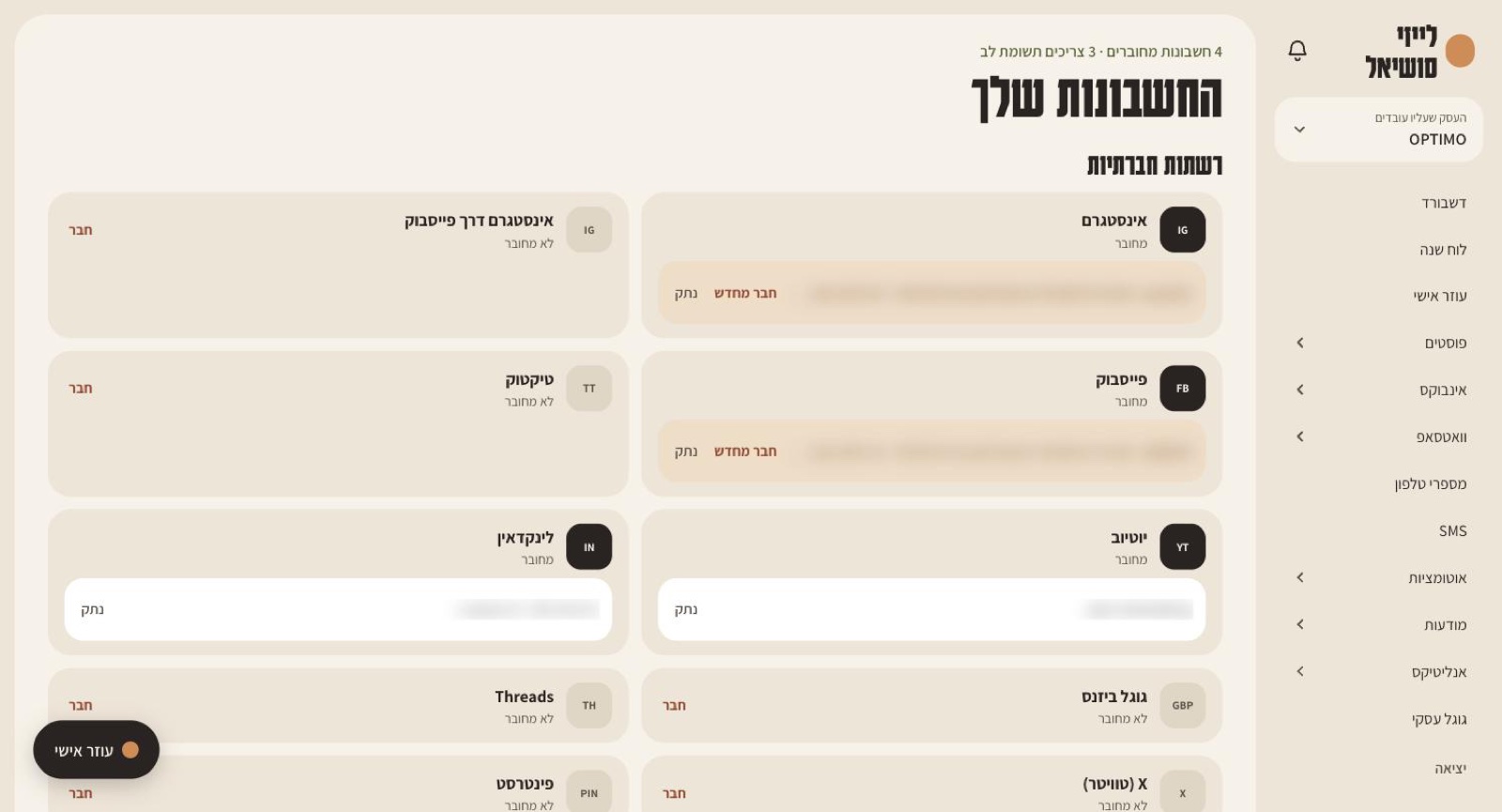 "Your accounts" screen: a card for each network, connected or not, with connect and disconnect buttons, and at the top of the screen how many accounts are connected and how many need reconnecting. Account names are blurred. Screenshot: LazySocial
The homepage names 12 networks, and the tools list says "28 networks". In the accounts screen inside the system you can see the full list, divided into four sections:
- Social networks: Instagram, Instagram via Facebook, Facebook, TikTok, YouTube, LinkedIn, Google Business, Threads, X, Pinterest, Reddit, and Bluesky. Snapchat is marked "coming soon".
- Messaging and communities: WhatsApp Business, Telegram, Discord, Slack, and WhatsApp groups via Green API. iMessage and SMS are marked "coming soon".
- Ads: Meta (Facebook and Instagram), Google, TikTok, LinkedIn, X, Pinterest, and OpenAI.
- Websites and stores: WordPress and Shopify.
Each connected card counts as a connected account in your plan, including an ads account and each WhatsApp number.
All 59 Tools, Across Eleven Categories
In short: the LazySocial homepage lists 59 tools across eleven categories, all available on every plan. Below them, two more are marked "coming soon". The table below summarizes the list as it appeared on the site on November 4, 2026, one line per tool.
| Category | Tools | In brief |
|---|---|---|
| Publishing and Scheduling (8) | 28 networks via official integration | Facebook, Instagram, TikTok, YouTube, LinkedIn, X, Threads, Pinterest, Reddit, Google Business, and more |
| Per-network text | One post, adapted copy for each network, and a preview | |
| Reels, Stories, and Carousels | Including Instagram Collab and first comment | |
| Bulk posts | Dozens of posts on one screen, with automatic date spreading | |
| Duplicate a week or month | An entire period forward, at the same times | |
| Network validation | Length, media, and requirements per network, before publishing | |
| Media library | Folders, images, and videos, straight into a post | |
| Text templates | Fixed copy for one business or across all businesses | |
| Content Calendar, Holidays, and Shabbat (4) | Weekly and monthly calendar | Drag a post to another day, all networks in one place |
| Fixed slots | Regular weekly time slots that fill themselves | |
| Holidays and marketing dates | Israeli holidays, awareness dates, and sensitive days already in the calendar | |
| Shabbat mode | No publishing from Shabbat start to end, and on holidays, by city | |
| AI in Hebrew (6) | The business brain | What you sell, who to, and how you speak |
| Auto-fill from your website | The brain populates from your URL, including logo and colors | |
| Post writing | Ideas, copy, and rewrites in Hebrew | |
| Suggested replies | For comments, messages, and reviews, with one click | |
| Auto-reply bot | WhatsApp, Messenger, and Instagram, hands off to a rep when needed | |
| Claude and ChatGPT integration (MCP) | Ask, write, and schedule from inside your own AI (Agency plan) | |
| Inbox and Contacts (5) | All messages in one place | Facebook, Instagram, WhatsApp, Telegram, and more |
| Comments | Reply, like, hide, delete, and reply privately | |
| Reviews | Google Business and Facebook, with average rating | |
| Mentions | When the business is tagged (currently LinkedIn company page only) | |
| Contacts | Tags, fields, CSV import, and search | |
| Automations (4) | Comment triggers a message | A keyword in a comment, a private message with a human-like delay |
| Sequences | A series of messages on a set schedule | |
| Flows with buttons | Questions, buttons, tags, and hand-off to a rep | |
| Conversation openers | Opening questions on Instagram and a persistent menu in Messenger | |
| Official WhatsApp Business, Meta (6) | Templates | With variables, buttons, and a preview |
| Campaigns | To contacts by tag, now or scheduled | |
| Forms | Forms inside WhatsApp (Flows) | |
| Groups in the official interface | Only for businesses with a green verification badge, approved by Meta | |
| Profile and quality | Display name, number quality, and messaging tier | |
| What you need to connect | A Meta-verified business account with an ad account and payment method | |
| Unofficial WhatsApp, Green API (8) | Connect your own number | Via your own Green API account, one connection per plan |
| Posts to groups | To multiple groups, with their own text and a gap between sends | |
| Link with preview | The link to a video or post goes out the moment it goes live | |
| Polls | Up to 12 options, with results inside the platform | |
| Statuses | Image, video, or text, scheduled | |
| Edit and delete | Edit within 15 minutes, delete for everyone up to 60 hours later | |
| Group size and image | How many members, and which groups allow posting | |
| What you need to connect | The number must be an admin in the groups, sending goes through WhatsApp Web | |
| Ads (5) | Meta, Google, and TikTok | All campaigns on one screen, with pause, play, and budget controls |
| New ad and post boost | From scratch, or boost an existing post in a few clicks | |
| Audiences | Customer lists, lookalike audiences, and website visitors | |
| Leads | Meta and LinkedIn lead forms, straight to contacts | |
| Segmentation and reports | Age, gender, location, and device, plus Google searches | |
| Google Business (4) | Reviews | Reply, and a link to prompt new reviews |
| Business details | Hours, phone, website, description, services, and attributes | |
| Closed on holidays | Special holiday hours in one click | |
| Photos | Upload from the media library | |
| Analytics and Reports (5) | Per-account data | Impressions, engagement, and followers over time |
| Per-post data | How each post performed, day by day | |
| Audience | Age, gender, and location from Instagram and YouTube | |
| Inbox | Message volume, response time, and peak hours | |
| Monthly client report | Comparison to the previous month, PDF and shareable link | |
| Team and Agencies (4) | Multiple businesses per account | Each business has its own networks, library, and brain |
| Team and permissions | Owner, manager, editor, viewer, and client approver | |
| Client approval | The client approves or comments before a post goes live | |
| Activity log | What happened in each account and when, up to 90 days | |
| Coming Soon (2) | SMS and phone calls | SMS messages sent from the business name, and a number for calls from the platform |
Two of the listed "tools" are actually connection requirements ("what you need to connect" for each of the two WhatsApp sections), so in practice there are 57 actual capabilities. It does not make a huge difference, but it is worth knowing when comparing lists.
Scheduling Posts for Instagram, Facebook, and Every Other Network
The core of the tool is the content calendar: week or month view, all networks in one place, drag a post to a different day. The time stays the same, and holidays, marketing dates, and sensitive days are already marked on the calendar.
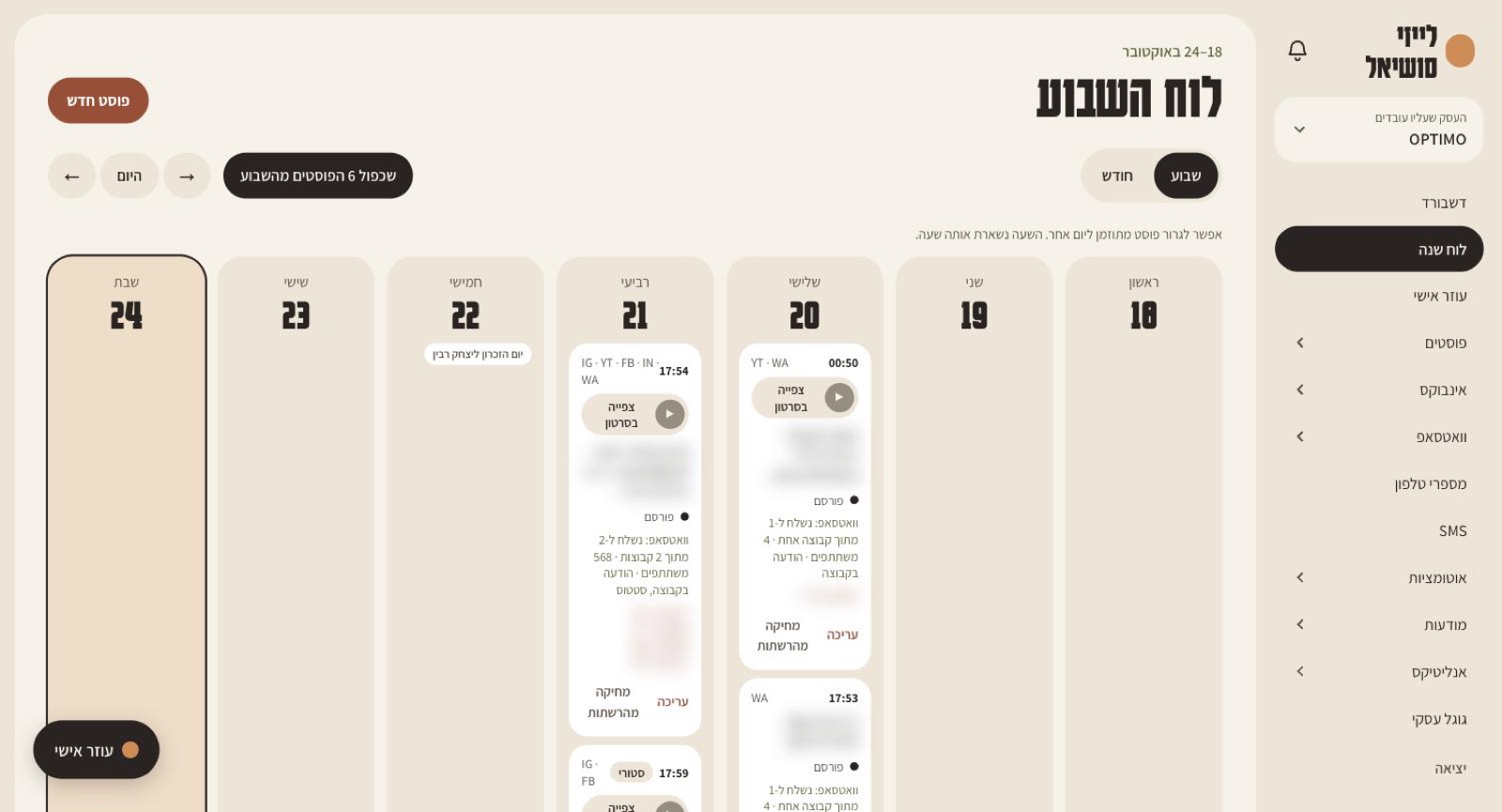 "Weekly calendar": each card shows which networks the post went to (IG, YT, FB, IN, WA), whether it was published, and how many WhatsApp groups received it. Thursday is marked as a sensitive day, and the Shabbat column is highlighted. Post text is blurred. Screenshot: LazySocial
What is included under "Publishing and Scheduling," according to the site:
- Per-network text: one post, adapted copy for each network, and a preview of how it will look.
- Reels, Stories, and Carousels, including Instagram Collab and first comment.
- Bulk posts, with automatic date spreading.
- Duplicate a week or month forward, at the same times.
- Fixed slots: regular weekly time slots that fill themselves.
- Network validation before publishing: length, media, and requirements per network.
- Media library with folders, and fixed text templates.
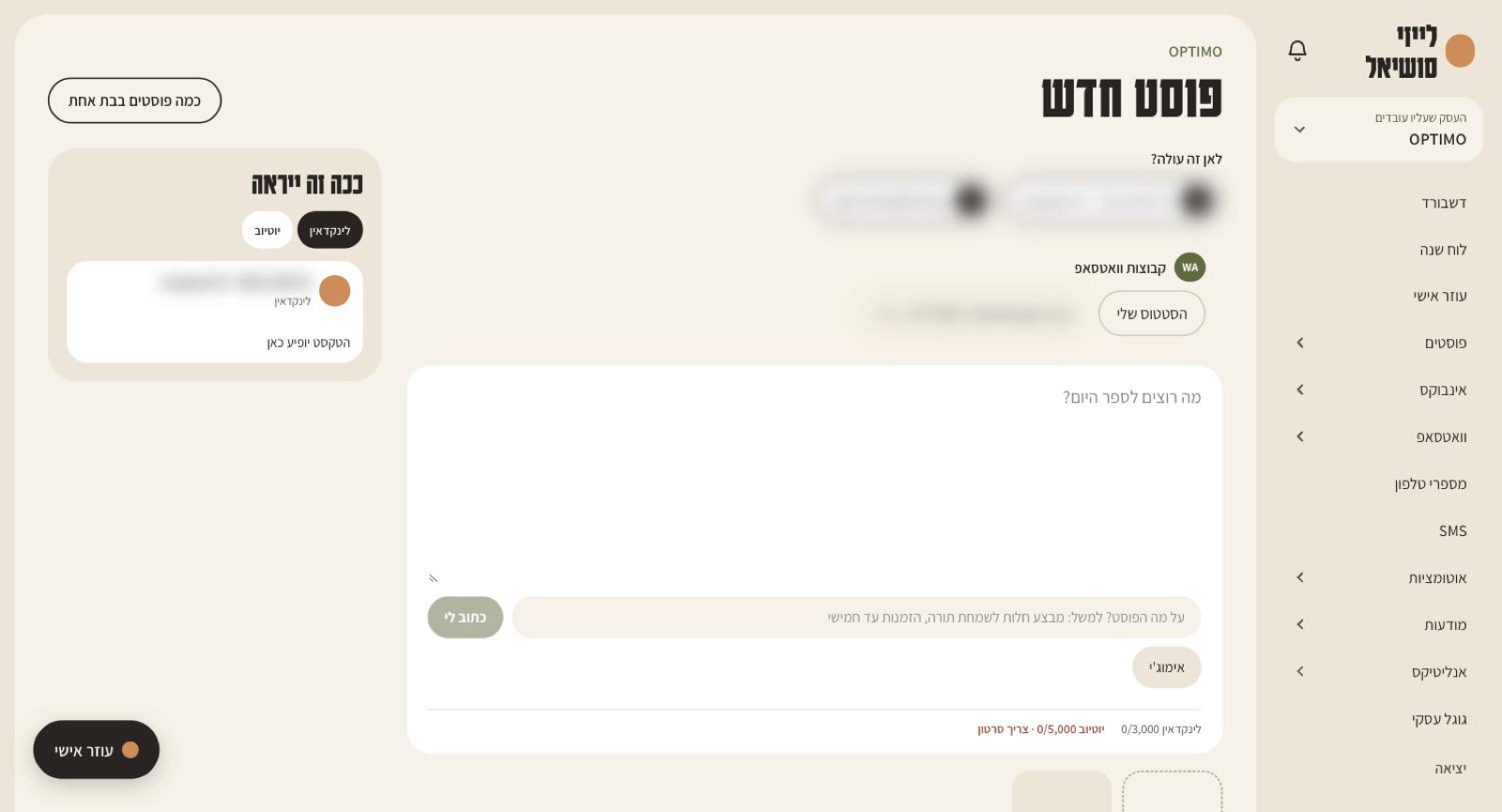 "New post" screen: choose where the post goes (including WhatsApp groups and Status), write it yourself or click "write for me" to ask the AI, and see a character counter per network plus a preview. Below that are per-network customization, first comment, "network validation," and scheduling. Account names are blurred. Screenshot: LazySocial
In the "schedule multiple posts" screen, each row is a post with its own media, text, and date. Dates are spread with one click: by fixed slots, every few days, or multiple posts on the same day. When Shabbat mode is on, Shabbats and holidays are skipped automatically during spreading.
Posts, scheduling, and the calendar are unlimited on every plan. The exception is X: 30 posts per X account per month, because every post on X costs money according to X's own pricing.
A few network-specific details as they appear in the screens: YouTube, Pinterest, and Reddit have a title field (on YouTube, if no title is entered, the first line of the text becomes the title), and YouTube also lets you choose public, unlisted, or private. Stories publish only the image or video, without text. After publishing: on Facebook, YouTube, LinkedIn, and X you can update the text from inside the platform; on Instagram and TikTok, editing is not possible, and deleting a published post on either requires doing it manually in the app.
An example with a fictional business: "Good Morning Bakery (Demo)" sets fixed slots on Sundays and Wednesdays at 07:30, duplicates the week that worked, and publishes on Friday morning. The Friday post cannot be scheduled past Shabbat start because the calendar simply will not allow it.
Writing with AI in Hebrew: Captions, Hashtags, and the Business Brain
In short: yes, LazySocial writes the captions on its own, in Hebrew, in the voice of the business. Write a sentence about what the post is about, click "write for me," and get text you can shorten, rewrite, make more festive, or add hashtags to with a single click.
What determines how the text sounds is "the business brain," a screen you fill in once (or that fills itself from your website URL). According to the screen, these are the settings it includes:
- About the business, the target audience, and what the business sells, including prices if you want.
- The business voice, for example: "warm and family-friendly, a bit of humor, no jargon."
- How to address the audience: plural, masculine, feminine, or neutral phrasing.
- Words you like and words that are off-limits.
- Emoji (none, minimal, or free), post length (short, medium, or long), and no dashes in the text. According to the screen, emoji and dash rules are enforced at the code level, so they will not appear even if the model drifts.
- Fixed hashtags and how many hashtags per post.
- Additional instructions for the assistant, for example "always end with an invitation to WhatsApp" or "never mention competitors."
How many AI writes you get per month depends on your plan: 60 on Basic, 300 on Pro, and 1,500 on Agency, and the quota resets at the start of each month. The assistant writes in Hebrew, and that is the site's own answer to the question "what language does the assistant write in?" I did not find any mention on the site of English or other-language writing, so anyone who also publishes in English should check that during the trial period.
Shabbat Mode, and Holidays Already on the Calendar
This is the most Israeli part of the tool. With Shabbat mode on, nothing publishes from Shabbat start to end, or on holidays, based on the city you select. The setting lives in "Business Settings," under "Shabbat and Holidays": check "do not publish on Shabbat and holidays" and choose a city from Tel Aviv, Jerusalem, Haifa, Beer Sheva, Petah Tikva, and Eilat. A post will not be scheduled during that window, and in the calendar, the Shabbat column shows a button for a post after Shabbat ends (for example, "+ post after 18:40"). The bot has a separate toggle, "do not reply on Shabbat and holidays," which works when Shabbat mode is active on the account. In Google Business there is a one-click "closed on holidays" option that updates special holiday hours.
For a Shabbat-observant business, this solves a real problem: no need to remember to check that no post lands on Shabbat, and no risk of the bot replying to customers during Shabbat.
Automatic Publishing to WhatsApp Groups, and the One Exception
Here is the fine print from the introduction. Every connection in LazySocial runs through each network's official interface, except one: WhatsApp groups and statuses, which work through Green API.
How it works: you connect your WhatsApp number through your own Green API account, choose groups, and send posts, polls, and statuses to them, together with the post on your social networks and on the same schedule. What you can do:
- Post to multiple groups at once, with their own text and a time gap between groups.
- Link with preview: a link to a YouTube video or a social post goes out to the group the moment it goes live.
- Polls: a question with up to 12 answers, single or multiple choice, and results update inside the system.
- Statuses: a photo, video, or text to the number's status, on a schedule.
- Edit and delete: edit text within the first 15 minutes, and delete for everyone within 60 hours.
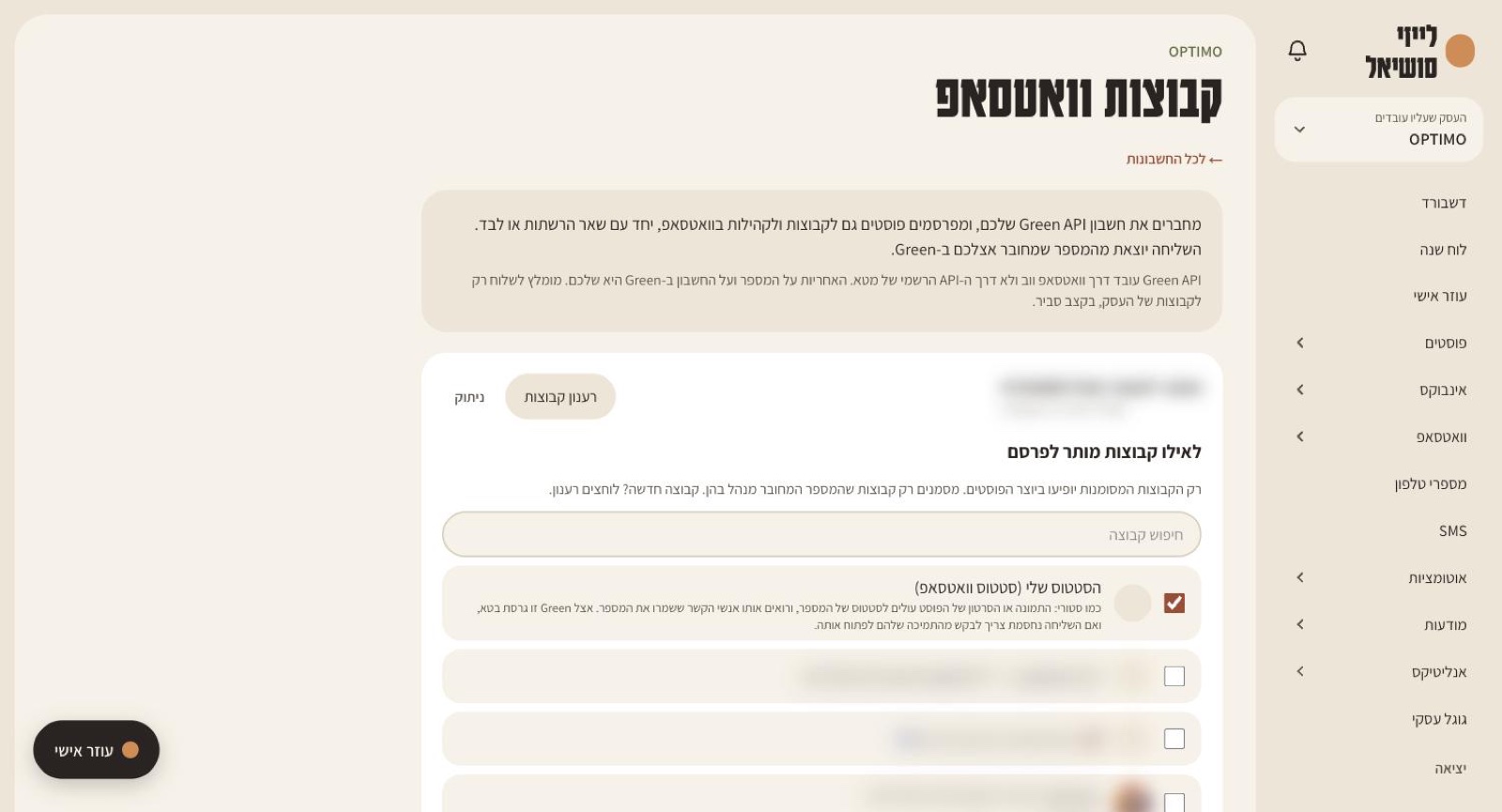 The "WhatsApp Groups" screen inside the system: at the top, the notice that the connection runs through WhatsApp Web and not through Meta, and below that, you choose which groups are allowed to receive posts. The number, group names, and their images are blurred. Screenshot: LazySocial
How to connect, following the instructions on the screen itself: go to the Green API console and select the instance connected to your number (scan the QR code if you haven't yet), copy the idInstance and apiTokenInstance, paste them on the screen and click "Connect." The system verifies that the number is connected and pulls the group list, and then you check only the groups where the number is an admin. Only the checked groups will appear on the post-writing screen. According to the screen, the token is stored server-side only, and the connection counts as one connection in the plan regardless of the number of groups. Publishing to statuses is marked as beta on the Green side.
Three conditions the site itself states, and that are worth taking seriously:
- The connected number must be an admin in every group you publish to.
- Sending goes through WhatsApp Web, not through Meta's official interface. The integration is optional, and responsibility for your number is yours.
- They recommend sending only to your own business groups, at a reasonable pace.
What this means in practice: for a regular customer group or a community you manage, this saves copy-pasting into every group. For mass sending to other people's groups, it puts your number at risk. The difference between Green API and Meta's official interface is explained in detail in the Green API vs. WhatsApp Business Platform guide.
Official WhatsApp Business, Bot, and Automations
Separately from groups, LazySocial includes Meta's official WhatsApp Business: templates with variables and buttons, campaigns to contacts by tag (immediately or scheduled), forms inside WhatsApp (Flows), and a business profile with number quality. Groups in the official interface are available only to businesses with a green verification badge, and Meta decides who gets one.
What you need to connect: a verified Facebook (Meta Business) business account with an active ad account and payment method. Meta bills the business directly for template messages, according to its own pricing, not through LazySocial. No number? In the "Phone Numbers" screen you can get a virtual number ready for WhatsApp Business, billed monthly by country. An Israeli number appears there at $7 per month (checked on 24.10.2026), and in some countries identity verification is required.
The bot responds automatically to private messages on WhatsApp, Messenger, and Instagram, based on what you've written for it and on the "business brain." When it doesn't know the answer, or when a customer asks for a human agent, it transfers the conversation to the team and sends an email, and once a team member responds, the bot stops replying in that conversation.
The bot is off by default, and there is a test chat to try it out before it responds to customers. Its screen is also where you set when it responds:
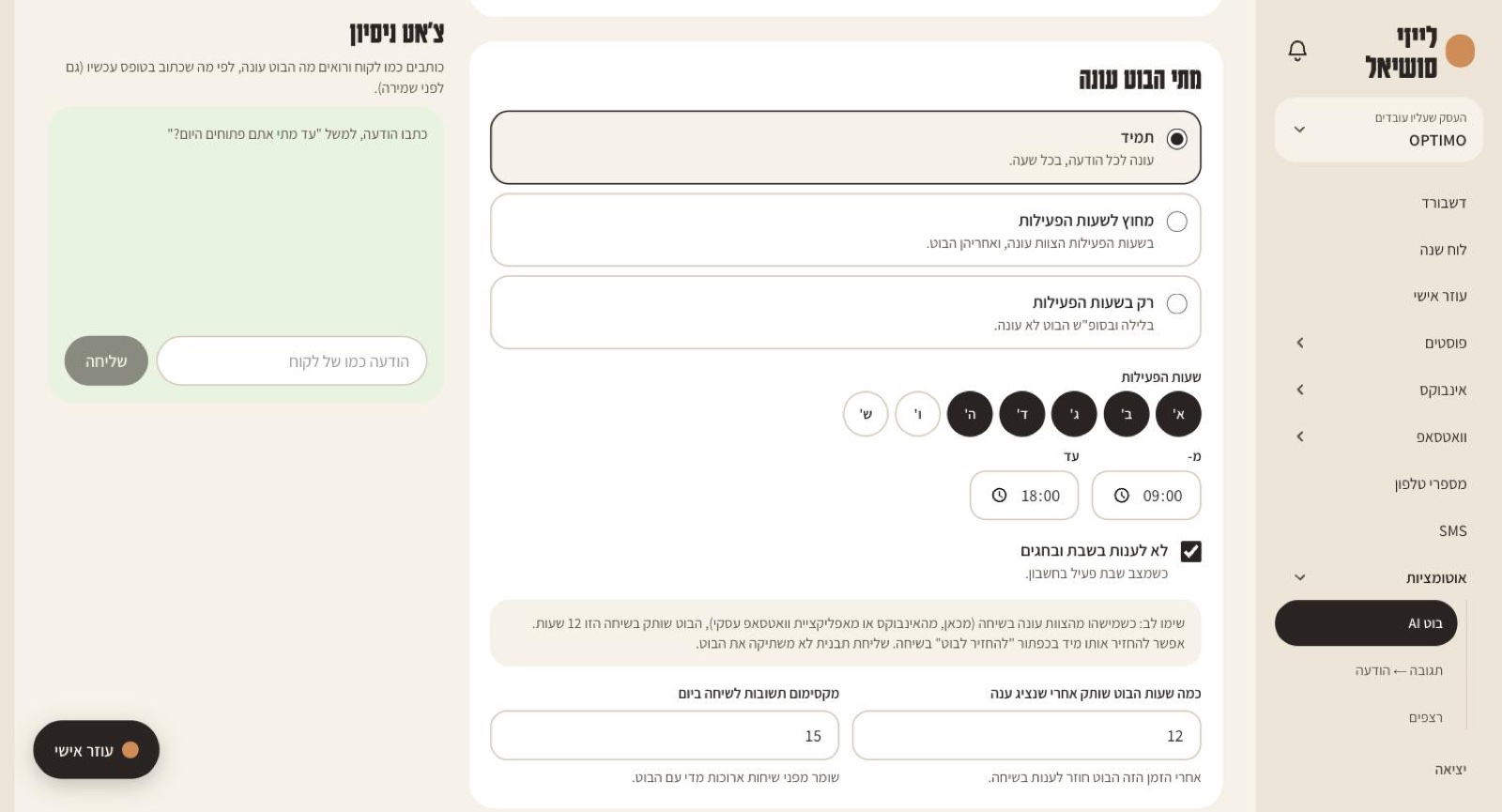 "When the bot responds": always, only outside business hours, or only during business hours, with days and times, and a checkbox for "Do not respond on Shabbat and holidays." After an agent responds, the bot stays silent in that conversation for 12 hours by default, and there is a cap on replies per conversation per day. Screenshot: LazySocial
The automations tabs also include: a reply-to-DM trigger (someone who comments with a specific word receives a private message, with a human-like delay; according to the screen in the system, this works on Instagram and Facebook comments), message sequences with time delays, flows with buttons and tags, and conversation starters on Instagram and Messenger. The number of reply automations is limited by plan: 2, 10, or 50.
One Inbox for All Comments, Messages, and Reviews
The inbox centralizes private messages from Facebook, Instagram, WhatsApp, Telegram, and more, alongside comments (reply, like, hide, delete, and reply privately), reviews from Google Business and Facebook with an average rating, and business mentions (currently on the LinkedIn company page). Every comment, message, and review gets a one-click suggested reply.
The inbox has six tabs: messages, comments, reviews, mentions, campaigns, and contacts.
Contacts are saved with tags, additional fields, CSV import, and search, and leads from Meta and LinkedIn lead forms come in directly.
Google Business: Reviews, Hours, and Holidays from One Screen
In short: you connect your Google Business Profile (what appears in Search and Maps) and manage hours, holidays, services, photos, and reviews from LazySocial, without opening Google.
What is on the Google Business screen, according to the system:
- Details and hours: business description (up to 750 characters), website, phone, and opening hours. Changes go through a brief Google review.
- Holidays and special days: with one click, mark upcoming holidays as closed days, "so customers don't show up at a closed door."
- Services, with a price if you want one.
- Photos from the media library.
- Reviews: reply from within the inbox with a suggested response, and a review link to send to happy customers.
For a business that runs on referrals, this is probably the screen that justifies the cost most: the Google profile is the first thing anyone sees when they hear about you.
The Personal Assistant, and Connecting to Claude and ChatGPT
There are two ways to "talk" to the system, and it is worth understanding the difference before paying.
The Personal Assistant is a chat inside the system that takes action: you write to it like you would to an employee, for example "prepare two posts for next week using the best photos," and it selects photos, writes, and schedules, and you approve. It is a paid add-on on every plan: 300 questions per month for 129 ILS + VAT, billed separately. The price does not appear on the public pricing page, only on the "My Plan" screen inside the system, and the add-on only unlocks after you choose a plan. According to its screen, the assistant writes and schedules, selects media from the library after reviewing it, edits, moves, duplicates, and deletes, checks data and responds to comments, messages, and reviews, and nothing is published, changed, or sent without you clicking the approval button on the card.
The connection to Claude and ChatGPT (MCP) lets you work with the system from inside the assistant you already use. MCP (Model Context Protocol) is an open standard that allows an AI assistant to operate external tools. The "Connect to AI" screen in the system has separate instructions for Claude (browser, desktop, and mobile), for Claude Code and Cursor, and for ChatGPT and others.
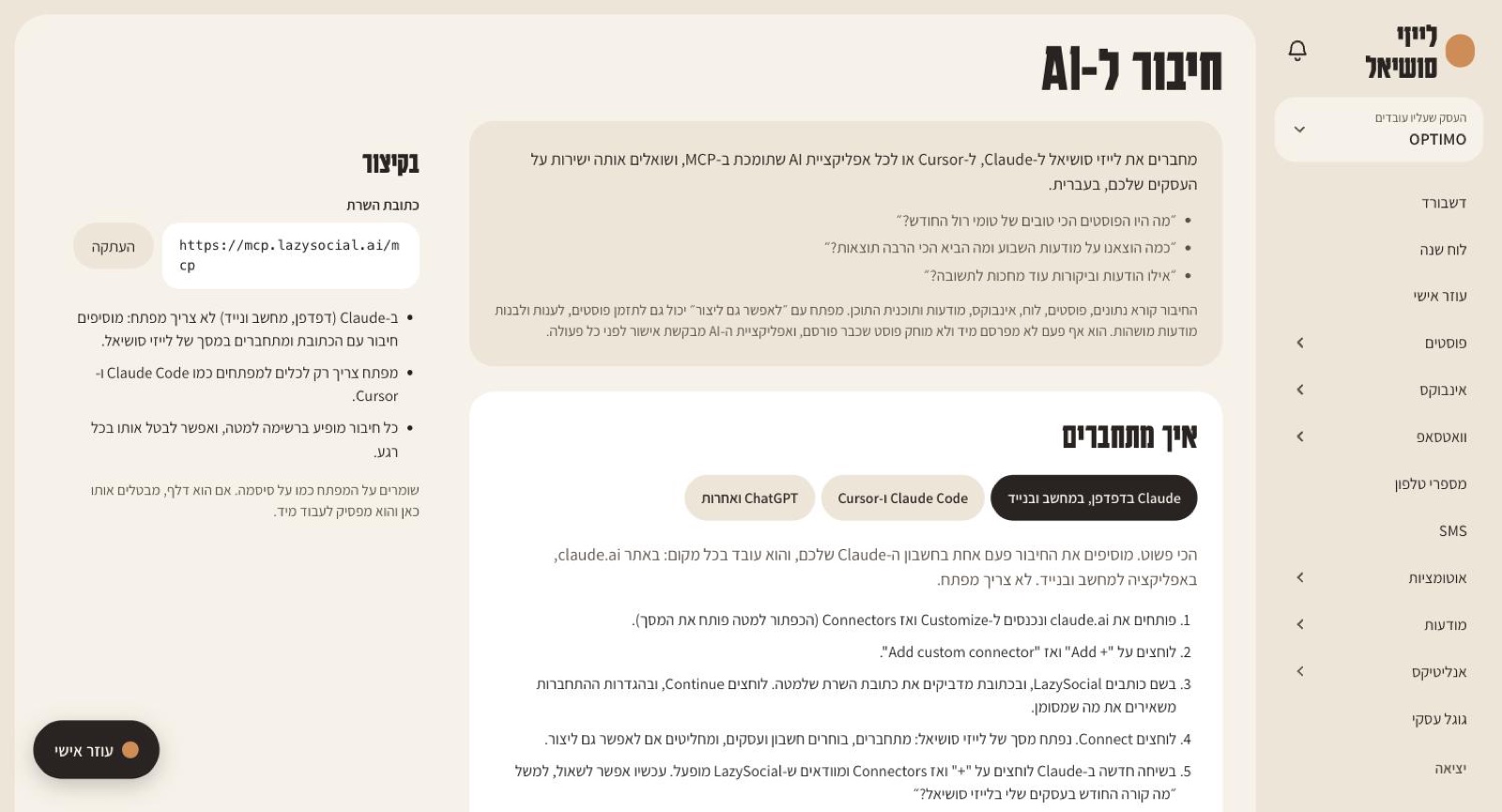 The "Connect to AI" screen: in Claude you add a custom connector with the server address, and no key is needed. There is no key in this account, and no key appears in the screenshot. Screenshot: LazySocial
In Claude it is five steps: in claude.ai go to Customize and then Connectors, click "+ Add" and then "Add custom connector," give it the name LazySocial and paste the server address from the screen, click Connect and authenticate on the LazySocial screen (where you choose the account, businesses, and whether to also allow creating), and in a new conversation confirm that the connection is enabled. A key is only needed for developer tools like Claude Code and Cursor. According to the screen, the connection reads data, posts, the calendar, inbox, ads, and content plan. With "also allow creating" enabled, it can schedule, reply, and build pending ads, but it never publishes immediately and never deletes an already-published post. The account owner decides on one screen whether the connection is active, whether creating is allowed, whether only owners and admins can connect, and which businesses the AI can see. The connection is included in the agency plan only and does not require the Personal Assistant.
The site's own recommendation, and I agree with it: anyone already working with Claude or ChatGPT who is on the agency plan should try the connection before adding the paid assistant.
Paid Ads from Inside the Platform: Meta, Google, and TikTok
In short: yes, you can run paid ads from inside LazySocial. Connect your Meta, Google, or TikTok ad account, and from there you can boost an existing post, create a new ad, pause, activate, change the budget, and view spend and results. Ad charges are billed directly by the network, not through LazySocial.
Boosting a post (Facebook and Instagram). Choose a published post, set an objective and a budget, and it runs as an ad while keeping the likes and comments it already accumulated. The objectives available on screen: more engagement, more reach, WhatsApp messages (a button that opens a conversation with the business, provided the number is connected to the Facebook page), private messages on Messenger or Direct, and website visits. You set a daily budget (the screen shows Meta's minimum), a number of days, and who to show it to: age, gender, location, interests, and behaviors. Before submitting, you explicitly confirm the maximum amount.
New ad. On Meta: an image or video from the media library, text, headline, button and link, and objectives such as website visits, messages, phone calls, engagement, reach, video views, page followers, lead form leads, website leads, website sales, catalog sales, and app downloads. On Google: a text ad in search results, with multiple headlines and descriptions that Google assembles into the ad. On TikTok: a sponsored video in the feed. On all networks, the network reviews the ad before it goes live.
Audiences and targeting. Cities, regions, or countries, with a radius around a location, audience size estimates, saved audiences, and according to the tools page also customer lists, lookalike audiences, and website visitors. Leads from Meta and LinkedIn lead forms go straight into contacts.
Tracking. One screen for all campaigns, with spend, impressions, reach, clicks, click-through rate, cost per click, and results, broken down by age, gender, location, and device, plus an email when an ad is rejected or there is a payment issue. Ad spend is also included in the monthly client report.
Via Claude and ChatGPT (on the Agency plan) you can ask "how much did we spend on ads this week and what drove the most results?", and with creation permissions you can also build paused ads and pause campaigns. According to the screen, the ads it builds are created in a paused state, and you activate them yourself.
Analytics and the Monthly Client Report
In short: every account has reach, engagement, and follower data; every post has day-by-day progress; and at the end of the month a report is generated with a comparison to the previous month, available to download as a PDF or share via link.
The analytics section includes data for each account (impressions, engagement, and followers over time), day-by-day progress for each post, audience data from Instagram and YouTube, and inbox data such as response time and peak hours. And at the end of the month:
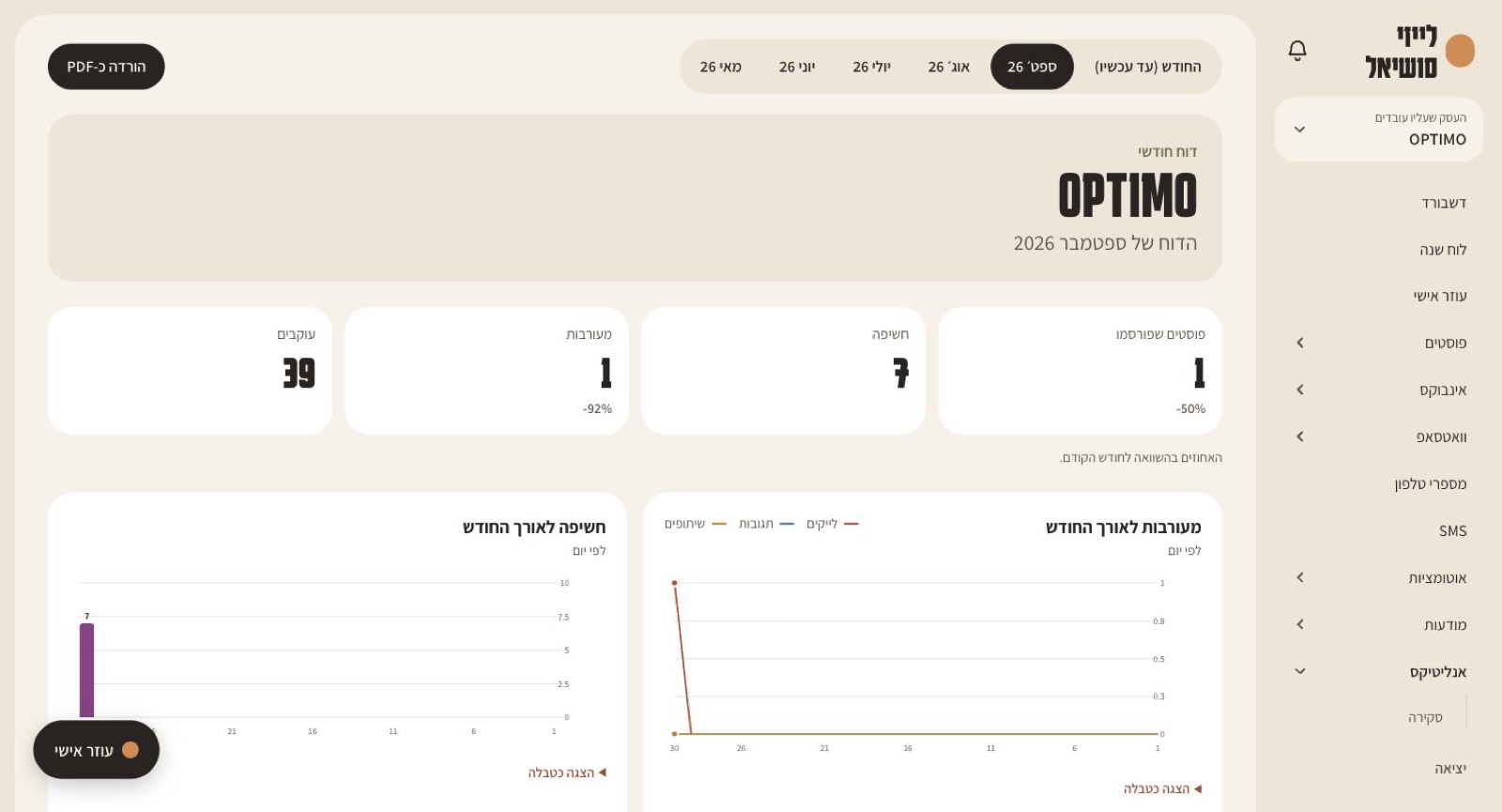 "Monthly report": a tab for each month, comparison to the previous month, graphs across the month, a table broken down by network, and PDF download. The numbers shown are for a single account and are not results to expect. Screenshot: LazySocial
Emails, Notifications, and Reports: What Reaches You Without Logging In
In short: LazySocial sends an email when something happens (a post that failed to publish, a disconnected account, a new comment, review, or lead), and a monthly report you can download or share via link. I did not find an automatic weekly summary email anywhere on the site or in the platform.
On the "Notifications" screen, each team member chooses which emails they want to receive:
- Failed publish: when a scheduled post fails to go out on one of the networks.
- Account disconnected: when a network connection expires or is revoked.
- Post approvals: when a post is waiting for your approval.
- New comment: including the network name and the comment text, at most one email per fifteen minutes per account.
- New review on Google or Facebook, with the rating and the text.
- New lead from a Meta or LinkedIn lead form.
- WhatsApp: a template that was approved or rejected, and a number that was approved or suspended.
- Ad issues: a rejected ad, a payment problem, or a disabled ad account.
- The bot transferred a conversation to an agent.
Emails about the account, security, trial, and billing are always sent. Anyone who wants a "weekly update" can open the current month's report (there is a "this month, so far" tab), or on the Agency plan ask Claude once a week what happened. What does not exist, at least based on what I found: a weekly summary email that sends itself automatically.
For Agencies and Social Media Managers
Each client is a separate business inside one account, with its own networks, library, and "brain," and switching between clients takes a single click. What an agency gets:
- Switching between businesses from the "current business" menu, and an "all businesses" screen that summarizes connected accounts, scheduled posts, failures this week, and connections that need renewing for each business.
- Client approval: in the "Approvals" screen, turn on "client approval before publishing" for each business. Editors can then only submit for approval, approval moves the post into scheduling, and a request for changes returns it to the writer with a note. You invite the client from the team screen with the role "approving client," and they see only their own business. Note that in the team screen, the role description still says approval is "coming soon," so it is worth checking this during the trial period.
- Team permissions per business: owner, manager, editor, approving client, and viewer, with email invitations and a choice of which businesses each person can see.
- Monthly report including ad spend.
- Connection checks every hour, and an email when a client's connection drops, before a post fails to publish.
- A calculator on the agencies page: move sliders for number of clients, networks per client, and team members, and see which plan fits.
Example: "Click Agency (demo)" manages eight businesses on the Agency plan. Each client has an approver, the monthly report goes out via link, and at the start of the month they ask Claude: "what was the best post for each client this month?" Watch the account count: every network for every client counts as a connected account, and so does an ad account and a WhatsApp number. Eight clients with four networks each already adds up to 32, which is above the 30 included in the plan.
How Much Does LazySocial Cost?
Three plans, and all features are available on all of them. The only difference is in quantities. Prices are from the site as of October 23, 2026, per month, before VAT.
| Basic | Professional | Agency | |
|---|---|---|---|
| Monthly price | 99 ILS + VAT | 199 ILS + VAT | 499 ILS + VAT |
| Connected accounts | 4 | 10 | 30 |
| Businesses | 1 | 3 | 10 |
| Team members | 2 | 5 | 15 |
| AI writes per month | 60 | 300 | 1,500 |
| Bot replies per month | 300 | 2,000 | 8,000 |
| Reply automations | 2 | 10 | 50 |
| Media library | 5GB | 20GB | 50GB |
| X posts per account per month | 30 | 30 | 30 |
| Claude and ChatGPT integration | No | No | Included |
| Personal assistant | Add-on | Add-on | Add-on |
| Virtual WhatsApp number | Add-on | Add-on | Add-on |
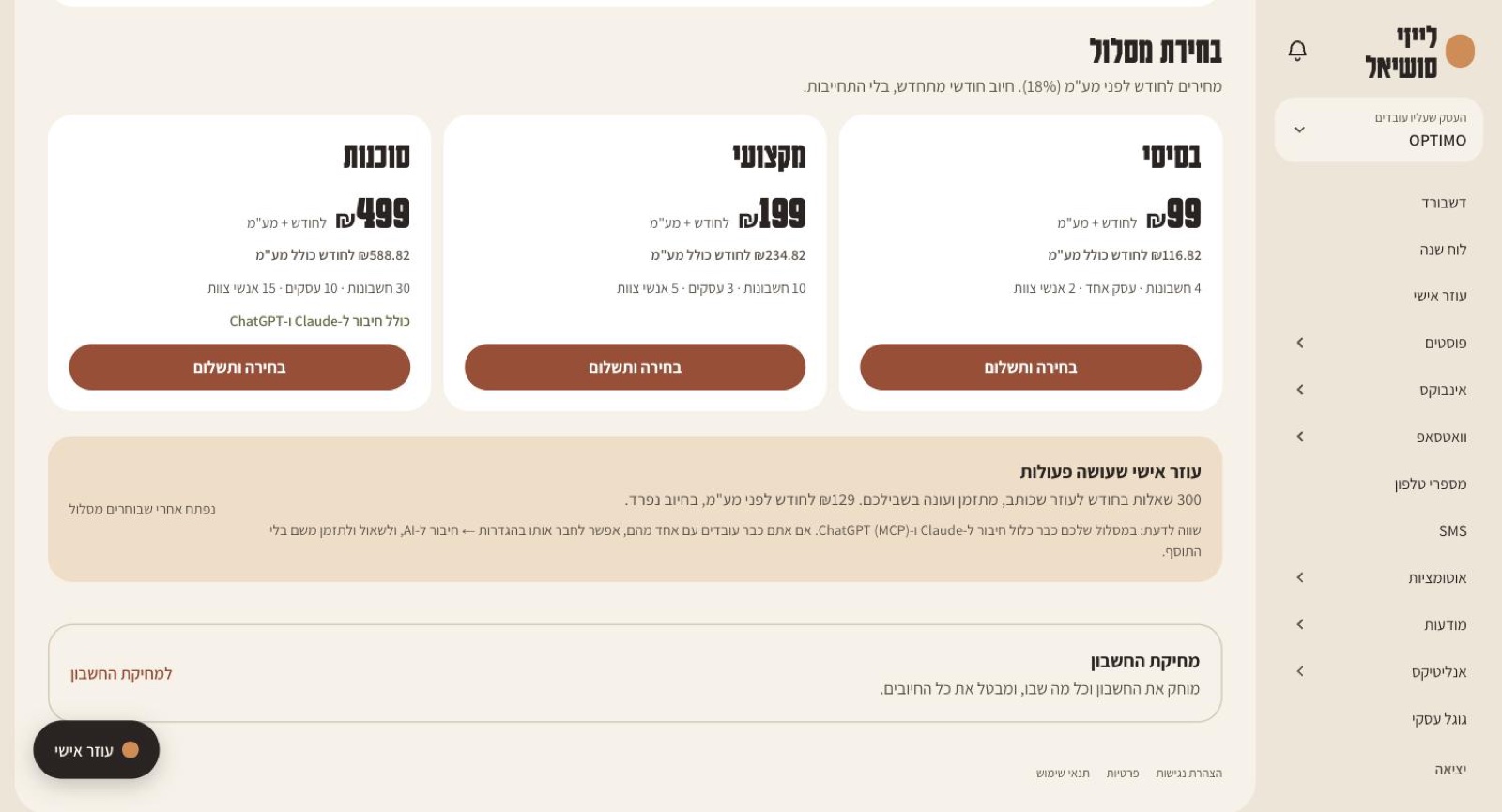 "Plan selection" inside the platform: the price before VAT (18%) and the price including VAT, 116.82 ILS, 234.82 ILS, and 588.82 ILS, with the personal assistant add-on below. Screenshot: LazySocial
Important details from the terms of service:
- Trial: 3 days free, no credit card required, with two connections, once per email address and once per phone number. Registration requires verifying a mobile number by SMS code.
- If you do not choose a plan at the end of the trial, the accounts disconnect and scheduled posts revert to drafts. Content is saved for 30 days, with an email a week and a day before deletion, after which the account is deleted.
- Each charge is separate: the plan, the personal assistant, and each phone number.
- Upgrading takes effect immediately with a prorated charge; downgrading takes effect on the next billing date.
- Cancellation at any time from the "my plan" screen, no commitment required. Cancellation disconnects the accounts, returns scheduled posts to drafts, and also cancels add-ons. A released phone number cannot be recovered.
- Reaching a limit does not delete anything: you simply cannot connect more until you upgrade.
LazySocial vs. Buffer and Hootsuite
The Buffer and Hootsuite data is taken from their official pricing pages as checked on October 23, 2026, and interface languages were verified again in their help centers on November 4, 2026. Prices change, so it is worth checking with them before making a decision.
| Topic | LazySocial | Buffer | Hootsuite |
|---|---|---|---|
| Billing basis | Monthly plan, by quantity | Per channel | Per user |
| Entry price | 99 ILS + VAT per month | Essentials, $5 per channel per month | Standard, from $99 |
| Free | 3-day trial, no free plan | Free plan: 3 channels, 10 scheduled posts per channel | 14-day trial |
| Official (Meta), plus groups and statuses via Green API | Not listed on the pricing page | Not listed on the pricing page | |
| Hebrew interface | Full (and no English) | Only on the Android app | No, eight languages without Hebrew |
| Holiday calendar and Shabbat mode | Yes, by city | No | No |
| Currency | Shekels, before VAT | Dollars | Dollars |
What this means: for anyone managing one or two channels in English, Buffer is cheaper and has a free plan. For anyone who needs WhatsApp, Hebrew, and an Israeli calendar, or an agency handling multiple clients on one price, LazySocial is built exactly for that.
Hebrew vs. International Tools: Metricool, Later, SocialBee, and Publer
In short: none of the six international tools I tested offers a Hebrew web interface, and none of them publishes to WhatsApp groups. What they do offer: a lower entry price, and some have a permanent free tier. LazySocial wins on Hebrew, the Israeli calendar, and WhatsApp; the international tools win on price for a single channel and on free access.
When you ask ChatGPT for a tool to schedule videos to Facebook, Instagram, and TikTok, it tends to suggest SocialBee and Publer, and sometimes Metricool and Later. The data here is taken from their official pricing pages and help centers, as checked on November 4, 2026. Prices change, so it's worth checking directly with them before deciding.
| Topic | Metricool | Later | SocialBee | Publer |
|---|---|---|---|---|
| Cheapest paid plan | Starter, from $20/month, up to 5 brands | Starter, $18.75/month billed annually | Bootstrap, $29/month ($24.20 billed annually) | Professional, $4/account/month billed annually |
| Permanent free tier | Yes: 1 brand, 20 posts per month | No | No | Yes: 3 accounts, 10 scheduled posts per account |
| Trial | Available, length not specified | 14 days | 14 days, no card required | 7 days (Professional) |
| Hebrew interface | No (10 languages, no Hebrew) | No (4 languages on desktop) | No (English only, but right-to-left writing in the editor) | No (6 languages, no Hebrew) |
| Bulk scheduling | Yes, via CSV file | Bulk media upload, no CSV import found | Yes, CSV, on higher plans only | Yes, up to 500 posts from a CSV file |
| Not found | Not found | Phone reminder, then publish manually | Not in the list of supported networks | |
| TikTok | Yes | Yes | Yes | Yes |
| Israeli Shabbat and holidays | No | No | No | No |
What about Buffer and Hootsuite: according to their help centers, Buffer's browser and iPhone interface is English only (Hebrew appears only in the Android app), and Hootsuite has eight languages with no Hebrew among them. Hootsuite does let you connect a WhatsApp Business account to its inbox for receiving and replying to messages, but not for publishing.
What this means in practice. If you manage one or two accounts, in English, and price is the primary consideration, Publer and Buffer are cheaper and both have free tiers. If you or your team prefer to work in Hebrew, need text written in natural Hebrew, want Shabbat and holidays on the calendar, or publish to WhatsApp groups as well, there is currently no international alternative that does all of that. And for those who are perfectly comfortable with an English interface: LazySocial currently has no English interface, and that is a good reason to choose a different tool.
When LazySocial Is Not the Right Fit
If any of the following statements applies to you, it is worth checking a different tool, or at least using the three-day trial to test exactly that point.
- You need a permanent free plan. There is none, only a three-day trial.
- You are more comfortable with an English interface. As of November 4, 2026, both the website and the interface are in Hebrew only, and I did not find a language switcher.
- You want to create images or videos inside the tool. There is no media creation: you bring the images and videos, and the AI writes the copy.
- You need two-way phone calls or SMS. Calls are marked "coming soon," as are Snapchat and iMessage. The system already has an SMS screen with a business sender name, but according to the screen it is "opening soon," and even then the messages are one-way: customers cannot reply.
- You do not want to connect your WhatsApp number to an unofficial integration. Without Green API there is no publishing to groups and statuses, unless you have received official group access from Meta.
- You want to work from Claude or ChatGPT without an agency plan. The integration is included only on that plan, and the personal assistant is an additional cost.
- You publish heavily on X. There is a cap of 30 posts per account per month.
- You want the tool to cut and edit your videos as well. Trimming a webinar into clips happens outside the tool. LazySocial starts from the finished clips.
- You want a weekly report delivered automatically by email. There is a monthly report and event-triggered emails. I did not find a weekly report.
LazySocial and SocialFlow: Who Does What
LazySocial publishes and manages. SocialFlow turns comments into leads. The two tools are not competing for the same job.
LazySocial is the management layer: a calendar, posts across all networks and WhatsApp groups, an inbox, a bot, ads, and reports. It also includes comment-to-message automation, with a quota of 2 to 50 depending on the plan. SocialFlow does one job on Instagram and Facebook: someone comments "guide" on a reel, they receive a public reply and a private message with a link, and they are saved as a row in the activity log with CSV export, billed per message sent.
If your main job is capturing a high volume of leads from comments, you can publish with LazySocial and run the comment automation through SocialFlow. One important rule: one automation per post. If two tools are listening to the same post, the same commenter will receive two messages.
How to Get Started, in Five Steps
- Register at lazysocial.ai and verify a mobile number by SMS. Three days free, no card required.
- Connect two networks (that is what the trial includes), for example Instagram and Facebook.
- Fill in the brain from your website, and check that the tone and posting times are correct.
- Schedule one week with fixed time slots, and confirm in "Business Settings" that Shabbat mode is set to the right city.
- Choose a plan before the end of day three, otherwise the accounts disconnect and the posts revert to drafts.
Learning It Step by Step
Want to practice before connecting your business? The interactive LazySocial course for 9.90 ILS: 14 short lessons in Hebrew, from the first connection through running an agency with multiple clients, with in-page exercises and a certificate. Anyone building their own WhatsApp bot will find the technical section in the guide to connecting Claude Code to WhatsApp with Green API, and anyone comparing Instagram automation tools will find the complete ManyChat guide covers that side as well. Those who want to build their own marketing agent, beyond what an off-the-shelf tool provides, will find the path in the guide to building an AI marketing agent. And if you have a long video you want to turn into reels, the Reelsi guide covers the editing step that comes before scheduling.
The Bottom Line
LazySocial is not trying to be the cheapest tool for a single channel. It is trying to be the one place where an Israeli business, or an agency managing several of them, writes, schedules, replies, and reports, in Hebrew, with holidays and Shabbat, and including WhatsApp groups. What is important to read before paying: prices are listed before VAT, the Claude and ChatGPT integration is agency-plan only, and WhatsApp groups run through an unofficial connection, at the risk of the account holder.
Try it free for 3 days: Sign up for LazySocial, connect two networks, upload the videos you already have, and schedule a week. No credit card, and at the end you choose a plan or simply don't continue. You can see the current pricing on the LazySocial pricing page.
Yaakov Tzedek, AI lecturer, consultant, and organizational AI implementer, and leader of communities in the fields of AI, GEO, and AI adoption, with over 150,000 members.
Frequently asked questions

Yaakov Tzedek
An Israeli AI lecturer, consultant and implementer who has supported 100+ organizations in AI implementation and lectured for 200+. Official content partner of Meta, Google, Canva and TikTok, featured on Israel's Channel 13.
More about Yaakov →