
- CapCut full guide: automatic Hebrew subtitles, script-to-video, avatars, templates, free vs Pro pricing, ByteDance privacy, and competitor comparison.
CapCut was built by ByteDance, the company behind TikTok, which means TikTok's algorithm already "recognizes" videos edited in it. A direct share button between TikTok and CapCut is built into both apps.
CapCut is ByteDance's video editor, the same company behind TikTok, and it is the tool behind most of the Reels and TikToks you see in the Israeli feed. It is free at its core, built first and foremost for mobile, and in its 2026 version it is packed with AI capabilities: automatic subtitles (including Hebrew), script-to-video, digital avatars, background removal and auto-cut. If your business needs to put out short videos at speed, this is probably the first tool worth learning.
Over the past two years I have been teaching AI at hundreds of organizations across Israel, and in every workshop that touches on video content the same question comes up: "What do people actually use to edit these Reels without losing their mind?" The answer on the ground has long been clear: CapCut. This guide cuts through the noise: what this tool actually is, what its AI genuinely can do in 2026, how to edit your first Reel step by step, what happens with Hebrew (spoiler: it works, with caveats), and what it really costs.
Update November 8, 2026: Higgsfield announced Miracle, a technology that breaks a video into layers and lets you change the color of an object or text within the frame, no masks and no rendering required. Is this the end of CapCut? The full explanation and an honest answer.
What Is CapCut?
Definition: CapCut is a ByteDance AI-powered video editor, available as a mobile app, a desktop application (Windows/Mac) and a browser-based editor. It specializes in short vertical content, Reels, TikTok, Shorts, and combines a full editing timeline with a massive template library and automatic features: subtitles, cutting, aspect-ratio adjustment, text-to-speech and translation.
CapCut was born in 2020 as TikTok's little sibling, a tool designed to make people produce more TikToks, faster. But it has grown well beyond that: today it is one of the most downloaded editing apps in the world, with hundreds of millions of users, and its desktop version already competes with "serious" tools for everyday editing work.
The TikTok connection is not just a fun fact, it is part of the product. There is a built-in button that sends a video from CapCut directly to TikTok (and in the other direction: from a template you spotted on TikTok straight into editing in CapCut). That is what created the "template culture" we will talk about later, and it is also what makes the privacy questions relevant. We will get to that too, honestly.
It is worth understanding the positioning: CapCut is not "free Premiere." It is a tool built around a different core assumption, that most video today is vertical, short, shot on a phone and must have subtitles. Around that assumption it is built extremely well. Anyone who tries to edit a five-minute brand film with four cameras in it is pushing it well past its intended purpose.
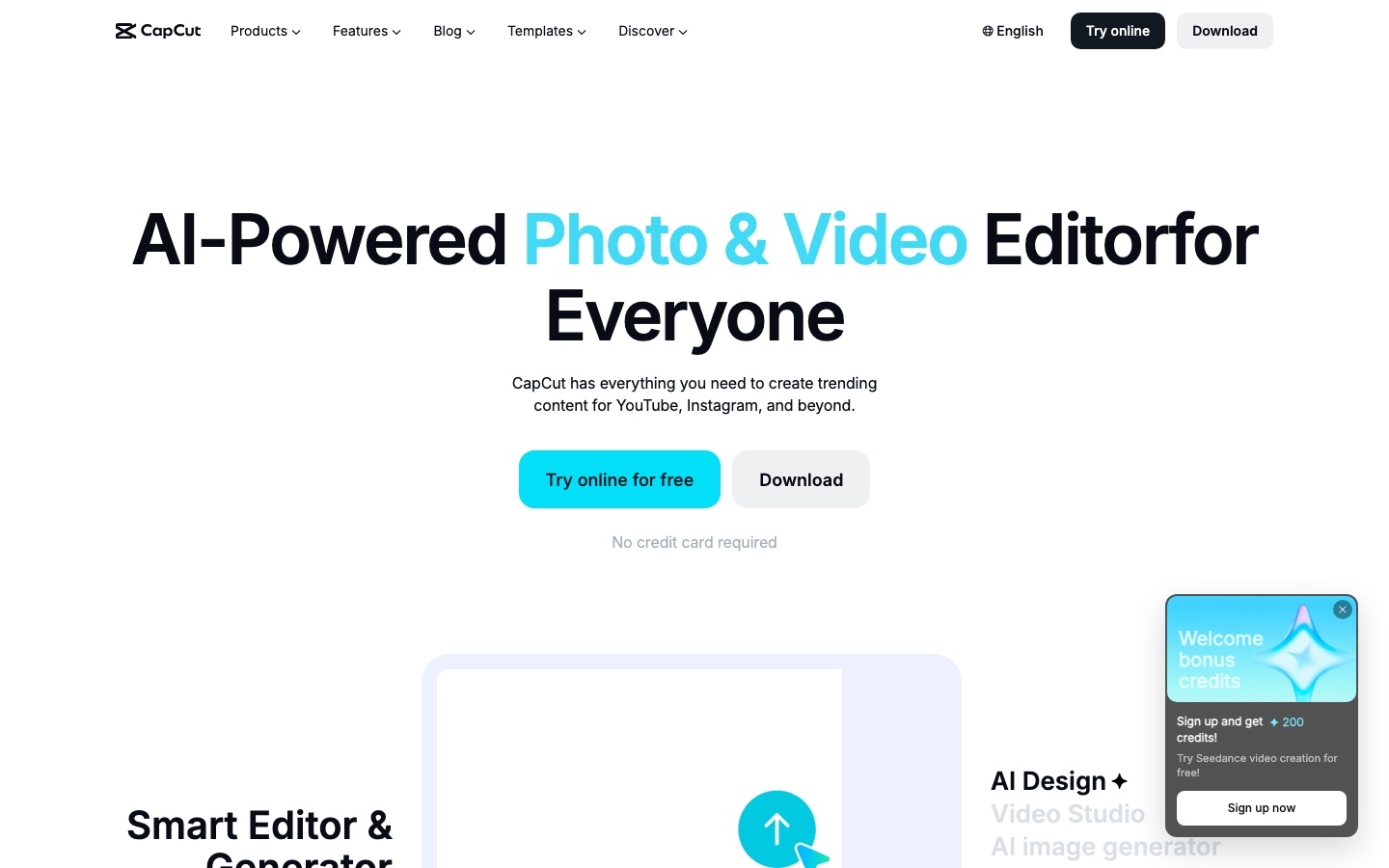 The official CapCut website, captured in September 2026. Credit: CapCut
Why Everyone Is Talking About It
Three reasons, and all of them are practical.
1. It is genuinely free where it matters. Cutting, multi-layer timeline, music, transitions, automatic subtitles, 1080p export with no watermark on the video itself, all free. The business model is built so that you pay for add-ons (4K, generative features, premium templates), not for the foundation. Compared to tools that offer a "free trial" and then lock everything, that is a real difference.
2. It closes the subtitle gap. In the 2026 feed, a video without subtitles is a video most people scroll past, watching with no sound. Manual subtitles used to be the most tedious job in editing. CapCut turned that into a button press, including in Hebrew, and that alone is why editors and social media managers adopted it.
3. Templates. Instead of learning how to edit, you pick a trending template, swap your clips into the template's slots, and the video "works": the pacing, transitions and music are already dialed in. For a small business with no video editor, that is the difference between "we don't have Reels" and "we have three a week."
And on top of everything, in 2024 and 2026 ByteDance poured a serious amount of AI into the tool, transforming it from "a simple editor" into "a content production line." That is what we will focus on now.
Mobile, Desktop or Web: Which One to Choose?
CapCut comes in three versions, and the differences between them are substantial.
| Version | Best for | Advantages | Drawbacks |
|---|---|---|---|
| Mobile (iOS/Android) | Creators who shoot and edit on their phone | Fastest path from filming to publishing, full template library, editing on the go | Small screen, precise work is frustrating, heavy files heat up the phone |
| Desktop (Windows/Mac) | Businesses and editors producing content regularly | Professional timeline, keyboard shortcuts, multiple projects, performance | Some templates and trends arrive on mobile first |
| Web (browser) | Occasional work from someone else's computer, collaboration | No installation needed, online tools (subtitles, translation) | Internet-dependent, slow on large projects, most limited version |
My recommendation for businesses: start on mobile to understand the language, then switch to desktop the moment you are producing more than two videos a week. The desktop version is just as free, and the time saved on repetitive edits (fixing subtitles, swapping a logo, creating versions for multiple platforms) is significant.
💡 From the field: In workshops I keep seeing people who only know CapCut from their phone and have no idea a desktop version exists. The moment they see the same project open on a large screen with a real timeline, that is the "aha" moment of the session. If you are editing Hebrew subtitles, working on desktop is three times faster, simply because a real keyboard beats typing on a touchscreen.
A single CapCut account syncs projects to the cloud across devices (subject to storage limits on the free plan), so you can start filming and rough-cutting on your phone and finish the polish on your computer.
The Core AI Capabilities in 2026
This is where CapCut in 2026 is fundamentally different from the CapCut you may have known two years ago. Let's go through the capabilities one by one, including what actually works and what is still marketing.
Auto Captions: Including Hebrew
The most important feature in the tool, full stop. CapCut listens to the audio track, transcribes the speech and generates synced subtitles, as of July 2026 in more than 100 languages, Hebrew included. After generation you can style the subtitles as a single object (font, color, word-highlight animation) and edit the text word by word.
Accuracy in Hebrew, honestly: good but not perfect. With a clean recording, a decent microphone, no heavy background music and clear speech, you will get 85-95% accuracy. Problems start with slang, acronyms, brand names and professional terms ("social" may come out garbled in various ways). The practical takeaway: automatic Hebrew subtitles save 90% of the work, not 100%. A manual pass of a minute or two is mandatory before publishing. More on Hebrew challenges in a dedicated section later.
Script to Video
You give CapCut a script or even just a topic, and it assembles a draft video: it breaks the text into scenes, matches each line with stock footage or AI-generated visuals, adds synthesized narration and subtitles, and delivers a timeline ready for editing. This is especially useful for explainer videos, faceless content and quick drafts for testing an idea.
Honestly: the raw output feels generic, stock footage that looks like stock footage. The real value is in the skeleton. Instead of starting from a blank page, you start from an 80% draft and replace the weak visuals with your own real footage. And the script itself? That is worth writing with a strong language model. Our comparison of leading AI models will help you choose which one, and for anyone who wants structured scripts built around a system, we teach a full process for that.
AI Avatars
CapCut offers digital characters that read your text aloud, a virtual presenter with no one to film. This is a fast-growing space, and for anyone whose core need sits here (training videos at scale, localization into multiple languages) it is worth comparing against the dedicated tools. We covered that in depth in the complete HeyGen guide. The practical difference: in CapCut the avatar is a feature inside an editor; in HeyGen it is the entire product, with finer control over lip sync and expressions. For occasional use inside a Reel, CapCut's avatars are enough. For professional training video creators, probably not.
Background Removal
CapCut removes the background from video without a green screen, detecting the subject and cutting it out of the frame, frame by frame. This works surprisingly well under decent lighting with a stable background, and it enables the familiar effect of "a speaker floating over a screen share" or a full background replacement. Messy hair, fast movement and cluttered backgrounds still produce shaky edges. The basic feature is free; the faster, higher-quality processing is a Pro feature.
Auto Cut and Highlights
You feed in long raw footage, a lecture, a webinar, a day of business filming, and CapCut identifies "strong" moments, cuts out silences and dead air, and offers a tightened cut synced to music. By 2026 this has matured into something you can actually work with: it will not pick the moments you would have picked, but it turns an hour of raw material into five minutes of candidates, and from there your work is short. For businesses that record webinars, this is a production line for Reels from existing content.
Text to Speech and Voice Cloning
CapCut includes hundreds of synthesized voices across a range of languages, including Hebrew. The Hebrew voices are acceptable for simple subtitle-narration, but they sound "robotic" compared to what the market offers today. For anyone who cares about natural Hebrew narration, the gap versus dedicated tools is wide, and we spelled out exactly how to produce excellent Hebrew narration in the complete ElevenLabs guide. A common and recommended workflow: produce narration in ElevenLabs, import the audio file into CapCut, and let the automatic subtitles sync to it.
Translation and Dubbing
CapCut translates subtitles between languages with one click, and for some languages it also offers AI dubbing, replacing the narration in another language. For an Israeli business that wants to publish in English too, this shortens an entire workflow: record in Hebrew, translate subtitles to English, review. The Hebrew-to-English translation is good at the level of "clear and comprehensible," but it misses register and nuance. Any translated marketing copy needs a human eye. Dubbing into Hebrew (the reverse direction) is still limited as of July 2026.
💡 From the field: The mistake I see in organizations is trying to do everything in one tool. The workflow that works for my clients: script with a language model, narration in ElevenLabs, editing, subtitles and template in CapCut, thumbnail in an image tool. CapCut is the assembly station, not the whole factory. Anyone who understands that produces content at a completely different level.
Your First Reel, Step by Step
Let's walk through the full process, from zero to published reel. These instructions apply to both mobile and desktop (differences noted in parentheses):
Step 1: Prepare good raw material. Shoot vertically (9:16), in good lighting, with your face at lens height. Talk for 30 or 60 seconds on a single point. A tip that saves editing time: leave a second of silence before and after you speak. It makes cutting much easier.
Step 2: New project. Open CapCut, tap "New project," and select your clips. Make sure the aspect ratio is set to 9:16 (under the Ratio/Format menu).
Step 3: Rough cut. In the timeline, cut the dead opening. The first three seconds of a reel determine whether viewers keep watching. The video needs to open with a hook line, not "Um, hey everyone." Delete pauses and stumbles. A jump cut beats a drag every time.
Step 4: Auto captions. Go to Text, then Auto Captions, select Hebrew, and generate. Go through the result word by word and correct it. Then style it: a readable, bold font, generous size (remember, people are watching on a phone), positioned in the lower third but above the Instagram/TikTok button area.
Step 5: Music. Add a track from CapCut's audio library and bring it down to 10-20% volume below your voice. Watch the rights situation: for business accounts, some music is restricted on certain platforms. It is safer to pick from the commercial library, or to generate your own music (the Suno guide explains how).
Step 6: Opening text and logo. Add a large hook title for the first three seconds ("3 Mistakes Every Business Makes in..."), plus a small, semi-transparent logo in the corner.
Step 7: Export. Export at 1080p, 30fps is plenty for Reels. Watch the full video once on your phone before uploading. What looks fine on an editing screen can be too small in real life.
Step 8: Publish. Upload directly from the Instagram/TikTok app (not through share links), and write a caption with a question that invites replies.
That is it. Your first reel will take an hour. The fifth will take 20 minutes. After a month you will be down to ten. And if you want to pair that with scripts that actually stop the scroll, that is exactly what we teach in the free courses at the Academy.
Hebrew and RTL: What Works, What Breaks, and How to Fix It
This is the chapter that justifies a Hebrew-language guide in the first place. CapCut supports Hebrew, but Hebrew is an RTL (right-to-left) language, and tools built in China for a global market do not always think things through for us. Here is the full picture as of July 2026:
What works well:
- Hebrew interface: The app and the website are translated into Hebrew at a reasonable level.
- Hebrew speech recognition for captions: It works, as detailed above.
- Typing Hebrew text: Text runs right to left as expected in most of the built-in fonts.
What breaks, and how to fix it:
-
Mixing Hebrew and English on the same line. The classic problem: typing "The best tool is CapCut" in Hebrew with an English word in the middle may render with the English word in the wrong position. Fix: Split into two separate lines (Hebrew on one, English on the other), or type the English word only at the very end or beginning of the sentence. In auto captions, check every line that contains a foreign term.
-
Punctuation ending up on the wrong side. Question marks and periods jumping to the left side of a Hebrew line. Fix: If the punctuation "escapes," delete it and retype it after a Hebrew character. In stubborn cases, skip the punctuation mark in the caption entirely (completely acceptable in Reels captions).
-
Fonts. Some of the decorative fonts in the library do not include Hebrew glyphs, so the text will appear in a boring default font or as boxes. Fix: On desktop you can install your own Hebrew fonts (any font installed on the operating system appears in CapCut). On mobile, stick with the fonts that display Hebrew correctly, and check before you style 40 captions.
-
Word-highlight animations (karaoke captions). The word-by-word highlight effect, which is the Reels standard, can run in left-to-right order on Hebrew text in some styles. Fix: Test the specific style on a Hebrew sentence before you commit. Some styles behave correctly, some do not. There is no official list; it is trial and error.
-
Templates with built-in text. Templates built with English text sometimes position and align the text to the left. Fix: After replacing the text with Hebrew, manually adjust the alignment (align right or center).
💡 From the field: The rule I give in workshops: "Hebrew in CapCut, always watch the final frame." Meaning: after every Hebrew text edit, play the segment and look at the text as a viewer, not as an editor. 95% of RTL glitches are caught in a single viewing. Our advantage as Israelis: our eyes spot broken Hebrew in a second. We just need to remember to look.
The bottom line on Hebrew: perfectly usable, not perfect. Relative to the competition, CapCut is in better shape than most foreign video editors, and its Hebrew support has improved consistently over the past two years.
Template Culture: CapCut's Unfair Advantage
A Template in CapCut is a skeleton video: a ready-made edit structure, cuts, transitions, effects, and synced music, into which you simply drop your own clips. Creators publish templates, they spread through TikTok (look for "CapCut Template" in the caption), and millions of people use the same template with their own footage.
Why this is brilliant from a business perspective: a trend is an organic reach opportunity. When a particular template is "hot," the algorithm pushes videos that use it. A business that spots the trend and dresses it with its own content gets algorithmic tailwind without spending a single shekel. A second of searching, two minutes of swapping clips, and you have a reel that feels "in the moment."
How to use templates in practice: in CapCut mobile there is a Templates tab with search and categories. From TikTok, videos with a template show a "CapCut, Try this template" button. Pick one, swap the clips, export. The text in templates is editable. This is where you need to watch for the Hebrew issues from the previous chapter.
The obvious caveat: templates are a shortcut, not a strategy. A profile made entirely of templates looks like everyone else. The winning combination: 2-3 original content reels per week, plus one trending template when a relevant trend comes along.
Business Use Cases in Israel: Real-World Scenarios
Let's talk brass tacks. Here is how Israeli businesses are actually using this:
Restaurant or cafe: Phone shots of dishes and atmosphere, a trending template with upbeat music, captions like "The dish that keeps coming back the most," one weekly reel. Cost: zero. Time: half an hour. This is the kind of content that brings in local customers more than any ad.
Business consultant, therapist, or lawyer: A "tip to camera" reel, 45 seconds of value, auto captions (mandatory since most of the audience scrolls without sound), pauses cut with Auto Cut. This format builds professional authority over time, and it is exactly where a sharp script makes the difference.
Online store: Product videos with background removal (the product "floats" on a branded background), before/after templates, and caption translation to English for an international audience. Combined with AI-generated product images (Midjourney guide), a one-person business puts out brand-level content.
B2B company or tech startup: Here the angle is different. Take the monthly webinar, run Auto Highlights on it, and get 5-8 LinkedIn clips from every hour of content. The investment already happened (the webinar). CapCut just recycles it. And anyone who regularly clips from webinars should also know OpusClip, which selects the moments, scores them for virality, and leaves the Hebrew captions to CapCut.
Large organizations and internal training: Short training videos with an avatar or voiceover, Hebrew captions, and a consistent branded template. In organizations I work with, one HR team now replaces an entire production vendor for internal content.
Business content that works in Israeli Reels is a topic in itself. We wrote in depth about building an AI agent for marketing that generates the content infrastructure, and in our workshops it is one of the most requested topics. The key point: CapCut solves the production barrier. What remains, strategy and script, is exactly where AI like Claude enters the picture. You can generate 20 script ideas with it in a single conversation, and you can even connect it via MCP to your content systems so it pulls real business data. Those capabilities are precisely what our guide to AI agents is built around.
As for the script itself, from the hook in the first second to the call to action at the end, we broke it down into a complete method with a hook bank and a copy-paste prompt in the guide to writing viral scripts for Reels and TikTok.
Comparison to Competitors
| CapCut | Premiere Pro | DaVinci Resolve | InShot | |
|---|---|---|---|---|
| Price | Free; Pro paid monthly | Monthly subscription (Adobe) | Free; Studio one-time payment | Free with ads; Pro cheap |
| Platform | Mobile + desktop + web | Desktop | Desktop | Mobile only |
| Learning curve | Very low | High | Very high | Very low |
| Auto Hebrew captions | Yes, built-in | Yes, built-in (much improved) | Partial | Limited |
| Reels templates / trends | Best in market | Almost none | None | Yes, fewer than CapCut |
| Generative AI (avatars, script-to-video) | Yes, built-in | Partial (Firefly) | Not the focus | No |
| Long-form / professional editing | Weak | Excellent | Excellent (color grading = best in world) | No |
| Target audience | Short-content creators and small businesses | Video professionals | Colorists and studios | Casual mobile creators |
How to read this table: these are not really competitors. They are tools for different jobs. Against InShot, CapCut is simply stronger on almost every dimension and free. Against Premiere and DaVinci, the question is what you are editing. For short vertical content, CapCut wins on time-to-result. For a brand film, broadcast content, or color work, the professional tools are in a different league entirely. Many professional editors keep both: DaVinci for projects, CapCut for Reels.
What about Canva? There is some overlap. Canva offers simple video editing inside its design suite. If you already live in Canva for design needs, it will do for a mostly-static video. For real Reels, CapCut is significantly stronger. We went into its capabilities in the Canva AI guide.
One more competitor from a different direction: for spoken English content, long-form podcasts or webinars, editors today work from the transcript, and that is exactly what the Descript guide is built around, including why in Hebrew it does not replace CapCut.
And anyone editing from a browser without installing anything, who wants caption translation and dubbing into other languages, will find that in the VEED guide, including what works there in Hebrew and what does not.
Pricing and Plans: Free vs. Pro, Honestly
CapCut's pricing structure has changed significantly over the past two years. ByteDance moved from a nearly free product to active monetization, and prices have gone up. Here is the picture as of July 2026:
Free: Full core editing, cutting, multi-layer timeline, keyframes, chroma key, music and basic effects, automatic captions, 1080p export. This is not a "taste" tier. You can run a complete business Reels presence on the free plan.
Standard (mid-tier): A lower-cost plan added to the market, focused on mobile. Its main value is removing watermarks and unlocking templates and effects marked as Pro. Relevant for anyone who lives on phone-based templates.
Pro: The full plan, in the range of about $20 per month or a significantly discounted annual payment (as of July 2026; the actual price varies by platform and country). Includes 4K/HDR export, the full AI suite (avatars, text-to-video, voice cloning, advanced background removal, camera tracking, vocal isolation), large cloud storage, and a monthly credit quota for generative features.
Three things worth knowing before you pay:
- Generative features run on credits, not unlimited usage. Even on Pro, AI video generation, voice cloning, and similar features draw from a monthly quota. Heavy use will require purchasing additional credits. Plan accordingly.
- Subscribing through the app stores costs more than subscribing directly at capcut.com. Apple and Google fees are passed on to you. If you decide to pay, pay through the website.
- My recommended entry path: One or two months on the free plan. Only upgrade when you actually hit a wall (need 4K? A locked template? An avatar?). Most small businesses I work with stay on the free plan for many months.
Privacy and ByteDance: What a Business Needs to Know
You cannot write an honest guide without this chapter. CapCut belongs to ByteDance, a Chinese company, and there is an ongoing global regulatory conversation surrounding it (centered mainly on TikTok). What does that mean practically for an Israeli business?
What happens with your content: CapCut's terms of service, like those of most free cloud tools, grant the company a broad license to content you process through its services, for purposes such as operating and improving the product. Cloud-based features (automatic captions, AI effects, templates, backup) send your material to the company's servers for processing. Basic local editing on desktop stays more local, but the moment you touch an AI feature, the material is uploaded.
The framework I recommend for organizations:
- Public marketing content (Reels, product videos, content that is meant for publication anyway): low risk. This is content you want the world to see. Cloud processing does not materially change the picture.
- Internal organizational content (training materials with business information, meeting recordings, material containing client details): this is where I stop organizations. Do not upload this to CapCut, and frankly, not to most free cloud tools in general. For this kind of content there are local tools or enterprise solutions with data processing agreements.
- Public sector, defense, and financial organizations: an internal compliance review is required before adoption, full stop. In some of these organizations worldwide, policies already exist that restrict ByteDance applications on company devices.
💡 From the field: With organizations I frame it this way: "CapCut is an excellent tool for content that is heading to Instagram anyway. It is not the tool for materials you would not send by email to an outside vendor." That single sentence resolves 90% of DPO deliberations. The important follow-up: set this in a written policy rather than leaving it to each employee's judgment. For building an organizational AI policy, we wrote a separate guide.
It is worth keeping perspective: the exact same questions apply to every cloud tool, American, Chinese, or European. The difference with ByteDance is the geopolitical and regulatory context, which is why the caution threshold for sensitive content is higher.
Advanced Tips
Once the basics are solid, here is what separates an advanced user:
1. Build your own "house template." Edit one perfect Reel, caption font, brand colors, logo placement, outro, and duplicate that project for every new Reel. Visual consistency is branding, and it saves fifteen minutes of design work per video.
2. External voiceover plus automatic captions. The trick mentioned earlier, worth repeating: quality Hebrew voiceover from ElevenLabs, imported into CapCut, and the automatic captions transcribe it. You get a professional voice and synced captions with essentially no extra labor.
3. Adjustment Layer for consistent color. On desktop, instead of color-grading each clip separately, one adjustment layer above the entire timeline applies a uniform look to the whole video in a single step.
4. Dual export for platforms. Export a 9:16 version for Reels and TikTok and a 1:1 or 16:9 version for the LinkedIn feed. The Auto Reframe tool handles most of the repositioning. Same content, double the exposure.
5. A hook library. Keep a file (or a conversation with Claude) of opening lines that have worked for you. The first three seconds account for 80% of performance. Do not reinvent them every time. In our Claude guide you will find how to turn this into a repeatable process.
6. Use keyboard shortcuts on desktop. C to cut, spacebar to play, Delete with automatic gap close. Those three alone double editing speed.
7. Back up important projects locally. Do not rely solely on CapCut's cloud, especially on the free plan with its storage limits. Export the final video file to your own storage immediately when you finish.
Common Mistakes
- Editing without captions: The number one mistake. Most Reels are watched without sound. A video without captions burns through most of its potential audience.
- A slow opener: A spinning logo, "Hi everyone, today we're going to talk about..." and the viewer has already scrolled. Start with your strongest sentence.
- Blindly trusting Hebrew transcription: Publishing automatic captions without proofreading. A spelling error in a business caption looks ten times worse than in a personal story.
- Low-quality or double-compressed export: Exporting at 720p, or sending via WhatsApp (which compresses) and then uploading to Instagram. Always upload the original file directly.
- Effect overload: Ten different transitions in one video reads as "amateur." Professional-looking Reels actually look like clean cuts.
- Chasing every template trend: A business profile made up entirely of trending templates loses its identity. A template is a seasoning, not the dish.
- Paying for Pro on day one: Before you have exhausted the free plan, you have no way of knowing whether you actually need what Pro is selling.
The Limitations: Honestly
So you can make a clear-eyed decision, here is what CapCut does not do well, as of July 2026:
- Long and complex editing. Above 10 to 15 minutes of content, multi-camera work, multiple external audio syncs, the tool starts to strain. It is built for short-form.
- Serious color work. There are filters and adjustments. There is no color work at DaVinci Resolve's level. For commercial or broadcast content, this is not the tool.
- Hebrew accuracy is imperfect. Both in transcription and in RTL behavior: usable and good, but requires regular manual review, as described above.
- Cloud and account dependency. Core features require a connection and an account. Content policies, prices, and features change according to ByteDance's decisions. We have seen price increases and features shift between free and Pro over the past two years, and we will likely see more.
- Generative AI is mediocre compared to dedicated tools. The avatars, Hebrew voices, and AI video generation are convenient because they are built in, but in almost every category there is a better dedicated tool (HeyGen for avatars, ElevenLabs for voice). CapCut wins on convenience, not quality.
- Credits even for paying users. A Pro subscription does not unlock unlimited use of heavy AI features. There is a quota, and beyond it you pay more.
- Privacy questions: As detailed above: for sensitive content, it is not the option.
- Feature instability across platforms. A feature available on mobile is sometimes missing on desktop and vice versa, and the interface changes frequently enough to require ongoing updates. Guides from a year ago are often no longer accurate, including YouTube screenshots.
Who This Is Right For, and Who It Is Not
A strong fit:
- Small and medium businesses that want a Reels presence without a full-time video editor
- Content creators, social media managers, and agencies who live on short-form content
- Lecturers, consultants, and therapists building professional authority through tips videos
- Marketing teams recycling webinars and talks into short clips
- Anyone starting out with video editing who wants results from day one
A partial fit:
- Large organizations: excellent for public content, subject to an organized privacy policy
- Long-form YouTube creators: it will work, but a professional desktop editor will serve you better over time
Not a fit:
- Commercial and broadcast productions: Premiere, DaVinci Resolve, and Avid are the standard
- Sensitive or classified content: not for consumer cloud tools, full stop
- Anyone who needs post-production-level color and sound work
Frequently Asked Questions
Is CapCut actually free, or is there a catch? The core is genuinely free and includes everything most businesses need: full editing, automatic captions, and 1080p export. The only "catch" is psychological: tempting Pro-labeled templates and effects make it easy to cave. My recommendation: spend a month on the free plan before making any payment decision.
What resolution should I export Reels at? 1080p at 30fps is more than enough. Instagram and TikTok compress the video anyway. 4K (which requires Pro) is mainly relevant for YouTube and high-quality archiving, not Reels.
The automatic Hebrew captions are often wrong. What do I do? Three steps: improve your recording quality (even a cheap clip-on microphone makes a dramatic difference), speak at a natural pace without swallowing words, and do a quick proofread after transcription. Editing the text is far faster than typing from scratch. On desktop, the proofreading goes especially quickly.
Can CapCut be used for commercial videos? What about music rights? The tool itself, yes, even on the free plan. Music is the sensitive point: part of the library is synced from TikTok and intended for personal use. For a business account, choose tracks marked for commercial use, use the commercial music library of the platform you're uploading to, or create your own music.
Is it better to edit on a phone or a computer? It depends on your volume. If you're making one or two videos a week from footage shot on your phone, mobile is fine and convenient. Beyond that, or when working with a lot of Hebrew captions, desktop will save you hours. Projects sync between devices, so you can combine both.
Will CapCut disappear or get blocked? I've heard about TikTok's problems worldwide. Nobody can answer that with certainty. The regulatory environment around ByteDance is dynamic, and CapCut has even been temporarily removed from certain markets in the past as part of the TikTok sagas. The right practice: export and back up every final deliverable locally, and never build an exclusive business archive in any tool's cloud. That advice holds for every platform.
How do I bring AI into the process beyond the editing itself? Editing is the last step in the chain. Before it comes: topic research and scriptwriting with Claude (you can build an agent that generates a full weekly content calendar, something covered in our courses), voiceover in ElevenLabs, and visuals in Midjourney. CapCut assembles everything into a video. Build this chain once and you can produce content at the pace of an entire team.
Is there an Israeli or more "privacy-friendly" alternative for people with privacy concerns? There's no full free equivalent. DaVinci Resolve runs entirely locally (no cloud) and is the serious alternative for anyone who treats privacy as a hard line, at the cost of a significantly steeper learning curve and no Reels templates.
The bottom line
CapCut is the tool that brought the barrier to entry for Reels down to zero, and it did it for free. In 2026 it's no longer just an editor: automatic Hebrew captions, auto-cut, avatars, and script-to-video turn it into a genuine content production line. It isn't perfect. The Hebrew requires oversight, its generative AI is average compared to dedicated tools, and ByteDance's privacy questions deserve serious thought inside any organization. But in its category, short-form content for business, there is no better deal on the market today.
My practical recommendation: download the free version today, edit your first Reel following the guide above, and within a week you'll know whether this is your tool. And if you want to build a complete system around it, AI-generated scripts, voiceover, a content calendar, and automation, that's exactly what we teach: start with the free courses at the Academy, and if you want personal guidance tailored to your business, one private lesson can save you months of fumbling. For organizations that want to roll this out across an entire marketing team, our AI workshops do exactly that.
The feed doesn't wait for anyone. Start editing.
Frequently asked questions

Yaakov Tzedek
An Israeli AI lecturer, consultant and implementer who has supported 100+ organizations in AI implementation and lectured for 200+. Official content partner of Meta, Google, Canva and TikTok, featured on Israel's Channel 13.
More about Yaakov →