
- What TurboScribe is, how to transcribe Hebrew recordings, speaker detection, SRT captions, translation, free vs. Unlimited pricing, privacy, and how it compares to Descript and Fireflies.
According to TurboScribe's official security and privacy FAQ, the company does not use any third-party transcription interfaces. All transcription runs on machines it owns or controls, and it states it does not train AI models on users' files or transcripts.
More than 51 million hours have been transcribed on TurboScribe, according to the counter on its homepage. Unlimited transcription costs $10 a month. That's not even the interesting part.
The interesting part is that Hebrew appears on the short list of languages in which the tool promises its best results, alongside English, Spanish, and Arabic. That means a job interview, an hour-long lecture, or a podcast episode in Hebrew can become edited text in minutes, with no keyboard and no transcriptionist. And that raises the question that actually matters for an Israeli business: not whether the tool transcribes, but what you are allowed to upload to it.
This guide was built from TurboScribe's homepage and pricing page, its help center, its official getting-started guide, its security and privacy FAQ, and its privacy policy, all reviewed on September 15, 2026. What the tool can do, how to transcribe your first file, what happens with Hebrew, what it costs, and when a different tool is a better fit.
In short
| Question | Short answer |
|---|---|
| What is it? | An AI transcription service for audio and video files, Whisper-based according to the site |
| Hebrew? | Yes, on the list of languages with the best results; the site also has a Hebrew-language interface |
| What does it cost? | Free (3 files per day, 30 minutes); Unlimited at $10/month on an annual plan or $20/month on monthly |
| What do you get? | DOCX, PDF, TXT, CSV, and SRT and VTT subtitle files |
| Privacy? | Encryption at rest, no model training according to the company; servers in the US |
| Not for whom? | Anyone who needs a bot that joins live meetings, or an API for automation |
What is TurboScribe?
TurboScribe is a website that accepts a recording and returns text. There is no bot, no app to install, and no video editing: you upload a file, choose a language, and receive a transcript with timestamps that you can edit, translate, and download.
Definition: TurboScribe is a browser-based AI transcription service. It converts audio and video files to text in more than 98 languages, including Hebrew, identifies speakers, translates transcripts into more than 134 languages, and exports to DOCX, PDF, TXT, CSV, and SRT and VTT subtitle formats. According to the official site it is built on Whisper, OpenAI's speech-recognition model, and offers a free tier and an Unlimited plan with no minute limits.
Behind the service is a small American company, Leif Erikson Ventures, LLC, according to the privacy policy. In the site's FAQ, the founder, Leif, describes himself as someone who built AI systems for nearly a decade at companies including Meta. That explains the nature of the product: one tool that does one thing, without layers of features around it.
Two numbers on the homepage deserve a clear-eyed reading. "99.8% accuracy" is a general marketing claim, and on the same site, in the FAQ, the company itself writes that accuracy varies by language and that English is the most accurate. And "ranked #1 in accuracy" refers to Whisper, not to an independent evaluation of the service.
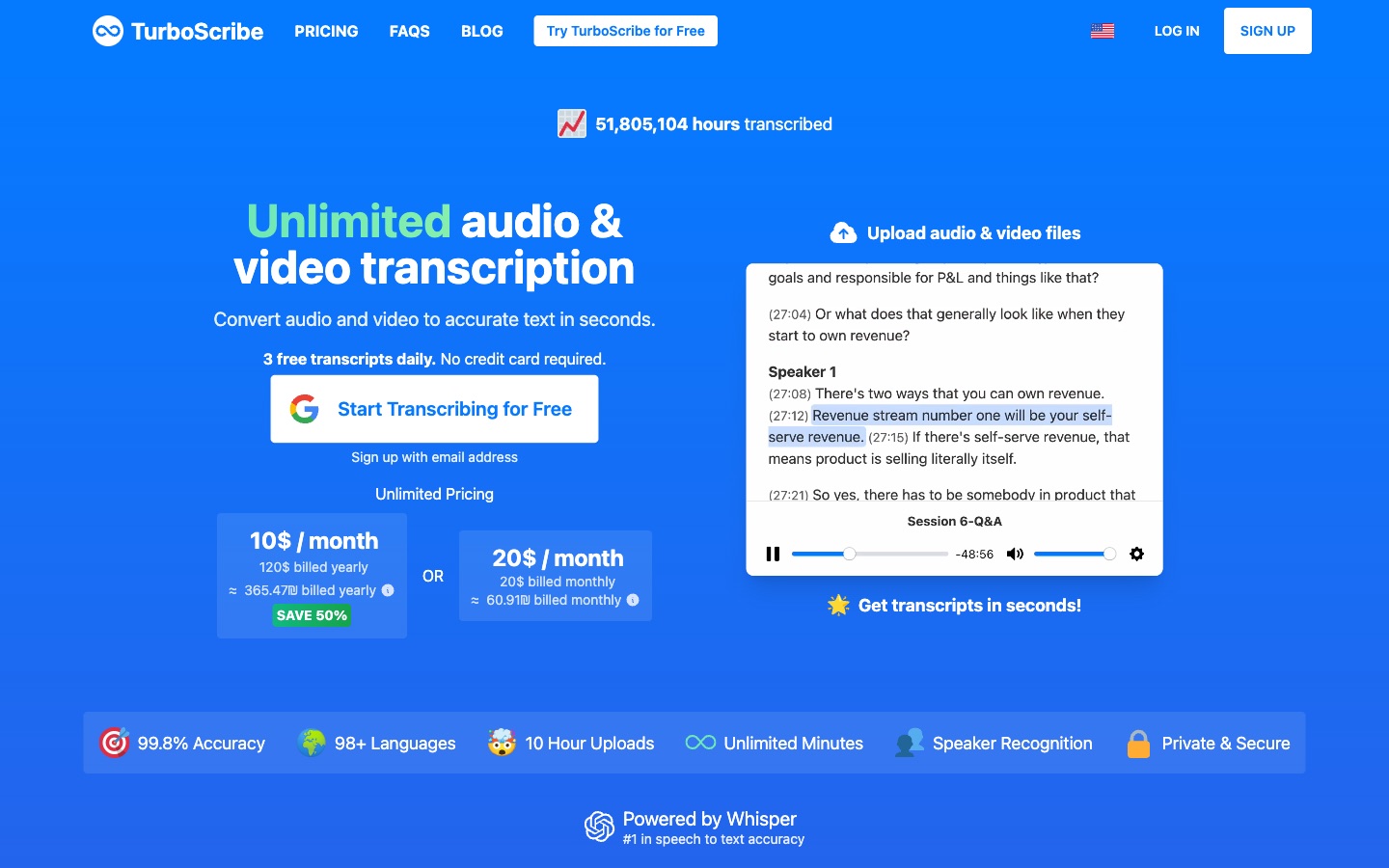 TurboScribe's official website, captured September 15, 2026. Credit: TurboScribe
What can TurboScribe do?
TurboScribe covers the full journey from raw file to usable text: transcription, speaker identification, audio cleanup, translation, subtitles, and bulk export. Here are the capabilities according to the site and help center, each paired with one practical business use.
- Audio and video transcription in three modes. Cheetah is the fastest, Dolphin is balanced, and Whale is the most accurate and is the default. According to the getting-started guide, Whale transcribes an hour of recording in a few minutes. Use case: an hour-long lecture turned into a written summary the same morning.
- Speaker recognition. Check Recognize Speakers and each segment of the transcript is labeled with who is speaking. You can specify the number of speakers or choose automatic detection. Use case: an in-depth customer interview where separating questions from answers matters.
- Audio restoration (Restore Audio). An AI that removes background noise and strengthens speech; the site recommends it only as a last resort for poor-quality recordings. According to the FAQ it adds 2 to 3 minutes per hour of recording. Use case: a recording from a conference with heavy room noise.
- Direct transcription to English. A setting called Transcribe to English produces an English transcript from a recording in any language, without a separate translation step. Use case: a conversation in Hebrew that needs to be sent to a partner abroad.
- Translation tool. From any transcript you click Translate and render the transcript or the subtitles into more than 134 languages. Use case: English and Arabic subtitles for a training video filmed in Hebrew.
- SRT and VTT subtitles with split control. When downloading SRT you set a maximum number of words per subtitle line, and in the advanced settings you also control duration, character count, and sentence-based splitting. Use case: subtitles for a Reel or a YouTube video, imported into an editor like CapCut.
- Bulk export and folders. Select up to 50 transcripts and download a single ZIP in the format of your choice, or export an entire folder of up to 1,000 transcripts. Use case: a research project with dozens of interviews going into analysis.
- Audio-synced player. Click any word in the transcript and the recording plays from that point. Use case: quickly checking a quote before it goes into an article or report.
- Wide format support. According to the FAQ: MP3, M4A, MP4, MOV, WAV, OGG, OPUS, FLAC, MKV, WEBM, and more. Use case: a WhatsApp voice message, a Zoom recording, and a phone video all in the same folder.
What is missing: according to the help center, TurboScribe has no API and no automated access. Every file is uploaded through the website.
How to get started: step by step
From registration to a first Hebrew transcript you can rely on takes about fifteen minutes. These steps are based on the official getting-started guide and help center.
- Sign up for free. Go to turboscribe.ai and register with a Google account or an email address. No credit card required. If you prefer, switch the interface to Hebrew in the corner.
- Choose a real recording for the test. Not a minute of "testing, one two three," but 15 to 25 minutes of actual conversation: two speakers, professional terminology, names, and numbers. That is what will reveal whether the tool works for you.
- Upload and set Audio Language to Hebrew. In the dashboard click Transcribe Your First File, drag in the file, and select Hebrew as the audio language. According to the help center, a transcript that comes out in the wrong language is almost always caused by an incorrect language setting.
- Choose a mode and enable speaker recognition. Leave it on Whale, the most accurate. Under Speaker Recognition & More Settings, check speaker recognition, and if you know how many people spoke, enter that number.
- Click Transcribe and check with the player. Once the file is ready, open it and click on any sentence that looks suspicious to hear the original. Check names, numbers, and English words spoken inside Hebrew sentences.
- Export in the format that serves your purpose. DOCX for editing and sharing, TXT for pasting into an AI tool, SRT for subtitles. If you need timestamps or additional formats, click Advanced Export.
The tip that saves the most time: if Whale struggles with a particular recording, the help center recommends trying Dolphin or Cheetah as well, since they sometimes produce a different result, and only as a last resort enabling Restore Audio.
Hebrew and RTL
Hebrew is supported and highlighted, but there is no official accuracy figure for Hebrew. That means: start with the free tier, test it on your own recordings, and only then pay.
What is officially stated. In the upload form, Hebrew appears on the list of popular languages. In the FAQ it is on a list of 22 languages in which, according to the company, you get the best results. The site has a Hebrew-language interface, including a pricing page that displays an estimate in shekels. The help center lists Hebrew among the languages in which the support team responds. Yiddish, incidentally, appears on the list of additional languages.
What is not stated. There is no accuracy percentage for Hebrew, and there is no mention of transcribing recordings that mix Hebrew and English. The FAQ says the tool handles accents and background noise "generally well," and the company itself recommends using the free tier to experiment.
What to test on your own recordings before relying on the tool:
- English terms inside Hebrew sentences. "I sent you the deck" is a normal sentence in Israeli tech. Check whether the English word comes out in English, in Hebrew transliteration, or garbled.
- Names and numbers. People's names, company names, product names, and amounts like "thirty-five thousand" are the weak spot of every transcription tool. Go through them with the player.
- Speaker recognition. According to the help center, automatic detection improves speaker separation but may estimate more speakers than were actually present. If there were two people, enter 2.
- SRT subtitles in Hebrew. Import them into your video player or editor and check that the punctuation at the end of a line appears on the correct side and that lines are not too long. If needed, reduce the word count per subtitle line.
- RTL alignment in DOCX. Open the file in Word and check that the text is right-aligned. If not, select all and align right. It takes a second.
- Translation from Hebrew. Transcribe to English is useful for an internal summary, but any translation going to a client goes through a human eye first.
The rule I give in my workshops: the three free files on day one are an entrance exam. One clean file, one noisy file, and one file that mixes Hebrew and English. If all three pass, the tool will work for you.
How Much It Costs: Every Plan from the Official Website
Two individual tiers and a teams option. The difference between annual and monthly billing is 50%. The table is from the official pricing page and teams page, verified September 15, 2026:
| Plan | Price | What you get | Limitations |
|---|---|---|---|
| TurboScribe Free | $0 | 3 transcriptions per day, no credit card required | Up to 30 minutes per file, one file at a time, low queue priority |
| TurboScribe Unlimited, annual billing | $10/month ($120/year); the site shows an estimate of approximately 365 ILS/year | Unlimited transcription, files up to 10 hours or 5GB, 50 files at once, translation into 134+ languages, bulk export, all transcription modes, unlimited storage, top priority | One person only, account sharing not permitted |
| TurboScribe Unlimited, monthly billing | $20/month; the site shows an estimate of approximately 61 ILS | Same | Same |
| TurboScribe for Teams | $120 per user per year | Unlimited for every user, single annual invoice, add or remove users at any time | Annual billing |
What you are actually paying for. Not minutes. According to the FAQ there is no overall usage cap, and the system is built to support at least 720 hours of transcription per month, meaning 24 hours a day for a full month. Users who average more than 24 hours per day enter High Volume status, according to the Help Center. What you are really buying is three things: file length (10 hours instead of 30 minutes), bulk uploads, and queue priority. You can cancel at any time and keep access until the end of the billing period.
The cheapest option that works for a small Israeli business. If you transcribe one or two interviews a week, each shorter than half an hour, the free plan is enough. The moment you have an hour-long recording, or more than three files a day, go with Unlimited on annual billing, $120 per year per person. One shared account for the whole office violates the terms, so for two or more employees you choose Teams. In the Help Center you can add a business name and tax details to invoices. Prices may change, so check the official website.
Use Cases for Businesses in Israel
The examples here are drawn from patterns that come up repeatedly in workshops, with no names and no client data included.
Business owner (independent consultant or coach). Every discovery call is recorded, with the client's consent, by phone or Zoom, and transcribed the same day. The transcript goes into an AI chat and you ask it for a summary, a quote, and a task list. The gain is not just time but accuracy: the client hears their own words reflected back in the proposal.
Marketing (content manager). A one-hour keynote from a professional conference becomes five posts, one article, and subtitles for three video clips. The SRT file goes into the video editor, and the full transcript becomes raw material for the article. This is exactly where cheap transcription changes the economics of content.
Operations (training manager at an organization). Internal training videos get Hebrew and Arabic subtitles through the translation tool, plus a DOCX transcript saved as a written procedure. A new employee searches for a keyword in the text instead of watching an hour of video.
HR and research (in-depth interviews). A satisfaction survey of twenty one-on-one employee interviews is transcribed with speaker identification, exported in bulk, and analyzed by topic. This requires explicit recording consent, deletion of the files at the end of the project, and removal of names from transcripts before they go into any analysis tool.
Sales (team manager). Recorded sales calls, in contexts where recording is legal and all parties are aware, are transcribed at the end of the week. The manager searches the transcripts for recurring objections and builds a call script from them. If you want a bot to join your Zoom meetings on its own, read the guide to Fireflies.
TurboScribe vs. Descript and Fireflies: An Honest Comparison
TurboScribe wins for transcribing Hebrew audio files at a flat price. Descript wins for editing video from text, but not in Hebrew. Fireflies wins for live meetings with a bot and CRM integration. TurboScribe data verified September 15, 2026; Descript and Fireflies data from their official pricing pages and Help Centers, as verified September 14, 2026 for our guides:
| TurboScribe | Descript | Fireflies.ai | |
|---|---|---|---|
| What it actually is | File transcription in the browser | Video and audio editor driven by the transcript | A bot that records and summarizes meetings |
| Free tier | 3 files/day, up to 30 minutes per file | 1 hour of media per month, 720p export with watermark | 400 minutes of team storage, no transcript downloads |
| First paid plan | Unlimited: $10 annual / $20 monthly | Hobbyist: $16 annual / $24 monthly, 10 hours of media | Pro: $10/seat annual / $18 monthly |
| Hebrew transcription | Yes, listed among the languages with the best results | No: 26 Latin-alphabet languages | Yes, listed among 117 languages |
| Volume limits | No overall cap; files up to 10 hours | Monthly media hours and credits | Storage and meeting length by plan |
| Subtitles | SRT and VTT with split settings, plus translation | Subtitles and clips inside the editor | Not the primary purpose |
| Core strength | Large volumes of recordings at a flat price | Text-based editing, English podcasts | Zoom, Meet, and Teams meetings, summaries, and CRM |
When to choose each one:
- TurboScribe: You have recordings, not live meetings. Interviews, lectures, podcasts, voice messages, training videos. Primarily in Hebrew, and in volumes that make per-minute pricing expensive.
- Descript: You are editing an English-language podcast or webinar and want to delete a word from the transcript and have it disappear from the video. For Hebrew content this is not the right tool, as we explained in the Descript guide.
- Fireflies.ai: Most of your recordings are video meetings and you want summaries and action items without pressing "Record," including integration with HubSpot or Salesforce.
What about Gemini and ChatGPT? A general-purpose chat tool can transcribe or summarize a short file, and that is enough for a single voice message. But they were not built as transcription services: they do not have, for example, the text-synced player, the subtitle split settings, or the folder structure of TurboScribe, and length and volume limits depend on your plan. The combination that works best is actually using them together: transcribe in TurboScribe, then bring the text into Gemini NotebookLM to query all your transcripts at once.
Privacy and Limitations
A recording is almost always sensitive information: it contains people's voices, names, and sometimes medical, legal, or financial details. Two topics follow: what the company says it does with your files, and what you need to decide before you upload.
What happens to your files, according to the official documents. In the security and privacy FAQ (March 2025), the company states that transcripts and files are encrypted at rest with AES-256, that all traffic is encrypted and unencrypted connections are blocked, and that only the account holder can see the files unless they have been shared. The company states it does not use third-party transcription APIs and runs transcription on machines it owns or controls, and that it does not train AI models on your files or transcripts. Payments go through Stripe and your card number is not stored on their end.
Where and for how long. According to the privacy policy (last updated August 23, 2022), the company is American and the primary infrastructure is in the United States, and using the service constitutes consent to the transfer of data there. Content is retained for as long as the account is active and you have not deleted it. A deleted file becomes immediately inaccessible, and including backups it is fully deleted within 90 days. The same applies to account deletion. The policy also mentions the use of subcontractors for cloud services and analytics.
What we did not find. In the pages we reviewed there is no mention of standards such as SOC 2 or HIPAA, and there is no option to choose a storage location. That does not mean the service is insecure; it means there is no certification document for an organization's information security officer to point to.
What not to upload. In the security FAQ the company notes that many of its customers work in law and medicine. That is not a reason to upload without thinking. Therapy sessions, medical records, investigations, board deliberations, and insider information do not go to a cloud tool without a decision from whoever is responsible for privacy in the organization, and in accordance with Amendment 13 to the Privacy Protection Law. For particularly sensitive documents and recordings there are other approaches, which we covered in the guide to working safely with AI on sensitive documents.
Honest limitations, as of September 2026:
- No accuracy figure for Hebrew. The 99.8% is a general marketing number.
- No API. You cannot connect transcription to an automated business workflow; uploads are manual only.
- No bot for live meetings. You record yourself and upload the file.
- Unlimited is for one person. Account sharing is prohibited under the FAQ.
- The interface does not edit video. You get an SRT file; burning it into the video is done in another tool.
- Privacy policy from 2022. The more current document is the security FAQ, which is not a contract.
Common Mistakes
- Leaving the audio language set to English. The transcript comes out garbled and you conclude the tool "doesn't support Hebrew." Set Hebrew before every upload.
- Testing on a one-minute recording. A clean one-minute clip always sounds great. The real test is a 20-minute conversation with names, numbers, and background noise.
- Turning on Restore Audio for every file. The site recommends it only as a last resort for poor-quality recordings, and it adds processing time.
- Sending a transcript or translation to a client without reading it. A wrong name or a wrong figure in a quote is your mistake, not the tool's.
- Sharing one Unlimited account across the whole office. That violates the terms. For two or more employees, use Teams.
- Uploading sensitive recordings without a policy. Decide first what is permitted, who deletes files and when, and only then upload the folder.
Frequently Asked Questions
What is TurboScribe?
An AI-based transcription service that converts audio and video files into text. You upload a file, choose a language, and receive a transcript you can edit, translate, and export as DOCX, PDF, TXT, CSV, or SRT and VTT subtitle files. According to the official website, it is built on Whisper and supports more than 98 languages, including Hebrew.
Does TurboScribe support Hebrew?
Yes. Hebrew appears in the list of popular languages in the upload form, and also in the list of 22 languages in which, according to the site's FAQ, you get the best results. There is also a Hebrew-language site interface and Hebrew email support. No Hebrew-specific accuracy figure is published, so test it on a real recording.
How much does TurboScribe cost?
According to the official pricing page (checked September 15, 2026): the free plan is free, and TurboScribe Unlimited costs $10 per month on annual billing ($120 per year) or $20 on monthly billing. For teams the price is $120 per user per year. Prices change, so check the official site.
What can you do on the free plan?
Three files per day, each up to 30 minutes, one file at a time, with lower queue priority. That is enough to test Hebrew quality and transcribe a short interview or a long voice message. Transcribing an hour-long recording or uploading multiple files at once requires Unlimited.
How do you export SRT subtitles from TurboScribe?
Open the transcript and click Download SRT. A window opens where you set the maximum number of words per subtitle, and in the advanced settings you can also set duration and character count. You then import the file into any video player or editor. A transcript that has been edited or has speaker labels needs Resegment before changing the segmentation.
Does TurboScribe use my files to train AI?
According to the official security and privacy FAQ: no. The company states that it does not train models on files and transcripts, encrypts them at rest with AES-256, and runs transcription on its own machines. Data is stored in the United States, and full deletion from backups takes up to 90 days according to the privacy policy.
TurboScribe or Fireflies?
It depends on where the recording comes from. Fireflies sends a bot to Zoom, Meet, and Teams meetings and summarizes them. TurboScribe works on files you already have: an interview recorded on your phone, a lecture, a podcast, a video. Anyone who mainly transcribes live meetings chooses Fireflies; anyone who has a folder of recordings chooses TurboScribe.
Does TurboScribe have an API?
No. According to the official help center there is no API and no automated access, and all files are uploaded through the website interface. Anyone who wants to connect transcription to an automated workflow with Make or Zapier needs a different tool. Manual uploading does support 50 files at once on the Unlimited plan.
The bottom line
51 million hours transcribed is an impressive number, but the real reason to open an account is different: every recording sitting on your phone, every interview, lecture, or discovery call, becomes searchable, quotable, translatable text you can feed into AI tools. In Hebrew, at a fixed price of $10 a month, with a free plan that is enough to test before you pay. The real cost is not money but discipline: set the language, verify names and numbers, and decide in advance what should not go to the cloud.
What to do this week: sign up for free, upload three real recordings (clean, noisy, mixed), and compare the transcript to what was actually said. If it holds up, start transcribing the recordings that have been waiting. And anyone looking for all the AI content tools in one place will find them in the interactive courses.
Want to practice this inside the page? The interactive TurboScribe course for 9.90 ILS
Sources
All TurboScribe sources were checked on September 15, 2026. Prices and limits change, so check the official site before making a decision.
- Official homepage (Whisper, 98+ languages, language list, transcription modes, speaker detection, audio recovery, formats, export, FAQ, hour counter, founder): https://turboscribe.ai/
- Official pricing page, Hebrew version (free, annual and monthly Unlimited, ILS estimate, 10 hours / 5 GB, 50 files): https://turboscribe.ai/he/pricing
- Hebrew transcription language page: https://turboscribe.ai/transcription/Hebrew
- Official getting-started guide (Whale mode as default, speaker detection, TXT / DOCX / SRT export, translation tool): https://turboscribe.ai/blog/getting-started-with-turboscribe
- Help center (5 GB limit, wrong language, improving accuracy, High Volume Mode, SRT and segmentation settings, account deletion, invoices, no API, support languages): https://turboscribe.ai/support
- Security and privacy FAQ (AES-256, HTTPS, USA, no third-party transcription, no model training, export and deletion): https://turboscribe.ai/blog/security-and-privacy-faq
- Bulk export and file management (50 transcripts, ZIP, formats): https://turboscribe.ai/blog/export-and-manage-files-in-bulk
- TurboScribe for Teams ($120 per user per year, user management): https://turboscribe.ai/blog/turboscribe-for-teams
- Privacy policy (Leif Erikson Ventures, LLC, retention, deletion within 90 days, transfer to the USA, updated August 23, 2022): https://turboscribe.ai/privacy
- For comparison, checked September 14, 2026: Descript pricing page https://www.descript.com/pricing and its transcription languages https://help.descript.com/hc/en-us/articles/10249408168845-Supported-transcription-languages
- For comparison, checked September 14, 2026: Fireflies.ai pricing page https://fireflies.ai/pricing and its transcription languages https://guide.fireflies.ai/articles/2973706448-learn-about-fireflies-supported-languages
Frequently asked questions

Yaakov Tzedek
An Israeli AI lecturer, consultant and implementer who has supported 100+ organizations in AI implementation and lectured for 200+. Official content partner of Meta, Google, Canva and TikTok, featured on Israel's Channel 13.
More about Yaakov →