- What is Descript: transcript-based video and podcast editing, Underlord, Studio Sound, voice cloning, full pricing from the official site, Hebrew support, privacy, and Descript vs. CapCut.
According to the official help center, media hours in Descript are counted against every file you upload or record, even if you never transcribed it and even if you deleted it from the final edit. A still image counts as one second. Any hours you do not use by the end of the month do not roll over to the next.
Delete a word from the transcript, and it disappears from the video too. That's the idea Descript has been selling for several years, and most people who've seen it once never go back to dragging clips on a timeline. That's not the interesting part.
The interesting part is what happened to the tool in 2026: sitting on top of the text-based editing is now an AI assistant called Underlord that takes instructions in a chat window, "remove the repeated takes and clean up the noise," and does it on its own. And before you rush to sign up, here's the big asterisk: Hebrew transcription is not available. Not "not quite accurate yet," simply not available, according to the official list.
This guide was built from Descript's pricing page, product pages, official help center, privacy policy, and terms of service (everything verified September 14, 2026): what the tool does, how to edit with it for the first time, exactly what happens with Hebrew, what it actually costs once you understand the two meters, and when CapCut is the right choice instead.
In short
| Question | Short answer |
|---|---|
| What is it? | A video and audio editor that works from the transcript, with an AI assistant (Underlord) and a layer of AI tools for sound, video, and voice |
| Who is it for? | Podcasts, webinars, training videos, interviews, and spoken-word content, primarily in English |
| How much does it cost? | Free (one hour per month); Hobbyist $16 annual / $24 monthly; Creator $24 / $35; Business $50 / $65; Enterprise custom |
| Hebrew? | Transcription: no. 26 languages in Latin script only. Interface in English. Studio Sound, recording, and manual cutting work fine |
| What's new in 2026? | Underlord (beta): an assistant that runs tools based on chat instructions, plus pricing based on media hours and credits |
| When not to use it? | Hebrew Reels with subtitles (CapCut), multi-camera cinematic editing (Premiere), sensitive material without a clear policy |
What is Descript?
Descript is a video and audio editor where the transcript is the timeline. You upload a recording, the tool transcribes it, and from that point on you edit the media like a document: delete a sentence and it's cut from the video; select a paragraph and move it, and the scene moves with it. According to the official homepage, "video editing in Descript is as easy as working with documents and slides."
Definition: Descript is a transcript-based editing application for Mac, Windows, and browser: every change to the text is a change to the media, and on top of that sits an AI layer that cleans sound, removes filler words and retakes, corrects eye contact, clones voices, and publishes directly to YouTube and podcast hosting services.
The tool was born around podcasts, and that's still where it's strongest: multi-track editing of multiple speakers, each on their own track, all from a single transcript. In recent years it has grown into a full video editor, with scenes, layers, styled captions, screen and camera recording, and a remote recording room (Rooms) for guest interviews.
The important thing to understand about its positioning: Descript is built for spoken content. An interview, a lecture, a webinar, a podcast episode, an explainer video to camera. That's where the transcript is the fastest way to edit. A music video, an atmosphere reel for a restaurant, or a reel with ten cuts on the beat, that's not its territory.
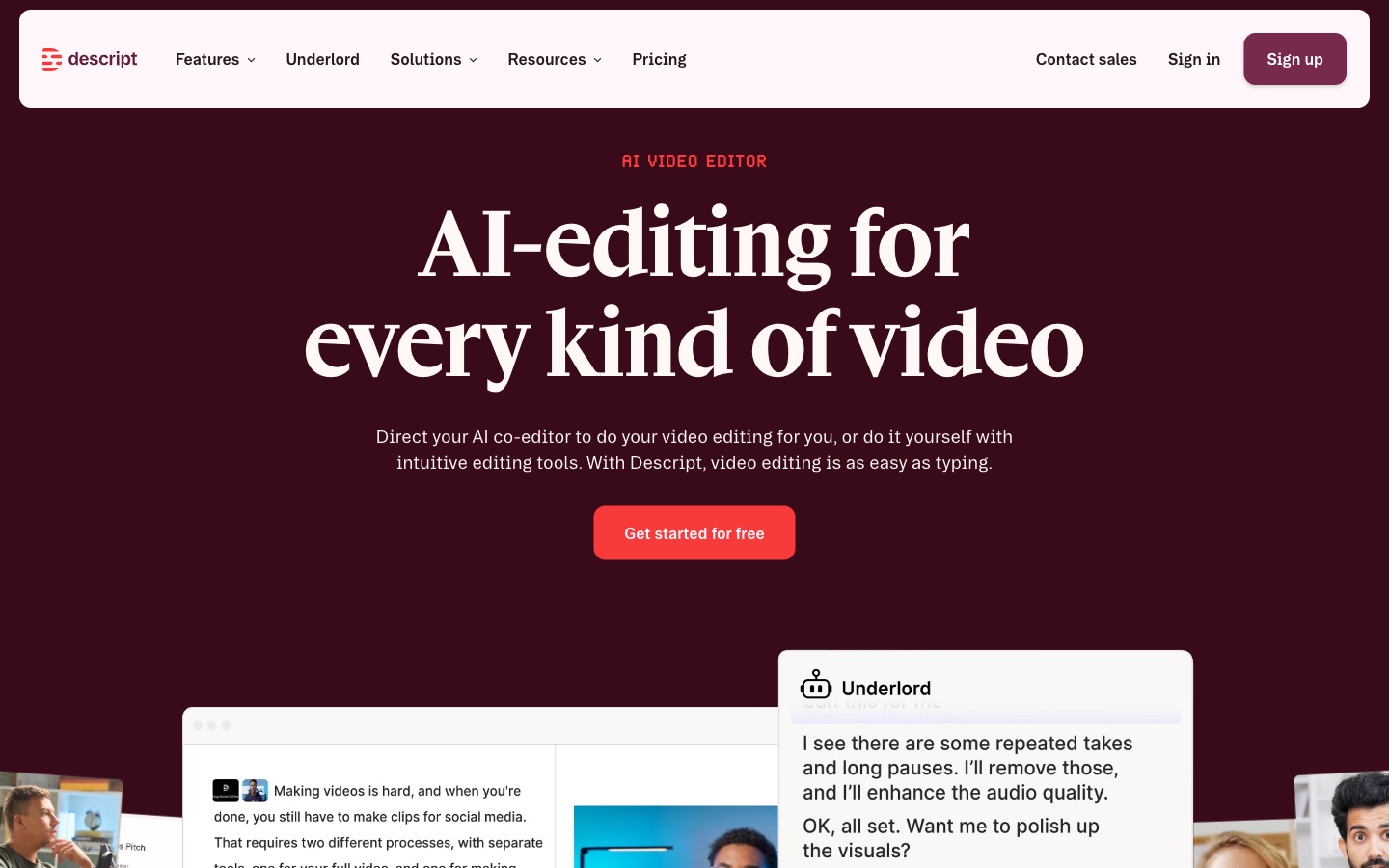 Descript's official website, captured September 2026. Credit: Descript
What can Descript do?
The core is text-based editing, and around it sit roughly ten AI tools, each solving one content creator problem. According to the official homepage and help center, as of September 2026:
- Transcript-based editing. Delete, cut, and move text, and the media follows. Business use case: a one-hour webinar turned into a 20-minute version without dragging a single clip.
- Automatic transcription. "Automatic, with industry-leading accuracy and speed," according to the homepage, in 26 languages using the Latin alphabet. Use case: a client interview in English turned into text for website quotes.
- Underlord (beta). An AI assistant in the sidebar: write what you want, and it runs the tools. According to the help center it can add styled captions, cut clips and adapt them for platforms, add animations and transitions, translate, handle audio, and turn slides into narrated video. Use case: "make three clips from this for a LinkedIn post."
- Remove Filler Words. "Um," "like," "you know" are removed in a single action. Use case: a podcast episode that sounds edited without two hours on the timeline.
- Remove Retakes. Said a sentence three times before it came out right? The tool keeps the last one. Use case: a training video filmed in one continuous take.
- Studio Sound. AI-powered removal of background noise and echo, "clean and crisp audio," according to the homepage. Use case: an office recording with an air conditioner that sounds like a studio.
- Eye Contact. Corrects gaze toward the lens when reading from a teleprompter or a script. According to the help center it works best with one face in the frame, well-lit and large, and requires an internet connection. Use case: a CEO reading a message to employees who looks like he's speaking directly to them.
- AI Speech and voice cloning (Overdub). Stock voices (25+ on Hobbyist and Creator, 60+ on Business, according to the pricing page), or a clone of your own voice after reading a consent declaration. Use case: correcting a mispronounced word in a voiceover without re-recording.
- Regenerate. Regenerates audio and video to fix a segment. Use case: a sentence where your face went out of frame.
- Green screen, captions, clips. Background removal, one-click captions, and splitting long content into short segments. Use case: a 40-minute episode turned into five social clips.
- Screen recording and Rooms. Record your screen and camera, or invite a guest to a remote recording room. Use case: software training for new employees, an interview with an overseas expert.
- Translation. "Translation into dozens of languages," according to the homepage, for captions and audio. Use case: an English webinar with Spanish subtitles for an additional market.
- Export and direct publishing. Video, audio, GIF, text, and captions, plus direct publishing to YouTube and hosting services (full list further below).
A large portion of these tools consume AI credits, which changes the math. More on that in the pricing section.
How to get started: step by step
From sign-up to an edited, published episode, six steps. The process applies to both the desktop app (macOS 14 or Windows 11 and above, according to the download page) and the browser version:
- Free account. Sign up at descript.com, no credit card required according to the pricing page. You get one hour of media per month and 100 one-time credits. That's enough for one 20-minute recording and a few AI actions.
- New project and media. Upload an existing recording or record inside the app (screen, camera, or Rooms). Note: every minute you upload counts against your media hours, even if you don't transcribe it. Upload only what you need.
- Transcription. Choose a language (or enable "Always ask before transcribing" in settings, to avoid getting a transcript in the wrong language). For Hebrew material, this is where you stop, see the next section. In English, you have text within minutes.
- Edit from the text. Read through the transcript, delete what's unnecessary, and select "Remove Filler Words" and "Remove Retakes." This is the moment most people understand the tool: the video is a fifth shorter, and you haven't touched the timeline.
- Polish with AI. Studio Sound on the speech track, Eye Contact if you read from a script, captions in one click. Or just write to Underlord: "clean the sound, remove long silences, and add captions." Keep an eye on the credit counter after each action.
- Export and publish. Hit Export in the corner, choose video (720p with watermark on Free, 1080p on Hobbyist, 4K on Creator and above), or audio for a podcast, and publish directly to YouTube or your hosting service.
The first episode will take an hour. The third, half an hour. And if you want to practice this process inside a structured walkthrough, step by step, there is an interactive Descript course built around exactly these stages.
Hebrew and RTL
Hebrew transcription is not available, and that's the limitation that determines who the tool suits in Israel. According to the official help center (the "Supported transcription languages" page): "Currently, supported transcription languages are limited to languages that use the Latin alphabet. Languages such as Chinese, Japanese, or Russian are not yet supported." Hebrew does not appear in the list, and is not in the Latin alphabet. The list covers 26 languages, including English (US and UK), Spanish, French, German, Italian, Brazilian Portuguese, Dutch, Polish, Turkish, and Greek, Hindi, and Welsh in beta.
What this means in practice: everything that relies on the transcript doesn't work in Hebrew. Text-based editing, filler word removal, retake removal, automatic captions, content-based clip creation, and most Underlord instructions. It's not "works poorly," it doesn't exist for Hebrew as of September 2026.
What does work with Hebrew material:
- Studio Sound. Noise removal is language-independent. A noisy Hebrew recording comes out clean.
- Screen and camera recording, and Rooms. The recording itself works in any language.
- Manual cutting on the timeline. You can edit Hebrew content like any regular editor, just without the text-editing magic.
- Eye Contact and green screen. These operate on the frame, not the language.
- Typed text. Titles and captions you type manually in Hebrew are displayed, but the interface is in English and not RTL, so a line that mixes Hebrew and English or has punctuation at the edge may render reversed. Check every line in preview.
What to test before paying: Upload a five-minute Hebrew recording to the free account, try to transcribe it (and confirm there's no matching language in the list), run Studio Sound, and type a Hebrew caption with an English word in the middle. Within fifteen minutes you'll know whether the tool works for you.
The scenario that does work for an Israeli business: English content. A webinar for an international market, an English podcast, training videos for overseas clients, interviews with foreign partners. There, Descript is fully capable. For Hebrew content with captions, CapCut transcribes Hebrew and does it for free. For quality Hebrew voiceover, ElevenLabs is the tool. And anyone who needs only a transcript or SRT file from a Hebrew recording, without any editing, will find that in the TurboScribe guide, which transcribes Hebrew and exports captions.
And anyone who just needs to remove noise and echo from a Hebrew recording, without switching to an editor at all, can do it for free for up to an hour a day with Enhance Speech, as covered in the Adobe Podcast guide.
How Much It Costs: All Plans from the Official Site
Five tiers, and two meters that determine the real price: media hours and AI credits. The table below is from the official pricing page, verified September 14, 2026. Prices are in US dollars per month; annual billing saves "up to 35%" according to the page:
| Plan | Price per month (annual / monthly) | Media hours per month | AI credits per month | Export | Storage | Users |
|---|---|---|---|---|---|---|
| Free | $0 | 1 hour | 100 (one-time) | 720p with watermark | 5GB | 1 |
| Hobbyist | $16 / $24 | 10 | 400 | 1080p no watermark | 100GB | 1 |
| Creator | $24 / $35 | 30 | 800 | 4K | 1TB | Up to 3 |
| Business | $50 / $65 | 40 | 1,500 | 4K | 2TB | Up to 5 |
| Enterprise | Contact sales | Per team | Per team | 4K | Custom | SSO / SCIM, brand controls |
Filler word removal, Studio Sound, AI voices, and Eye Contact are marked as "limited" on the Free plan and included from Hobbyist and up. Business includes 60+ stock voices versus 25+ on lower tiers. Prices are subject to change; always check the official site.
What you actually pay for. Based on the pricing FAQ and help center: media hours count against "files you upload and media you record in Descript, whether or not they are transcribed." A still image counts as one second. Recording in Rooms counts by session length, not per participant. Credits are consumed by Underlord, Studio Sound, filler word removal, green screen, Eye Contact, AI speech, avatars, and generated video. Studio Sound and filler word removal are capped at 30 credits per file per run; Underlord has "no fixed price per action," and the help center warns that the same instruction can cost different amounts on different runs, because you pay for both the agent's "brain" and the tool it activates.
Three things worth knowing before you pay:
- Nothing rolls over. "The quota resets at the start of each billing cycle. Unused media hours and credits do not carry over to the next cycle" (help center). Someone who edits one episode a month on Creator pays for 30 hours and uses two.
- Top-ups are only available on two plans. Extra hours and credits can be purchased on Creator and Business only, and they are valid for 12 months from the date of purchase. On Free and Hobbyist, when you run out, you wait for the next month or upgrade.
- Only upload what you are editing. Because the meter runs on uploads, not on transcription. Three hours of raw footage "just in case" is a third of the entire Hobbyist quota.
The cheapest plan that works for a small business: If your content is in English and you have one or two episodes or webinars a month, Hobbyist on annual billing ($16 per month) is enough: 10 media hours, 1080p without a watermark, and all the core AI tools with 400 credits. Creator is needed when you need 4K, more than two or three hours of raw footage per week, collaboration for up to three people, or top-ups. And if your content is in Hebrew, don't pay anything until you have tested in the free plan what actually works for you.
Use Cases for Israeli Businesses
Five scenarios by role, all involving English content or tools that are language-independent. The examples here are fictional and represent types of businesses, not actual clients:
Business owner (small software company selling internationally): Records a monthly client update in English, in one take, with mistakes. Remove Retakes keeps the last take, Remove Filler Words cleans it up, Eye Contact corrects the on-screen reading, and direct export to YouTube. Half an hour instead of an evening.
Marketing (consulting firm with a monthly webinar): A one-hour Zoom webinar goes into Descript, Underlord is asked to "extract five clips of up to 60 seconds with subtitles, vertical format." Five LinkedIn posts from content that already exists. The Hebrew version of the same clips gets edited in CapCut.
Operations (clinic chain): Internal training videos for new software: screen recording in Descript, Studio Sound on the voiceover, manual cuts. In Hebrew this works, because you don't need transcription for screen recordings and sound cleanup. Subtitles are typed manually and checked for RTL.
HR (manufacturing company with English- and Spanish-speaking employees): One onboarding video in English, subtitle translation to Spanish via the tool, published to the internal Wistia library. One recording, two audiences. Content involving employee details: see the privacy section before uploading.
Sales (B2B startup): Demo recordings in English for each prospect: one template, swap the intro with the company name, voice clone (after the consent declaration) fixes one word without re-recording, export to Google Drive for sending. Five minutes per custom demo.
The common thread: the content is spoken, and in English or not dependent on transcription. A business whose content is mostly Hebrew Reels will find more value elsewhere. In the guide to AI video tools I mapped out the alternatives by content type.
And anyone for whom the tool is not the problem but rather what to say on camera will find the 45-second structure, a hook bank, and a script-writing prompt in the guide to writing a viral video script.
Descript vs. CapCut and Premiere Pro: An Honest Comparison
Three tools for three different jobs, and the deciding difference for an Israeli business is language. Descript data from the official site (September 14, 2026); CapCut data from my guide; Premiere Pro from Adobe, based on its general positioning, without a price, because it varies by plan and country and you should check Adobe's site.
| Descript | CapCut | Premiere Pro | |
|---|---|---|---|
| Editing method | From transcript, with AI assistant | Timeline + templates | Professional timeline |
| Price | Free (one hour per month); $16 to $65 per month | Free; Pro in the range of $20 | Adobe monthly subscription |
| Hebrew transcription | No (Latin only) | Yes, built in | Yes, built in |
| Platform | Mac, Windows, browser | Mobile + desktop + browser | Desktop |
| Strength | Podcasts, webinars, spoken English content | Vertical Reels, subtitles, trends | Brand films, multi-camera, color |
| Learning curve | Low | Very low | High |
| AI | Underlord, filler words, Studio Sound, Eye Contact, voice clone | Subtitles, video script, avatars | Firefly, transcription, partial |
| Best for | Spoken content creators, marketing and training teams | Small businesses, social media | Professional editors |
When to choose each one:
- Descript when the content is spoken and in English, and when your time is worth more than the subscription: podcasts, webinars, training videos, interviews. Editing from text saves hours per episode.
- CapCut when the output is a vertical Hebrew Reel with subtitles, when you edit from your phone, and when the budget is zero. The right choice for most small Israeli businesses for social media, and there is also a CapCut course.
- Premiere Pro when there is a professional editor on the team, when there is multi-camera work and color grading, and when the output is broadcast or commercial. Descript and CapCut are not competing there.
The combination seen most often: Descript for the long-form English version, CapCut for Hebrew clips, and no Premiere Pro.
Anyone looking for a browser editor that does transcribe Hebrew and translate subtitles should check out the VEED guide, with all plans and limitations.
Privacy and Limitations
The official policy is relatively clear, and there is one setting worth turning off on day one. Based on Descript's privacy policy and terms of service (verified September 14, 2026):
- Ownership. "As between you and Descript, you own all rights in your inputs and outputs" (terms of service). It is yours.
- License. Those same terms grant the company a "perpetual, irrevocable, non-exclusive, royalty-free... license to access, copy, process... and analyze" your content. Broad language, standard for cloud tools, but worth knowing it is there.
- Model training. "Descript may access and use your inputs and outputs... to train, improve, and develop its models and technologies (unless you have opted out of such use)." The privacy policy points to the Share Data with Descript setting, which can be turned off. A business turns it off on day one.
- Human access. "The service processes your projects automatically, without human access to those projects unless you have given consent or we are required to do so by law."
- Voice clone. Creating a clone of a voice that has not given explicit consent is prohibited, and the consent declaration is read aloud and recorded. Training data from AI speakers may be retained to improve the technology "after it is disassociated from your account."
- Sub-processors. The privacy policy lists payment processors, Google integrations (YouTube, Workspace), and vendors for voice print and facial geometry generation (for avatars).
- Jurisdiction. California. The pricing page notes SOC 2 compliance. There is no mention of a specific commitment to Israeli privacy law, so material containing client or employee data requires a check with your DPO before uploading.
What not to upload: recordings containing client medical, financial, or legal information; executive meetings; job interviews with identifying details; and any material that organizational policy prohibits from third-party cloud services. Marketing content that is going to YouTube anyway: low risk.
Honest limitations, as of September 2026:
- Hebrew transcription: none. The main limitation, as detailed above.
- Underlord is in beta. The help center states it "may overpromise, make incorrect assumptions, or lead you down processes it is not equipped to complete." It requires supervision, not blind automation.
- Unpredictable cost. The same Underlord instruction costs a different amount on every run. Heavy editors will discover this in the meter.
- Quota does not accumulate. A quiet month is a wasted month.
- Eye Contact is sensitive. One face, large, well-lit, without glare from glasses, and it skips segments where you turn your head.
- No mobile app on the download page. Desktop (macOS 14 / Windows 11 and above) and browser. Anyone who edits from a phone: this is not the tool.
- Non-spoken content. An ambient clip with no speech gains nothing from a transcript-based editor.
Common Mistakes
- Signing up for a paid plan for Hebrew content. First check in the free plan that there is no Hebrew transcription, then decide whether Studio Sound and screen recording alone are worth a subscription.
- Uploading all the raw footage. Media hours count on upload. Upload only the file you are editing, and delete excess material beforehand.
- Leaving Share Data with Descript turned on. One setting, day one, especially in a business context.
- Giving Underlord a vague instruction. "Improve the video" burns credits with no clear result. A precise instruction: "Remove silences longer than one second, remove filler words, Studio Sound on channel 1."
- Trusting filler word removal without listening back. Sometimes the word "like" is part of the sentence. Listen through once before exporting.
- Choosing Creator "just in case." If you have not used 10 hours on Hobbyist, 30 hours will not help. Upgrade when the meter tells you to.
Frequently Asked Questions
What is Descript?
A video and audio editor that works from the transcript: you upload a recording, the tool transcribes it, and deleting a word in the text deletes it from the media. On top of that sits an AI layer: Underlord, an editing assistant, filler word and repeated take removal, Studio Sound for noise cleanup, Eye Contact, voice cloning, green screen, captions, and clips. Available as a Mac and Windows app and as a browser version.
How much does Descript cost?
According to the official pricing page (checked September 14, 2026): free with one hour of media per month and 100 one-time credits; Hobbyist at $16/month billed annually or $24 monthly; Creator at $24 annually or $35 monthly; Business at $50 annually or $65 monthly; Enterprise at custom pricing. Annual billing saves up to 35%. Prices change, so check the official site.
Does Descript support Hebrew?
Not for transcription. According to the official Help Center, transcription languages are limited to languages using the Latin alphabet (26 languages, including English, Spanish, German, and French). Without a transcript, text-based editing in Hebrew does not exist. What does work: Studio Sound, screen recording, manual cutting on the timeline, and content you record in English.
What is Underlord?
Descript's AI assistant, in beta according to the Help Center. You tell it in chat what you want ("remove repeated takes and improve the sound") and it runs the tools itself: captions, clips, transitions, translation, audio, and slides to video. Each message consumes credits, and so does each tool it activates, and the cost varies between runs.
What are media hours and AI credits?
Two separate counters. Media hours: everything you upload or record, whether you transcribed it or not. Credits: every AI action (Underlord, Studio Sound, filler words, Eye Contact, AI voice, avatars, generated video). Both reset each billing cycle and do not roll over. Top-ups can only be purchased on Creator and Business.
Can you publish directly to YouTube and podcasts?
Yes. According to the Help Center, you can export video, audio, GIF, text, and captions, and publish directly to YouTube, Google Drive, and podcast hosting services such as Buzzsprout, Captivate, Castos, Podbean, Transistor, and Blubrry, as well as Wistia and Restream. The official list also includes Headliner, Hello Audio, Podcast.co, eWebinar, and Videoask.
Descript or CapCut?
It depends on what you are editing and in which language. For spoken English content (podcast, webinar, tutorial, interview), Descript is several times faster because you edit from the text. For vertical Reels in Hebrew with captions, CapCut: it transcribes Hebrew, it is free, and it is built for mobile. Many businesses keep both.
What happens to my files in terms of privacy?
According to the privacy policy, the service processes projects automatically without human access, except with consent or as required by law. The terms of service state that your content is yours, but they grant the company a broad license and allow use of input and output for model training unless you have turned off the Share Data with Descript setting. Do not upload sensitive material without reviewing the policy first.
The Bottom Line
Delete a word and it disappears from the video. In 2026, you do not even have to delete it yourself: Underlord does it on instruction. For spoken English content, podcasts, webinars, tutorials, interviews, Descript is probably the fastest path from a raw recording to a published episode, and $16/month on Hobbyist is a fair price for the hours it saves.
For Hebrew content, honesty is required: without transcription, most of the magic does not exist. What remains, Studio Sound, screen recording, and manual cutting, is worth trying on the free plan, not a subscription. And keep editing Hebrew Reels in CapCut.
Want to practice this inside the page? The interactive Descript course for 9.90 ILS, and for anyone who wants the full picture of video, voice, and content tools, all interactive AI courses in one place. For those who also produce spoken Hebrew content, the NotebookLM guide shows how to turn documents into a podcast without recording at all.
Sources
All sources checked on September 14, 2026. Prices and quotas change, so check the official site before making a decision.
- Official pricing page (plans, prices, media hours, credits, pricing FAQs, SOC 2): https://www.descript.com/pricing
- Official homepage (feature list: text-based editing, Underlord, Studio Sound, Eye Contact, AI Speech, Rooms, translation): https://www.descript.com/
- Download page (system requirements: macOS 14 / Windows 11 and above): https://www.descript.com/download
- Help Center, supported transcription languages (26 languages, Latin alphabet only, beta for Greek/Hindi/Welsh): https://help.descript.com/hc/en-us/articles/10249408168845-Supported-transcription-languages
- Descript blog, transcription in 23 languages (updated July 29, 2026): https://www.descript.com/blog/article/new-in-descript-transcription-in-23-languages
- Help Center, Underlord (beta), AI assistant (capabilities, credits, non-determinism, limitations): https://help.descript.com/hc/en-us/articles/36803785502221-Underlord-beta-Your-AI-co-editor-in-Descript
- Help Center, tracking media hours and credits (what counts, monthly reset, 30-credit maximum for Studio Sound and filler words): https://help.descript.com/hc/en-us/articles/27841674958221-Track-and-understand-your-media-minutes-and-AI-credits
- Help Center, top-ups for Creator and Business, 12-month validity: https://help.descript.com/hc/en-us/articles/40053604160909-Top-Ups-Buy-Additional-Media-Minutes-and-AI-Credits
- Help Center, Eye Contact (one face, lighting, network connection, credits): https://help.descript.com/hc/en-us/articles/16672551194637-Eye-Contact
- Help Center, publishing and exporting overview (video, audio, GIF, text, captions, timeline): https://help.descript.com/hc/en-us/articles/10255819601037-Publishing-and-exporting-overview
- Help Center, publishing to hosting providers (list of 15 platforms): https://help.descript.com/hc/en-us/articles/10255815785613-Publishing-to-other-hosting-providers
- Privacy policy (human access, Share Data with Descript, subprocessors, rights): https://www.descript.com/privacy
- Terms of service (ownership of input and output, license, model training, voice cloning consent, California law): https://www.descript.com/terms
Frequently asked questions

Yaakov Tzedek
An Israeli AI lecturer, consultant and implementer who has supported 100+ organizations in AI implementation and lectured for 200+. Official content partner of Meta, Google, Canva and TikTok, featured on Israel's Channel 13.
More about Yaakov →