
- What Google Flow is, how to build your first scene with Veo 3.1 and Gemini Omni, credit costs per clip, Google AI pricing in ILS, Hebrew support, rights, and Flow vs. Runway vs. Kling.
According to the official Google blog, more than 275 million videos were created in Flow within five months of its May 2025 launch. That happened before the tool was even opened to more than 195 countries, including Israel.
50 credits a day, no subscription, no credit card. That's enough for two eight-second Veo 3.1 Fast clips. And most people who open Google Flow burn through all of them in two minutes on a single Quality-mode experiment, then conclude the tool is too expensive.
Google Flow is not just another video generator. It's the studio Google built around its own models, and once you understand how the credits work, what each model does, and where Hebrew support ends, you get a tool for under 75 ILS per month that would have sounded like science fiction two years ago.
This guide was built from Flow's product page, the Google AI subscriptions page with ILS pricing, the official Help Center pages (credits, models, availability, creation, editing, and privacy), the Google blog, and the Google DeepMind Veo page. All pages were checked on September 15, 2026.
In short
| Question | Short answer |
|---|---|
| What it is | Google's AI studio for creating and editing video and images, powered by Veo 3.1, Gemini Omni Flash, and Nano Banana |
| How much it costs | 50 credits per day for free. Plus at 19 ILS, Pro at 74.9 ILS, Ultra from 390 ILS per month (Israel pricing, September 15, 2026) |
| What you pay for | Credits: a Veo 3.1 Fast clip costs 20, Quality costs 100, Lite costs 10 |
| Available in Israel | Yes. According to the Help Center, 195+ countries, including Israel, ages 18 and up |
| Hebrew | Interface available in Hebrew. Prompts: Google officially recommends English. Hebrew speech and in-frame Hebrew text are not officially documented |
| The differentiator | Native audio in Veo, conversational editing with Omni, and it comes as part of a subscription that already includes Gemini and storage |
What is Google Flow?
Google Flow is Google's creative studio where you generate, edit, and assemble videos and images using the company's generative models. It launched in May 2025 as a filmmaking tool built around Veo, and in May 2026 it gained Gemini Omni Flash, an agent, and customizable tools.
Definition: Google Flow is Google's browser-based AI studio for creating and editing video and images. You can generate a video from text, from frames, or from reference assets (ingredients); extend clips; arrange them into a scene in Scenebuilder; and edit in natural language. It runs on credits that arrive daily and through a Google AI subscription.
The distinction between Flow and Veo matters. Veo is the model, the engine that turns a description into a video. Flow is the workspace: projects, assets, version history, a scene builder, and an agent. For the model itself, its versions, and a comparison with Sora, see our Veo guide. We won't repeat that here.
According to the product page, Flow currently combines three model families: Veo 3.1 for video with native audio, Gemini Omni Flash for creating and editing videos from any file (real or generated), and Nano Banana for creating and editing images. We have a separate Nano Banana guide covering Google's image model.
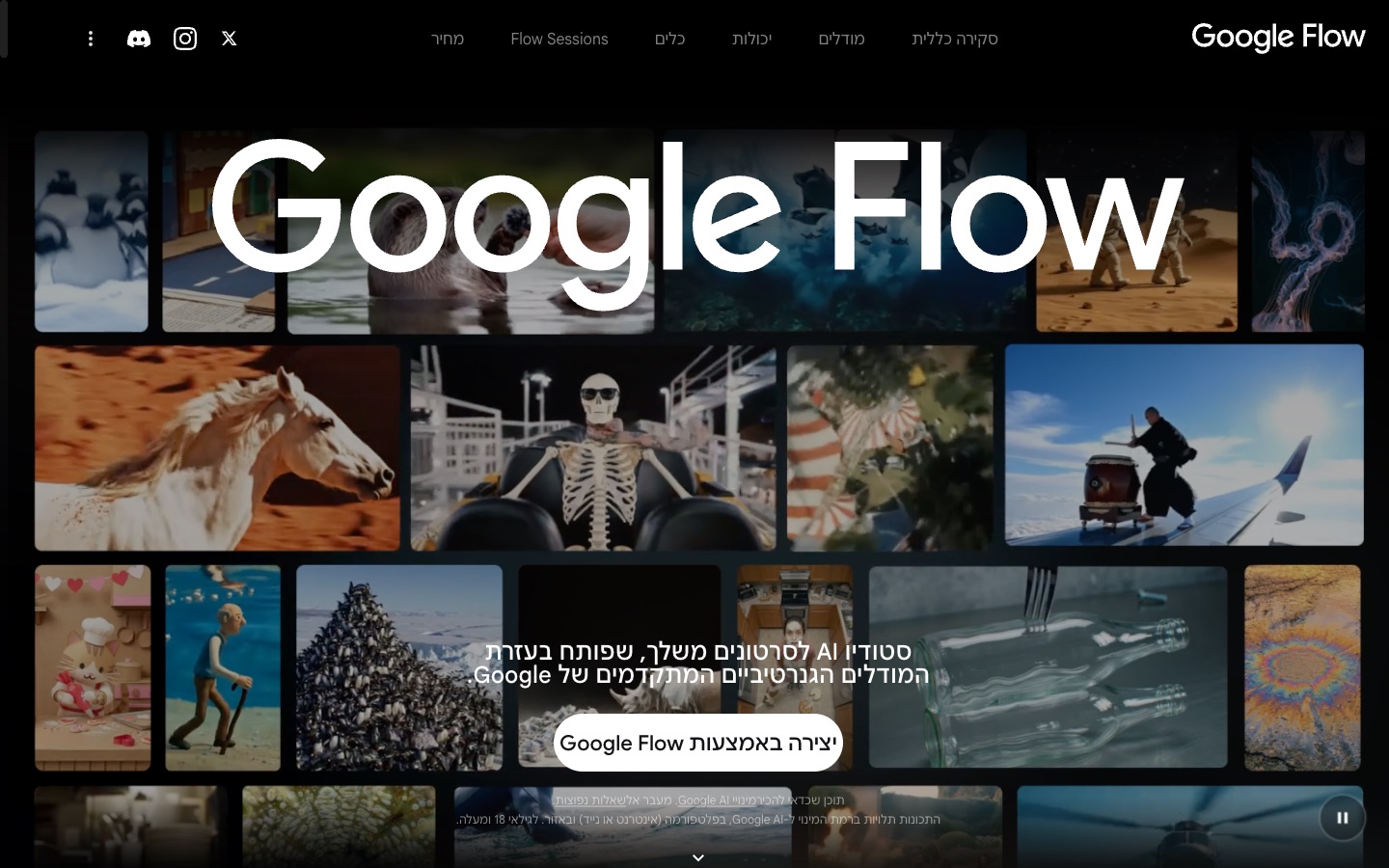 The official Google Flow website, photographed in September 2026. Credit: Google
What can Google Flow do?
Flow can generate clips from text, images, and video; extend them; edit them conversationally; and assemble them into a single scene. These are the core capabilities according to the product page and Help Center, each with one practical business use:
- Text to Video. Describe a subject, action, environment, lighting, and style, and you get a 4-, 6-, or 8-second clip from Veo 3.1, or up to 10 seconds from Omni Flash. Use case: an atmosphere shot to open a brand video.
- Frames to Video. Provide a starting image, optionally an ending image too, and Flow generates the motion between them. Use case: animating an existing product photo from closed box to open box.
- Ingredients (reference-based generation). Upload reference images of a character, product, or style and incorporate them into a scene. According to the Help Center, results are better when the product is shot against a clean background. Use case: the same product in three different environments for three different ads.
- Native audio. According to Google DeepMind, Veo generates sound effects, ambient noise, and dialogue together with the image. Use case: a coffee-shop clip with the clink of cups, no sound library needed.
- Extend. Describe how the action continues, and Flow appends a continuation to the end of the clip. According to the Google blog, this is how you build videos a minute long or more. According to the Help Center, you can only extend videos created in Veo. Use case: a long tracking shot down a store corridor.
- Conversational editing with Gemini Omni Flash. Select a segment of up to 10 seconds and request changes in plain language, with up to 3 conversation turns without losing context. You can upload a video up to 60 seconds long and 1 GB in size. Use case: swapping out the background color in a video shot on a phone.
- Scenebuilder. Arrange multiple clips in sequence, reorder them, trim the beginning and end, preview the sequence, and download the scene. Use case: assembling five shots into a 30-second video.
- The Flow agent. According to the product page, a Gemini-powered collaborator that knows the project. According to the Help Center, you can ask it to generate multiple variations at once, for example five versions with different lighting. Use case: testing several creative directions before committing.
- Flow Tools (custom tools). Build a tool in natural language for a recurring workflow. The product page shows examples like adding animated text, changing aspect ratio, Storyboard Studio, and generating a 360-degree environment from an image. Use case: a single tool that converts any video into a vertical version for Reels.
- Camera control. At the 2025 launch, Google demonstrated control over camera movement, angles, and perspective. In practice, the reliable approach is to write camera movement directly in the prompt: "slow dolly in", "low angle", "handheld". Use case: a shot that slowly pushes in toward a product on a shelf.
How to get started: step by step
Your first result arrives within fifteen minutes: sign in, open a project, write one detailed prompt, and generate using the cheaper model. The six steps according to the Flow Help Center:
- Open it on a desktop. Go to flow.google.com in a Chromium-based browser such as Chrome and sign in with a Google account. The Help Center recommends a desktop computer. The service is intended for users 18 and older.
- Set your privacy preferences before your first generation. The main menu has a "Help improve Google Flow" toggle. If you are working with business materials, decide now whether it stays on. Later in this guide I explain what it does.
- Open a new project. Each project stores its own assets, versions, and prompts. One project per video, not one project for everything.
- Write your prompt like a director. Subject, action, environment, lighting, style, and camera movement. In English, per the official recommendation. Example: "A barista pours latte art in a small Tel Aviv cafe, morning light through the window, slow dolly in, warm cinematic look, ambient cafe sounds".
- Choose a model and settings, then generate. Click the model name, select Video, and configure aspect ratio, number of outputs, and duration. For testing: Veo 3.1 Lite or Omni Flash at 360p. Only once the prompt is working: Fast or Quality. Click Generate.
- Refine and assemble. Reinforce consistency using frames or ingredients, extend clips that turned out well, and save a frame to use as a reference. When you are done, drag the clips into Scenebuilder, trim, preview the sequence, and download.
💡 From the field: The rule I give in workshops: "draft cheap, produce expensive." Every prompt change gets tested on the cheap model, and Quality is saved for the version going to publish. It's the same principle that works in every credit-based video tool, and it's the difference between someone who gets by on a Plus subscription and someone who feels like Ultra is never enough.
Hebrew and RTL
The Flow interface is available in Hebrew, and Hebrew appears on the list of 38 supported languages, but Google officially recommends writing prompts in English. According to the Help Center, output quality may vary depending on the language and prompt complexity.
What works:
- The interface and product page. When you access Flow from Israel, the product page and subscription page are displayed in Hebrew, with prices in shekels.
- Drafting your idea in Hebrew. You can write to the agent in Hebrew describing what you want and ask it to write the prompt in English for you. That eliminates the translation step.
What is not officially documented, so you should test it:
- Hebrew text inside the frame. A sign, packaging copy, a title card. Video models tend to distort letters, and the risk is higher with Hebrew. The safe approach: don't ask for in-frame text, and add it afterward in an editor.
- Spoken Hebrew dialogue. Veo generates dialogue, but there is no official reference to Hebrew speech. Test one short sentence before building a script around it.
- Mixing Hebrew and English in a prompt. A brand name in English inside a Hebrew sentence can be misinterpreted. A fully English prompt, with the brand name in quotes, is safer.
The workflow that actually works for an Israeli business: generate the visuals and ambient sound in Flow, record a Hebrew voiceover separately (for example using ElevenLabs), and add Hebrew subtitles and text in CapCut. That way Hebrew stays entirely under your control.
How Much It Costs: Every Plan from the Official Site
Flow has no separate subscription: you get 50 free credits per day, and Google AI subscriptions add monthly credits, from 200 for 19 ILS up to 25,000 for 749.9 ILS. The ILS prices are taken from the Gemini subscriptions page as displayed in Israel on September 15, 2026, and the USD prices from the Flow product page, which notes that pricing varies by market.
| Plan | Monthly price | What you get in Flow | Limitations |
|---|---|---|---|
| No subscription | 0 ILS | 50 credits/day, Veo 3.1, Gemini Omni Flash, Nano Banana Pro, Agent, text-to-video, from frames and from components, Scenebuilder | Flow tools for use only, no tool creation. Credits do not carry over |
| Google AI Plus | 19 ILS (4.99 $ in the US) | 50/day plus 200 credits/month, tool creation, upscaling to 1080p | Small monthly quota, does not roll over to the next month |
| Google AI Pro | 74.9 ILS (19.99 $) | 50/day plus 1,000 credits/month, option to purchase additional credits, Gemini 3.1 Pro, 5TB storage | Veo 3.1 Fast at full price, 20 credits per clip |
| Google AI Ultra | 390 ILS (99.99 $) | 10,000 credits/month, Lite and Fast at half credit cost, upscaling to 4K, 20TB storage | High price, only worthwhile at consistent volume |
| Google AI Ultra | 749.9 ILS (199.99 $) | 25,000 credits/month and everything in the previous Ultra tier | For a studio or agency with ongoing production |
What each creation costs, according to the Help Center credit table:
| What you're creating | Credits (non-Ultra) | Credits on Ultra |
|---|---|---|
| Veo 3.1 Lite, 4, 6 or 8-second clip | 10 | 5 |
| Veo 3.1 Fast, 4, 6 or 8-second clip | 20 | 10 |
| Veo 3.1 Quality, 8-second clip | 100 | 100 |
| Gemini Omni Flash at 720p, 4/6/8/10 seconds | 7 / 10 / 12 / 15 | Same |
| Gemini Omni Flash at 360p, 4/6/8/10 seconds | 4 / 5 / 6 / 7 | Same |
| Video editing with Omni Flash | 40 | 40 |
| Upscaling to 4K | Not available | 50 |
What you're really paying for. Not videos, attempts. The 1,000 credits in Pro equal 50 clips at Fast, or 10 clips at Quality, or 100 at Lite. In a real project most clips get discarded, so the model you use for experimentation drives the bill more than the subscription tier does. Two more things from the credits page: daily and monthly credits do not carry over, and the daily refresh starts from your first creation that day. AI credits are shared across your account and your Google One family group, and only the group manager can purchase more. For Workspace accounts, according to the Help Center, you get access with 50 credits per day at no additional charge.
The cheapest plan that works for a small business in Israel. Start free: 50 credits per day is two clips at Fast or five at Lite, enough to learn the tool in a week. Anyone publishing one or two videos a week will manage with Plus at 19 ILS, as long as they draft at Lite. Anyone already using Gemini, needing storage, or producing several videos a week will find the sweet spot with Pro at 74.9 ILS. Prices change, so check the official site.
Uses for Businesses in Israel
Flow pays off for a business when it replaces a shoot that would never have happened at all, not when it replaces a good cinematographer. Five scenarios by role, all illustrative examples:
Business owner (Pilates studio): Three 8-second clips for atmosphere, morning light, mats, slow motion, joined in Scenebuilder into a 24-second intro. Hebrew text and voiceover are added in the editor. Credit cost: three clips at Fast is 60 credits, less than the Plus monthly quota.
Marketing manager (cosmetics brand): Uploads a product photo on a white background as a component, then generates the same bottle in three environments: beach, bathroom, store shelf. Three ad variations, no shoot day needed. The real test is product consistency, so check the label in every frame.
Operations manager (restaurant chain): Short training videos for new staff, for example how to arrange a reception station, with animation of the action rather than footage of real employees. Hebrew voiceover is recorded separately, and the video is saved locally.
HR manager (tech company): A 10-second intro for a recruitment video or company conference, with the Agent generating five lighting variations to choose from. No employee faces, no internal materials, because the tool is not designed for that.
Salesperson (real estate agency): Animating a static render of a project, with a start image and end image, so the camera "enters" from the lobby into the apartment. Sent to the client as a clip on WhatsApp, with a clear note that it is a render.
Anyone who wants to build a full workflow around this, from script to publication, will find a broad overview of the category in the guide to AI video tools, and all the hands-on courses on the interactive AI courses page.
Google Flow vs. Runway vs. Kling: An Honest Comparison
Flow makes sense for anyone already on a Google subscription who wants Veo with audio, Runway is a full editing studio for creators, and Kling is strong on image-to-video and motion control. Flow and Runway prices are from the official pages; the remaining Runway and Kling data is from the respective guides linked below.
| Google Flow | Runway | Kling | |
|---|---|---|---|
| Behind the tool | Runway | Kuaishou (China) | |
| Core models | Veo 3.1, Gemini Omni Flash, Nano Banana | Runway's models | Kling 3 |
| Free tier | 50 credits/day | 125 one-time credits | Small daily quota |
| Entry subscription | Plus: 19 ILS / 4.99 $ with 200 credits | Standard: 15 $ (12 $ annually) with 625 credits | Standard: around 10 $ |
| Built-in audio | Yes, in Veo 3.1 | Partial | Yes, in Kling 3 |
| Editing | Scenebuilder, extension, conversational editing with Omni | Full editing studio and effects | Motion Brush and camera tracks |
| Credit rollover | No | Max plan only, one month | No |
| What else is in the subscription | Gemini, storage, YouTube Premium Lite in Pro | Runway tools only | Kling tools only |
When to choose each one:
- Google Flow: When you are already paying for Google AI, when you need audio and ambient sound inside the clip, and when you want to edit existing video in natural language.
- Runway: When the video needs editing, effects and professional creator tools, not just shot generation. We went into detail in the Runway guide.
- Kling: When your starting point is an existing image and you need precise motion control, with full access from Israel. We went into detail in the Kling guide, and there is also an interactive Kling course.
The important bottom line: there is no "best," there is only most suitable for the scene. Video tools update every few months, so it is worth running the same prompt in two tools before committing to an annual subscription. Prices change, so check the official site.
Privacy and Limitations
According to the Help Center, when the "Help improve Google Flow" toggle is on, Google may use your interactions, uploads and outputs to improve products, and human reviewers read a sample of them. So do not upload anything to Flow that you would not want a reviewer to see.
What the policy says, in short:
- What is collected. Your interactions, outputs, usage data and feedback.
- Human reviewers. Before review, uploads and outputs are disconnected from your Google account. Data that has been reviewed is stored for up to 18 months separately from the account, and is not deleted when you delete your data or turn off the toggle.
- How to turn it off. Turn off "Help improve Google Flow" in the main menu, and you can then use the tool without your data being used for improvement.
- Deletion. You can delete a project, all projects, or tool and agent data. According to the Help Center, the action is irreversible and there is no confirmation window.
- Watermarking. Every output from Veo, Omni or Nano Banana is marked with an invisible SynthID watermark. A visible watermark is controlled by a toggle in the profile menu, and is applied automatically for users in India, South Korea or Vietnam.
- Ownership and commercial use. According to the Help Center, Google does not claim ownership of the generated content, and use is subject to Google's Terms of Service and the Generative AI Prohibited Use Policy.
What not to upload: Photos of clients or employees without consent, internal documents, materials from confidential projects, and faces of real people who have not given approval. For sensitive content, use a tool your organization has approved.
Honest limitations:
- Short clips. Veo 3.1 generates up to 8 seconds per clip and Omni Flash up to 10. A longer video is built from extensions and joins, and every join is another point where consistency can break.
- Not every action works on every clip. Extension works only on videos generated in Veo, and according to the Help Center you cannot apply additions, removals or camera edits to a clip that has been extended.
- Differences across regions and plans. According to the product page, features depend on subscription tier, platform and region. According to the Help Center, video editing is restricted in the European Economic Area, Switzerland and the UK.
- Hebrew. As detailed above: prompts in English, Hebrew text and speech under testing.
- Documentation changes fast. The Help pages themselves are not always in sync, for example regarding which models support extension. Before building a workflow, check in the interface.
Common Mistakes
- Trying in Quality mode. One clip at Quality costs as much as five at Fast or ten at Lite. Draft cheap, produce expensive.
- Waiting until end of month. Monthly and daily credits do not carry over. Whatever you did not use is gone.
- Asking for Hebrew text inside the frame. Add it in the editor, not in the prompt.
- Uploading client materials with the toggle on. Decide on "Help improve Google Flow" first, then upload.
- Deleting a project just to tidy up. Deletion is irreversible and has no confirmation. Download your outputs first.
- Relying on SynthID alone. The watermark is invisible. For marketing content, state explicitly that the video was created with AI.
Frequently Asked Questions
What is Google Flow?
Google Flow is Google's AI studio for creating and editing videos and images. It runs Veo 3.1, Gemini Omni Flash, and Nano Banana, lets you arrange clips into a scene in Scenebuilder, and edit using natural language through an agent. It works in the browser, with a mobile app as well.
How much does Google Flow cost in Israel?
It has no separate subscription. According to Google's subscriptions page (checked September 15, 2026): Google AI Plus is 19 ILS per month with 200 Flow credits, Pro is 74.9 ILS with 1,000, and Ultra starts at 390 ILS with 10,000 or 25,000. Prices change, so check the official site.
Can you use Google Flow for free?
Yes. According to the Help Center, with or without a subscription you receive 50 credits per day. That's two clips in Veo 3.1 Fast or five in Lite. Unused credits do not roll over to the next day.
How many videos do you get from 1,000 credits?
It depends on the model. According to the official credits table, Veo 3.1 Fast costs 20 credits per clip, so that's 50 clips. Quality costs 100, so that's 10 clips. Lite costs 10, so that's 100. Gemini Omni Flash at 720p costs 12 credits for eight seconds.
Does Google Flow work in Hebrew?
The interface is available in Hebrew, and Hebrew is on the list of 38 supported languages. Google officially recommends writing prompts in English, because quality varies by language. Hebrew text inside the frame and Hebrew speech are not officially specified, so test on a short clip first.
Is commercial use of Google Flow videos allowed?
According to the Help Center, Google does not claim ownership of generated content, and use is subject to Google's Terms of Service and its generative AI prohibited-use policy. Every output is invisibly watermarked with SynthID. For a major campaign, review the terms with legal counsel.
What is the difference between Flow and Veo?
Veo is the model that generates the video. Flow is the studio where you work with that model: projects, frames, elements, clip extension, Scenebuilder, the agent, and editing. Veo is also available in the Gemini app and via API, but the directing tools live in Flow.
Google Flow or Runway?
Flow makes sense for anyone already paying for Google AI who wants to produce scenes with Veo and built-in audio. Runway suits those who need a full editing studio with effects and professional creator tools. Many people generate in Flow and then continue editing in a separate tool.
The bottom line
Google Flow is currently the cheapest way to start working seriously with Veo: free up to 50 credits per day, and 19 ILS per month for anyone who wants a monthly quota. It is not a full video editor, its Hebrew support requires a workaround, and credits wait for no one. But for a business that needs shots it could never have filmed otherwise, it saves a full shoot day.
And to come back to what I said at the start: 50 credits a day is not nothing. It is exactly enough to learn the tool properly, as long as your first experiment does not happen in Quality mode.
Want to practice this hands-on? The interactive Google Flow course for 9.90 ILS, part of the interactive AI courses series. And anyone who wants to move on to editing and effects will find the next step in the Runway course.
Further reading: Veo: the guide · Kling: the complete guide · Runway: the complete guide · Gemini: the complete guide · Nano Banana: the complete guide
Sources
All pages checked on September 15, 2026. Prices change, verify on the official site.
- Google Flow product page: https://flow.google.com/about (models, agent, tools, free tier, subscription prices in dollars, "price may differ in different markets")
- Google AI subscriptions page (as shown from Israel, in ILS): https://gemini.google/subscriptions/ (Plus 19 ILS, Pro 74.9 ILS, Ultra 390 ILS and 749.9 ILS, Flow credits per plan)
- Help Center, managing credits: https://support.google.com/flow/answer/16526234 (50 credits per day, monthly credits, cost per model and length, no rollover, purchasing credits)
- Help Center, models and features: https://support.google.com/flow/answer/16352836 (Veo 3.1 Lite, Fast and Quality, Gemini Omni Flash, clip lengths, Nano Banana)
- Help Center, where you can use it: https://support.google.com/flow/answer/16353544 (195+ countries including Israel, 38 languages including Hebrew, recommendation to write prompts in English, age 18)
- Help Center, getting started: https://support.google.com/flow/answer/16353333 (Chromium browser, Workspace, SynthID, visible watermark, content ownership)
- Help Center, creating videos: https://support.google.com/flow/answer/16353334 (text, frames, elements, agent, settings)
- Help Center, editing and scene building: https://support.google.com/flow/answer/16935718 (Scenebuilder, extension, editing with Omni Flash, upload limits)
- Help Center, data management: https://support.google.com/flow/answer/17025472 (data collection, human reviewers, 18 months, deletion)
- Google Blog, Flow launch (May 20, 2025): https://blog.google/innovation-and-ai/products/google-flow-veo-ai-filmmaking-tool/ (camera control, Scenebuilder, asset management)
- Google Blog, Veo 3.1 in Flow (October 15, 2025): https://blog.google/innovation-and-ai/products/veo-updates-flow/ (275 million videos, elements, frames, extension to one minute and beyond, audio)
- Google Blog, 100 announcements from I/O 2026: https://blog.google/innovation-and-ai/technology/ai/google-io-2026-all-our-announcements/ (Gemini Omni Flash in Flow, Flow Agent, Flow Tools)
- Google DeepMind, Veo page: https://deepmind.google/models/veo/ (Veo 3.1, built-in audio, SynthID)
- Runway pricing page: https://runway.com/pricing (Free, Standard, Pro, Max, credits and rollover)
- Kling data: our Kling guide, based on the Kling subscriptions page, as of July 2026
Yaakov Tzedek, AI lecturer, consultant and organizational AI implementer, and leader of the daily AI tip community. Join the WhatsApp group.
Frequently asked questions

Yaakov Tzedek
An Israeli AI lecturer, consultant and implementer who has supported 100+ organizations in AI implementation and lectured for 200+. Official content partner of Meta, Google, Canva and TikTok, featured on Israel's Channel 13.
More about Yaakov →