- Adobe Podcast explained: noise removal with Enhance Speech, remote recording and transcript editing in Studio, free tier limits, Firefly Pro pricing, and language support.
According to Adobe's FAQ, Enhance Speech is language-independent: it filters noise, levels pitch and volume, and normalizes the audio without transcribing or generating speech. That is why it works on Hebrew recordings even though the same tool's transcription feature does not support Hebrew.
A recording made in the kitchen, with a refrigerator humming in the background, comes out sounding like it was recorded in a studio. One click, in the browser, for free. That's not the interesting part.
The interesting part is that it works in Hebrew too, because the tool listens to the voice, not the words. And what doesn't work in Hebrew is precisely what Adobe is selling as the big innovation: transcription and text-based editing. And in the summer of 2026, the business model changed as well. Adobe Podcast Premium is no longer sold on its own.
This guide was built from Adobe Podcast's plans page, product pages, and update guides, from the official help center (FAQs, technical requirements, the Premium plan transition), and from Adobe's Content Analysis Q&A. Everything was verified on September 15, 2026.
In short
| The question | The short answer |
|---|---|
| What is it? | A browser-based audio tool: Enhance Speech for noise and echo removal, and Studio for recording, transcription, and text-based editing |
| How much does it cost? | Free with daily limits. Premium is included in Firefly Pro: $19.99/month on the plans page, 70 ILS on the Israeli page |
| Hebrew? | Enhance Speech yes, it's language-independent. Transcription and text-based editing no: 7 languages, Hebrew not among them. The interface is not in Hebrew |
| What's new in 2026? | Source separation (speech, noise, music) in Premium, remote video recording, multi-track import |
| What changed? | From August 30, 2026, there is no separate Podcast Premium for new customers, only through Firefly Pro. Mic Check no longer appears in the site's tools list |
| Who is it for? | Anyone recording speech in imperfect conditions: podcast, webinar, lecture, course video, voice message |
What is Adobe Podcast?
Adobe Podcast is an Adobe website where you clean up, record, and edit speech, without installing any software. On the official homepage it is presented as an AI tool that makes voice recordings "sound like they were recorded in a professional studio."
Definition: Adobe Podcast is an Adobe web service for working with speech. Enhance Speech removes background noise and echo from an existing recording. Studio records solo or with remote guests, saves a separate track for each speaker, transcribes, and lets you edit audio and video by deleting text from the transcript.
In practice it comes down to two tools sharing one account. Enhance Speech is the tool most people know: upload a file, get it back clean, in the same format. Studio is marked on the site as beta, and it is a full podcast workspace: recording, transcription, editing, music, audiograms, and downloads.
Two things changed this year that are worth knowing before reading older guides. First: according to the plan transition page in the help center (updated July 30, 2026), from August 30, 2026 Adobe is folding Adobe Podcast into Firefly, and anyone signing up for Premium now is directed to Firefly Pro. Second: Mic Check, the tool that checked your microphone before recording, no longer appears in the site's tools menu, and its old URL redirects to the homepage. There is a question about exactly this in the Adobe community forum from May 2026. Microphone checking has stayed inside Studio's recording settings.
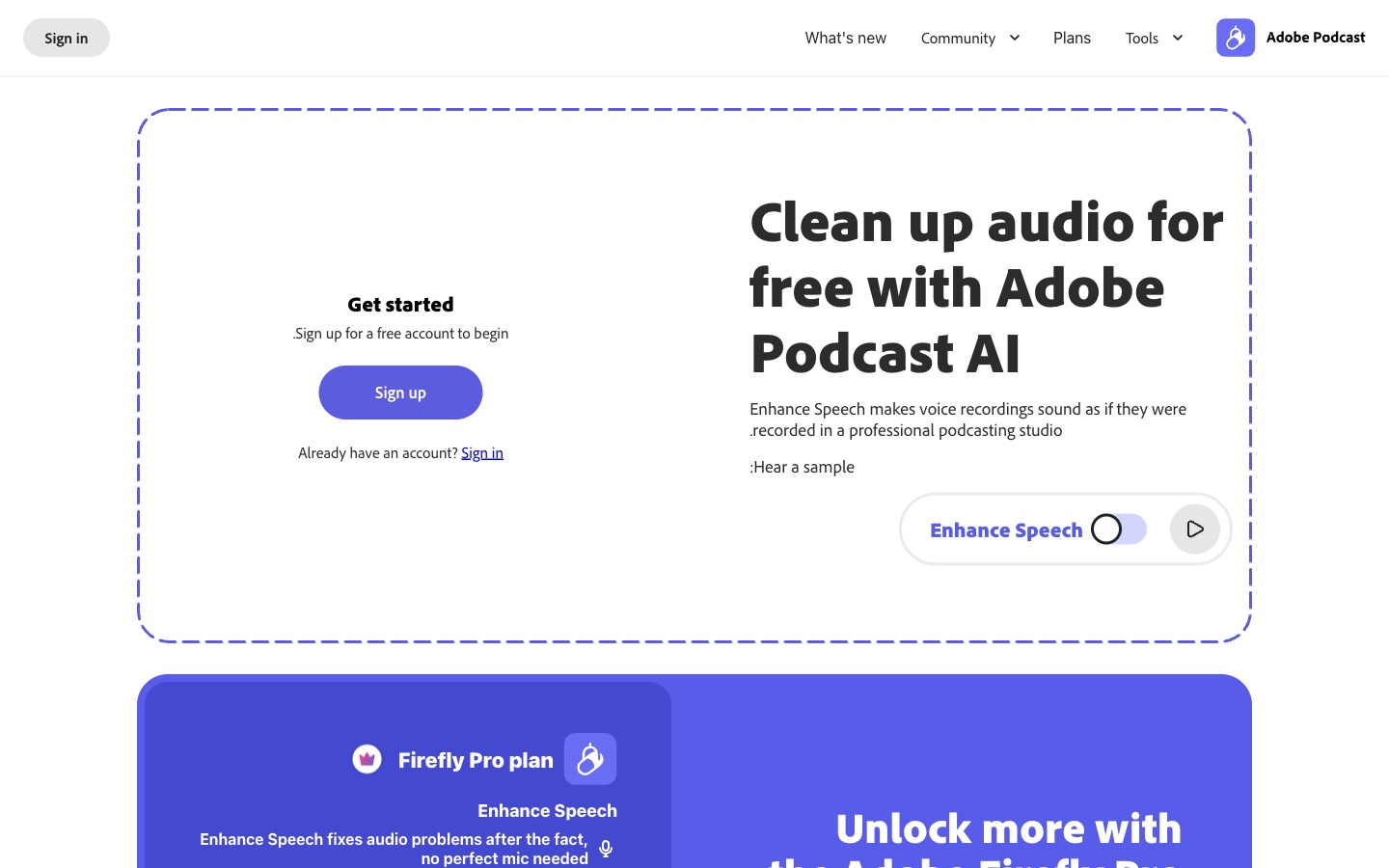 The Enhance Speech page on the official Adobe Podcast website, photographed in September 2026. Credit: Adobe
What can Adobe Podcast do?
The core is speech cleanup, with a complete recording and editing environment built around it, all in the browser. According to Adobe's official product pages, plans page, and help center, as of September 15, 2026:
- Enhance Speech: noise and echo removal. According to Adobe's Q&A, the tool "filters noise and artifacts, adjusts pitch and volume, and normalizes the audio." A practical use case: a lecture recorded on a phone from the back row of an auditorium, turned into a file that can go straight into a course.
- Sliders for speech, background, and music (Premium). According to the March 2026 update, advanced source separation lets you control speech, background noise, and music independently, and download each as a separate track. Use case: an event video with copyrighted music in the background, where you strip out the music and keep the speech.
- Enhance Speech for video and batch upload (Premium). MP4, MOV, and more, with an automatic queue for multiple files. Use case: ten tutorial videos all shot in the same noisy room, processed in one batch.
- Remote recording in Studio. Send a link, the guest joins without registering, and each participant is recorded in their own browser and saved continuously, "so the recording is protected even if someone's connection drops." According to the homepage, each speaker is saved as a separate track in 16-bit, 48 kHz WAV. Use case: an interview with a client abroad for the company podcast.
- Remote video recording. Added in the March 2026 update, and optional. Use case: a video podcast for YouTube without a studio.
- Transcription and text-based editing. According to the homepage, Studio transcribes "with the same leading transcription as Adobe Premiere Pro," and you delete text to delete the corresponding clip. Includes speaker identification. Use case: an English-language webinar trimmed from one hour down to forty minutes. In Hebrew this is not available; details below.
- Multi-track import. Upload a separate file for each participant from Zoom, Restream, StreamYard, or Riverside, and Studio syncs them into one project. Use case: a recorded team meeting where each speaker is cleaned up separately.
- Royalty-free music and templates. According to the homepage, collections of intros, outros, transitions, and background music. A fixed intro and outro can be saved as a project template. Use case: a weekly episode that always opens with the same jingle without rebuilding it every time.
- Audiograms, captions, and downloads. A video file with a sound wave for social media, transcript in TXT, PDF, or DOCX, audio in WAV or MP3, video in 1080p or 720p. Use case: a one-minute clip from the episode exported for Instagram.
How to get started: step by step
From sign-up to a clean, publishable file: six steps and half an hour. The process works in any browser for Enhance Speech, and in Chrome on desktop for Studio.
- A free Adobe account. Sign up at podcast.adobe.com. If you already have an Adobe account, log in with that. According to the Q&A, the service is available worldwide except for a short list of countries, and Israel is not on that list.
- First test with Enhance Speech. Pick a real, problematic recording, for example a voice memo recorded in a car, up to 30 minutes and 500 MB. Upload it and wait for processing.
- Compare before and after. Use the comparison toggle and listen on headphones, not on your laptop speaker. Pay attention to two things: whether the noise is gone, and whether the voice still sounds like the speaker. The download comes back in the same format you uploaded.
- A project in Studio. Open a new project in Chrome on desktop, choose your microphone in the recording settings (Adobe recommends preferring the computer's built-in microphone over wireless earbuds), and record a minute on your own.
- Invite a guest. Create a link (the guest joins without registering) or an email invitation (the guest must log in with the same address). According to the remote recording guide, there is no hard limit, but the recommendation is up to five guests per session. After stopping, the recording uploads, is processed, and is transcribed automatically.
- Edit and download. In the editing tab, add music, apply Enhance Speech to the project, and download WAV for a hosting service or MP4 for YouTube. On the free plan: projects up to 30 minutes and two downloads per day, so download only the final version.
Anyone recording in Hebrew will pause at step 6, before transcription: edit on the timeline, or take the clean file to a different editor. The next section explains why.
Hebrew and RTL
The cleanup works in Hebrew. The transcription does not. That's the full picture, and it comes straight from Adobe's official documentation.
What works: According to the help center Q&A, "Enhance Speech is language-independent and does not generate or translate between languages." It works on the voice, not the words, so a Hebrew recording is cleaned up the same way as an English one. Remote recording in Studio, separate tracks, music, and audiograms without captions are all language-independent as well.
What doesn't work: According to the technical requirements page, transcription is available in seven languages: English, French, German, Hindi, Italian, Portuguese, and Spanish. Hebrew is not on the list. Without a Hebrew transcript there is no text-based editing, no transcript download, and no automatic Hebrew captions. The site interface is also available in 11 languages, and Hebrew is not among them.
One real-world note about the same screen: when the browser is set to Hebrew, some pages on the site are displayed right-to-left, and English punctuation marks jump to the beginning of the line. This is cosmetic and does not affect the file.
What to check before committing to this:
- Upload a five-minute Hebrew recording with real background noise and listen to whether the sounds sh, s, and ts stay sharp. Adobe writes that the result depends on "the speaker's intelligibility and the amount of noise," and clear pronunciation produces better results.
- Try a recording with two speakers talking over each other, because Enhance Speech works on the entire project, not on a single speaker.
- If you need a Hebrew transcript, take the clean file to a tool that transcribes Hebrew. The guide to TurboScribe explains how to get a transcript and subtitle file from a Hebrew recording, and for captions on a reel, CapCut transcribes Hebrew.
How much it costs: all plans from the official site
The free tier gives you one hour of enhancement per day, and Premium has moved into Firefly Pro. The table below is from the Adobe Podcast plans page and the Firefly plans page, verified on September 15, 2026:
| Plan | Monthly price | Enhance Speech | Studio | Limits |
|---|---|---|---|---|
| Free | 0 | Audio only, up to 30 minutes and 500MB per file, one hour per day | Unlimited remote recording, project up to 30 minutes | Two downloads per day, one file at a time, no intensity slider, audiogram with Adobe Podcast branding |
| Firefly Pro (includes Podcast Premium) | $19.99 on the Adobe Podcast plans page; 70 ILS on the Israeli Firefly page | Video too, multiple uploads, sliders for speech, music and background, files up to two hours and 1GB, four hours per day | Projects up to two hours, unlimited downloads, separate tracks per speaker | 4,000 generative credits per month in Firefly, includes Adobe Express Premium |
| Existing Podcast Premium subscribers | Existing price | Same as before | Same as before | Firefly Standard added at no charge, 2,000 credits; anyone who cancels after August 30, 2026 needs a different plan |
Prices change, so check the official site. The difference between the dollar and shekel figures is regional display, and I did not verify whether the shekel price includes VAT.
What you are actually paying for. Not the AI itself, which is available free. You are paying for three things: volume (four hours per day instead of one, files up to two hours instead of thirty minutes), video (free tier is audio only), and control (sliders that leave some room in the sound rather than producing a "sterile" result, plus the ability to download separate tracks). Anyone who cleans one twenty-minute recording per week will never hit the free limits.
What about Creative Cloud and Adobe Express. The Adobe Podcast plans page presents Firefly Pro as the plan that includes Podcast Premium, and notes that it also includes Adobe Express Premium features. The pages I reviewed do not explicitly state whether a Creative Cloud subscription or a standalone Adobe Express Premium subscription includes Podcast Premium, so anyone already paying for Adobe should log in with their existing account and check the plans page before buying anything. Firefly Standard (35 ILS on the Israeli page) is also not shown on the Adobe Podcast plans page as a plan that includes Premium for new customers.
The cheapest plan that works for a small Israeli business: the free one. A consultant recording a twenty-minute podcast, an office cleaning webinar recordings, a lecturer polishing a talk, all of them fall within one hour per day and thirty minutes per file. Move to Firefly Pro only when you genuinely need to clean video directly, work with files longer than thirty minutes, or exceed one hour per day, and only if you will use the rest of Firefly's tools as well. Otherwise you are paying for a full package for a single feature.
Use cases for Israeli businesses
Five scenarios by role, most of them in Hebrew and most of them within the free plan. The examples are general and represent types of businesses, not specific clients.
Business owner: a voice message to customers that sounds professional. A shop owner records a one-minute update for regular customers from the stockroom, with a forklift in the background. Enhance Speech on the free tier, and the file goes out to the mailing list or as a WhatsApp status without sounding like a warehouse.
Marketing: a webinar that becomes a podcast episode. A marketing team records a monthly webinar in Zoom with a separate channel per speaker, imports the tracks into Studio, cleans them, adds an intro from a saved template, and downloads a WAV to the hosting service. An hour-long webinar exceeds the free tier's thirty-minute limit, so either cut it into two episodes or this is precisely the case where Firefly Pro justifies its cost.
Operations: internal training videos. An operations manager records ten short videos on a new procedure in a meeting room with echo. On the free tier, download the audio, clean it, and put it back into the video in an editor. If this happens every month, the multi-file video upload in Premium saves all that back and forth.
HR: lectures and workshops. A lecture by an external expert recorded on a phone from the front row, complete with coughing and air conditioning, is cleaned and added to the organization's learning library. Before uploading, verify that the speaker consented to being recorded and distributed, and that the recording contains no employee names or internal information.
Sales: a customer podcast for an international audience. A sales rep interviews a European partner in Studio, via a link, in English. The full toolkit is available here: separate-track recording, English transcription, deleting text to tighten the edit, and downloading the transcript as a PDF to summarize for a manager. In Hebrew, the same workflow applies without the transcription step.
The common thread: the tool solves the sound problem, not the content problem. What to say, to whom, and at what length is still work for a person. And anyone producing these recordings regularly who also needs cover art and images for episode artwork will find the rest of the Firefly Pro package covered in the Adobe Firefly guide.
Adobe Podcast vs. Descript Studio Sound vs. ElevenLabs Voice Isolator: an honest comparison
Three tools that clean speech, and what separates them is what else you do with the file. Adobe data is from the official site (September 15, 2026); Descript data is from our Descript guide; ElevenLabs data is from the Voice Isolator page and official developer documentation.
| Adobe Podcast (Enhance Speech) | Descript (Studio Sound) | ElevenLabs (Voice Isolator) | |
|---|---|---|---|
| What it is | Speech cleaning plus a browser-based podcast environment | One feature inside a transcript-based video editor | One feature inside an AI voice platform |
| Free tier | One hour per day, files up to 30 minutes | Limited, within one media hour and 100 one-time credits | 10 minutes per month, personal use only |
| Paid plan | Firefly Pro, $19.99 per month | Hobbyist from $16 per month billed annually | Starter from $6 per month, commercial license |
| File size | 500MB free, 1GB paid | Based on media hour quota | Up to 500MB and one hour |
| Video | Paid only | Yes | Yes |
| Works in Hebrew | Yes, language-independent | Yes, language-independent | Not stated officially, built to isolate speech from any noise |
| Hebrew transcription | No | No | Separate tool (Scribe) |
| Remote recording | Yes, Studio | Yes, Rooms | Not in this tool |
| API | Not mentioned on the pages I reviewed | No | Yes |
When to choose Adobe Podcast: when all you need is a clean recording, in Hebrew or English, without paying. And when you want to record remote guests with a separate track per person, free and with no installation.
When to choose Descript: when the content is in English and you want to edit it entirely from the transcript, including filler words, repeated takes, clips, and direct publishing. Studio Sound is a bonus there, not the reason to sign up. There is also an interactive Descript course.
When to choose ElevenLabs: when you are already working there on voiceover, dubbing, or transcription, or when you need cleaning via API inside another system. According to the FAQ on their page, the tool "is not optimized" for isolating vocals from music. More detail in the ElevenLabs guide.
The combination that works for an Israeli business: clean with Adobe Podcast for free, transcribe Hebrew with a tool that actually supports Hebrew transcription, and do the final edit in whichever editor you find comfortable.
Privacy and limitations
Recordings are uploaded to Adobe's servers, and Adobe states it does not train generative models on them. But there are a few settings and exceptions worth knowing before you upload a recording of an executive meeting.
According to Adobe's Content Analysis FAQ (updated June 4, 2026):
- Generative AI training. "We do not analyze your content to train generative AI models, unless you have chosen to submit content to Adobe Stock." Firefly models were trained, according to Adobe, on licensed content and content in the public domain.
- Analysis to improve products. For content on its servers, Adobe may perform aggregate analysis to improve products. On a personal account, turn this off at account.adobe.com/privacy. On a business, team, or enterprise account, it is off by default.
- The exception that matters here. The opt-out does not apply when you are not signed in, when you send content as feedback, and "in products or features in beta, early access, or pre-release." Studio is marked as beta on the site. The pages I reviewed do not explicitly state whether this exception applies to it, so treat it accordingly.
- Human review. In limited cases, such as published content, feedback, or beta programs, by team members under confidentiality obligations, according to the same page.
What not to upload: calls with patients or clients that include medical, legal, or financial information; job interviews with identifying details; executive meetings; and recordings of anyone who did not know they were being recorded. Before uploading any organizational material, check your organization's policy on third-party cloud services.
The honest limitations, as of September 15, 2026:
- No Hebrew transcription. Which means no text-based editing, no automatic captions, and no downloadable Hebrew transcript.
- Studio works only in Chrome on desktop. Per the technical requirements page. Enhance Speech works on mobile and in other browsers.
- Enhance Speech applies to the whole project. According to the FAQ, it is currently not possible to apply it to only one speaker in a Studio project.
- Cleaning does not perform miracles. Adobe notes that a clear original recording produces better results. Very faint speech or loud noise coming from the speaker themselves can produce an artificial sound, so check with headphones.
- Studio is in beta. If a recording fails to upload at the end of a session, Adobe recommends closing and reopening the project so the recovery mechanism can run.
- A plan that changed recently. Premium moved into Firefly Pro on August 30, 2026, and Mic Check no longer appears as a standalone tool. Guides and videos from before that summer describe a situation that no longer exists.
Common mistakes
- Pushing the enhancement to maximum. The free tier has no slider, so anyone who gets a sound that is too sterile should re-record closer to the microphone rather than trying to fix it in post.
- Recording with wireless earbuds. Adobe itself recommends switching to the computer's built-in microphone when using wireless earbuds. That alone eliminates half the cleanup work.
- Buying Firefly Pro for one hour of cleaning per week. The free tier gives you one hour per day. Upgrade only when the limit actually affects your work, not preemptively.
- Building a workflow that relies on Hebrew transcription. Seven languages are supported, and Hebrew is not among them. Test this on the free tier before designing a process around it.
- Wasting both daily downloads. The free Studio tier includes two downloads per day. Download only the final version, not every draft.
- Uploading sensitive material without checking settings. On a personal account, turn off product-improvement analysis, and remember that Studio is in beta.
Frequently Asked Questions
What is Adobe Podcast?
Adobe's browser-based audio tool, no installation required. It has two core features: Enhance Speech, which removes background noise and echo from speech recordings, and Studio, where you record alone or with remote guests, transcribe, and edit the recording like a text document.
Is Adobe Podcast free?
Yes, with limits. According to the plans page (checked September 15, 2026), the free tier includes Enhance Speech for audio only, up to one hour per day, files up to 30 minutes and 500MB. In Studio: projects up to 30 minutes and two downloads per day. Remote recording is unlimited on the free plan as well.
How much does Adobe Podcast Premium cost?
As of August 30, 2026, Adobe no longer sells Podcast Premium as a standalone plan for new customers. Access now comes through Firefly Pro, which is listed at $19.99 per month on the Adobe Podcast plans page and at 70 ILS per month on the Israeli Firefly page. Prices change, so check the official site.
Does Adobe Podcast work in Hebrew?
Partially. Enhance Speech is language-independent according to Adobe, so it cleans Hebrew recordings just as well. Transcription is available in only 7 languages: English, French, German, Hindi, Italian, Portuguese, and Spanish. Without a Hebrew transcript there is no text-based editing and no automatic Hebrew captions. The interface is not in Hebrew either.
What are the limitations of Enhance Speech?
Free tier: audio only, one file at a time, up to 30 minutes and 500MB per file, and one hour per day. With Firefly Pro: video as well (MP4, MOV), multiple simultaneous uploads, sliders for speech, music, and background noise, files up to two hours and 1GB, and up to four hours per day.
Does Adobe train its AI on my recordings?
According to Adobe's Content Analysis FAQ (updated June 4, 2026): Adobe does not analyze content to train generative models, unless you submitted it to Adobe Stock. Analysis for product improvement can be turned off in your account, and it is off by default on business accounts. For tools in beta, this exception does not always apply.
Adobe Podcast or Descript?
For sound cleanup alone, Adobe Podcast is enough and free up to one hour per day. For full transcript-based editing in English, with filler-word removal, takes, and video, Descript does more. In Hebrew, neither of them transcribes, and both clean sound.
The Bottom Line
The refrigerator in the background really does disappear, and in Hebrew it works exactly the same as in English. For any business that records speech, whether a voiceover, lecture, webinar, or podcast episode, Enhance Speech free tier is probably the cheapest audio-quality upgrade available, one hour per day with no credit card.
What does not work in Hebrew, transcription and text-based editing, is also the reason most Israeli businesses do not need to pay. And anyone who does need more gets premium features today only through Firefly Pro, so the question is no longer "how much is noise cleanup worth to me?" but "will I actually use Adobe's other tools too?"
Want to work through this hands-on inside the page? The interactive Adobe Podcast course for 9.90 ILS, part of the interactive AI courses series.
Further reading: Descript: The Complete Guide · ElevenLabs: The Complete Guide · TurboScribe: Transcription in Hebrew · CapCut: The Complete Guide · Adobe Firefly: The Complete Guide
Sources
All sources checked September 15, 2026. Prices and limits change, so verify on the official site before making a decision.
- Adobe Podcast plans page (free vs. Firefly Pro, Enhance Speech and Studio limits, $19.99/month, Adobe Express): https://podcast.adobe.com/en/plans
- Adobe Podcast home page (tools, text-based editing, separate channels in 16-bit 48kHz WAV, music): https://podcast.adobe.com/en
- Enhance Speech page: https://podcast.adobe.com/en/enhance
- What's new in Adobe Podcast, March 2026 (source separation, remote video recording, multi-channel import): https://podcast.adobe.com/en/guides/whats-new-in-adobe-podcast-march-2026
- Studio remote recording guide (Chrome only, link or email invite, up to 5 guests recommended): https://podcast.adobe.com/en/guides/set-up-a-remote-recording
- Help Center, Adobe Podcast FAQ (Enhance Speech is language-independent, output formats, speaker identification, country availability): https://helpx.adobe.com/podcast/adobe-podcast-faq.html
- Help Center, Technical Requirements (browsers, formats, file size and length limits, interface and transcription languages): https://helpx.adobe.com/podcast/technical-requirements.html
- Help Center, Adobe Podcast Premium plan change (August 30, 2026, Firefly Pro, Firefly Standard for existing subscribers): https://helpx.adobe.com/podcast/adobe-podcast-premium-plan-change-faq.html
- Firefly Help Center, Enhance Speech FAQ (file limits, browsers): https://helpx.adobe.com/firefly/web/work-with-audio-and-video/work-with-audio/frequently-asked-questions-about-enhance-speech.html
- Adobe Firefly plans page, Israeli version (Firefly Standard 35 ILS, Firefly Pro 70 ILS, credits, Adobe Express Premium): https://www.adobe.com/products/firefly/plans.html
- Adobe Content Analysis FAQ (AI training, disabling analysis, business accounts, beta exceptions): https://helpx.adobe.com/account/individual/terms-policies-and-regulations/content-analysis-faq.html
- Adobe Community forum, question about Mic Check removal (May 2026): https://community.adobe.com/questions-514/why-remove-adobe-podcast-mic-check-1561977
- ElevenLabs Voice Isolator (pricing, 10 free minutes, up to 500MB and one hour): https://elevenlabs.io/voice-isolator
- ElevenLabs Voice Isolator documentation (1,000 characters per minute, formats): https://elevenlabs.io/docs/overview/capabilities/voice-isolator
Yaakov Tzedek, AI lecturer, consultant, and organizational AI implementer, and leader of the daily AI tip community. Join the WhatsApp group.
Frequently asked questions

Yaakov Tzedek
An Israeli AI lecturer, consultant and implementer who has supported 100+ organizations in AI implementation and lectured for 200+. Official content partner of Meta, Google, Canva and TikTok, featured on Israel's Channel 13.
More about Yaakov →