- What Photoroom does, how to remove backgrounds and generate AI backgrounds for product photos, batch up to 250 images, Amazon and Shopify templates, all plans and ILS pricing from the official site, commercial use rights, privacy, and Photoroom vs. Canva vs. Picsart.
According to Photoroom's help center, batch exports count image by image: downloading a batch of 100 images uses 100 exports, which is exactly the free plan's monthly quota. That is one of the main reasons batch editing is effectively reserved for paid plans.
Removing a background from a product photo in Photoroom takes one second, and the free plan handles that just fine. That is not the interesting part.
The interesting part is what happens after that one second. The free plan prohibits commercial use under the terms of service, batch exports are counted image by image, and the shekel prices shown on the site are what Israeli users see, which differs from what most English-language guides quote. Anyone who understands those three things before uploading 40 product photos saves themselves a month of frustration.
This guide was built from the official pricing page (as displayed to Israeli users), the product pages for background removal, AI backgrounds, shadows, and batch processing, help center articles on exports, credits, languages, fonts, and commercial use, and from Photoroom's terms of service and privacy policy (everything verified September 14, 2026): what it is, what the tool can do, how to produce your first product photo, what it costs and what gets counted, what happens with Hebrew, what is allowed commercially, and when Canva or PicsArt might be a better fit.
In short
| Question | Short answer |
|---|---|
| What it is | An AI-based product photo editor: background removal, AI backgrounds, shadows, retouching, batch processing, and marketplace-sized templates |
| What it costs | Free for personal use. Pro 33.50 ILS/month on annual (59.99 ILS monthly), Max 64.99 ILS (150 ILS), Ultra 266 ILS (319 ILS), Enterprise by quote. VAT included |
| What you pay for | Two meters: exports (every image saved) and credits for the heavier AI tools. Background removal and retouching do not consume credits |
| Batch | Up to 250 images in a single operation, on paid plans, from the browser |
| Hebrew | Not on the official help center language list, but listed on the App Store page. Hebrew text on an image works with a fallback font |
| Differentiation from Canva | Photoroom goes deep on product photography, Canva covers everything else and has full RTL support |
What is Photoroom?
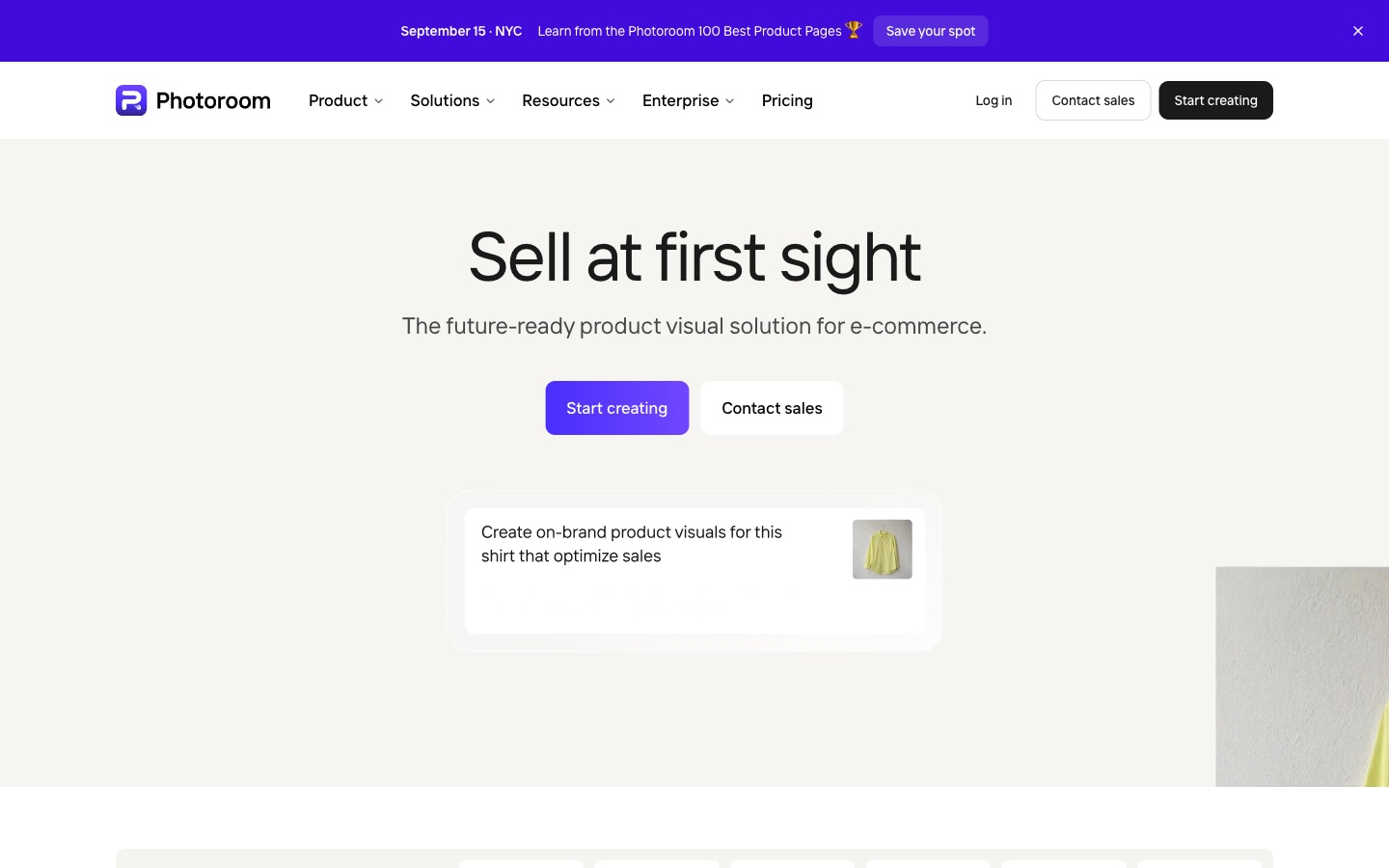
Photoroom is an AI-based photo editor built around a single task: turning a product shot into an image that sells. You upload a photo from your phone, the background is removed automatically, you choose a white background, a color, or an AI-generated scene, add a shadow, and export at the size your marketplace requires. That is the entire concept, and everything else is depth within that concept.
Definition: Photoroom is a cloud-based product photo editing service, available in the browser and in native apps for iPhone, iPad, and Android. The core features are automatic background removal, AI backgrounds from a prompt or a library, shadows and retouching, a brand kit, batch editing, and templates sized for major marketplaces. You pay per export and per credit, not per user.
According to the official homepage, the tool serves more than one million businesses, its background removal tool has passed 80 million users, and the company holds SOC 2 Type 2 certification and GDPR compliance. On the App Store, as of September 14, 2026, the app has more than 229,000 ratings at a score of 4.8.
The right mental model: Photoroom is not a general design tool and not an image generator. It is a production line for product photos. Anyone expecting it to produce a polished Hebrew-text post will be disappointed. Anyone sitting on 40 products photographed on a kitchen table has found their tool.
What can Photoroom do?
Photoroom can remove backgrounds, build new ones, add shadows, fix the product, process hundreds of images at once, and export at the right size for any marketplace. These are the capabilities, taken from the official product and pricing pages, each paired with one practical business use:
- Background Remover. One click, JPEG or PNG input, PNG/JPEG/WEBP output. According to the pricing page, on paid plans this is a "core tool" with no credit cost. Use case: an entire store catalog on a uniform white background within an hour.
- AI Backgrounds (Instant Backgrounds / AI Backgrounds Studio). You write a prompt ("wooden table in morning light"), choose a preset style or a background from the library, and the AI identifies the product and builds a scene around it with matched lighting and angle. The pricing page lists several tiers: Basic, with Image Guidance, with Relight, and HD, each consuming more credits. Use case: the same coffee cup on marble, wood, and sand for three different ads.
- AI Shadows. According to the product page: soft, hard, floating, or colored shadows, with controls for intensity, blur, length, color, and position. Shadow presets are included in all paid plans. Use case: a product that looks placed on the background rather than pasted onto it.
- Retouch and AI Product Fixer (Retouch, AI Product Fixer, AI Fill). Remove threads, dust, and blemishes, fill areas, and fix the product itself. Core tool on paid plans. Use case: a clothing photo without the crease that showed up in the shot.
- AI Expand / Resize. Extend an image beyond its edges and adapt it to a different aspect ratio. Use case: a square image turned into a 2:3 fashion crop without cutting off the product.
- Batch. According to the official blog, up to 250 images in a single operation: background removal, shadows, background color, resizing, color and lighting corrections, and marketplace templates. Works from the browser at app.photoroom.com/batch. Use case: an entire catalog getting the same look at once.
- Marketplace templates. According to the product page, each template maps the channel's requirements: aspect ratio, resolution, background color, and file format, with explicit mentions of Amazon, Google Shopping, Zalando, TikTok Shop, eBay, Depop, and Shopify. Use case: the same product exported in three sizes for three channels in one click.
- Brand Kit and Spaces. Logo, colors, and fonts, including uploading your own font, plus team collaboration for up to 50 seats on any paid plan. Use case: the designer and the seller working on the same products.
- Fashion and staging tools. Virtual model (AI Fashion Models), Ghost Mannequin, Flat Lay, and Product Staging. These consume credits. Use case: a shirt on a model without a photoshoot.
- Video and image generation. A short video from a product photo (Max and above) and text-to-image generation. Use case: a product reel for Stories without a photographer.
- Shopify integration (Max and above) and API. Direct publishing to your store, plus an API for background removal and editing inside your own systems. Use case: every new product entered into the system automatically gets a clean image.
- Edit with AI. Describe the change in words and the model executes it. Consumes credits. Use case: "replace the floor with hardwood" without opening Photoshop.
How to get started: step by step
Within 20 minutes you have your first store-quality product photo, and within a week you will know whether you need a paid plan. The order matters: start with one image manually, and only then move to batch processing, which requires a paid plan.
- Shoot it right. One product, on a plain surface, in daylight near a window, no flash. A phone photo is enough. Photoroom is built exactly for this. Leave space around the product, because the AI needs margins to cut cleanly.
- Free account. Sign up at photoroom.com (in the browser) or in the app. The free plan is enough for testing, and per the terms of service it is for personal use only, so this is the testing phase, not the store phase.
- Remove the background. Upload the photo, the background comes off. Zoom in to the edges: hair, transparent fabric, and glass are where you check. If needed, the retouching tools clean up any leftovers.
- First background. Start with white or a brand color, not an AI background. Most marketplaces require white for the main product image, and it is also the background that exposes the most cutting errors.
- Shadow and AI background. Add a preset shadow, then try an AI background from a short, concrete English prompt: "wooden table, soft morning light, blurred kitchen." The AI adapts the angle, but check that the product still looks like the product.
- Export for your channel. Choose a marketplace template (or a 1:1 ratio for your store) and export. Remember: every export counts, and the free plan gives you 100 per month. Done that for five products? Now try batch, and that is already a step that requires a paid plan.
One tip that saves hours: save the first result you like as a template in the brand kit (background, shadow, position, and logo). Every product after that goes into the same template, and that is what turns 40 different photos into one cohesive catalog.
Hebrew and RTL
Hebrew in Photoroom is a story of two conflicting lists and one fallback font that works. Unlike text tools, Hebrew here mostly concerns the interface and captions on the image, not the output itself.
The interface. The help center article on changing the language lists 18 languages: Arabic, Portuguese, Czech, Dutch, English, French, German, Greek, Hungarian, Italian, Japanese, Korean, Norwegian, Russian, Spanish, Turkish, Vietnamese, and Brazilian Portuguese. Hebrew is not on the list. The App Store app page, by contrast, lists Hebrew among 29 supported languages. The reasonable interpretation: the iPhone app may show a Hebrew interface based on device language, while the browser version operates in English. What exactly is translated is not officially specified, so test it: set Hebrew as the preferred language for the app in device settings and see what happens.
Hebrew text on the image. According to the fonts article in the help center, the built-in fonts are Latin, and other languages get automatic fallback fonts, including Noto Sans Hebrew. In other words, typing in Hebrew works, but in a single default font. Anyone who wants their brand's Hebrew font uploads it to the brand kit in OTF, TTF, or WOFF format, provided they hold a license for that font.
What to test before committing. Three one-minute checks: a Hebrew sentence with a number in the middle ("מבצע 3 ב-100"), does the order hold; a sentence with a foreign word inside; and punctuation at the end of a line, does the period stay on the correct side. If anything breaks, the practical fix is to split into separate lines, or leave the caption out of Photoroom entirely: the product image comes out clean, and the post with Hebrew text is built in Canva, where RTL is fully supported. Anyone who wants Hebrew text generated inside the image by the AI itself is in a different domain entirely, and there is a Nano Banana guide for that.
Prompts. There is no official specification of which language to use for AI background prompts. In practice, as with most generators, short English prompts produce more consistent results, and translating a sentence takes a second.
Pricing: All Plans From the Official Site
| Plan | Price per Month (Annual / Monthly) | Credits | Exports | What Unlocks |
|---|---|---|---|---|
| Free | 0 ILS | Not specified | 100 per month (25 per week) | Background removal and basic AI backgrounds, personal use only |
| Pro | 33.50 ILS / 59.99 ILS | 8,000 | 1,000 | Core tools unlimited, AI backgrounds, virtual model, batch, brand kit, up to 50 seats |
| Max | 64.99 ILS / 150 ILS | 25,000 | 3,000 | Everything in Pro + video generator, Shopify integration |
| Ultra | 266 ILS / 319 ILS | 75,000 | 10,000 | Everything in Max + 4K resolution for photos and video |
| Enterprise | On request | Custom | Custom | Adjustable shadows, Visual QA, SLA, SSO, dedicated support |
Prices are from the official pricing page as displayed to visitors from Israel ("Prices displayed in Israeli New Shekel"), September 14, 2026, VAT included per the page FAQ, and subject to change. Annual billing saves 33% according to the page. Free plan limits are from the export limits article in the Help Center. Note a minor inconsistency on the page itself: the plan cards mark "adjustable AI shadows" as not included in Pro, Max, or Ultra, yet the credits table on the same page lists a number of creations for each of those plans. When that matters to you, check inside your account.
What you actually pay for. Not users (up to 50 seats on every paid plan) and not the number of projects, but two meters. The first is exports: according to the page, every image saved from the editor, from batch, or via Shopify sync counts as one, up to 2K resolution, with alerts at 80% and 100%. The second is credits: core tools (background removal, retouching, product fix, preset shadows, fill, expand, and enhance) consume no credits, while the heavy AI tools (AI Studio backgrounds, video, virtual model, AI editing) do, and the more advanced the tool, the more it costs. An example from the page: the 8,000 credits in Pro cover up to 4,000 basic AI backgrounds, or 1,000 HD backgrounds, or 400 AI edits. API and MCP usage is metered separately.
API. According to the API pricing page: background removal is $0.02 per image with 10 free production calls; full image editing (AI backgrounds, shadows, expand, ghost mannequin, and more) is $0.10 per image with 1,000 watermarked sandbox images per month; and Enterprise with an annual commitment starts at 200,000 images. File size up to 30 MB (editing) or 50 MB (background removal), and resolution up to 5,000 or 6,000 pixels on the long side.
The cheapest plan that works for a small Israeli business. For a store with dozens of products, Pro at 33.50 ILS per month on annual billing is the right call: it unlocks commercial use, batch processing, and 1,000 exports, which is more than enough for a catalog of 200 products in five sizes. Move to Max only when you need direct Shopify sync or product video. Ultra is for catalogs with thousands of items or for anyone who needs 4K. One more useful detail from the page: refunds are available within one week of purchase, and mobile payments go through the app stores, where prices differ.
Use Cases for Israeli Businesses
Five scenarios, organized by role, all starting with a phone photo. The examples are intentionally generic.
Business owner: a small store with 60 products. Shoot everything on the same table in the same light, run one batch for background removal and a white background, apply a preset shadow to all, export in 1:1 format. What used to be a full day's work for a designer becomes an hour, and 60 exports fit comfortably within the Pro quota.
Marketing: the same product, three scenes. One clean image, then three AI backgrounds: marble for a post, wood for a newsletter, brand background for an ad. Three ads from one photo, no production. Hebrew text gets added afterward in Canva, and anyone who wants this workflow organized has the interactive Canva course.
Operations: a catalog across three channels. One template for Amazon, one for Shopify, one for a local marketplace, and every new product runs through all three in a batch. Instead of remembering dimensions, the template remembers them. Connect the API to your inventory system and you get a clean image for every new SKU without a human touch.
HR: consistent profile photos. Employee headshots against various backgrounds become a uniform background for the website and email signatures. A note of caution here: these are photos of people, and according to the privacy policy images may be used for training unless you have turned that off in settings, so turn it off first and get consent from employees.
Sales: a quote with a product photo. A sales rep photographs a product at a client's site, removes the background in the app within a minute, and drops it into the proposal. It's a small thing, and it's what makes the proposal look like it came from a large company. Product photos are also raw material for Reels, and anyone continuing down that path to video, the CapCut guide picks up the chain.
Photoroom vs. Canva vs. Picsart: An Honest Comparison
Photoroom is the deepest of the three for product photography, and the narrowest for everything else. This comparison draws on our full guides to Canva and Picsart.
| Photoroom | Canva | Picsart | |
|---|---|---|---|
| Focus | Product photography for commerce | General design: posts, presentations, documents | Photo and video editing from mobile, multi-modal generators |
| Background removal | The core, free core tool with no paid credits required, including on the free plan | Included in Pro | Included, model v10 |
| AI backgrounds for product photos | Prompt, library, re-lighting, and HD | Magic Edit and Dream Lab, more general-purpose | Generators with model selection |
| Batch and marketplace templates | Up to 250 images, templates for Amazon, Shopify, and more | Bulk Create for designs, not for product photos | Picsart Flow for workflows |
| Hebrew and interface | Not listed among supported languages in the Help Center; alternative Hebrew font available | Full Hebrew interface and RTL | Hebrew interface on most platforms |
| Free for commercial use | No, personal use only | Yes, with limitations | Yes, with watermarks and credits |
| Entry-level paid price | 33.50 ILS per month on annual billing | Varies by region and plan | Plus / Pro |
When to choose Photoroom: when you have physical products that need to be shot, cleaned up, and uploaded to a store or marketplace, especially in volume. Batch processing, shadows, and marketplace templates are things neither of the other two does at the same level.
When to choose Canva: when the image is part of a larger design, a post, a presentation, a menu, or a catalog, and when Hebrew and right-to-left alignment are critical. Many businesses use both: the product in Photoroom, the text and post in Canva. Anyone who prefers to practice that within this page, there is an interactive Picsart course alongside a Canva course in the series.
When to choose Picsart: when you edit everything from your phone, when you want access to multiple generators under one subscription, and when the content is posts and Reels rather than a catalog. For a single product photo Picsart is enough; for a catalog of hundreds, Photoroom.
Privacy and Limitations
Your images remain yours, but by default they may be used to train the models, and that is something you turn off on day one. Here is what the official privacy policy and terms of service say, as of September 14, 2026.
Ownership and license. According to the terms of service and the ownership article in the Help Center, Photoroom does not claim ownership of your content. At the same time, by uploading you grant the company a broad license to use the content for the purpose of providing the service, including, per the wording, for improving and training products, with the option to revoke.
Model training. According to the privacy policy, images used for training are selected and labeled without identifying information, you can turn off that use in account settings at any time, and the opt-out does not apply retroactively to processing already completed. There is a data protection officer (dpo@photoroom.com), full GDPR rights, and a one-month response window for deletion requests. Data may be transferred outside the European Union "with appropriate safeguards."
What not to upload. Photos of people without consent, documents, screens showing client data, and products that have not yet launched and are confidential, unless you have disabled training and are under an enterprise agreement. Products already in your public catalog are low risk, since they are intended for publication anyway.
Commercial use. According to the Help Center and terms of service, a free account is for personal, non-commercial use. On a paid subscription you may use the output for a store, marketing, and ads, but responsibility for AI-generated content is yours: if a generated background includes a trademark or recognizable figure, that is your problem, not Photoroom's. Third-party stock images (Unsplash, Pixabay) are subject to their own licenses.
Honest limitations.
- Exports up to 2K on every plan below Ultra. For high-quality print, that is not enough.
- The free plan is not legal for commercial use and has no batch. Anyone building a store pays from day one.
- Background removal stumbles in the usual places: hair, glass, transparent fabric, a product that matches the background color.
- AI backgrounds are beautiful, but sometimes distort proportions or surfaces. The main marketplace image is best kept on white; AI scenes are for posts.
- The browser interface is in English, and app store prices differ from the website.
- No refund after one week, and according to the terms of service there is no prorated refund for cancellations mid-period.
Common Mistakes
- Building a store on the free plan. It violates the terms of service, and 100 exports are gone in one batch. Pro at 33.50 ILS costs less than the time you waste on workarounds.
- Running a batch before testing on one product. 250 images with the same cutout error are 250 burned exports. Always one product, check it, then batch.
- Using an AI background as the main marketplace image. Amazon and most marketplaces require white. Save AI scenes for secondary images and social media.
- Leaving model training on when uploading photos of people or confidential products. Turn it off in settings on day one.
- Wasting credits on HD when you don't need it. An HD background costs four times as many credits as a basic background according to the pricing page. For an Instagram post, basic is enough.
- Writing Hebrew in Photoroom when the workflow is Canva. One fallback font and no RTL confidence. The product comes out clean from Photoroom; the text gets added in a tool with full RTL support.
Frequently Asked Questions
What is Photoroom?
An AI-based image editor specializing in product photos for e-commerce: one-click background removal, AI backgrounds from a prompt or library, shadows, retouching, templates sized for marketplaces like Amazon and Shopify, and batch editing of up to 250 images. Available in the browser, on iPhone, iPad, and Android, and according to the website it serves more than one million businesses.
How much does Photoroom cost?
According to the official pricing page as displayed to visitors from Israel (checked September 14, 2026): Pro is 33.50 ILS per month on annual billing or 59.99 ILS on monthly billing, with 8,000 credits and 1,000 exports per month; Max is 64.99 ILS annually or 150 ILS monthly, 25,000 credits and 3,000 exports; Ultra is 266 ILS annually or 319 ILS monthly, 75,000 credits, 10,000 exports, and 4K. VAT is included. Prices are subject to change.
What do you get with Photoroom free?
Background removal and basic AI backgrounds, up to 100 exports per month (25 per week) according to the Help Center. Credit-consuming tools, batch processing, and high-quality exports are reserved for paid plans. And according to the Terms of Service, a free account is intended for personal use only, not commercial.
What is an AI credit and what is an export?
Two separate counters. An export is any time you save an image (download, save to device, share as a file, publish to Shopify), and in a batch each image counts individually. Credits are used for the heavy AI tools: AI Studio backgrounds, video, virtual model, and AI editing. Background removal, retouching, preset shadows, and expand do not consume credits on paid plans.
Does Photoroom work in Hebrew?
Partially. The language article in the Help Center lists 18 supported languages and Hebrew is not among them, but the App Store app page lists Hebrew among 29 supported languages, so a Hebrew interface is possible on mobile but likely not in the browser. Hebrew text on an image works through the fallback font Noto Sans Hebrew, and you can upload your own Hebrew font to your brand kit.
Is it permitted to use Photoroom images commercially?
Only on a paid plan. According to the Help Center and Terms of Service, a free account is intended for personal and non-commercial use, while a paid subscription allows business use including a store, marketing, and ads. Ownership of your content stays with you, and responsibility for AI-generated content, such as a trademark that appeared in a background, is yours.
Photoroom or Canva?
Photoroom wins on product photography: precise background removal, AI backgrounds that match lighting, shadows, batch processing, and marketplace templates. Canva wins on everything around it: posts, presentations, catalogs, a Hebrew interface, and full RTL support. Many businesses use both: the product in Photoroom, the post in Canva.
Does Photoroom train models on my images?
According to the Privacy Policy, yes by default: images may be used to train and improve models, without identifying details. You can turn this off in account settings at any time, but the opt-out does not apply retroactively. Sensitive content, such as photos of people or documents, should not be uploaded.
The Bottom Line
Photoroom is the cheapest and fastest way for a business with physical products to reach department-store-level imagery, from a phone shot to a consistent catalog across three marketplaces. It is not a design tool, not a Hebrew tool, and not a free tool for commercial use, and anyone who understands that upfront will get a lot out of it.
And to return to the opening: the one second of background removal is not actually the interesting part. The interesting part is that 60 products photographed on a kitchen table can look like a retail chain catalog by tomorrow morning, at 33.50 ILS per month, with no photographer, no studio, and no designer.
Want to practice this inside the page? The interactive Photoroom course for 9.90 ILS, part of the interactive AI courses series.
Further reading: Canva AI: The Complete Guide · PicsArt: The Complete Guide · CapCut: The Complete Guide · Nano Banana: Hebrew text inside an image · Ideogram: The Complete Guide
Sources
All pages checked on September 14, 2026. Prices are subject to change; verify on the official website.
- Photoroom official pricing page, as displayed to visitors from Israel: https://www.photoroom.com/pricing (plans, prices in ILS, credits, exports, core tools vs. credit tools, seats, Shopify, 4K, VAT, refund)
- API pricing page: https://www.photoroom.com/api/pricing (price per image, sandbox, file and resolution limits)
- Home page: https://www.photoroom.com/ (tool list, 80 million users, one million businesses, SOC 2 Type 2, GDPR, platforms)
- Background remover page: https://www.photoroom.com/tools/background-remover (formats, batch, API)
- AI backgrounds page: https://www.photoroom.com/tools/instant-backgrounds (prompt, styles, library, brand kit)
- AI shadows page: https://www.photoroom.com/tools/instant-shadows (shadow types and parameters)
- Batch with AI backgrounds: https://www.photoroom.com/batch/ai-backgrounds (batch process, app.photoroom.com/batch)
- Official blog on batch photo editing: https://www.photoroom.com/blog/best-batch-photo-editors (up to 250 images, templates for Amazon, Shopify and Etsy, batch on all paid plans)
- Multichannel optimization page: https://www.photoroom.com/use-cases/multichannel-product-image-optimization (channel-specific templates, formats, Amazon, Google Shopping, Zalando, TikTok Shop, eBay, Depop)
- Help Center, export limit: https://help.photoroom.com/en/articles/15284788-export-limit (100 per month on free, 25 per week, batch counting)
- Help Center, credits: https://help.photoroom.com/en/articles/15284787-ai-credits (what consumes credits and what does not)
- Help Center, change language: https://help.photoroom.com/en/articles/7323117-change-the-language-of-photoroom (list of 18 languages)
- Help Center, fonts: https://help.photoroom.com/en/articles/11364559-what-fonts-does-photoroom-support (Noto Sans Hebrew, font upload)
- Help Center, commercial use: https://help.photoroom.com/en/articles/4566325-are-photoroom-templates-and-images-free-to-use-commercially
- Help Center, image ownership: https://help.photoroom.com/en/articles/8519362-ownership-of-images
- Help Center, plans: https://help.photoroom.com/en/articles/6976012-what-are-photoroom-s-plans
- Terms of Service: https://www.photoroom.com/legal/terms-and-conditions (free personal use, license, cancellation)
- Privacy Policy: https://www.photoroom.com/legal/privacy-policy (model training, opt-out, GDPR, data transfer)
- App Store app page: https://apps.apple.com/us/app/photoroom-ai-photo-editor/id1455009060 (29 languages including Hebrew, ratings, requirements)
Yaakov Tzedek, AI lecturer, consultant, and organizational AI implementer, and leader of the Daily AI Tip community. Join the WhatsApp group.
Frequently asked questions

Yaakov Tzedek
An Israeli AI lecturer, consultant and implementer who has supported 100+ organizations in AI implementation and lectured for 200+. Official content partner of Meta, Google, Canva and TikTok, featured on Israel's Channel 13.
More about Yaakov →