
- Magnific guide: Creative vs. Precision upscaling, Creativity and Resemblance sliders, Relight, 4K video upscaling, official pricing, rights and privacy.
Magnific launched as a standalone upscaling tool at magnific.ai. Freepik acquired it in May 2024, and in April 2026 the entire company renamed itself Magnific. According to the old site's official page, new signups are no longer accepted there: it is open only to existing users with their tokens and subscriptions intact. New users register at magnific.com.
Magnific upscales images up to 16x. That's enough to turn a social-media-sized file into something you can print on a billboard. That's not the interesting part.
The interesting part is a single slider called Creativity. It's the one that adds skin texture, fabric detail, and wall cracks that weren't in the original image. It's also the one that can invent new letters on a sign or reshape a person's face. Magnific doesn't just "upscale," it imagines, and understanding that is what tells you when to push the imagination up and when to turn it off entirely.
This guide was built from the official pricing page, the tool pages for upscaling, relighting, and video upscaling, the official API documentation, the legacy site at magnific.ai, the privacy policy, and competitor pricing pages (everything verified September 15, 2026). If you're looking for the full Freepik creative suite, including the image generator, video, and stock, you'll find it in the complete Freepik guide. Here the focus is on what Magnific was built for: taking an existing image and getting more out of it.
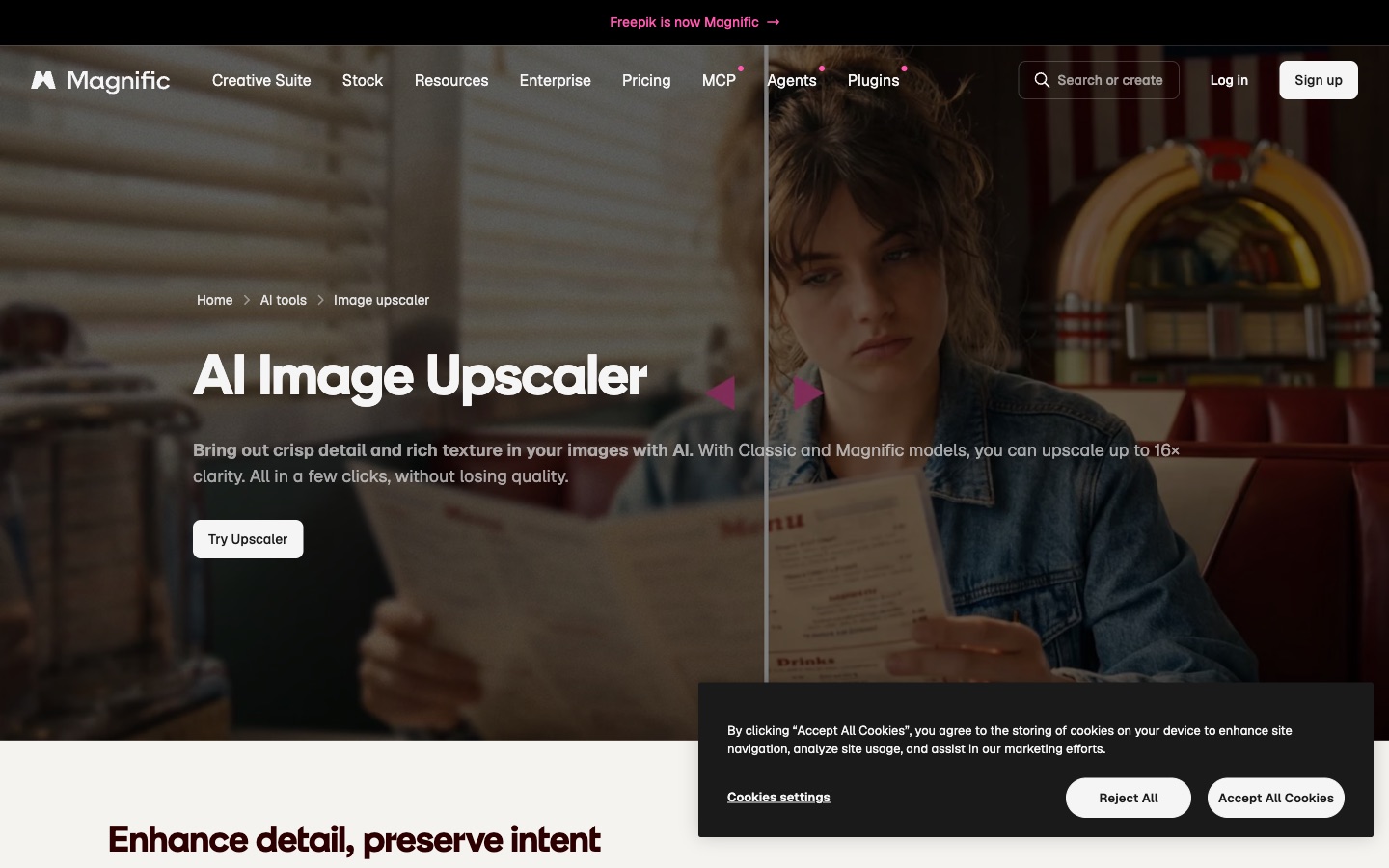 Magnific's AI Image Upscaler page, captured September 15, 2026. Credit: Magnific
In short
| Question | Short answer |
|---|---|
| What is it | An AI tool for image upscaling and enhancement, which became the name of the entire Freepik company in April 2026 |
| What it does | Upscaling up to 16x, Creative mode that adds detail, Precision mode that stays true to the original, Relight, style transfer, skin enhancement, and video up to 4K |
| How much it costs | Premium 40 ILS/month billed annually, Premium+ 99 ILS, Pro Starter 241.50 ILS, before VAT. Upscaling consumes credits |
| Can you buy it separately | Not for new users. magnific.ai is open only to existing accounts |
| Hebrew | No Hebrew version of the site. Hebrew text inside an image is not officially supported; test with Precision |
| Rights and privacy | Commercial license on paid plans, no training on your content according to the site |
What is Magnific?
Magnific is an AI tool that upscales and enhances existing images, either adding details that weren't there or preserving the original faithfully, depending on what you choose. Since April 2026 it is also the name of the entire company formerly known as Freepik.
Definition: Magnific is an AI-based image upscaling and enhancement tool by Freepik Company S.L.U. of Spain. It upscales images up to 16x in two primary modes: Creative, which imagines new details guided by a prompt and sliders, and Precision, which upscales without inventing. Around those two modes sit tools for relighting (Relight), style transfer, skin enhancement, and video upscaling, available both in the browser and via API.
The short version of the story: Magnific launched in late 2023 as a standalone site, magnific.ai, and according to reports Freepik acquired it in May 2024. On April 28, 2026, Freepik renamed itself Magnific and unified all its products under that name. The official pricing page now reads "Magnific (formerly Freepik)."
What this means in practice: when someone says "Magnific" in 2026, they could mean two things. Either the upscaling tool itself, or the entire platform. This guide is about the former. According to the official magnific.ai page, the legacy site still works for anyone who already had an account there, including their tokens, gallery, and subscription, but new signups are only possible at magnific.com. According to that same page, all the familiar tools, image and video upscaling, style transfer, Relight, skin enhancement, and Mystic, are available there as separate tools.
What can Magnific do?
Magnific can upscale, enhance, relight, restyle, and upscale video, and every one of those tools is built on the same underlying technology. Here are the capabilities as described in the tool pages and documentation, with one practical business use case for each:
- Creative Upscaler. According to the documentation, it adds or infers new details based on a prompt, with upscaling at 2x, 4x, 8x, or 16x. Use case: turning a 1024-pixel AI image into a print-ready file with real texture.
- Creative sliders. According to the API documentation there are four, each on a scale of -10 to 10: Creativity (how much the model is allowed to imagine), HDR (level of definition and detail), Resemblance (how close to stay to the original), and Fractality (prompt strength and per-pixel complexity). The tool page on the site surfaces Creativity and Resemblance. Use case: dialing in a portrait so the skin picks up detail without the face changing.
- Styles and engines. The API has an "optimized for" field with nine options, including soft portraits, sharp portraits, illustration, game assets, nature, photography and cinema, 3D rendering, and sci-fi, plus three engines (Illusio, Sharpy, Sparkle) or auto-selection. The site mentions styles such as Portrait, 3D, and Digital art. Use case: choosing "3D rendering" for an architectural visualization.
- Precision Upscaler. According to the documentation, it upscales without inventing elements, reduces noise and artifacts, preserves color, and improves the legibility of small text. It has sliders for sharpness, grain, and detail. Use case: product shots for an online store, an old logo, a screenshot for a presentation.
- Relight. According to the tool page, up to 3 light sources that you position yourself, with rotation, height, intensity, and color for each, or copying the lighting from a reference image, plus presets such as studio light or hard side light. The API documentation also allows describing lighting in text or uploading a light map. Use case: a product photo shot under neon light gets warm window light instead.
- Style Transfer. According to the documentation, applies a preset style or a style from a reference image, with control over strength and structure preservation, and can be combined with upscaling. Use case: turning a space sketch into a visualization in a specific design style.
- Skin Enhancer. Listed on the site as a separate tool, and in the pricing table in three modes: Creative, Faithful, and Flexible. Use case: an employee portrait for the company website that looks more natural.
- Video Upscaler. According to the tool page, clips up to 8 seconds, resolutions from 360p to 4K, 24 to 60 frames per second, with either Magnific's creative model or Topaz's faithful model. Use case: a short AI clip that looks sharp on a large screen.
- API. According to the documentation, all of the above tools are also available via API, with asynchronous processing and webhook support. Use case: a store that automatically upscales every new product image.
How to get started: step by step
Six steps take you from one ordinary-sized image to an upscaled file you've checked at full zoom. This order saves credits, because the big mistakes happen when people start at 16x with maximum imagination turned on.
- Sign up at magnific.com. Not magnific.ai, which according to the official page no longer accepts new users.
- Open Image Upscaler and upload your image. According to the tool page, the accepted formats are JPG, JPEG, WEBP, and PNG. Upload the original file, not a screenshot of it: according to the documentation, downscaling or converting from PNG to JPEG before uploading hurts quality.
- Choose a mode based on what the image is. Does it contain text, a logo, a real product, or a real person's face? Use Precision. Is it an AI image, an illustration, or a render you want to enrich? Use Creative.
- Start conservative. 2x upscale, Creativity at 0 or close to it, Resemblance high. For AI images, paste in the original prompt: according to the documentation, reusing the same prompt improves the result.
- Check the price before you click. According to the tool page, hovering over the Upscale button shows how many credits the upscale will cost. Then go ahead.
- Compare at 100% zoom and download. Drag the comparison slider between the original and the result, and look closely at eyes, hands, text, and edges. If needed, take the image to Relight first, and only then upscale again to the final size.
From the field: In workshops I see the same moment over and over. Someone uploads a product photo, pushes Creativity up to the middle "to make it sharper," and gets a label covered in letters that don't exist in any language. My rule: Precision at 2x first. If that's enough, you're done. Save Creative for images where the tool is allowed to invent.
Hebrew and RTL
Magnific's site has no Hebrew version, and support for Hebrew text inside an image is not officially documented. For an upscaling tool this is less of a problem than for a generation tool, since there isn't much to write, but there is one point you have to know.
What works:
- The interface is simple. The pricing page has versions in 22 languages, including Spanish, Japanese, Korean, and Hindi. Hebrew is not among them. The upscaling tool itself is mostly upload, sliders, and a button, so basic English is enough.
- Images of Israeli subjects. Magnific doesn't create an image from scratch; it works on whatever you upload. A photo of a shop in Tel Aviv stays a photo of a shop in Tel Aviv.
- Upscaling prompts. The prompt that guides Creative mode is optional. When you do use one, write it in English: all examples in the documentation are in English, and Hebrew prompt support is not mentioned.
What breaks, and what to test:
- Hebrew letters inside the image. Signs, labels, packaging, text on a shirt. In Creative mode the model adds detail based on what it "expects" to see, and small Hebrew letters can change or turn into shapes. Check every word at 100% zoom.
- The closest official solution. According to the documentation, Precision improves the legibility of small text without inventing anything, and is recommended for logos and interfaces. For images containing Hebrew, start there, and upscale only 2x to 4x, as the documentation recommends.
- Text that's already broken. If the original text is too blurry, no upscaler will recover it, because the information simply does not exist in the file. Upscale the image without the text and add the lettering back in a tool that handles Hebrew, such as Canva.
How Much It Costs: All Plans from the Official Site
There is no longer a separate Magnific subscription for new users: upscaling is included in the platform subscription and paid for with credits. The table below is based on the official pricing page as displayed from Israel on September 15, 2026, in ILS and before VAT.
| Plan | Monthly price (annual / full price on page) | What you get | Limitations |
|---|---|---|---|
| Free | 0 ILS | Access to tools, up to 2 images in multi-upscaling, 10 stock downloads per day | Personal use only with attribution. Credit amount not shown on the pricing page |
| Premium | 40 ILS / 59 ILS | 240,000 credits per year, Magnific image and video upscalers, commercial AI license, API by credits | Upscaling consumes credits. The upscaling page states the Magnific model up to 10K is intended for Premium+, so check your account before buying |
| Premium+ | 99 ILS / 132 ILS | 600,000 credits per year, unlimited generation on select models, Magnific and Topaz upscalers, music rights | Upscaling with Magnific models still consumes credits here |
| Pro Starter | 241.50 ILS / 322 ILS | 1.5 million credits per year, everything in Premium+ | Designed for high-volume production |
| Business and Enterprise | Under the Teams tab, not included in this review | Team collaboration, and in Enterprise also legal indemnification for AI content | Indemnification is Enterprise-only, per the pricing FAQ |
Prices change, so check the official site. The page states that annual billing saves 25%, that prices exclude VAT, and that there is a 30-day money-back guarantee. Anyone already subscribed on magnific.ai continues with their existing tokens and subscription there, per the official page, and cancellation is handled through the Stripe billing portal.
What you are actually paying for. Output size. According to the pricing page, the number of credits for upscaling in Magnific depends on the image size and resolution. The Magnific Precision page shows 90 credits per image at 2K. By that table, that works out to roughly 2,666 Precision upscales per year on Premium. The API documentation includes examples in euros: a 640 by 480 upscale at 2x for 0.10 euros, and 8x for 0.50 euros. One important note: according to the documentation, "unlimited" applies to the website only, and API calls always consume credits. And per the pricing FAQ, on a monthly plan credits reset each month, while on an annual plan you receive the full year's credits upfront.
The cheapest plan that works for a small Israeli business. Premium on annual billing. A business upscaling a few dozen product or property images per month with Precision will stay well below the credit cap and will have a commercial license. Premium+ is worth considering only if you are also using the image generator daily or need the Topaz video upscaler.
Use Cases for Israeli Businesses
Five scenarios, by role, where upscaling saves a reshoot or a designer fee. The examples are general and not based on any specific client.
Business owner: product photos that look studio-shot. A small online store with old, low-resolution images. Upload them together (up to 20 images in parallel on a paid plan, per the tool page), Precision at 2x, and verify that the label stayed the same label. If you need a clean background before upscaling, Photoroom handles that well, and Magnific finishes the job.
Marketing: from an AI image to a banner. A team that created a campaign visual with an image generator ended up with a 1,024-pixel file. Creative with a low-to-medium Creativity setting and the original prompt, 4x, then check faces and hands. When the visual also needs to work in a short video ad, the video upscaler brings a clip of up to 8 seconds up to 4K.
Operations: real estate property photos. An agency with dozens of phone shots of apartments. Precision so the room looks sharp, and Relight with soft daylight instead of yellow fluorescent. One hard rule here: do not add windows, views, or square footage that do not exist. A photo that misrepresents the property misleads the buyer.
Human resources: team and event photos. A group shot from an event that came out small and noisy, or a portrait for the "Team" page on a website. Use Skin Enhancer in Faithful mode, or Precision, not Creative, because Creative can alter facial features. And get employees' consent before uploading their faces to any cloud-based tool.
Sales: presentations and quotes. A product or space rendering sent to a client. Style Transfer to show the same space in two styles, and Relight to present it in daylight and at night. Upscale only the chosen version at the end, not all of them.
Magnific vs. Krea vs. Topaz Gigapixel: An Honest Comparison
Magnific wins on creative upscaling and surrounding tools, Topaz Gigapixel wins on local and faithful processing, and Krea wins when upscaling is one step inside a broader creation workflow. For anyone who just needs to upscale occasionally, there is also a free option.
| Criterion | Magnific | Krea Enhancer | Topaz Gigapixel | Upscayl (free) |
|---|---|---|---|---|
| Where it runs | Browser and API | Browser | Mac and Windows, local and cloud | Linux, macOS and Windows, local |
| Upscaling | Up to 16x, up to 10K on the site | 1x to 8x, up to 22K on paid plans | Up to 16x in pixels per the pricing page | Basic upscaling |
| Creative vs. faithful | Both: Creative and Precision | Krea Enhance and Topaz models | Several models including Recover and Redefine | Faithful |
| Additional tools | Relight, style, skin, video up to 4K | Generation, editing, video, LoRA | Face recovery, Photoshop and Lightroom plugin | None |
| Price | From 40 ILS per month on annual billing, before VAT | Pro 35 $ per month or 21 $ annually | 149 $ per year or 29 $ per month | Free, open source |
| Privacy | Cloud, no training per the site | Cloud | Local processing, files do not leave your machine | Local |
| Commercial license | On paid plans | On paid plans | For organizations up to one million dollars in annual revenue | Open source |
Prices are taken from official pricing pages on September 15, 2026, and are subject to change. Krea data is from the full Krea guide.
When to use Magnific. When you want the upscale to add detail rather than just pixels, especially on AI images, illustrations and renders, and when you also need Relight, style transfer and video upscaling in the same place.
When to use Krea. When upscaling is the final step after creating and editing in the same tool, and you also want real-time drawing and style training. Krea also includes Topaz models inside its Enhancer.
When to use Topaz Gigapixel. When files are sensitive and cannot leave the machine, when you are working inside Photoshop or Lightroom, and when you want unlimited local processing without worrying about credits. Per the pricing page, the standard license covers organizations with up to one million dollars in annual revenue.
When to use Upscayl. When you need to upscale simple images occasionally, with no subscription and no cloud. Do not expect it to invent detail.
Privacy and Limitations
According to the site, what you upload to Magnific is private by default and is not used for training, but it is still a cloud service, and the model you choose may run on a third-party provider. Here is what the official documents say, and what that means in practice.
What is stated officially:
- No training. Per the pricing FAQ, Magnific does not use what you create or upload to train its AI tools, and neither do its third-party providers. The upscaling page and the video upscaling page both say the same thing.
- How long data is kept. Per the privacy policy, uploaded images and audio files are deleted immediately after the output is generated. Prompts and outputs are stored for the duration of the subscription. Model providers, acting as subprocessors, retain data for up to 30 days.
- Where data is processed. Per the policy, some models are hosted in countries the European Union recognizes as adequate and some are not, and the choice of model is the user's. The company signs standard contractual clauses with its providers. A Data Processing Agreement (DPA) can be requested.
- Ownership. Per the upscaling page, the upscaled images are yours, with commercial use on paid plans. On the free plan, use is personal only and requires attribution.
- Indemnification. Per the pricing FAQ, legal protection for AI content exists only on the Enterprise plan. On all other plans, the responsibility for what you publish is yours.
What not to upload:
- Other people's faces without their consent. The privacy policy explicitly states that the user must have a legal basis to upload an image of another person.
- Documents, screenshots containing client details, certificates or contracts, even if you "just need to upscale them."
- Images you do not hold rights to. Upscaling does not make someone else's image yours.
The limitations, honestly:
- Upscaling cannot recover information that was never there. Creative guesses, and sometimes it guesses wrong: letters, fingers, facial features.
- Confusion over names and plans. Freepik, Magnific, magnific.ai and magnific.com, and two different official pages say two different things about the Magnific model and which plan it belongs to. Check your account.
- Short video only. Up to 8 seconds per clip, per the tool page.
- No local processing. Anyone who needs files to stay within the organization needs a tool like Topaz Gigapixel.
Common Mistakes
- Starting at 16x. The documentation recommends starting at 2x to 4x and going again if needed. A massive upscale on a noisy source amplifies the noise and costs more credits.
- Creative on an image with text or a logo. This is where invented characters appear. For text, use Precision.
- Uploading a screenshot or a compressed file. Per the documentation, converting to JPEG or reducing size before uploading hurts quality. Upload the original file.
- Reviewing the result only at a reduced view. Everything looks fine on a small screen. Zoom to 100% on eyes, hands and edges.
- Altering a property or product until it misleads. Pleasant lighting is fine. A window that does not exist, or a material the product is not made of, is deceptive advertising.
- Buying before checking what is included. Two official pages say two different things about the Magnific model on Premium. Check your account before paying.
Frequently Asked Questions
What is Magnific?
An AI-based image upscaling and enhancement tool that became the brand name for the entire Freepik company. It upscales up to 16x, adds details in Creative mode or preserves the original in Precision mode, and also offers Relight, style transfer, skin enhancement, and video upscaling up to 4K.
Can you still buy Magnific separately?
Not for new users. According to the official magnific.ai page, the old site is open only to those who already had an account, with their tokens and subscription intact. New users sign up at magnific.com, and upscaling is included in the subscription plans of the platform formerly known as Freepik.
How much does Magnific cost?
According to the pricing page as displayed from Israel on September 15, 2026, before VAT: Premium at 40 ILS per month billed annually with 240,000 credits per year, Premium+ at 99 ILS with 600,000, and Pro Starter at 241.50 ILS with 1.5 million. Upscaling consumes credits based on output size. Prices are subject to change.
What is the difference between Creative and Precision?
Creative adds and imagines new details based on a prompt and sliders, and is suited to AI-generated images, illustrations, and stylized portraits. Precision upscales faithfully without inventing anything, and according to the documentation is recommended for logos, product photography, screenshots, and small text.
Can Magnific upscale video?
Yes. According to the tool's page, you can upscale clips of up to 8 seconds to resolutions from 360p up to 4K, at frame rates from 24 to 60 fps, using either a Magnific or a Topaz model. The tool is available on every paid plan, and credits depend on resolution and model.
Does Magnific train models on my images?
According to the pricing page and the upscaler page, no: what you upload and what is generated is not used for training, including by model providers. According to the privacy policy, uploaded images are deleted immediately after generation, and outputs are stored for as long as the account is active.
Does Magnific preserve Hebrew text in an image?
Not officially stated. In Creative mode the model invents details, so small letters on a sign or packaging may change. For images containing text, use Precision, upscale 2x to 4x, and check at 100% zoom.
Magnific or Topaz Gigapixel?
Magnific when you want upscaling that adds detail plus additional tools within the same subscription, in a browser. Topaz Gigapixel when you want desktop software with local processing and no usage limits, files that never leave your machine, and a plug-in for Photoshop and Lightroom.
The Bottom Line
Magnific does not sell pixels, it sells controlled imagination. 16x is the number in the headline, but the decision that actually determines the result is how much you let the tool invent: Creative when invention is welcome, Precision when it is not, and Relight when the problem is not resolution at all but light.
For a small business in Israel the recommendation is straightforward: Premium annual, Precision 2x as the default, a full-zoom check before every publication, and no other people's faces and no assets that look different from reality. Anyone already working in Freepik already has upscaling included in their subscription, and the only thing left is to learn to use it correctly. And anyone who wants to see where upscaling fits into a creative workflow, the image tools comparison brings order to it all.
Want to practice this inside the page? The interactive Magnific course for 9.90 ILS, part of the interactive AI courses series.
Further reading: Freepik: the full creative suite · Krea: generation, Enhancer, and style training · Photoroom: product photography · Nano Banana: image editing · Midjourney: the complete guide
Sources
All pages were checked on September 15, 2026. Prices are subject to change; verify on the official site.
- Official pricing page: https://www.magnific.com/pricing (Premium, Premium+, Pro Starter in ILS before VAT, annual credits, Magnific and Topaz upscalers, Magnific Precision at 90 credits for 2K, upscaling up to 10K, commercial license, no training on content, 22 language versions, 30-day refund, indemnification only on Enterprise)
- Image upscaler page: https://www.magnific.com/ai/image-upscaler (up to 16x, Classic and Magnific models, Creativity and Resemblance sliders, formats, up to 20 parallel images and 2 on the free plan, ownership of output)
- Relight page: https://www.magnific.com/ai/relight (up to 3 light sources, rotation, height, intensity and color, reference, presets)
- Video upscaler page: https://www.magnific.com/ai/video-upscaler (up to 8 seconds, 360p to 4K, 24 to 60 fps, Magnific and Topaz models, formats, available on every paid plan)
- Legacy site page: https://magnific.ai/legacy (existing users only, tokens and subscription preserved, new registration only at magnific.com, gallery export, cancellation via Stripe)
- API documentation, Upscaler Creative: https://docs.magnific.com/api-reference/image-upscaler-creative/image-upscaler (2x to 16x, example pricing, sliders, styles and engines, ceiling of 25.3 million pixels)
- API documentation, Upscaler Precision: https://docs.magnific.com/api-reference/image-upscaler-precision/image-upscaler (no detail invention, logos, text, and product photography, recommended 2x to 4x)
- API documentation, Relight: https://docs.magnific.com/api-reference/image-relight/image-relight (prompt, reference, or light map)
- API documentation, Style Transfer: https://docs.magnific.com/api-reference/image-style-transfer/image-styletransfer (styles, reference, strength, combination with upscaling)
- API documentation, pricing: https://docs.magnific.com/pricing (API calls always consume credits, "unlimited" applies to the website only)
- Privacy policy: https://www.magnific.com/legal/privacy (uploaded files deleted after generation, prompts and outputs retained, 30 days with providers, international transfers, DPA)
- Report on Freepik's acquisition of Magnific, May 2024: https://tech.eu/2024/05/07/freepik-acquires-spanish-ai-image-upscaler-magnific/
- Report on the rebrand to Magnific, April 28, 2026: https://tech.eu/2026/04/28/freepik-rebrands-as-magnific-unifying-its-ai-creative-stack-as-enterprise-and-no-collar-growth-accelerates/
- Topaz Gigapixel page: https://www.topazlabs.com/topaz-gigapixel (Mac and Windows, local and cloud processing with no limits, plug-in for Photoshop and Lightroom)
- Topaz Labs pricing page: https://www.topazlabs.com/pricing (Gigapixel at $149 per year or $29 per month, upscaling up to 16x in pixels, commercial use for organizations up to one million dollars in revenue)
- Upscayl site: https://upscayl.org (free and open source, Linux, macOS, and Windows)
- Krea Enhancer data: Krea guide on this site, based on https://www.krea.ai/pricing
Frequently asked questions

Yaakov Tzedek
An Israeli AI lecturer, consultant and implementer who has supported 100+ organizations in AI implementation and lectured for 200+. Official content partner of Meta, Google, Canva and TikTok, featured on Israel's Channel 13.
More about Yaakov →