- A practical guide to building an AI worker on Grok Bot: a valid WhatsApp number, read-only Google Calendar, an MCP server for write access, permissions and limits.
The Google Calendar connection panel in Grok asks for a single permission: "Give Grok access to search your calendar". According to the documentation, the basic calendar.readonly permission is always on, while calendar.events (creating, updating and deleting events) is only required when write tools are enabled, and calendar.freebusy is only required when the availability tool is enabled. That means a business that simply connected its calendar got an agent that can suggest a time slot but cannot book it.
I built an AI worker that reads WhatsApp messages, checks the calendar, and suggests an available time slot to the client. Setup took less than an hour. Then it turned out the worker couldn't actually book the meeting.
Not because of a bug, and not because the model misunderstood anything. Because of a single line in Google's permissions panel, the one most people approve without reading, that turns the agent into an advisor who suggests times rather than a worker who closes appointments.
This guide builds that worker from scratch, with that trap marked in advance, and with the second decision that determines whether the system holds for a year or gets blocked within a week: exactly how to connect WhatsApp.
In short
| Question | Short answer |
|---|---|
| What are we building? | One AI worker: receives a WhatsApp inquiry, checks the calendar, suggests a time, and prepares a response waiting for your approval. |
| What is Grok Bot? | An AI agent with its own cloud computer: a browser, file system, and terminal. Not a chat that replies, a worker that executes. |
| The big trap | The Google Calendar connection is read-only. Without enabling write permissions, the agent will never book a single meeting. |
| WhatsApp: the only valid way | WhatsApp Business Platform, with explicit recipient consent and an approved message template. |
| WhatsApp: what's forbidden | Automating WhatsApp Web or the mobile app. That's a terms violation, and the price is your phone number. |
| Where to connect tools | On grok.com, in the side menu under Plugins, in the Connectors and Skills tabs. There is no /settings/connectors page. |
| What to do when there's no connector | Write your own MCP server and connect it as a Custom Connector. Two fields only: name and address. |
| How many messages are allowed? | 250 unique recipients per 24 hours at the start, scaling up in tiers based on quality. |
| The golden rule | Read, Suggest, Confirm, Act. The worker reads and suggests, you approve, and only then it acts. |
Watch the official videos
Grok Bot after 24 hours, part 1 (Hebrew)
יעקב צדק · September 14, 2026
Grok Bot after 24 hours, part 2 (Hebrew)
יעקב צדק · September 14, 2026
What's new in Grok Bot - Sept 8, 2026
Matt Palmer (SpaceXAI) · September 8, 2026
Grok Bot Just Dropped. (Brutally Honest Review)
Brock Mesarich | AI for Non Techies · August 12, 2026
Grok Bot Just Built My Entire Ad Campaign (Honest Review)
Mr. Paid Social · August 24, 2026
What is Grok Bot, and how is it different from chat?
Grok Bot is a persistent AI agent with its own cloud computer that executes tasks inside real applications instead of returning text to you. SpaceXAI, the company behind Grok, describes the product as "AI colleagues you can assign real work to" that can "connect to your tools, use them exactly as you would, and come back with the job done."
Definition: An AI worker is an agent that receives four things: a role, a computer, tools, and permissions. Chat answers your question and you do the work. A worker does the work, and you approve.
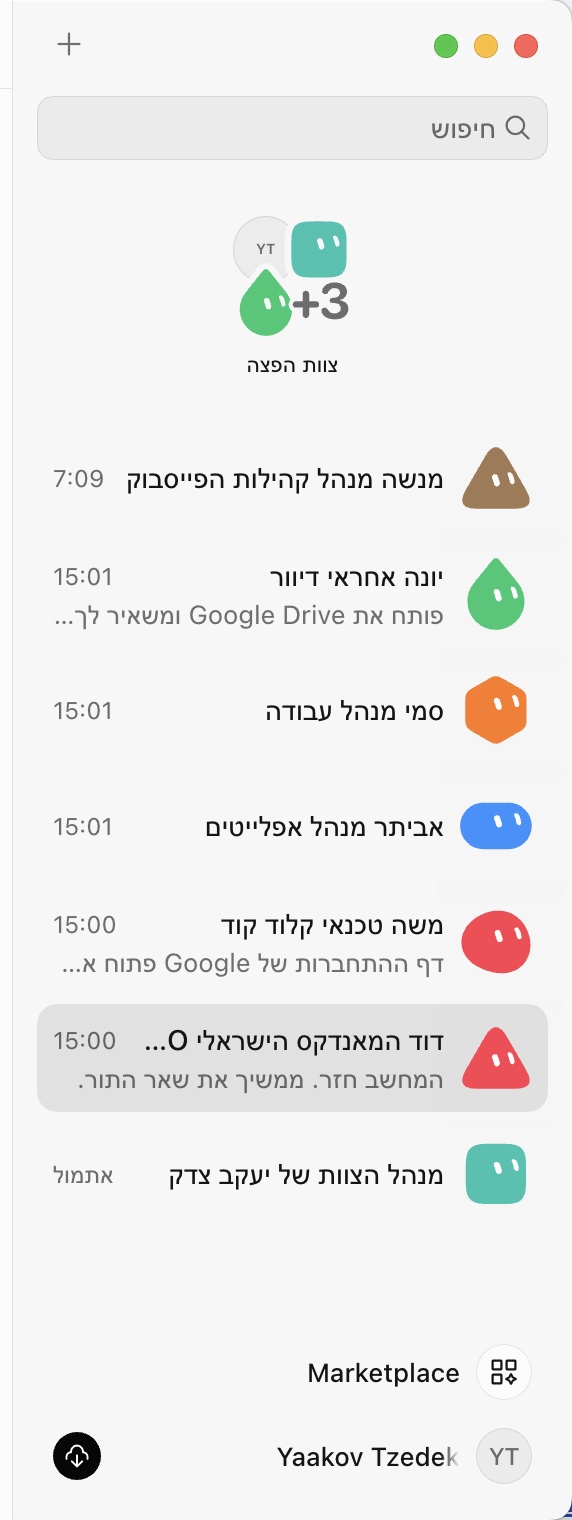
Screenshot from my own computer: this is not a demo screen. Each bot has its own name, role, and conversation, and there's a Marketplace at the bottom.
The difference from chat is not in the power of the model but in the boundary of responsibility. Each bot runs on a dedicated cloud computer with a browser, file system, and terminal, so it can open an interface, fill in a field, and download a file rather than just describing how to do it.
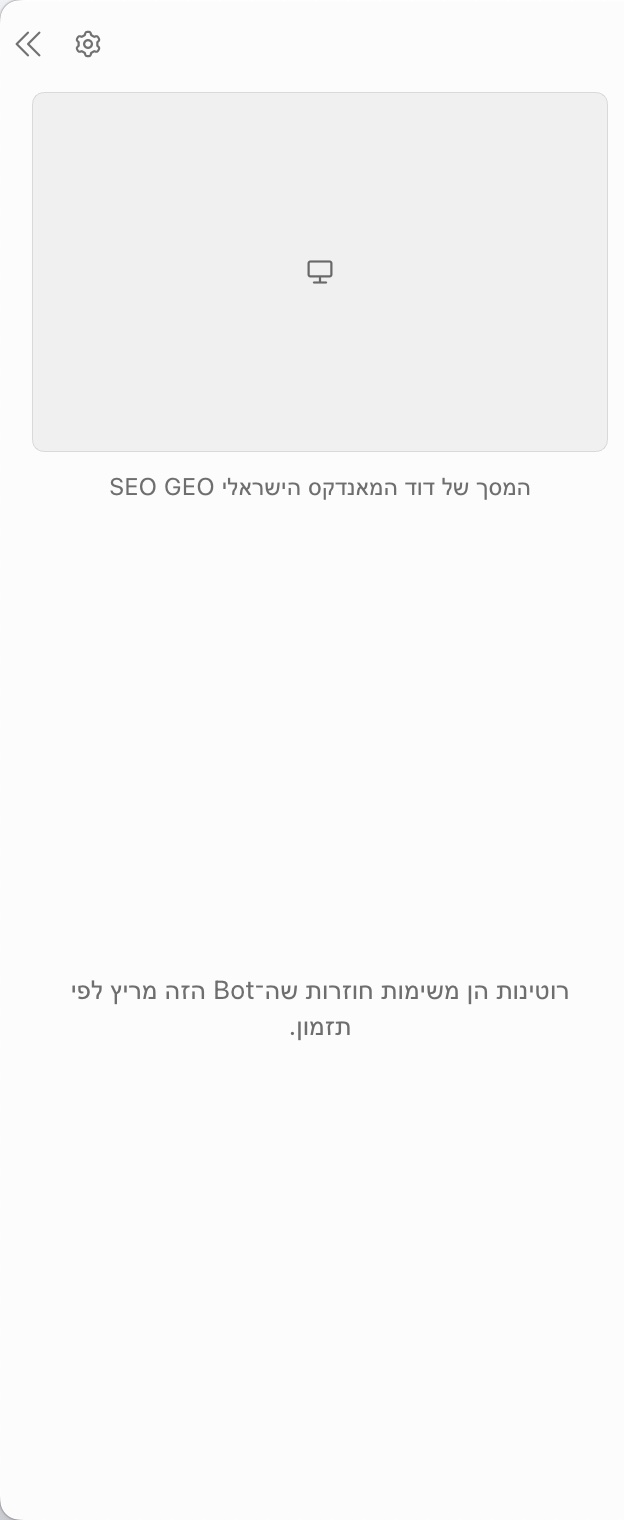
Each bot has its own screen you can peek into, and routines are recurring tasks it runs on a schedule.
One point you must internalize before connecting any tool: all bots belonging to the same user share a single cloud computer, including files, browser sessions, and application logins. A bot that connects to a system inherits that access across all the others. This is not isolation, and that is exactly why you should work with accounts dedicated to the AI worker rather than your personal accounts. A full review of the product itself, including what breaks in it, is in the complete Grok Bot guide.
The architecture: five layers
An AI worker that holds up against real clients consists of five layers, and each layer answers one question. If a layer is missing, the system will work beautifully in a demo and break on the first real inquiry.
| Layer | The question it answers | In practice |
|---|---|---|
| 1. The channel | Where does the client meet the worker? | A dedicated business WhatsApp number |
| 2. The brain | Who decides the next step? | Grok Bot |
| 3. The tools | What does it touch? | Calendar, email, files, documents |
| 4. The connection layer | How does it reach the tools? | Built-in connectors, and your own MCP server for anything without a connector |
| 5. The permissions layer | What is it allowed to do on its own? | Read, write, and a human approval gate |
Most people invest all their attention in layer 2 and skip over 4 and 5. That is exactly where the two failures this guide exists to address are hiding.
Where to connect in practice: in the grok.com interface, connections live in the side menu under Plugins, with two tabs, Connectors and Skills. Worth knowing to save yourself fifteen minutes: there is no page at /settings/connectors, and that URL returns a 404 error. The built-in connectors we saw in the live interface on September 16, 2026: Finance, Gmail, Google Calendar, Google Drive, GitHub, Box, Canva, Notion, Stripe, Vercel, Wix, and X Ads.
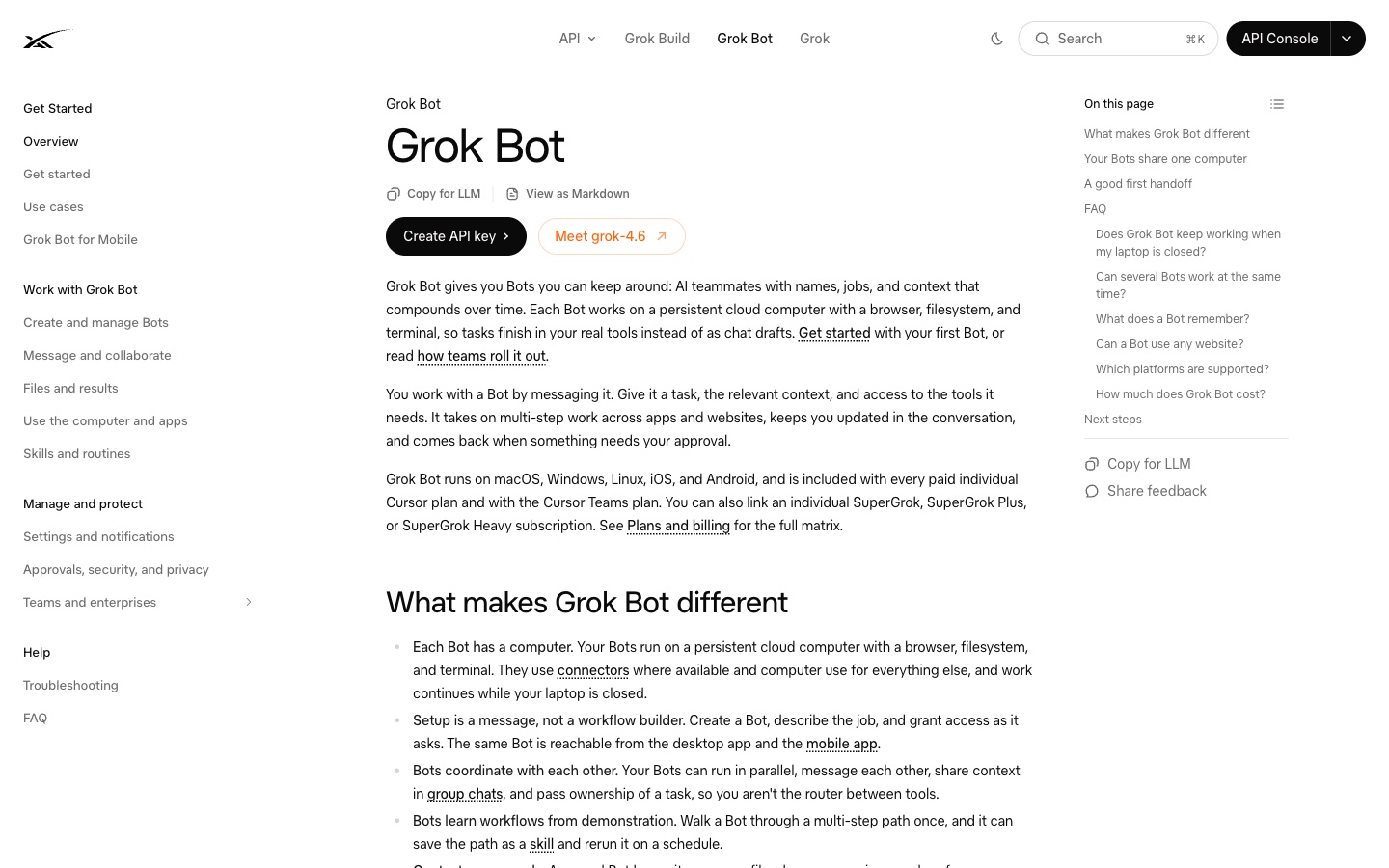
SpaceXAI's official documentation, verified on September 16, 2026.
Pay attention to a detail that looks minor but isn't: Gmail and Google Calendar are two separate connectors, each with its own login and permissions. Connecting email does not grant access to the calendar, and vice versa.
Step 1: A dedicated WhatsApp number for the worker
Do not connect your personal number, and do not connect the number your business runs all its conversations on. An AI worker needs its own number, for the same reason a new employee gets their own email inbox: so you can shut it down without shutting down the business.
Not every number is suitable, and you usually find that out after buying one. Twilio, a communications provider that supports WhatsApp Business Platform, allows you to bring your own number (BYON, meaning Bring Your Own Number), and to send under your brand you register a WhatsApp sender with them. These are the rules worth checking before you pay:
- The number must be able to receive SMS or a voice call. Verification is done with a one-time code, so a number that can only dial out cannot be activated.
- A number already registered on WhatsApp will not work. If the number is currently in use on regular WhatsApp, it is disqualified for this purpose.
- Business verification with Meta is required before going live, not after. It's worth starting that process early.
According to WhatsApp's Help Center, certain number types are not supported for consumer WhatsApp registration: VoIP numbers, toll-free numbers, premium-rate numbers, and universal access numbers. Landlines are supported only on the WhatsApp Business app.
The business translation is simple: before you build anything, confirm that the number you chose meets all three rules. This is the only step here that can delay you by a week.
Step 2: How to connect WhatsApp, and why not through WhatsApp Web
The only valid way to connect an AI worker to WhatsApp is WhatsApp Business Platform. This is Meta's official infrastructure for businesses, it provides a real programmatic interface, and it is the only way your number doesn't live on borrowed time.
In practice the process looks like this: open a business account with Meta, register the number through a provider that supports the platform (Twilio is one of them), complete business verification, submit message templates for approval, and then connect that interface to Grok Bot as your own MCP server. This is exactly the same pattern I detailed in the Grok Bot as AI sales agent guide: the professional tool handles the sending, and the agent only decides and prepares.
The warning: automating WhatsApp Web is not a shortcut
This is the part most content on this topic skips, so I'm saying it without softening.
WhatsApp's Help Center puts it this way, word for word: "Our products are not intended for bulk or automated messaging, and both have always been a violation of our Terms of Service." The Terms of Service themselves prohibit using the services "directly or through automated means" to reverse-engineer or gain unauthorized access, and explicitly prohibit bulk messaging, automated messages, auto-dialing, and anything similar. WhatsApp states it is prepared to take legal action, including against companies that publicly advertise that capability.
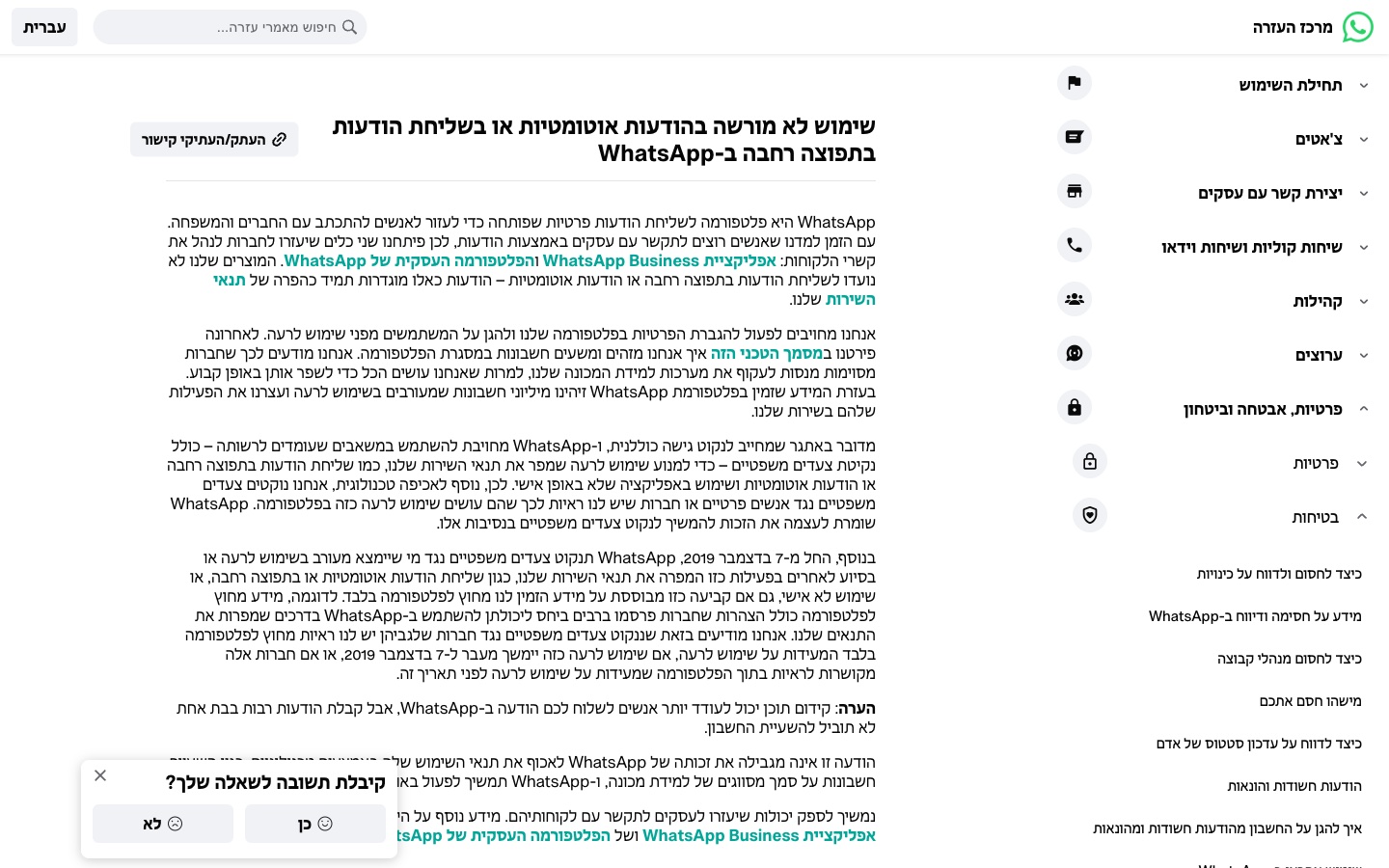
WhatsApp's official page. This is not my interpretation, this is their language.
The realistic outcome of running a bot on WhatsApp Web is a permanent ban on the number your business runs on. Not a warning, not a temporary suspension, not "let's see what happens." That is the number listed on your website, your business cards, and every conversation with an existing client.
There is no workaround here that eliminates the risk, because there isn't one. If the budget or time isn't there for WhatsApp Business Platform, there are two options: start the worker on a different channel (email or a website form), or choose an unofficial gateway like Green API with open eyes and full awareness of its price. I cover that second option in the next section, including how I work with it myself.
What about Green API?
Green API is an unofficial gateway that connects code to WhatsApp through a "linked device," and it is hugely popular in Israel because you can be up and running within minutes. No Meta Business account, no template approvals, no business verification: you scan a QR code from your phone and get an interface for sending and receiving messages.
Definition: Green API is a third-party service that keeps your number connected as a linked device, similar to WhatsApp Web, and exposes it as a programmable interface. According to the company's website, this is not the official WhatsApp Business API.
Now for the disclosure you deserve: I use it myself. The line running initial lead responses and team alerts at my end has been running on Green API for months. So this is not "forbidden and dangerous" in some theoretical sense. It is a decision with a known, upfront cost, and it is worth making with your eyes open.
Why is it so popular?
- Speed: A QR scan instead of business verification and template approval.
- Price: According to Green API's homepage (checked on September 17, 2026), there is a free Developer plan for up to 3 chats, and a Business plan at $12 per month with unlimited chats.
- Existing number: Works with a regular WhatsApp or WhatsApp Business app.
- Ready AI connection: The company has an official MCP server at
https://mcp.green-api.com/mcp, with tools for sending messages, files and polls, managing groups, and receiving incoming message notifications.
What is the real cost?
- The risk of getting banned has not gone away. This is still an automated connection to a service whose terms of use do not permit automation, as I detailed in Step 2. Green API themselves dedicate entire guides to "warming up" a number and protecting against bans, and that says everything.
- Your phone has to stay connected. According to Green API's documentation, messages pass through the phone, so it needs to be charged and connected to the internet at all times.
- The line can disconnect silently. It happened to us: WhatsApp disconnected the linked device, and all at once the automatic responses and alerts stopped going out, with no error notification. We only found out when we noticed that lead cards said "no messages."
When does it make sense, and when does it not?
| Use case | Green API? |
|---|---|
| Notifications to your own number and your team | Reasonable |
| Initial response to someone who contacted you first | Reasonable, at a human pace |
| An AI worker managing a conversation with someone who already wrote to you | Possible, with human approval before any commitment |
| Mailing, cold outreach, or a distribution list | No. This is exactly what leads to bans, and in Israel it also touches Amendment 40 to the Communications Law |
| The business's main number, the one that appears everywhere | No. A separate number only |
How do you connect Green API to Grok Bot?
- Open an account on Green API, create an instance, and connect a dedicated number by scanning the QR code (on the phone: Linked Devices, then Link a Device).
- Copy the Instance ID and the API Token from the console.
- In Grok: Plugins, then New Connector, then Custom. In the Server URL field, paste
https://mcp.green-api.com/mcp. - When the authorization window opens, enter the Instance ID and the API Token.
- Test with a simple question: "What is the status of my WhatsApp instance?"
Important caveat: Green API documents this connection against Claude Desktop, with an authorization window that opens in the browser. I have not tested it in Grok Bot itself. If the connection does not come up, the most likely cause is the authorization layer, and the path forward is a small MCP server of your own that calls the Green API, exactly as in Step 4.
Six safety rules we learned along the way
- A separate number for the AI worker, never the business's main number.
- A human pace. On our end, the queue of outgoing messages goes out at two messages per hour, with random pauses, only during business hours and not on Shabbat.
- Only to people who contacted you or agreed to receive messages.
- An unsubscribe line in every outgoing message, with immediate compliance when someone says "remove me."
- Monitor the line. An automatic hourly check of connection status, with an email alert, because WhatsApp is exactly the channel that goes down.
- Automatic stop after several consecutive failures, rather than continuing to push.
The bottom line on Green API: For a worker that replies, alerts, and manages a conversation with someone who already reached out, at a human pace, this is a practical solution I work with myself. For mailing and cold outreach, the official platform only. And if you want to control a Claude Code agent from your phone through it, there is a full guide to connecting Claude Code to WhatsApp with Green API. It is also worth knowing the other side of the same trend: Instinct, a complete AI assistant that lives entirely in WhatsApp and acts on your behalf, and the difference in permission control between an agent you build yourself and one you connect ready-made.
Step 3: Connecting the calendar, and the trap nobody tells you about
Connecting Google Calendar in Grok is read-only. This is the point that made me write this guide, and it is why businesses discover after a week that their funnel is not actually booking meetings.
The connection panel in the live interface states this explicitly. The heading: "Give Grok access to search your calendar." The only permission shown: "Search your calendar: Check today's schedule, find upcoming events, and get meeting details." Below that, the reassurance line: "Your events stay in Google Calendar. We don't store your events. Grok searches Google Calendar in real-time when you ask questions." In the connectors list the description is even shorter: "Check your schedule."
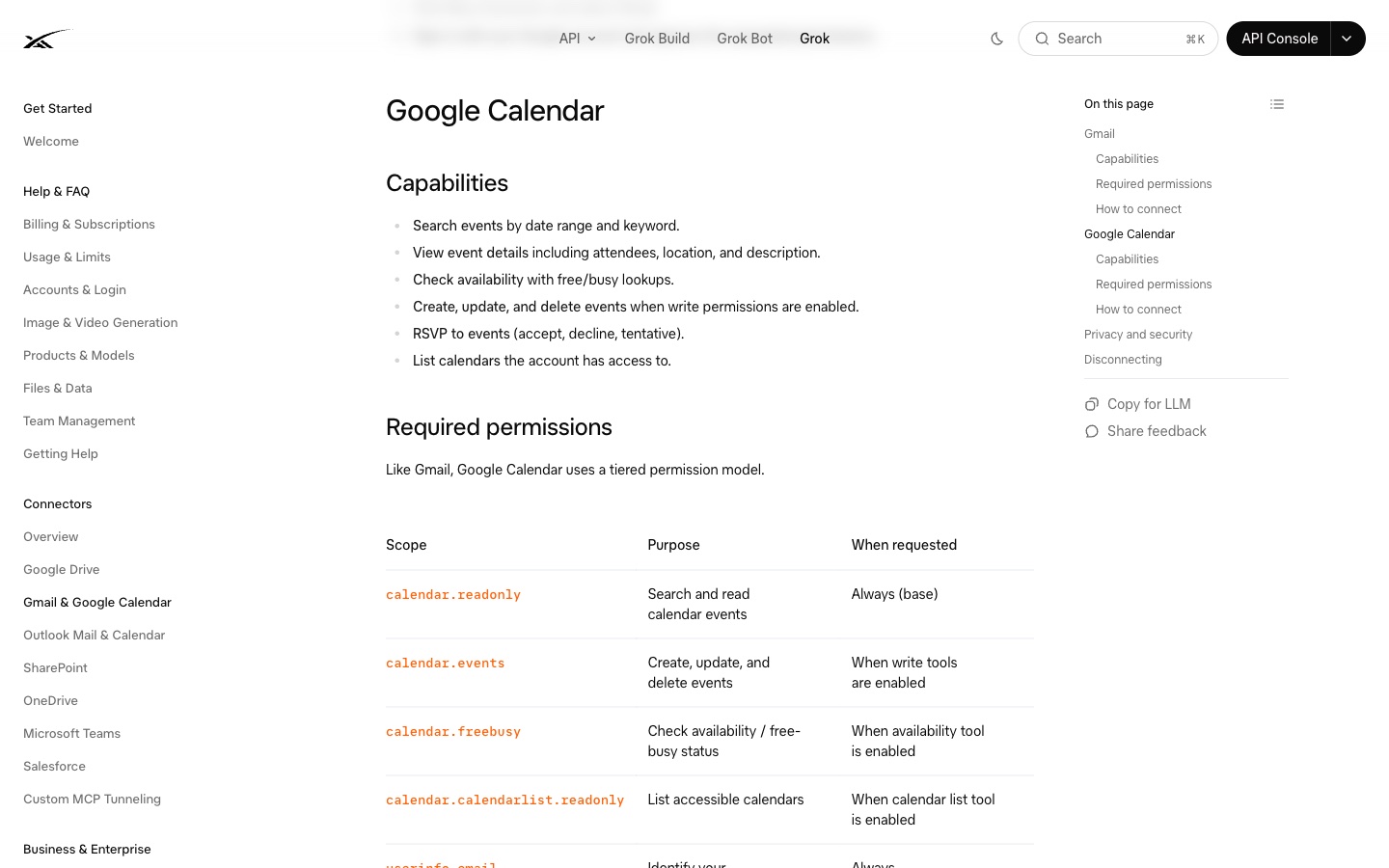
The proof in SpaceXAI's own documentation: calendar.readonly is marked Always (base), and calendar.events, the only one that creates and updates events, is marked When write tools are enabled
The documentation describes a tiered permissions model, and it is worth understanding before you promise a client anything:
| Permission | What it allows | When it is requested |
|---|---|---|
| calendar.readonly | Reading events, checking the schedule, retrieving meeting details | Always. This is the base permission and it is on by default |
| calendar.events | Creating, updating, and deleting events | Only when write tools are enabled |
| calendar.freebusy | Checking availability | When the availability tool is enabled |
The implication for anyone running a business: if you simply connected the calendar and closed the window, you got an agent that can suggest a time slot but cannot book a meeting. It will say "I have Tuesday at 10:00 available," the client will confirm, and nothing will happen in the calendar. No one will receive an error, and that is exactly what makes it a trap rather than a bug.
What to do in practice:
- Connect the connector under Plugins and authorize the connection to your dedicated Google account.
- Verify that it reads: Ask the bot to describe tomorrow's schedule. If the answer is correct, the read layer is live.
- Enable the write tools if you want it to book meetings. Only then is the calendar.events permission requested, and Google will display an additional confirmation screen.
- In a Grok business or enterprise environment, the system administrator must assign the connector in advance. Without that, the user will not see it at all.
- Test end to end: Ask the bot to create a test event, then open the calendar yourself to confirm it is there.
Step five sounds trivial. It is the difference between a funnel that works and a funnel that stays silent.
Step 4: What the connector does not do, MCP does
When the built-in connector does not perform the action you need, you connect your own MCP server. This is the honest answer to the calendar write problem, and to every internal system that does not appear in the connectors list: reading comes through the official connection, writing goes through a server you control.
Definition: An MCP server (Model Context Protocol) is a server that exposes a list of actions an AI tool can invoke. In Grok you connect it with two fields, and Grok discovers on its own which tools the server offers.
The process in the interface is surprisingly short: go to Plugins, click New Connector, choose "Custom: Add your own custom connector," and fill in just two fields: Name and Server URL, where the example shown reads https://mcp.example.com/sse. That is all.
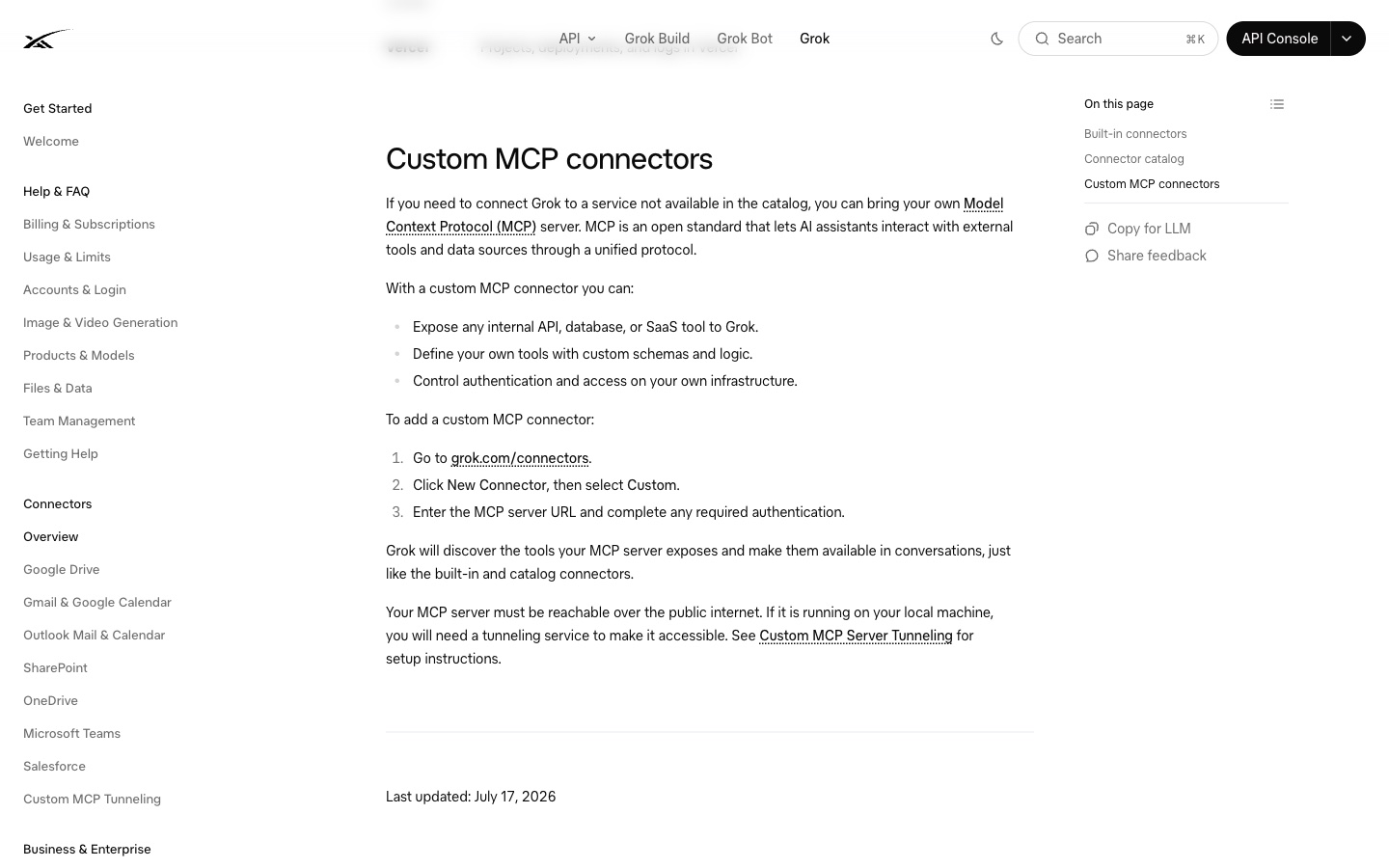
The three steps in the official documentation, and the requirement that the server be reachable on the open internet
Two points that save an entire evening of debugging:
- The server must be reachable on the open internet. The connection runs from Grok's cloud, not from your computer, so
localhostwill never work. - For local development, SpaceXAI documents working through a tunnel (ngrok or Cloudflare Tunnel), with one important note: Cloudflare's fast tunnels do not support SSE traffic. If you chose that route and the connection is not coming up, that is the first thing to check. The full tunneling documentation.
In practice, a small MCP server that exposes three actions (booking an event, sending a WhatsApp message through the official platform, and logging the lead in your system) is everything you need to complete what the built-in connectors do not do.
Step 5: Giving the worker a role, permissions, and boundaries
An AI worker without a job description is not a worker, it is a liability. This step takes twenty minutes, and it is what separates a system you can leave running from one that requires you to sit in front of it.
The job description is written in three parts: what the role is, what is permitted, and what is never allowed under any circumstances.
The role, in one sentence: Respond to initial WhatsApp inquiries, understand what the client needs, check calendar availability, and prepare a meeting booking that waits for approval.
Permitted:
- Read the calendar and check what is available.
- Offer the client two or three time slot options.
- Ask clarifying questions about what the client needs.
- Write a brief summary of the inquiry to a file or your system.
- Prepare a draft response and present it for approval.
Forbidden, without exception:
- Send a first message to someone who has not contacted you.
- Commit to a price, a discount, or a timeline.
- Delete or modify an existing calendar event.
- Continue a conversation with someone who has asked to stop.
- Book a meeting without the client explicitly confirming the time.
The second list matters more than the first. Every line in it is an irreversible action, and that is exactly the category where an agent's mistake costs money or trust, not just time. Building the job description, line by line and with practice, is something I break down in the interactive Grok Bot course.
The Golden Rule: Read, Suggest, Confirm, Act
Four words you can write on a sticky note and put on your screen: the agent reads, suggests, waits for confirmation, and only then acts. That is the order. Any other order is an accident waiting to happen.
Here is what it looks like for meeting scheduling, start to finish:
- Read. A client writes on WhatsApp: "Can we schedule a meeting this week?" The agent reads the calendar and finds three open slots.
- Suggest. The agent prepares a proposal: "I have availability on Tuesday at 10:00, Wednesday at 14:00, and Thursday at 09:00. What works for you?"
- Confirm. Two confirmations, not one. The client picks a time, and you confirm that this meeting is actually wanted. At first you will confirm every one; after two weeks you will figure out which cases you can let through automatically.
- Act. Only here does the agent book the event, and only if write permission is enabled. If it is not, the agent sends you the details so you can book it yourself.
The third point is everything. When confirmation is built into the process, the worst mistake the agent can make is suggesting an inconvenient time. Without confirmation, the worst mistake is sending the client a commitment you cannot honor.
How Many Messages Are You Allowed to Send?
Fewer than you think, and in a specific structure. This is the section that prevents the scenario where your new employee works great for a week and then the number gets suspended.
Opt-in. Under WhatsApp Business Platform policy, you may only contact people who gave you their number and explicitly consented to receive messages. The consent must name the business and state that the person agrees to receive messages from it. "They wrote to us once" is not an opt-in.
Approved template. Every conversation the business initiates requires a pre-approved message template. Meta reviews templates, and may suspend or reject them.
Tier limits. A new business account starts at 250 unique recipients per rolling 24-hour period. From there the tiers are 2,000, 10,000, 100,000, and finally unlimited.
Quality rating, and this is the part that surprises people. If a number is marked "Flagged" for seven days, its limit drops a tier immediately. Repeated violations escalate: a one-to-three-day block on template categories, then five, seven, or thirty days on all messages, and finally account lockdown.
In Israel there is an additional layer. Beyond Meta's rules, outbound marketing messages are also subject to Amendment 40 of the Communications Law, which requires consent before sending promotional content. In practice, anyone who sets up opt-in correctly satisfies both requirements in the same step. This is not legal advice, and before launching at scale it is worth reviewing the wording with a lawyer.
When the Agent Must Hand Off to a Human
A good AI employee is measured not only by what it does, but by how quickly it raises its hand. These are the seven situations where the conversation transfers to you immediately, with no further attempt:
- The client asks for a human. One word is enough. No attempt to persuade.
- A pricing or discount question. Anything that approaches a financial commitment.
- A complaint or anger. A negative tone is a signal to stop, not to explain.
- An unusual request that falls outside the role: changing an order, cancellation, a refund.
- Sensitive information. ID number, payment details, medical information. The agent asks to transfer to a human and does not collect that data itself.
- Two rounds of misunderstanding. If it did not understand twice, it will not understand the third time.
- Anything touching a contract, a commitment, or critical timelines.
The rule of thumb: when in doubt, hand off. The cost of an unnecessary transfer is a minute of your time. The cost of an agent that kept talking when it should have stopped is a client.
The Prompt I Give the Employee
This is the full appointment letter, ready to copy. Notice that it does not promise to book a meeting; it conditions booking on write permission. That is intentional.
Your role: You handle the initial inquiries that come into our business WhatsApp number. The goal: understand what the person needs, check calendar availability, and prepare a meeting coordination that waits for my approval.
Sources: The calendar I connected to you, and our services document in the folder. Do not invent details that do not appear in them.
What you may do: Read the calendar, suggest two or three time options, ask clarifying questions, and write a brief summary of each inquiry.
What you may not do: Reach out on your own initiative to anyone who did not write to us. Commit to a price, a discount, or a timeline. Delete or change an existing event. Continue a conversation with someone who asked to stop.
On the calendar: If write permission to the calendar is not enabled, do not attempt to book an event and do not tell the client you have booked it. In that case, prepare a clean line for me with the name, subject, agreed time, and contact details, and I will book it.
Checkpoint: Every message going out to a client passes through me for approval before it is sent. No exceptions.
When to transfer to me immediately: A request to speak with a human, a pricing question, a complaint, sensitive information, or two misunderstandings in a row.
Style: Plain Hebrew, short sentences, no superlatives, no exclamation marks. You represent a business, not a campaign.
The three lines that determine everything are "What you may not do," "On the calendar," and "Checkpoint." The first prevents irreversible action, the second prevents the most comforting lie an agent can tell a client, and the third is your last line of defense.
A Day in the Life of an AI Employee
Here is what it looks like when everything is connected properly:
09:12. A new client writes to the business WhatsApp: "Hi, I saw the website, can I book an introductory meeting?"
09:12. The agent reads the message, identifies a meeting request, and asks one question: what the meeting is about and how long she needs.
09:14. The client replies. The agent calls the calendar connector with read permission, finds three open slots over the next three days, and prepares a proposal.
09:14. The proposal lands with me for approval. I read two lines and approve.
09:15. The message goes out to the client with the three options.
09:31. She picks Wednesday at 14:00.
09:31. At this point the employee splits into two tracks, depending on permissions:
- If write permission to the calendar is enabled: the agent books the event, adds the details, and prepares a confirmation for the client that waits for me.
- If write permission is not enabled: the agent sends me a clean line (name, subject, time, phone), and I book the event myself in ten seconds.
09:33. A confirmation goes out to the client. The summary is logged. The next inquiry is waiting in the queue.
My time across the entire process: about thirty seconds. The time it would have taken without the employee: between fifteen minutes and two hours, depending on when I got around to opening my phone. And that is the real answer to why you should build this at all.
Common Mistakes
- Connecting the calendar and assuming you have write access. Mistake number one, and it is a silent one. The basic permission is read, and until you enable a write tool, no meeting will ever be booked.
- Looking for the connectors on a page that does not exist. They are under Plugins in the side menu. The path /settings/connectors returns a 404.
- Assuming Gmail includes Calendar. Two separate connectors, two separate logins, two separate permission systems.
- Automating WhatsApp Web "just as a test." A test that ends with your business number getting suspended is not a test, and it is a terms violation even at small scale.
- Sending an outbound message without an opt-in and without an approved template. The fastest way to drop a tier on your message limit.
- Opening five bots at once. They all share one cloud computer and the same connections, so running multiple bots increases risk rather than separation. One bot, one process, two weeks.
Frequently Asked Questions
What is an AI worker, and how is it different from a chatbot?
A chatbot answers a question, and the execution stays with you. An AI worker gets a role, a computer, tools, and permissions, and carries out the work itself: it opens applications, reads data, prepares a deliverable, and returns a finished result. SpaceXAI describes Grok Bot as "AI colleagues you can give real work to," who connect to your tools and use them the way you would. The practical difference is where responsibility ends: with a chat, you execute; with a worker, you approve.
Can Grok Bot schedule a meeting on my calendar?
Not by default. The Google Calendar connection panel requests read-only permission, and according to the documentation the basic calendar.readonly permission is always active, while calendar.events (creating, updating, and deleting events) is only required when write tools are enabled, and calendar.freebusy is only required when the availability tool is enabled. Without enabling the write tool, the agent will suggest a time but will not book it. On Grok's business and enterprise tiers, an administrator must assign the connector in advance.
Where are the connectors in Grok?
In the grok.com interface they sit in the side menu under Plugins, with two tabs: Connectors and Skills. There is no page at /settings/connectors; that URL returns a 404 error. Built-in connectors visible in the live interface on September 16, 2026 included: Finance, Gmail, Google Calendar, Google Drive, GitHub, Box, Canva, Notion, Stripe, Vercel, Wix, and X Ads.
Is it allowed to run a bot on regular WhatsApp or WhatsApp Web?
No. The WhatsApp Help Center states explicitly that the products are not intended for bulk or automated messages, and that both have always been a violation of the Terms of Service. The Terms also prohibit using the services "directly or through automated means" to gain unauthorized access, and explicitly ban bulk messaging, automated messages, and auto-dialing. WhatsApp states that it takes legal action as well, including on the basis of public announcements by companies that offer such capabilities. The realistic outcome of this kind of automation is a permanent block on your number. The only compliant path is the WhatsApp Business Platform. Anyone who chooses an unofficial gateway such as Green API anyway should limit it to replies and notifications at a human pace, on a separate number.
How many messages can be sent on WhatsApp on the first day?
New business accounts start at 250 unique recipients per rolling 24-hour period, with tiers from there at 2,000, 10,000, 100,000, and unlimited. In addition, every business-initiated conversation requires an approved message template, and Meta is entitled to review, pause, and reject templates. If a number is marked "Flagged" for seven days, its limit drops one tier immediately.
What kind of phone number is suitable for a WhatsApp AI worker?
A dedicated business number that can receive an SMS or voice call. According to the Twilio Help Center, with the BYON method the number is verified with a one-time code, so a number that can only dial out cannot be activated, and a number already registered on WhatsApp cannot be used. Business verification with Meta is required before going live. According to the WhatsApp Help Center, VoIP numbers, toll-free numbers, premium-rate numbers, and universal access numbers are not supported for consumer WhatsApp registration, and landlines are supported only on the WhatsApp Business app.
When do you need your own MCP server instead of a built-in connector?
When the action you need is a write operation the connector does not perform, or when your system is not on the list of built-in connectors. In Grok, go to Plugins, choose New Connector, then Custom, and fill in just two fields: a name and a server address. Grok discovers on its own which tools the server exposes. The server must be accessible on the open internet; for local development, SpaceXAI documents working through a tunnel, with a note that fast Cloudflare tunnels do not support SSE traffic.
What is Green API, and can it be connected to Grok Bot?
Green API is an unofficial third-party service that keeps a connected WhatsApp number as a linked device and exposes it as a programmable interface. It has a free developer plan for up to 3 chats and a Business plan at 12 USD per month (checked September 17, 2026), along with an official MCP server at mcp.green-api.com/mcp. In Grok it is added as a Custom Connector. The company documents the connection against Claude Desktop; in Grok Bot itself it was not tested by us. The risk of a ban remains, so it is suitable for notifications and replies to people who reached out first, not for outbound messaging.
What is the biggest risk of running several bots at the same time?
All bots belonging to the same user share one cloud computer, including files, browser sessions, and application logins. A bot that connects to a system passes that access on to all the others, so running multiple bots is not the same as separating permissions. The practical conclusion: use dedicated accounts for your AI worker, not your personal accounts, and grant the minimum necessary permission for each tool.
The Bottom Line
Back to the worker I built in an hour and discovered it could not schedule a meeting. The problem there was never the model, and it was not a bug either. It was a permission, and that is exactly where every system like this is either built right or breaks.
Three things worth taking from this are short. Connect the calendar, then verify with your own eyes that it can write, not just read. Connect WhatsApp through the official platform, because your business number is worth more than any shortcut. And give the worker the minimum permission that lets it do the job, and not one line beyond that.
Minimum permissions, maximum control. That is the whole story, and it is also why one AI worker configured correctly is worth more than five configured to "do everything."
Want to go through this step by step, with hands-on practice in every lesson? There is an interactive Grok Bot course for 9.90 ILS: writing a bot brief, approval boundaries, reviewing output, and a 30-day plan. It is part of the interactive course series at the same price. Those who learn better by watching can continue to the Grok Bot video course, which includes a full lesson on automated WhatsApp messages to customers. And if questions come up along the way, it is worth bringing them to the Grok Bot Israel group on Facebook, where people post what is already working for them.
The next step after this guide is covered on the Grok Bot Master page: bot teams, routines, permissions, and where a system breaks quietly.
Sources
- SpaceXAI: Grok Bot announcement (checked September 16, 2026)
- Official documentation: Grok Bot overview (checked September 16, 2026)
- Official documentation: Connectors in Grok (checked September 16, 2026)
- Official documentation: Tunneling to a custom MCP server (checked September 16, 2026)
- WhatsApp Help Center: Bulk and automated messages (checked September 16, 2026)
- WhatsApp Terms of Service (checked September 16, 2026)
- WhatsApp Business Policy (checked September 16, 2026)
- WhatsApp Business Platform developer documentation (checked September 16, 2026)
- Twilio: WhatsApp documentation (checked September 16, 2026)
- Twilio: Registering your own number for WhatsApp on Twilio (checked September 16, 2026)
- Green API: Home page and plans (checked September 17, 2026)
- Green API: Before you start, connecting an instance (checked September 17, 2026)
- Green API: MCP integration (checked September 17, 2026)
- Green API MCP Gateway on GitHub (checked September 17, 2026)
Frequently asked questions

Yaakov Tzedek
An Israeli AI lecturer, consultant and implementer who has supported 100+ organizations in AI implementation and lectured for 200+. Official content partner of Meta, Google, Canva and TikTok, featured on Israel's Channel 13.
More about Yaakov →