- Gemini already lives inside Gmail, Docs, Sheets and Drive. Here are 7 simple actions that save copying, searching and tab switching, each with a ready-to-copy prompt.
According to Google's help page, when you ask Gemini in Gmail to archive, delete or label several emails, nothing changes until you confirm on the confirmation card, and after you confirm you have 60 seconds to undo.
If you are still copying an email into Docs, from Docs into Sheets and from Sheets into Slides, you are doing work by hand that Gemini can already do inside Google's tools. This is not another chat in a separate tab. It is a panel that sits inside Gmail, Docs, Sheets, Slides and Drive, and sees what you are working on.
Most people who have it use it for one thing only: "write me an email". This guide covers seven actions that cut the copying, searching and tab switching, each with a prompt you can copy. Every capability here was checked against Google's official help pages and blogs, and anything we could not verify was softened or dropped.
In short:
- Where it works: in the Gemini side panel (Ask Gemini) inside Gmail, Docs, Sheets, Slides and Drive.
- What you need: a Google AI plan (such as Pro or Ultra) on a personal account, or an eligible Workspace license at work. Availability varies by account type, language, country and admin settings.
- Languages: the side panel supports many languages, but Help me write and some of the newest capabilities are more limited, and some launched in English only.
- The key rule: Gemini prepares, you approve. Sending, sharing, moving and deleting stay in your hands.
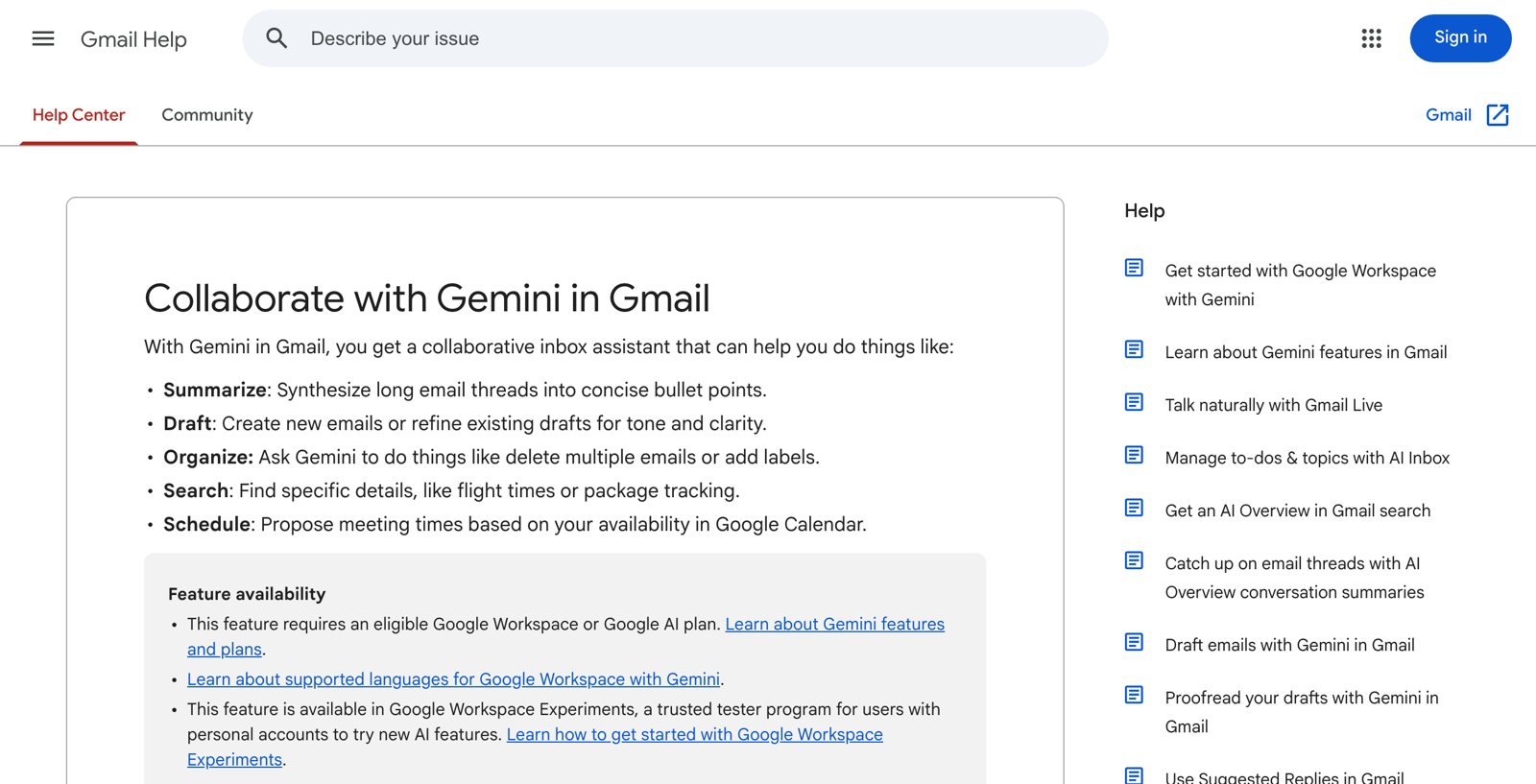 Screenshot: Gmail Help Center (support.google.com), November 2026.
What actually changed in Gemini for Gmail and Docs?
Gemini stopped being an assistant that only writes inside the app you opened it in. On September 10, 2026 Google announced on the Workspace blog five capabilities that work across apps: an email thread that becomes a document, a Drive folder that becomes a spreadsheet, a document that becomes a deck, a document that becomes an email, and a chat that becomes a presentation.
The results are saved to Drive, and you can keep working while Gemini builds them in the background. Google describes this as part of Workspace Intelligence, the layer that connects your mail, files and chats into one context. For the bigger picture, including what is free and what is not, see the complete Gemini guide.
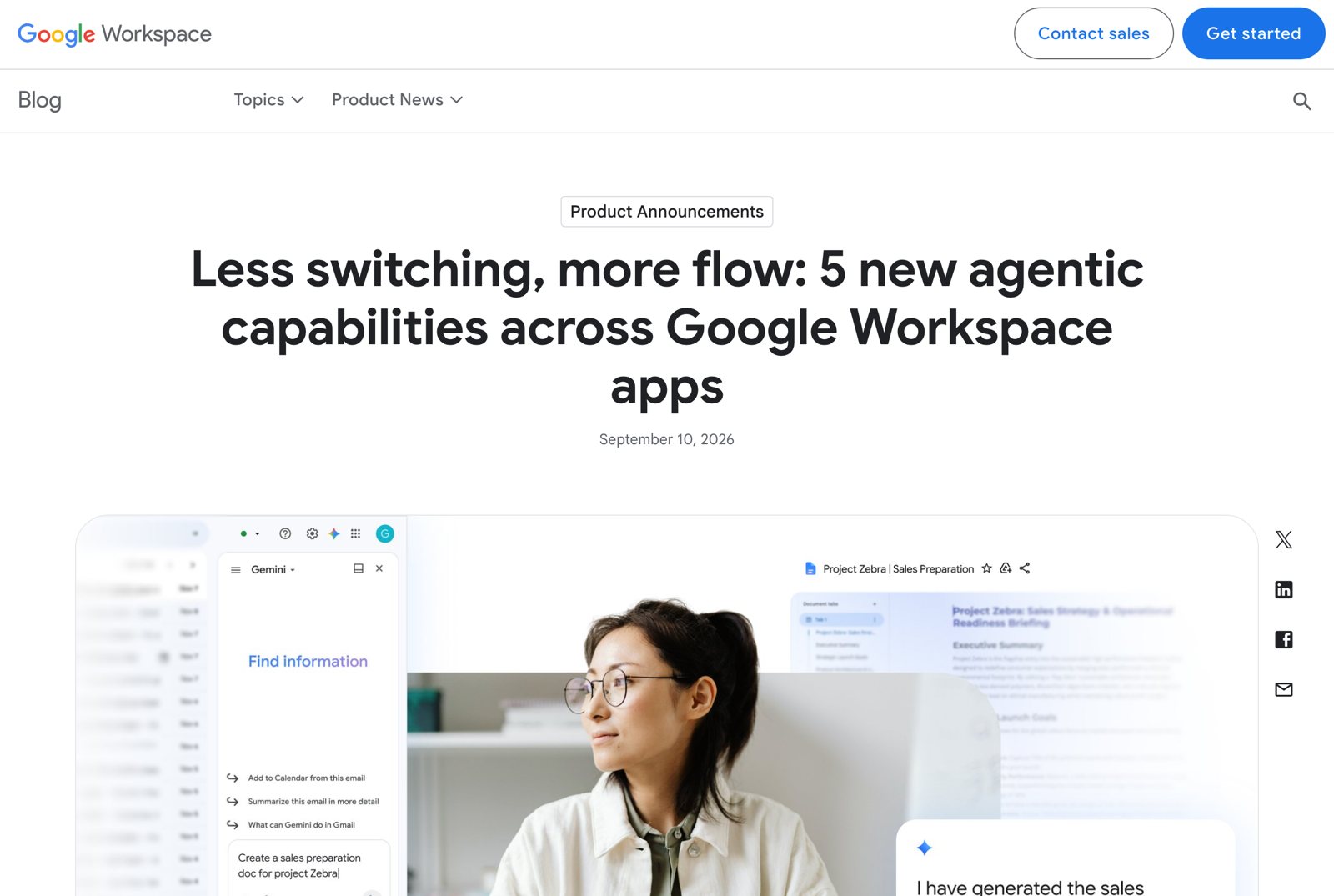 Screenshot: the official Google Workspace blog (workspace.google.com), September 10, 2026.
1. How do you summarize a long email thread without reading all of it?
Open the thread, click Ask Gemini at the top and ask for a summary. According to Google's help page, Gemini in Gmail can "synthesize long email threads into concise bullet points". The real value comes when you ask not only "what was said" but "what is waiting for me".
Summarize this thread in 5 bullet points. Then list separately: decisions made, what is still open, and what is expected of me and by when. If something is not stated explicitly in the thread, write "not stated" and do not guess.
2. How do you draft a reply that knows the full context?
Ask Gemini to draft from the open thread, not from scratch. That way the reply reflects what the client actually wrote, plus the amounts and dates already agreed. Gemini in the side panel can also pull information from other emails and from Drive files.
Draft a reply to the last email in this thread. Tone: professional and warm, up to 6 lines. Confirm the proposed date and say the updated quote will arrive by Thursday. Do not add commitments that are not in the thread.
The draft opens for you to edit. Gemini writes, you are the one who clicks Send.
3. How do you find an order, flight or shipment number without searching?
Ask Gemini the way you would ask a personal assistant. Google's Gmail help page says Gemini "can get information on reservations, flights, packages, and other emails sent to your inbox", with flight times and package tracking as examples.
What is the order number and expected delivery date for my latest order from [store name]? Include a link to the email you took this from.
Asking for the source is not decoration. It lets you confirm in a second that Gemini did not mix up two orders.
4. How do you turn an email thread into a working document?
Tell the Gmail side panel what you want, and Gemini builds an organized Google Doc. This is one of the five September capabilities: according to Google, Gemini connects the active thread with related files, emails and chats, generates an editable document, and leaves a link to it in the panel.
Create a working document from this thread: three lines of background, goals, decisions made, open tasks with an owner and a date, and questions still to settle. Flag any detail that does not appear explicitly in the emails.
Worth knowing: according to Google's September Workspace update, these capabilities support English only at launch.
5. How do you create a tracking sheet from emails or a Drive folder?
From an open folder in Drive, ask Gemini to build a sheet. According to the Google Workspace blog, Gemini organizes the open folder, plus other sources you select, into a structured Google Sheet. From Gmail you can also ask it to create a spreadsheet from a prompt, per the Gmail help page.
Build a tracking sheet from the files in this folder: columns for supplier name, invoice number, amount, payment date and status. If a value is missing from a file, leave the cell empty and do not fill it in from memory.
Then, inside Sheets, Gemini keeps helping: according to the help page, you describe a calculation in plain words and get a formula, plus help fixing a formula that returns an error. For example: "Sum the invoices in column C only for rows where the status is 'unpaid'".
6. How do you turn a document into a presentation?
Open the document in Docs and ask Gemini for a deck. According to the Docs help page, Gemini builds an editable Google Slides presentation from a single prompt. To keep your branding, reference an existing deck or your team's template with @.
Turn this document into an 8-slide client presentation: title slide, the problem, the solution, three content slides, a timeline and a summary slide. Use the design of @[our previous deck].
Google notes that generation can take several minutes and that the tab must stay open until the deck is ready.
Three official Google Workspace videos: thread to doc, folder to sheet and doc to deck
Transform Email Threads into Personalized and Formatted Google Docs
From the official description: Gemini in Gmail synthesizes long email threads into structured project briefs and Google Docs without leaving your inbox. When you need a brief on short notice, ask Gemini directly in Gmail. It connects the active thread with related Drive files, emails and chats to generate a structured, editable brief with a direct link in the side panel.
- One request in the Gmail side panel instead of manual copying.
- The thread is combined with related files, emails and chats.
- An editable doc, linked directly in the panel.
Google Workspace · September 9, 2026
Build Structured Spreadsheets Directly in Google Drive
From the official description: Gemini in Google Drive builds detailed, structured spreadsheets from your project files without opening Google Sheets first. While reviewing project folders, prompt Gemini to track costs, material specs or metrics, and it analyzes the active folder and the data sources you select to generate a Google Sheets file ready for further analysis.
- A sheet built from the files in the open folder.
- You can add other data sources of your choice.
- The result is saved as a regular Sheets file.
Google Workspace · September 9, 2026
Build Branded Presentations from Google Docs
From the official description: Gemini turns proposals and briefs written in Google Docs into fully editable, branded presentations. It identifies key points across the document and other relevant files and arranges them into clean slides. When you reference your team's slide template or brand guidelines, it applies your visual style and saves the deck to Drive.
- The document becomes editable slides.
- Referencing your team template keeps the branding.
- The deck is saved directly to Drive.
Google Workspace · September 9, 2026
7. How do you manage Drive files with a plain instruction?
From the Gmail or Docs side panel you can ask Gemini to move, rename, share and copy Drive files. That is what the Gmail help page says, with a clear instruction: review the suggested actions before you confirm.
Move the three latest files related to [client name] into the "Clients 2026" folder and rename them as: client name, document type, date. Show me the list before you do it.
Three caveats: in Drive's own side panel, moving files into folders was removed on April 20, 2026, per an official Google update. Let Gemini organize your files, which suggests where loose files should go, is available only on Drive web in English. And when you move a file, its ownership and access can change. Sharing and moving are exactly the actions to approve with your own eyes.
Quick reference: which action, where, and what to type
| What you want | Where to open Gemini | Prompt in short | What to check |
|---|---|---|---|
| Thread summary | Gmail | "Summarize in 5 bullets, what is open, what is expected of me" | Nothing invented |
| Reply with context | Gmail | "Draft a reply to the last email, up to 6 lines" | Amounts, dates, commitments |
| Order or flight number | Gmail | "What is the order number, with a link to the email" | The source email is the right one |
| Thread to doc | Gmail | "Create a working doc: background, decisions, tasks" | Owners and dates |
| Tracking sheet | Drive or Gmail | "Build a sheet from the folder, leave gaps empty" | Empty cells and formulas |
| Doc to deck | Docs | "8 slides in the style of @previous deck" | Numbers, names, branding |
| File management | Gmail or Docs | "Move and rename, show the list first" | Permissions and sharing |
Four rules that make Gemini more reliable
1. Tell it what not to guess. The line "if something is not stated explicitly, write 'not stated'" prevents most errors. Google's own help pages warn that Gemini may suggest inaccurate information.
2. Ask for the source. A link to the email or file behind the answer turns a one-minute check into a one-second check.
3. Point to a specific file. In Docs, type @ or click Sources and choose the files Gemini should use. "Update based on @meeting notes" is more precise than "update based on what was said".
4. Sending, sharing, moving and deleting stay with you. According to Google, for inbox actions Gemini shows a confirmation card and nothing changes until you confirm, and you then have 60 seconds to undo. For emails and calendar commitments it shows a preview to edit and confirm. Don't turn approval into a reflex click.
What caveats should you know before you start?
The plan: every Google help page says these capabilities require an eligible Google Workspace or Google AI plan. The September capabilities were announced for Google AI Pro and Ultra, and for Business and Enterprise Standard and Plus. On a personal Google AI Pro plan, scheduling is not included.
Availability: it varies by account type, language, country and admin settings. Rollouts are gradual, so even if you qualify you may not see everything yet.
Language support: uneven. Test every prompt in your own account and see what works.
Want to see it on screen, step by step?
The Gemini video course has a full chapter on Gemini inside Google's tools (taught in Hebrew, English interface): lesson 23 (what you get on which account), lesson 24 (thread summaries and replies from the Gmail side panel), lesson 25 (writing and editing in Docs), lesson 26 (tables, formulas and analysis in Sheets), lesson 27 (slides in Slides), lesson 28 (asking questions about your Drive files) and lesson 30 (connected apps: Calendar, Keep and Tasks). The course is also included in AI TV.
More from this cluster: Google Connected Apps explained, Gemini Notebook, answers only from your sources, and GIF creation in Gemini. If your organization wants to roll this out to a team, with a clear policy on what goes in and who approves, see AI workshops for organizations.
Sources
- Collaborate with Gemini in Gmail, Gmail Help Center
- Collaborate with Gemini in Google Docs, Docs Help Center
- Collaborate with Gemini in Google Sheets, Docs Editors Help
- Get started with Gemini in Google Drive and Let Gemini organize your files, Drive Help Center
- Supported languages for Google Workspace with Gemini
- How Gemini in Gmail, Docs, Drive and more protects your data
- Less switching, more flow: 5 new agentic capabilities, Google Workspace blog, September 10, 2026
- Create content, schedule events and coordinate tasks across Workspace, Google Workspace Updates, September 9, 2026
- Execute basic organizational tasks using Gemini in Drive, including the April 20, 2026 update
Frequently asked questions

Yaakov Tzedek
An Israeli AI lecturer, consultant and implementer who has supported 100+ organizations in AI implementation and lectured for 200+. Official content partner of Meta, Google, Canva and TikTok, featured on Israel's Channel 13.
More about Yaakov →