- Microsoft Copilot is the AI built into Word, Excel, Outlook and Teams. What's free, what costs money, how it handles Hebrew, and who it's actually for. Full 2026 guide.
As of 2026, some of Copilot's most advanced capabilities are powered by Anthropic's models. Microsoft added Claude as a selectable model in Copilot Studio and in research features, alongside OpenAI's models, and even launched Copilot Cowork, which is built on Claude's technology.
Microsoft Copilot is Microsoft's AI assistant, and the only AI already built into the tools every Israeli office relies on: Windows, Word, Excel, Outlook, PowerPoint, and Teams. Instead of opening yet another website and copying text back and forth, Copilot works where the work actually happens: drafting a document in Word, analyzing a spreadsheet in Excel, summarizing an email thread in Outlook, and transcribing a meeting in Teams, all based on your organization's own data and within your existing permissions. That is why, according to a May 2026 Geocartography survey, roughly 28% of employees in Israeli organizations are already using it, more than any other enterprise AI tool.
Over the past year I have walked into dozens of organizations, from law firms to industrial companies, and in almost all of them Copilot is no longer a question of "if" but of "how do we use it properly." This guide cuts through the noise: what is the difference between the free version and the paid enterprise version, what Copilot can actually do inside each application, where things stand with Hebrew, how it stacks up against Claude, ChatGPT, and Gemini, and, in full honesty, where it disappoints.
What is Copilot (Microsoft Copilot)?
🆕 Update 18.11.2026: At Microsoft Ignite 2026, Word, Excel, and PowerPoint were integrated directly into the Copilot app (Office in Copilot, available to everyone), and Microsoft began rolling out Autopilot, a personal agent that runs continuously over time. Full details in everything announced at Ignite 2026.
Definition: Copilot (Microsoft Copilot) is a generative AI layer that Microsoft has embedded across its entire product lineup: the Windows operating system, the Office suite (Word, Excel, PowerPoint, Outlook, OneNote), the Teams platform, the Edge browser, and cloud services. It is built on large language models, primarily from OpenAI and more recently from Anthropic as well, combined with Microsoft Graph, the data layer that knows your organization's emails, files, meetings, and contacts.
The name "Copilot" was chosen deliberately: Microsoft positions it not as a replacement for the employee but as an assistant sitting alongside them. In practice, Copilot is not a single product but an entire family of products under one brand, and that is exactly where most people get confused. There is a free consumer Copilot, a Copilot Chat for businesses, a paid per-user Microsoft 365 Copilot, a GitHub Copilot for developers, a Copilot Studio for building agents, and all of them are called "Copilot."
The most important distinction, one we will return to repeatedly throughout this guide, is between two entirely different worlds:
- "Regular" Copilot (free): A general-purpose chatbot that can answer questions, search the web, and draft text, essentially Microsoft's version of ChatGPT. It cannot see your files or emails.
- Microsoft 365 Copilot (paid): The full enterprise layer. It is connected to Microsoft Graph and can therefore answer questions like "What was agreed in last week's client meeting?" or "Draft a proposal based on the presentation Dana sent," because it actually sees the meeting and the presentation.
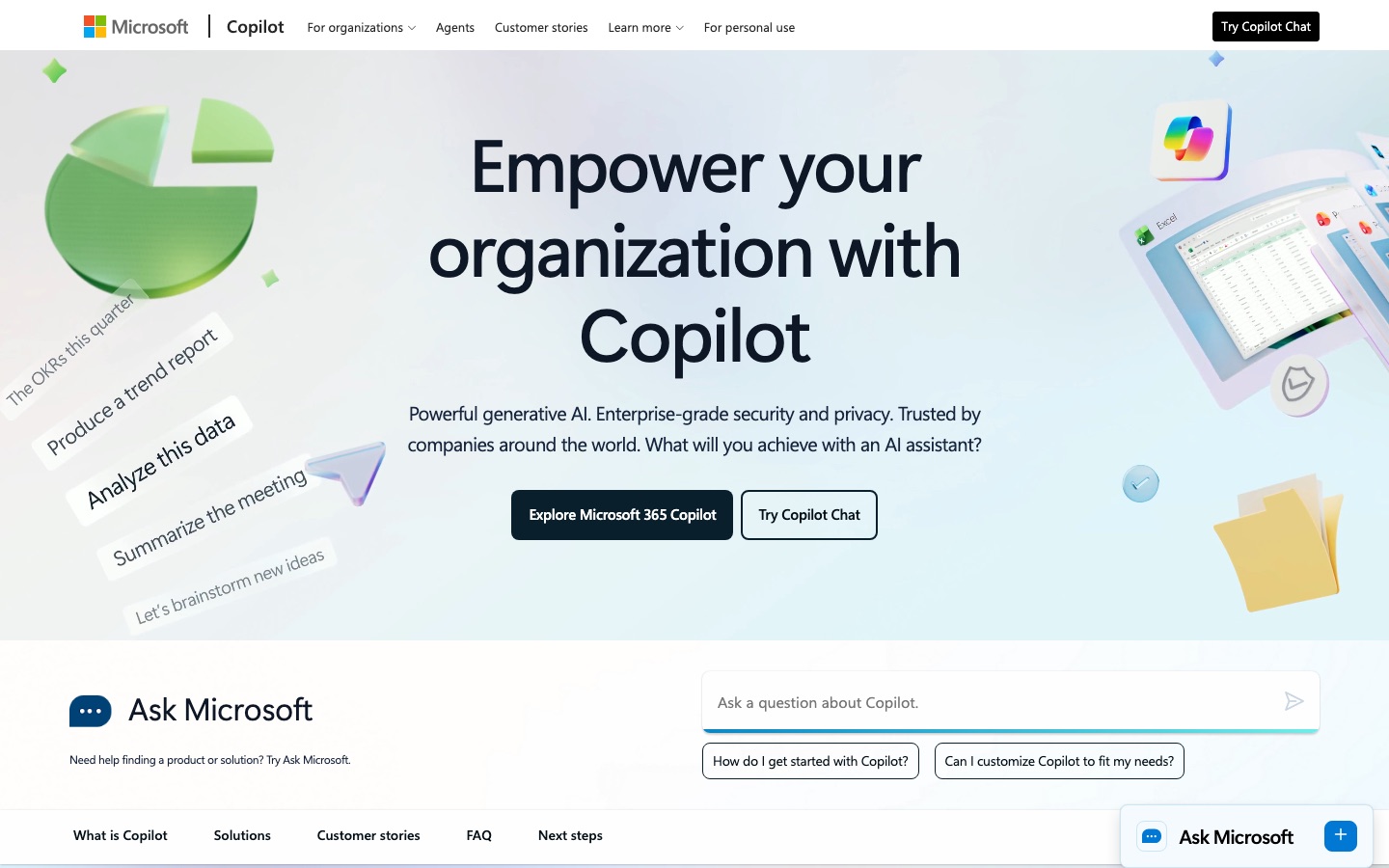 The official Microsoft Copilot website, captured in September 2026. Credit: Microsoft Copilot
Why is everyone talking about Copilot right now?
Three converging reasons have made 2026 the year of Copilot in Israeli organizations:
1. It is already installed. Most Israeli organizations, certainly in the public, financial, and defense sectors, live inside the Microsoft ecosystem: Windows machines, email in Outlook or Exchange, files in OneDrive and SharePoint, meetings in Teams. Copilot requires no new system deployment, no new interface training, and no data migration. It simply "turns on" inside what already exists. That is a distribution advantage no competitor can match.
2. IT departments approve it. While ChatGPT is blocked in a significant number of Israeli organizations for information-security reasons, Copilot sails through security committees almost effortlessly, because the data stays within the boundaries of the organizational tenant, under the same legal agreements that already exist with Microsoft. We will expand on this in the privacy section.
3. The numbers speak for themselves. According to the Geocartography survey (May 2026), 28% of employees in Israeli organizations use Copilot, making it the most widely used enterprise AI tool in Israel. When almost a third of employees are already inside, the question leadership faces shifts from "should we bring in AI" to "are we extracting real value from it."
💡 From the field: In most of the organizations I work with, Copilot was purchased before anyone thought about what to do with it. Leadership bought licenses, sent an email saying "we have AI!", and six months later discovered that most employees had used it once or twice and walked away. The gap is almost never technological; it is about training. An employee who has learned to frame a good request and give Copilot the right context gets ten times more out of it than someone who types "summarize this for me." That is exactly what we address in AI workshops for organizations.
Three tiers of Copilot: who gets what
Before diving into capabilities, it is essential to sort out the versions. As of July 2026, these are the three main tiers:
| Tier | What you get | Cost (as of July 2026) | For whom |
|---|---|---|---|
| Copilot (free) | General AI chat on the website, in the app, in Windows and in Edge. Web search, drafting, image generation | Free (a Pro personal subscription is also available for those who want priority access and expanded capabilities) | Personal use, students, first-time exploration |
| Copilot Chat | Secure business chat with enterprise data protection (data is not used for training), without access to files or emails | Included in business Microsoft 365 subscriptions | Businesses that want an "IT-approved ChatGPT" at no extra cost |
| Microsoft 365 Copilot | The full layer inside Word, Excel, Outlook, PowerPoint, and Teams, plus access to organizational data through Graph | Approximately $30 per user per month in large organizations; a lower-cost Business plan and bundled packages exist for small and mid-size businesses | Organizations that want AI operating on their own data |
Above these three tiers sits a fourth layer aimed at solution builders:
Copilot Studio: A platform for building custom AI agents: a service bot that answers from the organizational knowledge base, an agent that handles leave requests, an automation that routes incoming inquiries. The genuinely interesting part: as of 2026, Copilot Studio lets you choose not only OpenAI models but also Anthropic models, meaning you can build an enterprise agent inside the Microsoft environment that runs Claude under the hood. Anyone who wants to understand in depth what AI agents can do will find a full guide in AI agents with Claude.
💡 From the field: Confusion between the versions is a real complaint I hear in almost every organization. Employees open the free Copilot in Windows, ask it about an organizational file, receive a generic answer, and conclude that "Copilot is not worth it." In reality they simply used the wrong version. A rule of thumb I give in every training session: if the chat cannot tell you what is on your calendar tomorrow, you are not in Microsoft 365 Copilot.
Anyone who already holds Microsoft 365 Copilot and wants to build their own agent, with knowledge from SharePoint, custom actions, and publishing to Teams, will find full details on licensing, Hebrew support, and governance in the complete guide to Copilot Studio.
Core Capabilities: App by App
Copilot's power is not one impressive feature. It is a presence at every point of work. Here is what it actually does, without the PR spin:
Copilot in Word: Drafts, Rewrites, and Summaries
In Word, Copilot can generate a first draft from a prompt ("Write a formal but firm warning letter to a client about an outstanding debt"), rewrite existing paragraphs (shorten, expand, change tone), summarize a long document into key points, and produce a new document based on other files, for example "Write an executive summary based on the attached report and the presentation from the meeting." Hebrew works here, including full business documents, though the first draft almost always needs human polish, especially for register and nuance.
Copilot in Excel: Data Analysis Without Formulas
This is the app where Copilot saves the most frustration for the average employee. Instead of remembering VLOOKUP syntax or how to build a Pivot table, you just ask in plain language: "What are the three most profitable products this quarter?", "Add a column that calculates year-over-year percentage change", "Create a chart of monthly sales." Copilot writes the formula, builds the pivot table, flags outliers, and suggests insights. One important note: it works best on data organized as a proper Table, and it still stumbles on "Israeli-style" spreadsheets loaded with merged headers, side comments, and multiple tables on the same sheet.
Copilot in Outlook: Winning the Inbox
Two genuinely valuable capabilities: thread summaries, open a 25-email thread involving four people and get a digest of who asked for what and what was decided; and reply drafting, "Reply politely that we cannot meet the deadline and suggest an alternative." Copilot can also prioritize the inbox and flag emails that require action. For managers receiving hundreds of emails a day, this alone justifies the license cost.
Copilot in Teams: The Meeting That Summarizes Itself
Probably the biggest "wow" capability: Copilot listens to a meeting (with recording and transcription enabled) and at the end produces a summary, a list of decisions, and action items with owners. Joined late? You can ask "What did I miss?" in the middle of the meeting. After the meeting you can ask questions ("What did Ron say about the budget?"). Hebrew transcription works at a good and improving level, though Israeli first names and professional terms in Hebrew still get garbled occasionally. It is worth reviewing the summary before you distribute it.
Copilot in PowerPoint: From Document to Presentation
Copilot can build a draft presentation from a prompt or from an existing Word document, add slides, redesign, and condense. The result is solid as an initial skeleton, but let's be honest: a presentation generated automatically looks like a presentation generated automatically. It saves the setup hour, not the half hour of design and polish.
Copilot in Windows and Edge: The Assistant That Is Always There
At the operating system level, Copilot is available with a keypress (or a dedicated key on newer keyboards), a floating chat that answers questions, explains settings, and summarizes web pages. In the Edge browser it can read the open page: "Summarize this article for me", "Extract all the prices from this page into a table." These are nice capabilities rather than revolutionary ones. They are worth mentioning mainly because they are free and available to every employee, even without an enterprise license. On new Copilot+ PCs, Microsoft is also adding local capabilities that run on the device's own AI chip, such as video enhancement on calls and real-time subtitle translation. As of July 2026, most of them do not yet support Hebrew.
Copilot Chat and Agents: The Horizontal Layer
Beyond the individual apps, the central chat (in Teams, on the web, or in Windows) is the place for cross-cutting questions: "Find all files related to Project Alpha", "Prepare me for tomorrow's meeting with Netanya Ltd., what is the history with them?" This is also where agents live, ranging from Researcher agents that prepare in-depth reports to agents you build in Copilot Studio. As of 2026, Microsoft is pushing hard on its "digital colleagues" vision: agents that receive a complete task and run it end to end, including the new Copilot Cowork, which is built on Anthropic's technology.
What Powers Copilot Under the Hood
This is worth understanding because it directly affects the quality of results: Copilot is not an AI model. It is a wrapper around other companies' models.
- OpenAI's models (the GPT family) are the historical default, the same models that power ChatGPT, wrapped in Microsoft's security and data layer.
- Anthropic's models (Claude) joined officially: from late 2025 you can select Claude models in Copilot Studio and in research capabilities, and in early 2026 Anthropic became an official Microsoft sub-vendor. In some regions this is enabled by default; in others it requires admin approval.
The practical implication: the gap between Copilot and standalone chatbots is narrowing at the model level, but it remains at the wrapper level. Copilot adds layers of mediation, safety, and filtering that sometimes "dull" the model underneath. That is why experienced users report that the exact same task gets a sharper answer in Claude directly than in Copilot. If you are curious how the different models stack up against each other, I put together a comprehensive AI model comparison that is updated continuously.
How to Get Started: Step by Step
Step 1: Identify Which Copilot You Have
Open the chat (the Copilot icon in Teams, Edge, or Windows) and ask: "What meetings do I have tomorrow?" If you get a real answer from your calendar, you have a full Microsoft 365 Copilot license. If you get a generic answer or a redirect, you have the chat-only version.
Step 2: Start With Your Biggest Pain Point
Do not try to "use Copilot." Pick one pain point. If you are drowning in email, spend a full week using thread summaries and reply drafts in Outlook. If you live in Excel, spend a week asking plain-language questions about your data. One embedded habit is worth more than ten experiments.
Step 3: Learn to Give Context
The difference between a mediocre result and an excellent one is the prompt. Instead of "summarize the document," write: "Summarize the document in five points for a CEO who is unfamiliar with the project, in Hebrew, with one recommendation at the end." Copilot can also accept references to files and people (using / in the interface). Use that to anchor requests in real documents.
Step 4: Build a Team Prompt Library
Real adoption happens when the team shares prompts that work: a template for client meeting summaries, a template for quotes, a template for weekly reports. There is a built-in tool for this (Copilot Prompt Gallery), but a simple shared file works just as well.
Step 5: Measure Before You Scale
Before buying licenses for the entire organization, run a measured pilot with 10 or 20 heavy users over one or two months and measure: how much time was saved? Which processes actually improved? Who uses it and who abandoned it? That data is worth far more than any vendor presentation.
Real-World Use Cases in Israel
Here are concrete scenarios I have seen working in Israeli organizations, not marketing demos:
Accounting firm: Automatic summaries of phone calls and Zoom client meetings in Teams; draft letters to tax authorities in Word; quick analysis of bookkeeping reports in Excel ("Flag expense anomalies compared to last year"). The main saving: the documentation hours nobody enjoys.
Insurance agency: Before every renewal meeting, the agent asks the chat "Prepare me for the meeting with the Levi family, all correspondence and policies from the past year," and gets a summary instead of spending half an hour searching through folders. After the meeting, automatic summary and action items.
Import and logistics company: Excel is the heart of the business. Copilot answers inventory and pricing questions in plain language, flags gaps between orders and deliveries, and builds weekly management reports. In Outlook, drafting emails in English to overseas suppliers saves employees whose English is average a lot of time and embarrassment.
Department in a local authority: Drafting response letters to resident inquiries in a consistent, respectful tone; committee meeting summaries; preparing position papers based on previous minutes. In the public sector the big advantage is compliance: everything stays within the approved organizational environment.
High-growth tech company: Product managers summarize client meetings, HR drafts job postings and onboarding letters, and the finance team lives in Copilot for Excel. Interestingly, the developers tend to use a different tool. I wrote a separate guide on the advantages of Claude Code for development.
From the field: The scenario with the fastest payback I see in Israel is "meeting preparation." The average employee spends 20 to 40 minutes before a client meeting searching through emails, files, and old summaries. One good Copilot query brings that back in a minute. Multiply that by the number of meetings in your organization and you have the financial justification for the license before we even talk about document writing.
Hebrew: What Works and What Does Not
This is probably the first question every Israeli organization asks, so let's be precise, as of July 2026:
What works well:
- Hebrew is officially supported in Microsoft 365 Copilot. It was included in Microsoft's language expansion wave, and you can write prompts and receive answers, summaries, and drafts in Hebrew across all major apps.
- Hebrew transcription and meeting summaries in Teams work at a good and improving level, including meetings that mix Hebrew and English, a classic Israeli scenario.
- Understanding Hebrew documents: Summarizing a contract, presentation, or email thread in Hebrew works well.
- Building agents in Hebrew: The agent builder officially supports Hebrew (he-IL).
What works partially or does not work:
- Voice: Voice commands and voice conversation with Copilot are still not available in Hebrew. The list of supported voice languages is limited mainly to English and major European languages.
- RTL in the interface: There are still right-to-left alignment issues in the chat interface. Sentences that mix Hebrew and English sometimes break in an annoying way. Microsoft is aware of the complaints and improvement is gradual.
- Writing quality: Copilot's Hebrew is correct but sometimes "translated," register that is too formal or phrasing that feels like English in Hebrew clothes. For marketing and sensitive texts, dedicated chatbots are stronger in Hebrew (Claude stands out here).
- Names and terms in transcription: Israeli first names and professional terms sometimes get garbled in meeting transcription.
The bottom line on Hebrew: good enough for everyday organizational work, not good enough to skip a human review before a document goes out.
Copilot vs. Claude, ChatGPT, and Gemini: Who Has the Edge for Office Work?
The right comparison isn't "which model is the smartest" but "which tool is the right one for office work." Here is the picture as of July 2026:
| Criterion | Copilot | Claude | ChatGPT | Gemini |
|---|---|---|---|---|
| Office integration | Wins by a wide margin, built into Office, Outlook, and Teams | Good and expanding (connectors and MCP) | Good (connectors and apps) | Built into Google Workspace |
| Access to organizational data | Full access via Microsoft Graph with permissions | Via connectors and MCP, with precise control | Via connectors (in enterprise plans) | Full access in the Google environment |
| Writing and reasoning quality | Good, but the wrapper sometimes dulls the output | Among the strongest on the market, excels in Hebrew | Very strong | Strong, excels at multimodal tasks |
| Hebrew | Officially supported, no voice, partial RTL | Excellent in text | Very good, including voice | Very good, including voice |
| Agents and automation | Copilot Studio + Cowork agents | Claude agents and Claude Code, the highest flexibility on the market | Built-in agents | Agents in the Google environment |
| IT approval in organizations | Easiest to approve in a Microsoft environment | Good (enterprise plans) | Varies by organization | Easy in the Google environment |
| Cost per employee | Per-user add-on, not cheap, on top of an existing subscription | Separate subscription | Separate subscription | Included or add-on in the Google environment |
The conclusion I keep coming back to with clients: this is not an either/or decision. The common and right strategy for 2026 is layered. Copilot as the base layer for all employees (because it's already there, already approved, and already connected to your data), and a frontier tool like Claude for the teams whose work revolves around content, analysis, or development. And if you work primarily in the Google ecosystem, I've also written a complete guide to Gemini.
Pricing and Plans: No Fine Print
Microsoft changes prices and promotions frequently, so let's talk structure rather than exact figures (accurate as of July 2026):
- Free Copilot: Genuinely free, for personal use. There is also a paid personal Pro subscription for people who want priority access during peak demand and expanded capabilities in Office apps for home M365 subscribers.
- Copilot Chat: Included at no extra cost with Microsoft 365 business subscriptions. Secure chat without access to organizational data, with the option to attach paid agents on a pay-per-use basis.
- Microsoft 365 Copilot: The full license. In large organizations the well-known price is around $30 per user per month on an annual commitment, on top of an existing M365 subscription. For small and mid-sized businesses, Microsoft launched a Business plan at a lower price point and bundled packages (M365 subscription plus Copilot together) that lower the barrier to entry. Flexible monthly billing exists but costs more.
- Watch the total cost: In July 2026 Microsoft raised the base prices on M365 subscriptions, which means the real cost per employee is the base subscription plus Copilot. Calculate them together before making a broad rollout decision.
- Copilot Studio: Priced separately, on a message/usage bundle model, relevant when you're building agents at scale.
The practical advice: don't buy for everyone. Buy for the people who will actually get value from it, managers buried in meetings and email, finance teams living in Excel, customer-facing sales teams, and only after a measured pilot should you expand.
Advanced Tips
1. Anchor every request to a file or a person. The difference between "write a price proposal" and "write a price proposal based on /sample-proposal.docx tailored to the client /Danny Cohen" is the difference between generic and useful.
2. Use the meeting summary as raw material, not a final product. Take the automatic Teams summary and pass it to Copilot in Word with this instruction: "Turn this into a formal client summary in Hebrew, without the internal discussion." Two minutes, and the output is in a completely different league.
3. In Excel, table first, then questions. Convert your range to a proper table (Ctrl+T) with clean headers before you start asking anything. It improves accuracy dramatically.
4. Build one small agent in Copilot Studio. You don't need a big project. A bot that answers questions from the company policy document is an afternoon project, and the effect on the volume of HR inquiries is surprising. And if you want to go further with agents, the Academy has free courses that teach you to build AI agents step by step.
5. Connect the worlds through MCP. For the advanced crowd: the MCP protocol has become the standard that bridges AI ecosystems. Microsoft adopted it, which means you can connect organizational knowledge sources and tools to agents in the Microsoft environment and to Claude alike, and build automations that cross platforms. That's exactly the space where we guide organizations through AI consulting.
6. Create a daily "Copilot routine." Three fixed queries every morning: "What are my meetings today and what should I know before each one?", "Which emails require action from me?", "What happened yesterday in the channels I follow?" A quarter hour of organizing compressed into two minutes.
Common Mistakes: And How to Avoid Them
Mistake 1: Buying licenses without training. The number-one organizational mistake. A license without a change in work habits is a gym membership in January. Minimum implementation budget: for every shekel spent on licenses, at least a quarter shekel on training.
Mistake 2: Judging the tool by the free version. Anyone drawing conclusions about Copilot from the free Windows chat is like someone judging a restaurant by the bread basket at the door. The real organizational value only shows up with the full license, applied to your own data.
Mistake 3: Trusting the output without reviewing it. Copilot, like any generative AI, sometimes fabricates things. Numbers in summaries, names in meeting notes, "facts" in documents. The rule in any organization must be: AI prepares the draft, a human approves the output. Especially in Hebrew, especially with numbers.
Mistake 4: Ignoring permissions hygiene. Copilot surfaces what was always accessible but no one ever found. If a payroll file is sitting in an overly open SharePoint folder, now all it takes is a chat query to find it. Permissions must be cleaned up before a broad rollout. That's the central lesson from every implementation project.
Mistake 5: Writing one-word prompts. "Summarize," "improve," "fix," and then feeling disappointed. Role, target audience, tone, length, and language: the five components that turn an average output into a good one.
Mistake 6: Not measuring. Without tracking usage and time saved, renewing licenses next year becomes a blind budget argument.
💡 From the field: The mistake that's hardest for me to watch is actually the opposite one. Organizations that get spooked by the limitations and shut everything down. I saw a company freeze its entire AI project because Copilot "invented" a data point in one summary. The solution isn't to abandon the tool, it's to build a working process: draft from the AI, verification from the human, documentation of what works. The organizations winning in 2026 aren't the ones with the most powerful tool. They're the ones with the best habits around it.
The Limitations: Honestly
I recommend Copilot to a lot of organizations, but I'm not going to sell you dreams. Here are the real weaknesses, as of July 2026:
1. Quality gap versus the leading chatbots. On heavy thinking, writing, and analysis tasks, Copilot lags behind Claude and standalone ChatGPT. Microsoft's mediation and safety layers extract a quality cost, even when the underlying model is strong. Power users feel this quickly and usually keep a second tool alongside Copilot.
2. Inconsistency across applications. Copilot in Outlook feels like a mature product. Copilot in PowerPoint, not yet. The same request gets different levels of execution in different apps, and that confuses users and erodes trust.
3. Feature and naming overload. Copilot, Copilot Chat, M365 Copilot, Copilot Studio, Copilot Pro, agents, Cowork: even IT people get confused. Microsoft changes names, packaging, and prices at a pace that makes planning difficult for organizations. Some features are announced months before they're actually available, and in Israel sometimes with additional delays.
4. Cumulative cost. An add-on of tens of dollars per user per month, on top of an M365 subscription that itself went up in price in July 2026. In an organization of 200 employees that's a meaningful annual budget, and it demands justification through real measurement, not a feeling of "everyone is buying this."
5. Dependence on the quality of your organizational data. Copilot is only as good as your SharePoint. An organization with duplicate files, outdated versions, and loose permissions will get confused answers, and sometimes internal data leaks. The AI doesn't clean up the mess, it reflects it.
6. Hebrew: good but not perfect. As detailed above: no voice support, some RTL issues, and phrasing that needs polishing. For marketing content in Hebrew I would reach for a different tool.
Who Copilot Is Right For: And Who It Isn't
A strong fit for:
- Organizations already living in the Microsoft ecosystem (M365, Teams, SharePoint). The built-in advantage is enormous.
- Managers and knowledge workers drowning in email and meetings. That's where the fastest return comes.
- Organizations with strict security and compliance requirements (finance, public sector, healthcare) that need AI their IT department will approve.
- Finance and operations teams who live in Excel all day.
- Organizations that want to start building AI agents in a managed environment (Copilot Studio).
Less suited for:
- Small businesses that don't work in the Microsoft ecosystem. The core value simply isn't relevant, and a standalone chatbot will give you more for less money.
- Content creators, copywriters, and strategic thinkers who need the highest possible quality in writing and analysis. Claude or ChatGPT will serve you better.
- Developers. Your world is GitHub Copilot or, in my view the better choice, Claude Code.
- Organizations looking for a "magic solution" without implementation. Copilot without training and without clean permissions is money on the floor.
- Anyone who needs a voice assistant in Hebrew. That still doesn't exist.
Frequently Asked Questions
What is Copilot (Microsoft Copilot) in short?
Microsoft's AI assistant, built into Windows, Word, Excel, Outlook, PowerPoint, and Teams. In the full enterprise version, it connects to your organization's data: emails, files, and meetings. It can draft, summarize, analyze, and get you ready for work based on your actual organizational information.
What is the difference between the free Copilot and Microsoft 365 Copilot?
The free version is a general-purpose chatbot that can answer questions and search the web, with no access to your files or emails. Microsoft 365 Copilot (paid, per user) works inside Office applications and connects to Microsoft Graph, which is why it can answer questions like "what was agreed with the client in Tuesday's meeting." The difference between a toy and a real work tool.
How much does Copilot cost for a business?
As of July 2026: the full enterprise license runs around $30 per user per month in large organizations (on top of an existing M365 subscription), with a cheaper Business plan and bundled packages for small and medium-sized businesses. Pricing and promotions change frequently, so check the latest pricing with Microsoft or your partner, and always calculate the total cost (base subscription plus Copilot).
Is Copilot safe to use with sensitive information?
In the business versions, yes, in principle: data stays within the organizational tenant, is not used to train models, and respects existing access permissions. The responsibility that stays with you is permission hygiene. Copilot will easily surface any file that was already over-shared. In the free personal version, do not enter sensitive organizational information. Full stop.
Does Copilot support Hebrew?
Yes, Hebrew is officially supported in Microsoft 365 Copilot: prompts, responses, meeting summaries, and document drafts. The gaps: no voice support in Hebrew, some RTL alignment issues in the interface, and Hebrew phrasing sometimes requires polishing. For details, see the Hebrew section of the guide.
Which AI model powers Copilot?
Primarily OpenAI's models (the GPT family), but as of 2026 Microsoft also offers Anthropic's Claude models in Copilot Studio and in research capabilities, and has even launched Copilot Cowork built on Anthropic's technology. In some cases, the system administrator chooses which models are active in the organization.
Will Copilot replace employees?
Copilot is designed as an assistant, not a replacement. It generates drafts, summaries, and analyses that require human approval. What it does change: an employee who uses it well will be significantly more productive than one who does not. The gap is widening between those who have learned to work with AI and those who have not, and that is exactly why training is worth more than the license itself.
Copilot or ChatGPT: which is better for my business?
If your organization lives in the Microsoft ecosystem and the pain points are emails, meetings, and documents, Copilot, because of the integration and IT approval. If the pain is content quality, reasoning, and analysis, a standalone chatbot (Claude or ChatGPT) is stronger. Most organizations I work with end up using both, each for its own role.
Questions You Ask the AI
How do I activate Copilot in my Office?
You need a Microsoft 365 Copilot license assigned to the user. After assignment, the Copilot button appears inside Word, Excel, Outlook, and Teams. If the button does not appear, check with your IT administrator that the license has been allocated and that the account has been updated.
What can Copilot do for me in Excel and Outlook?
In Excel: write formulas from plain-language instructions, analyze tables, and surface trends. In Outlook: summarize a long thread, draft a reply, and extract action items. These are the two use cases that return the most time to managers.
Can Copilot see all of my organization's files?
It sees exactly what the user themselves has permission to see. That is why, before a wide rollout, it is worth organizing permissions and folders. Otherwise, an employee might discover through Copilot documents that were already over-accessible in the first place.
Want your team to actually use Copilot rather than just install it? We offer role-based Copilot training for managers, marketing, finance, sales, and HR.
The Bottom Line
Copilot (Microsoft Copilot) is not the smartest AI on the market, but it is the AI that sits one click away from every office worker in Israel, approved by IT, and connected to real organizational data. That is a combination no competitor offers right now, and it is why Copilot is the most widely used AI tool in Israeli organizations. Its value is not in the license but in adoption: an organization that teaches employees to prompt well, organizes permissions, and measures results gets a real assistant for every employee. An organization that only buys licenses gets a line item in the budget.
If you want to do this right: start with the free courses at our academy to build a solid foundation in working with AI, or take a one-on-one private lesson where we build together the precise AI routine for your role, Copilot, Claude, or the right combination of both. And for organizations looking for a wide-scale rollout with measurable results, our AI workshops for organizations exist for exactly that purpose.
Frequently asked questions

Yaakov Tzedek
An Israeli AI lecturer, consultant and implementer who has supported 100+ organizations in AI implementation and lectured for 200+. Official content partner of Meta, Google, Canva and TikTok, featured on Israel's Channel 13.
More about Yaakov →