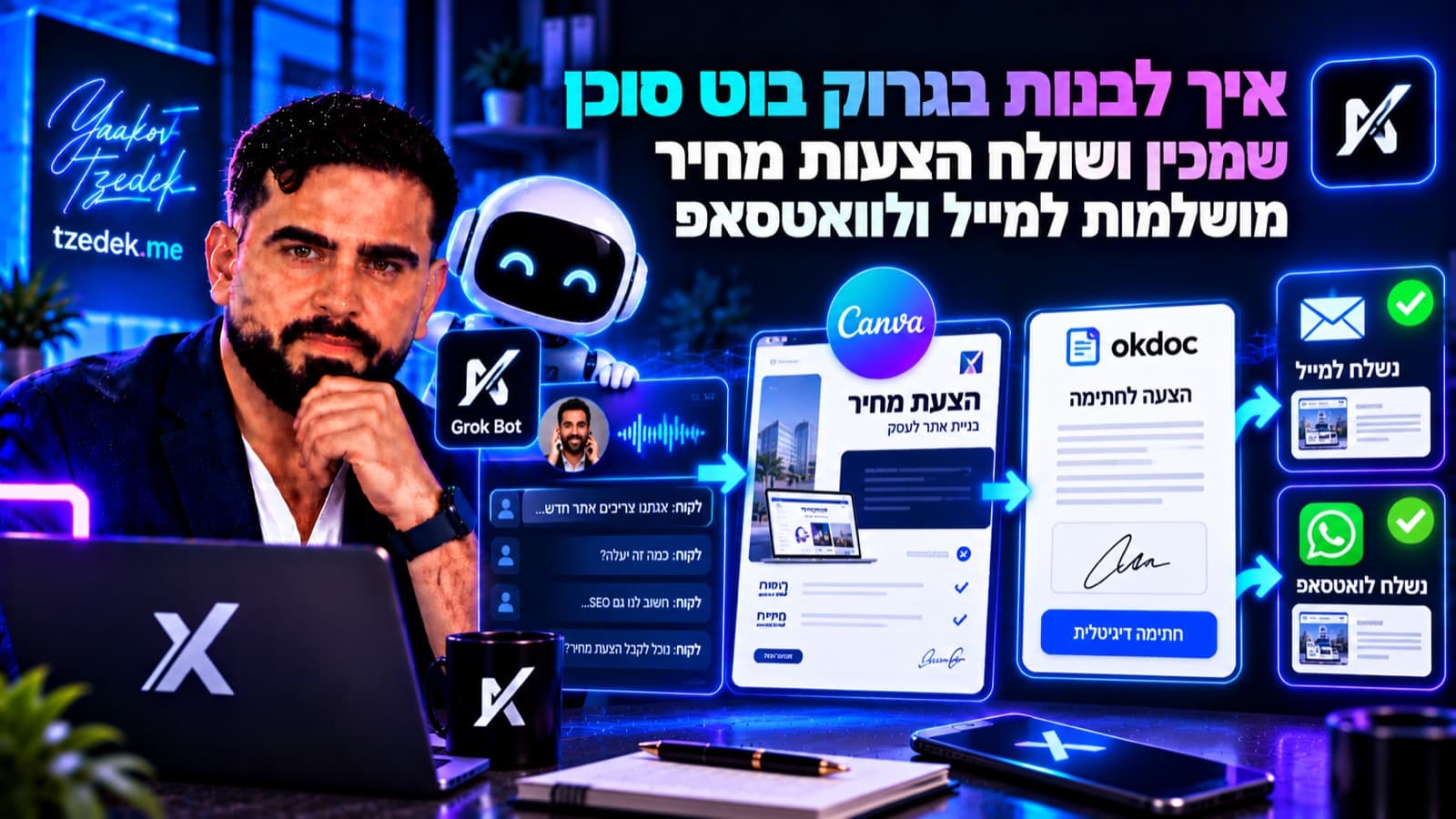
- Step-by-step guide: a Grok Bot agent that reads your sales call transcript, designs a quote in Canva, uploads it to okdoc for e-signature, and sends it by email and WhatsApp, with two approval checkpoints along the way.
A good sales call, then half an hour of duplicating files, swapping names, fixing prices, and uploading to a signing platform. Now I type the lead's name to the bot and the proposal makes it all the way to the signing stage, with me approving every step along the way. The speed is not even the interesting part.
The interesting part is that the bot learns. The first time, its proposal came out with wrong alignment, colors I didn't like, and bullet points on the wrong side. I made the corrections myself once, and it turned every fix into a permanent rule. In this guide I show exactly how I built this.
In short
| Step | Who does it | What happens |
|---|---|---|
| 1. Setup | You, once | You write the process to the bot in plain language |
| 2. Lead name | You | "Prepare a proposal for Dana" |
| 3. Preparation | The bot | Reads the transcript, duplicates a Canva template, updates content and price |
| 4. Review | You | The PDF arrives only to your email, you correct or approve |
| 5. Upload | The bot | Uploads to okdoc, selects a product, fills in details and signature fields |
| 6. Send | You approve | The client receives a proposal to sign by email and WhatsApp |
The three tools and what each one does
Canva is the design tool where the proposal template lives. You design a professional template once, with your logo, colors, images, and agreement, and every new proposal is a copy of it. Canva has a direct connection to Grok Bot, so the bot duplicates the template, replaces text, updates prices, and exports a PDF, without you opening Canva at all.
okdoc is a platform for sending documents and proposals for digital signature, with a fully Hebrew interface. You upload a PDF, mark where the client signs and fills in their name, date, and company registration number, and send it by email or WhatsApp. You can set up products (mine are "AI Workshop" and "AI Lecture"), see when the client opened and signed, and collect payment immediately after signing. okdoc also has a direct connection to Grok Bot. The complete okdoc guide.
Grok Bot is the assistant that connects everything. It reads the call transcript, works in Canva and okdoc on your behalf, sends each step for approval, and remembers every correction. What is Grok Bot and how to get started.
What you need before you start
- A proposal template in Canva: a single designed source file with a cover page, an "About us" page, a content page, a pricing table, and an agreement page with signature lines.
- A place where leads and call transcripts are saved: mine is a leads page on my site, with a full transcript of every sales call.
- An okdoc account for sending documents for digital signature.
- Grok Bot connected to Canva, okdoc, and Gmail.
Step 1: Set up the process for the bot, once
Open a dedicated bot and write the process to it in plain language. For example:
"I give you a lead's name. You find them and their call transcript on the leads page, duplicate the proposal from Canva, update the name, date, price, and content based on the call, and send it to me by email for review. After I approve, you upload to okdoc, select a product, fill in the lead's phone number, name, and email, and send me a screenshot. Only after I approve again do you click Send."
Two rules that are non-negotiable:
- The bot never sends anything to the client without your explicit approval. There are two approval points: after the design and before sending.
- The source file in Canva is never touched. You always work on a copy.
Step 2: Type a lead's name
This is all I do: "Prepare a proposal for Dana". The bot:
- Finds the lead and the transcript, and pulls out the details: company name, what the client needs, how many hours, in-person or on Zoom, the price we agreed on, and what's included.
- If anything in the transcript is unclear, it asks rather than guessing.
Step 3: The bot prepares the proposal in Canva
The bot duplicates the template and updates three areas:
- On the cover: "For: {client name} {company name}" and the product type (AI Workshop or AI Lecture).
- On the content page: bullet points tailored to the needs that came up in the call. For a bookkeeping client, for example, it wrote about automating routine work and data security, because those were the things that concerned her in the call.
- In the pricing table: unit price, quantity, and total, plus what's included (a scoping call, recording, a preparation course, in-person attendance).
It then exports a PDF and sends it to your email only, for review.
Step 4: Correct once, and the bot learns
The first time, there were a few things I didn't like: alignment, colors, hyphens, and bullet points on the wrong side. I corrected them myself in Canva and sent the final file to the bot. The bot compared it to its own version, listed every change I had made, and saved those changes as permanent rules. On the next proposal it applied them on its own.
Tip: Don't correct the bot with long messages. Make the corrections yourself once and let it compare. That's how it learns fastest.
Step 5: Upload to okdoc
After you approve the design, the bot:
- Uploads the final PDF to okdoc.
- Fills in the recipient's name, email, and phone number so the proposal is also sent via WhatsApp.
- Selects the appropriate product (AI Workshop or AI Lecture).
- Adds signature fields on the agreement page: full name, company registration number or VAT number, date, name of personal guarantor, owner's signature, and company stamp.
I taught it the signature field step with a screen recording: I did it once in front of it, and it saved that as part of the process.
Step 6: Screenshot, approval, send
The bot sends a screenshot of the ready document. You review it, approve it, and only then is "Send" clicked. The client receives a designed, personally tailored proposal by email and WhatsApp, with a digital signature request, minutes after the call.
What I got out of this
- A personally tailored proposal for every client, based on what they actually said in the call.
- Zero copy-paste errors in the name, phone number, email, or price.
- Full control: nothing goes out without approval.
- A process that improves on its own: every correction becomes a permanent rule.
Mistakes worth avoiding
- Locked elements in the Canva template. If the template has locked elements, the bot cannot change them. Unlock everything that changes from proposal to proposal beforehand.
- A template with no place for the client's name. Leave a dedicated line on the cover for "For:".
- Skipping the approval step. Even when everything runs smoothly, keep both approval points.
What does this mean for your business?
A proposal that arrives half an hour after the call, tailored to what the client said and ready to sign, is not just a time-saver. It's the difference between a client who still remembers the excitement from the call and a client who has already received three other proposals.
A one-minute check: how much time passes today between the end of your sales call and the moment the client receives a proposal? If the answer is "the next day", that's exactly where you can start.
Want to build the steps before the proposal too, from lead sourcing to follow-up? See the guide How to turn Grok Bot into an AI sales agent. And to learn how to build agents like this yourself, step by step: Grok Bot course.
Yaakov Tzedek, AI lecturer, consultant, and organizational AI implementer.
Frequently asked questions
Yaakov Tzedek
An Israeli AI lecturer, consultant and implementer who has supported 100+ organizations in AI implementation and lectured for 200+. Official content partner of Meta, Google, Canva and TikTok, featured on Israel's Channel 13.
More about Yaakov →