
- Figma AI explained: First Draft, Figma Make, the new AI agent, the seats and credits model, Hebrew/RTL support, and a comparison with v0 and Lovable. Updated July 2026.
Adobe attempted to acquire Figma for 20 billion dollars in 2022. The deal collapsed under regulatory pressure, and Figma went public on the New York Stock Exchange on its own. Today, AI is its primary growth engine.
Figma is the world's most widely used UI design platform, and in 2026 it has become far more than a design tool. It is now a full AI environment: First Draft generates an initial design from a one-sentence description, Figma Make turns a prompt into a working prototype backed by real code, and a new AI agent works alongside you directly in the canvas. Why does this matter? Because Figma is the standard. Nearly every product team in Israel works in it, and when AI moves into a tool that everyone already uses, it changes how everyone works: designers, product managers, developers, and marketers alike. This guide covers all of Figma's AI capabilities as of July 2026. We will look honestly at what works in Hebrew and what does not, break down the pricing and seat model (which is not simple), and compare Figma Make against competitors like v0 and Lovable.
What Figma Is and Why It Is the Standard
Definition: Figma is a browser-based collaborative design platform where teams design user interfaces, build prototypes, and hand off designs to development. "Figma AI" is the umbrella name for the AI layer added to the platform: generating designs from text (First Draft), building working prototypes from a prompt (Figma Make), an AI agent that operates inside design files, and AI capabilities across the company's other products, FigJam for brainstorming boards, Slides for presentations, and Buzz for marketing assets.
To understand why Figma AI is a big deal, you need to understand what Figma was before. For a decade it beat Sketch and Adobe XD on three things: it runs in the browser with no installation, it is genuinely collaborative (multiple people on the same file, in real time, like Google Docs), and it built a complete ecosystem around design systems, components, shared libraries, and Dev Mode, which translates designs into developer-ready specs.
The result: Figma is the default. In Israeli startups, in banks, in government agencies, when someone says "send me the Figma," everyone knows what that means. And that is exactly what makes its AI layer so significant. This is not another shiny AI tool that requires convincing an organization to adopt. It is AI that shows up inside the tool the organization already lives in.
Adobe, as you may recall, tried to acquire Figma for 20 billion dollars. The deal collapsed in 2023 due to regulatory opposition in Europe and the UK, Figma remained independent, went public on the New York Stock Exchange, and AI became its primary growth engine. Every annual Config conference since then has been, in practice, an AI conference.
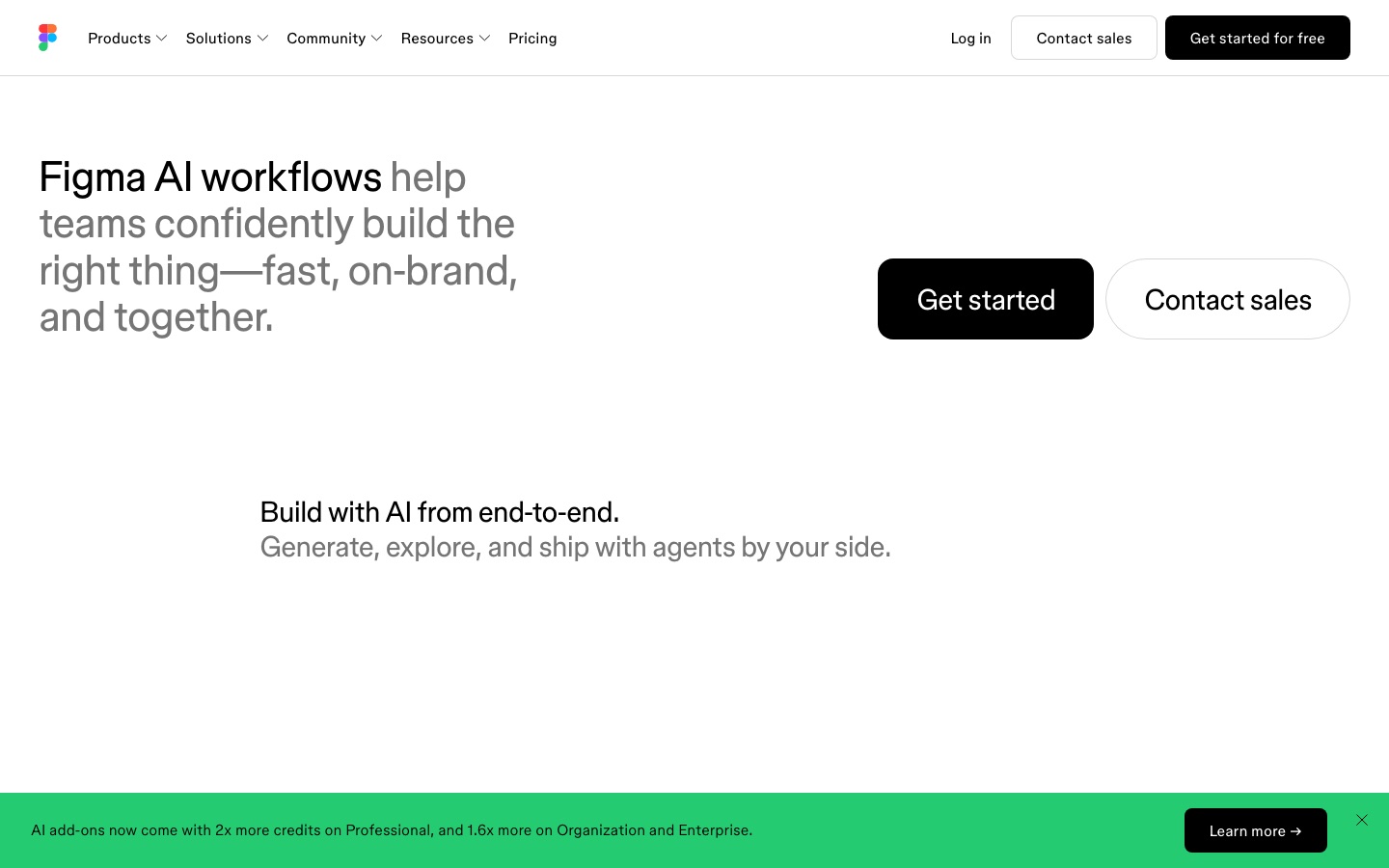 The official Figma website, captured in September 2026. Credit: Figma
Why Everyone Is Talking About Figma AI Right Now
Three reasons, and all of them happened in recent months.
The first: Figma's agent entered open beta. At Config 2026 (May 2026), Figma presented an upgraded version of the Figma Agent, an AI agent that works with you inside the design file itself. It does not just generate new screens: it can remix existing designs, handle the grunt work (replacing text across all screens, organizing layers, aligning components), and even give design feedback. The big new addition is Skills, the ability to package your team's workflows and conventions into standing instructions the agent follows, very similar to the Skills concept familiar to anyone who works with Claude. Since May 20, 2026, First Draft, generating an initial design from text, also runs through the agent as its main entry point.
The second: Weave entered the canvas. Figma acquired Weave, a generative image and video platform, and since June 2026 its tools have been integrated directly into the Figma Design canvas: more than 20 AI operations on images (expansion, background replacement, style transfer, generation from scratch) without leaving the file. In practice, this means that some of what you used to do in Midjourney or Photoshop now happens inside the design file.
The third: Figma Make grew up. What began as an experiment in "prompt to prototype" has become a core product: describe in words what you want, and get a working interactive prototype, backed by real code, that you can keep editing through chat or manually. Config 2026 also introduced Code Layers (live code layers inside a design), Figma Motion for animations, and generative plugins written with AI assistance.
The bottom line of all this: Figma stopped being "a tool designers work in while everyone else watches" and became a tool where someone who cannot design at all, a product manager, a marketer, a founder, can produce something that looks good and communicate an idea.
The Core Capabilities of Figma AI
Let us break this down capability by capability, as it actually looks in July 2026.
First Draft: From a Blank Canvas to a First Draft in Minutes
First Draft is the feature most people encounter first: you write a description, "a sign-up screen for a fitness app with Google login," and Figma generates a design or wireframe you can immediately edit. The magic is in how it is built: Figma does not "draw a picture" of a screen. It assembles the design from real component libraries (wireframe libraries and design libraries that Figma has built). The result is not a static screenshot but real layers, real components, real Auto Layout, all editable as normal.
What is it actually good for? Not for the final design. It is excellent for the exploration phase: instead of staring at a blank canvas, you get three different directions for the same screen in two minutes, discard two of them, and start working on the third. Veteran designers raise an eyebrow ("it is generic"), and that is fair, but a generic draft after one minute is almost always better than a blank canvas after an hour.
Figma Make: Prompt to Working Prototype
This is the tool that changes the rules of the game most significantly, and also the one that competes head-on with v0 and Lovable (we will get to a proper comparison later). Figma Make takes a text description, or an existing Figma design, and builds a real interactive prototype from it: buttons that click, forms that respond, navigation that works. Behind the scenes, real web code is written, and you can open it, edit it manually, or keep requesting changes through chat.
The classic scenario: a product manager wants to test a feature idea before she "burns" a designer's and developer's time. She describes the feature in Make, gets a clickable prototype, sends a link to five users, and gets real feedback, all in the same day. What used to require two weeks of design-development-deployment now happens before the planning meeting.
Make's structural advantage over competitors: it lives inside Figma. It can draw from your existing designs and components, so the prototype does not look like "another generic template" but like your actual product.
From the field: In the workshops I run for product teams, the moment product managers "light up" is always the same moment: when they realize that Make lets them walk into a meeting with a working prototype instead of a slide deck. One of my participants put it well: "For years I described in words what I wanted and people imagined different things. Now I just show them." That is worth more than any other feature on this list.
The Agent (Figma Agent) and Skills: A Personal Assistant Inside the File
The agent is the most interesting development from Config 2026, because it changes the interaction model: instead of an "AI feature" you trigger from a menu, there is an entity you can talk to inside the file, and it sees what you see. Examples of what it does today (open beta):
- Generate and remix: "Take this home screen and generate a dark version," "Suggest three variations for this Hero."
- Automate grunt work: Replacing all placeholder text with real content, organizing and naming layers, aligning to the design system.
- Feedback: "What are the problems with the visual hierarchy of this screen?" Not a replacement for a senior designer, but an always-available second set of eyes.
- Skills: Packaging team conventions (how to name layers, which grid, which components are allowed) into standing instructions the agent follows, including ready-made community Skills.
Anyone familiar with the Claude agents ecosystem will feel at home. It is exactly the same concept, applied to a design canvas. And the two worlds connect: Figma released an official MCP server for Dev Mode, so you can connect Figma to Claude Code and let a code agent read the design directly. For those who want to go deeper on the agent concept, there is a full guide on Claude AI agents.
AI Inside FigJam: Brainstorming and Planning
FigJam is Figma's collaborative whiteboard (competing with Miro), and its AI is oriented toward thinking work: generating a board template from a description ("a retrospective for a team of 8 using the Start-Stop-Continue format"), summarizing a pile of sticky notes into key points after a workshop, sorting and clustering similar ideas, and generating diagrams from text. For anyone who facilitates workshops or runs planning meetings, the summarization feature alone saves the annoying half-hour of "who is typing up all the sticky notes."
AI in Slides and Buzz: Presentations and Marketing
Figma Slides is Figma's presentation product, and Figma Buzz is a relatively new tool for producing marketing assets at scale (posts, banners, ads) based on templates from the design system. In both, AI helps generate and rewrite content, adjust tone, and produce variations of a single marketing asset across dozens of formats. Buzz in particular is interesting for marketing teams: a designer builds a partially locked template, and marketers generate dozens of versions from it using AI without breaking the brand, a scenario reminiscent of what Canva AI does, but with the control of a real design system.
Weave in the Canvas: Generative Images and Video
Since June 2026, Weave tools have been rolling out gradually to Professional-tier subscribers and above with a full seat: more than 20 AI operations on images directly in the canvas, generating an image from text, outpainting, replacing elements, style transfer, smart background removal. You can also publish and share complete workflows in the community. This does not replace dedicated image tools for heavy work, but for UI needs, mockups, mood images, and real placeholders, it is sufficient in most cases.
Dev Mode, Code Layers, and MCP: The Bridge to Development
On the developer side: Dev Mode translates designs into specs (dimensions, colors, suggested CSS/React code), the new Code Layers allow embedding live code inside a design file, and the official MCP server lets AI-powered code tools, Claude Code, Cursor, and others, read the design directly and write code from it. This closes the loop: designers work in Figma, and the agent in the code editor reads the Figma file instead of guessing from screenshots.
Getting Started, Step by Step
If you're completely new to Figma, here's how to start on the right foot:
- Create a free account at figma.com. The Starter plan requires no credit card and runs fully in the browser. No installation needed (there is a desktop app, but it's optional).
- Start with a new Design file and give yourself ten minutes of "ice-breaking": draw a rectangle, add text, duplicate a frame. The interface is less intimidating than it looks.
- Activate First Draft: in a design file, open the AI interface (through the agent, which as of 2026 is the entry point) and write a screen description. Start with something familiar: "landing page for a yoga studio with a trial class signup form."
- Edit the result by hand. This is the important part: the AI output is regular layers. Swap text, change colors, move elements around. This is how you learn both Figma itself and the limits of the AI.
- Try Figma Make: open a Make file and describe a small product, "mortgage repayment calculator with a slider and graph." Play with the generated prototype, then ask for changes in the chat ("make the main button green, add dark mode").
- Check your credit balance. Every AI action consumes credits from a monthly quota that depends on your seat type. On the free plan the quota is small, it's meant for a taste, not for ongoing work.
- Advanced step: if you're working with a team, build a small component library (button, input field, card) and then ask the AI to work with it. The difference in output quality is dramatic.
Anyone who wants to pair these steps with structured learning about the AI world, the free courses at our academy are built exactly for that, including a fundamentals course that explains how to write prompts that get good results from every tool, Figma included.
Use Cases for Israeli Businesses: Concrete Scenarios
Where does Figma AI meet a real Israeli business? A few scenarios from the field:
A pre-seed startup with no designer. The founder needs to show investors what the product will look like. Instead of paying tens of thousands of shekels to a studio for mockups, they build a clickable prototype of the three core screens in Figma Make, polish it with First Draft, and walk into the meeting with a live demo. It's not a product, but for an investor pitch it changes the entire dynamic.
A marketing department at a mid-sized company. A team of three marketers needs dozens of Hebrew banners every month: campaigns, stories, newsletters. The designer builds locked Buzz templates with the brand's fonts and colors, and the team generates variations with AI without opening a ticket to a studio for every banner. The savings: an entire designer's working days per month, freed up for strategic work.
A product manager at a SaaS company. Before every quarter she needs to "sell" features to management. Instead of ten-page spec documents, she produces a working prototype in Make for each candidate feature. Management clicks through it, gets a feel for it, and decides. Prioritization meetings are half as long.
A government agency or large organization. UX teams work against a mandatory design system and strict accessibility standards. The agent with defined Skills ("only components from the organizational library, minimum AA contrast") turns the AI from a chaos generator into an assistant that follows procedures. This is exactly the kind of implementation where organizations rely on professional AI consulting, because success depends on the setup and the process, not on the tool.
A digital agency. Instead of presenting a client with two concepts (because there's no budget for more), the agency generates six First Draft directions in an hour, selects three, polishes them, and presents. The client feels they got three times the value, at nearly the same cost.
From the field: The mistake I see most often in Israeli organizations is buying seats and waiting for the magic to happen. I've been through this with dozens of organizations: an AI tool without a process change is an expensive toy. The teams that actually win are the ones that redefined the scoping phase, "no one comes to a kick-off meeting without a Make prototype," and suddenly the tool justifies itself within two weeks.
Hebrew: What Works and What Doesn't
Let's be straight about this, because there's a gap between the hype and reality here.
What works:
- Hebrew text in designs: Figma displays and edits Hebrew correctly in most cases, including Hebrew fonts (Google Fonts Hebrew fonts are available, and organizational fonts can be uploaded).
- Hebrew prompts: the agent, First Draft, and Make generally understand a prompt written in Hebrew. You can write "build a login screen for a delivery app" and get a reasonable result.
- FigJam in Hebrew: sticky notes, summaries, and idea sorting work reasonably well with Hebrew content.
What doesn't work, or works only partially:
- Output tends to come out in English and LTR. Even when the prompt is in Hebrew, First Draft and Make almost always generate an English-language interface with a left-to-right layout. You have to request Hebrew explicitly, and even then the layout flip (right alignment, element order, arrow icons) is partial and requires manual correction.
- True RTL is still a pain. Figma has never excelled at RTL, and the AI hasn't solved that. The Israeli design community still relies on plugins like RTL Support and Convert to RTL to flip layouts and fix bidirectional text (Hebrew mixed with numbers and English words on the same line, the classic nightmare).
- Hebrew microcopy from the AI: mediocre. Phrasing comes out translated, sometimes too literally. For real marketing copy you'll need to rewrite it.
The practical bottom line: work with the AI in English or Hebrew for the idea and structure phase, and treat the Hebrew adaptation (text, alignment, RTL) as a separate, deliberate work stage. As of July 2026, anyone promising you that "Figma AI produces perfect Hebrew interfaces" is selling you something.
Figma Make vs. v0 vs. Lovable: The Comparison That Matters
If you're here because of "prompt to interface," you're probably deciding between three tools. All three are good, but they're built for different people:
| Criterion | Figma Make | v0 (by Vercel) | Lovable |
|---|---|---|---|
| Starting point | Your existing design environment and components | High-quality React/Next.js code | A complete end-to-end application |
| Target audience | Designers and product managers on teams already in Figma | Developers and anyone who wants production-ready code | Founders and non-coders building a product |
| Server-side and data | Not the focus, prototyping and lightweight tools | Via the Vercel ecosystem | Built-in (includes DB and user authentication) |
| Connection to existing design | Excellent, draws from your design system | Manual | Manual / import from Figma |
| Code quality for production | Good for prototyping; production requires work | Among the best in the field for React | Good for MVP, less so for scale |
| Pricing | Credits from your Figma subscription | Separate credit-based subscription | Separate credit-based subscription |
How to choose? If your organization already lives in Figma and the goal is prototyping, idea validation, and product communication, Make is the natural choice because it's the only one that knows your design system. If you're a developer and the final deliverable is React code going to production, go with v0, we have a complete v0 guide in Hebrew. And if you want to build a fully working product, including user login and a database, without writing code, our Lovable guide will show you why it leads in that category.
There's also a fourth option that's growing fast: skipping the intermediate tools and working directly with a code agent like Claude Code, which builds interfaces from a prompt and connects to Figma via MCP. That's the most powerful path for anyone willing to touch code, and what we teach in depth in our courses. We've put the entire workflow, from design through to a prompt ready to hand off to code, in the complete Claude Design guide.
Comparison with Competitors in the Design Space
What about the competition on design itself, not just prototyping?
| Figma (Figma AI) | Canva (Canva AI) | Adobe (Firefly/XD legacy) | Sketch | |
|---|---|---|---|---|
| Audience | Professional product and UX teams | Marketers, small businesses, non-designers | Creative, print, video | Veteran Mac designers |
| AI for interface generation | Strong (First Draft, Make, agent) | Weak for interfaces, strong for graphics | Firefly is strong for images, not interfaces | Basic |
| Collaboration | Best in class | Good | Partial | Weak |
| Hebrew and RTL | Partial, with plugins | Relatively good | Good (long typographic heritage) | Partial |
| Learning curve | Medium | Very low | High | Medium |
The core insight: Figma and Canva aren't really competing, they solve different problems. A small business that needs Instagram posts will do just fine with Canva. A team building a digital product needs Figma. Many Israeli organizations hold both subscriptions, and that makes complete sense.
Pricing and Plans: The Seat Model, Honestly
This is where Figma gets less friendly, so let's sort it out. As of July 2026, the model is built on two layers: a plan and a seat type, and the confusion between them costs organizations money.
The plans: Starter (free, limited on number of files, great for learning and freelancers starting out), Professional (the plan for most small teams), Organization, and Enterprise (for large organizations, with SSO, advanced library management, and security, at a per-user monthly price that recalls enterprise BI tools).
The seats: within every paid plan there are three seat types per user:
- Full: full access to all products: Design, Make, Draw, Sites, Dev Mode, FigJam, Slides, Buzz. This is the expensive seat, and the only one that allows actual designing.
- Dev (developers): full access to Dev Mode and companion tools, but view and comment only on design files.
- Collab (collaborators): significantly cheaper, FigJam, Slides, and Buzz only, plus view access to designs.
And the credits, the part you must understand in 2026: every AI action (a prompt to Make, image generation, the agent) consumes credits from a monthly quota based on seat type. A full seat gets a quota several times larger than a Collab seat. Since March 2026, Figma enforces credit limits at the seat level, and going over the quota requires purchasing additional credits (as a subscription add-on or pay-as-you-go, with availability depending on the plan). The practical implication: a team that relies heavily on Make may discover that the "regular" subscription doesn't cover actual usage.
Three pricing tips from the field:
- Don't buy everyone a full seat. In a typical organization, only designers need Full. Product managers usually manage fine with Dev or Collab and their own AI quota. The difference in annual cost is significant.
- Audit your seat invoice once a quarter. Figma is known for automatic seat upgrade mechanisms (a user who touches an edit can become a paid seat). Organizations discover "zombie seats" worth thousands of shekels a year.
- Track credit consumption in the first month before committing to AI add-ons. Actual usage is almost always different from the estimate.
The exact numbers change (and Figma has updated its pricing more than once in the past two years), so always check the current price on the official pricing page. As of July 2026, a full seat on the Professional plan is in the range of a few tens of dollars per user per month on annual billing.
Advanced Tips
- Give the AI material to work with. The difference between a generic output and a useful one is context: connect Make and the agent to your component library, attach an existing frame to the prompt as a reference, and mention the product name and audience. "Checkout screen" will get you something generic. "Checkout screen for a jewelry store in the style of the attached screens, targeting women ages 30-50" will get you a real starting point.
- Build Skills for the agent the way you write onboarding docs for a new employee. Invest an hour writing a skill that defines naming conventions, grid, permitted colors, and accessibility level, and every agent output from that point forward will need fewer corrections.
- Use Make like a conversation, not a command. Don't try to cram everything into one perfect first prompt. Start from a core ("lead form with 3 fields"), run it, then refine in short iterations. Ten small requests cost fewer frustration-credits than three giant prompts that all miss the mark.
- Use First Draft as a variation generator, not a designer. Request the same screen three times with different phrasing and compare. The value is in the spread of possibilities, not in any single output.
- Connect Figma to your code environment via MCP. If someone on the team works with Claude Code or Cursor, the Dev Mode MCP server eliminates the "translation" step entirely: the agent reads the design directly. This is one of the most worthwhile connections available today between the design world and the AI world, and it's exactly what we cover in our AI workshops for development and product teams.
- Use Weave for real-looking placeholders. Instead of a gray rectangle labeled "image here," generate a relevant image on the canvas in seconds. Designs with realistic-looking content get better feedback from stakeholders. This is well established.
- Save your winning prompts. Smart teams maintain a "prompt library" in a shared FigJam file: prompts that produced strong outputs, with notes. Within a month you've built a real organizational knowledge layer.
Common Mistakes
- Expecting a finished design from First Draft. It's a draft. Anyone who judges the tool by how far it is from a final product misses the point (saving time at the zero stage) and winds up disappointed for no good reason.
- Treating a Make prototype as production-ready code. The code works, but it was written for a prototype. Shipping it as-is to a real product without developer review is a recipe for technical debt.
- Forgetting about credits. A team that discovers mid-sprint that their monthly AI quota is gone is a real and common story. Track consumption and decide who on the team actually needs a large quota.
- Letting the AI work without a design system. Without a component library, every AI output invents its own style and the file turns into a visual flea market. Minimal design system first, AI second.
- Running Hebrew as if it were English. As noted above, outputs default to LTR in English. Anyone who doesn't plan a separate RTL-editing stage discovers this the day before the deadline.
- Skipping permission and privacy settings at the organization level. Organization/Enterprise admins can control how Figma uses content for AI purposes. In organizations with sensitive data, go through those settings before turning the features on for everyone, not after.
From the field: At a workshop with a fintech company, a designer asked me to help figure out "why the AI keeps giving her garbage." We looked together: the file had no library, no styles, and layers named Frame 4732. The moment we built a basic library of 10 components and defined a skill for the agent, those exact same prompts started producing outputs she described as "80% ready." Figma's AI is a mirror of your file's organization: garbage in, garbage out.
The Limitations: Honestly
So you can make an informed decision, here is what people don't tell you as often:
- Outputs are generic by default. First Draft leans on built-in libraries, so "fresh" screens look like every average startup app. Without a connection to your design system, brand distinctiveness is on you.
- RTL and Hebrew are not fully solved. As detailed above, it works, but with friction. Anyone whose entire product is in Hebrew will pay a steady "correction tax" on every AI output.
- The credits model introduces budget uncertainty. It's hard to predict how many credits a team will consume, and the stricter enforcement since March 2026 has turned this from a theoretical question into a real invoice.
- The agent is still in beta. It's impressive, but inconsistent: sometimes it executes precisely, sometimes it gets "creative" with your file. Version backups (which Figma does automatically, fortunately) are your safety net.
- Full cloud dependency. There is no real offline work. Slow internet equals slow Figma, including during client meetings.
- A double learning curve. Anyone unfamiliar with Figma needs to learn both the tool and the AI workflow. A product manager without a design background will get usable outputs in Make quickly, but serious design editing requires real investment.
- Intellectual property and privacy questions. As with any GenAI tool, organizations with legal sensitivities need to read the content-for-training terms of service and verify the AI settings at the organization level. As of July 2026 there is administrative control over this, but it doesn't activate on its own.
Who This Is Right For, and Who It Isn't
A strong fit:
- UX/UI designers: There's really no choice here. This is becoming the standard, and AI is becoming part of the profession. Those who don't master it will compete against those who do.
- Product managers: Make and First Draft are your new communication tools. Every hour spent learning them is worth it.
- Marketing teams in organizations with an established brand: Buzz plus templates plus AI equals a branded content machine.
- Founders at the idea stage: A prototype for investors and early users without hiring a designer.
- Agencies and freelancers: More directions for the client in the same amount of working time.
Less of a fit:
- Small businesses that just need marketing graphics: Canva will do it faster and cheaper. Figma is a cannon aimed at a fly.
- Anyone who needs full production code from a prompt: v0, Lovable, or working directly with Claude Code will serve you better.
- Print and classical graphic designers: Figma is built for digital products. The print world stays with Adobe.
- Organizations that want to "replace the designer with AI": No, and you shouldn't want to. The tool empowers designers, it doesn't replace them. Without a professional eye the outputs stay at the generic 80%.
Frequently Asked Questions
What is Figma AI in short?
The umbrella name for Figma's artificial intelligence capabilities: First Draft (initial design from text), Figma Make (a working prototype from a prompt), the agent (an AI assistant inside design files, in open beta since 2026), Weave for generative images on the canvas, and built-in AI in FigJam, Slides, and Buzz.
Can you use Figma AI for free?
Partially. The free Starter plan includes a small credit quota, enough to get a feel for things and experiment. Regular use, especially of Make and the agent, requires a paid seat, and even then there is a monthly quota enforced since March 2026.
Does Figma Make replace developers?
No. It replaces the "describing in words" stage with a working prototype, which is an enormous saving in communication, but the code produced is meant for prototyping. A real product still requires developers, who simply get a much clearer starting point.
What is the difference between First Draft and Figma Make?
First Draft produces a static design for editing inside a Figma Design file: layers and components you continue working on in the normal way. Make produces an interactive prototype with code, something you can click through and send out for user testing. In process terms: First Draft for the sketching stage, Make for the validation stage.
How is the Figma agent different from ChatGPT or Claude?
It lives inside the design file and can see your layers, components, and styles, so it can act on them directly rather than just advising. On the other hand, it is limited to the Figma world. General models like Gemini or Claude are stronger at reasoning, text, and research, and the winning combination is using both: thinking and spec work in chat, execution in Figma. For a broad comparison of the leading models, see our AI models comparison.
Does Figma support Hebrew?
Hebrew text in designs, yes, at a good level. Prompts in Hebrew are mostly understood. But AI outputs default to English with LTR layout, and a full RTL flip still requires manual work and community plugins. Plan time for it.
How long does it take to learn Figma at a working level?
With AI, faster than ever: a product manager can get useful outputs in Make within a day or two. Real command of the design tools (Auto Layout, components, libraries) takes weeks of practice. Anyone who wants to shorten that path with personal guidance is welcome to book a private lesson tailored exactly to their needs.
Should you wait to adopt until the agent leaves beta?
No. The core features (First Draft, Make, AI on canvas) are fully stable, and the agent is already usable today for non-critical work. An organization that starts building workflows and skills now will be a year ahead of a competitor waiting for the "final version," which in the AI world doesn't really exist.
The Bottom Line
In 2026 Figma made the smartest move a software tool can make with AI: instead of building a new AI product and begging people to switch to it, it injected AI directly into the tool your team already has open eight hours a day. First Draft eliminates the terror of the blank canvas, Make turns ideas into clickable prototypes the same day, and the agent with Skills is starting to look like a team member rather than a feature.
It isn't perfect. Hebrew requires manual work, the credits model requires tracking, and outputs are generic without a proper design system. But the direction is unambiguous: the ability to work with AI inside Figma is shifting from a nice-to-have skill to a core skill for everyone who touches a digital product: designers, product managers, marketers, and founders.
Where to go from here? If you want to build a solid foundation in working with AI, prompts, agents, and connecting tools together, the free courses at the tzedek.me academy are the best starting point available in Hebrew. And if you want to learn it quickly and with personal guidance, on your own screens and your own product, a one-on-one private lesson will save you months of trial and error. The blank canvas is no longer an excuse.
Further reading: Want to turn a design into a working app without writing code? The Israeli tool Base44 builds a complete business application, including a database, authentication, and deployment, from a description in Hebrew.
Frequently asked questions

Yaakov Tzedek
An Israeli AI lecturer, consultant and implementer who has supported 100+ organizations in AI implementation and lectured for 200+. Official content partner of Meta, Google, Canva and TikTok, featured on Israel's Channel 13.
More about Yaakov →