
- OpenAI's official training site for ChatGPT Work and Codex offers two learning tracks and eight tutorials. A practical guide: what's there, what to use for each task, a six-part prompt template, and ready-made business prompts.
On the official training site, OpenAI explicitly states that Codex can handle non-coding work too, and that the same ChatGPT Work methods apply inside it. The difference between the two comes down to the context you bring to the task: files and business deliverables on one side, a code project and developer tools on the other.
OpenAI has launched an official training site with two entry tracks and eight recorded walkthroughs. The entire first track runs 20 to 25 minutes. But that is not even the interesting part. The interesting part is what this site signals: the company that invented chatting with AI is now teaching people how to stop chatting with it and start handing it tasks.
In short: ChatGPT Training (learn.chatgpt.com/training) is OpenAI's official training site for ChatGPT Work and Codex. It includes a starting track for general work, a track for a first code change, and eight walkthroughs covering plugins and skills, scheduled tasks, documents and presentations, browser and computer, building a site, working from your phone, and voice. This guide covers what is there, how to choose the right tool for each task, a six-component request template, ready-made prompts for businesses in Israel, and screenshots and videos from the source material. The explanations draw on the official documentation; the prompts and exercises are original examples of how to apply it, not translations of the OpenAI course.
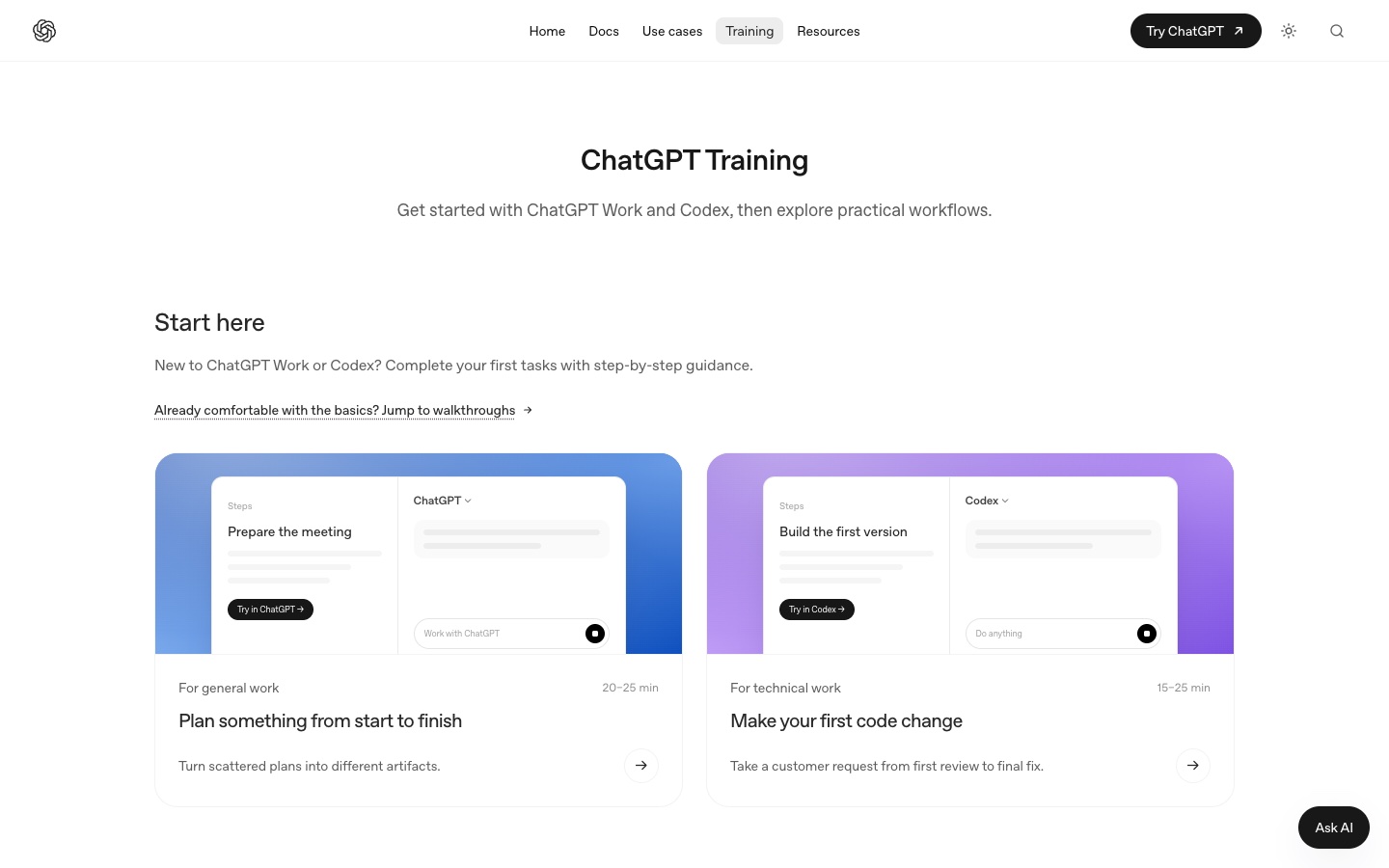 The official training page. On the left, the Codex track (15 to 25 minutes); on the right, the ChatGPT Work track (20 to 25 minutes). Screenshot: learn.chatgpt.com, 8.9.2026
What is on OpenAI's official training site?
Two starting tracks and eight follow-on walkthroughs, all built around one principle: a task that ends with an output you can actually check. The first track, "Planning a task from start to finish," is designed for general work and is estimated at 20 to 25 minutes. The second, "Your first code change," is designed for technical work and is estimated at 15 to 25 minutes. These are training durations, not promises about how long a real project will take.
The eight walkthroughs that follow, in the order OpenAI presents them:
- Getting started with ChatGPT Work (8 minutes): when to choose Work, for tasks scattered across tools that need to end in a deliverable.
- Plugins and skills (9 minutes): plugins give ChatGPT new capabilities; skills save how you want things done.
- Scheduled tasks (7 minutes): run work at a later time or on a recurring schedule, and review each run.
- Documents and presentations (8 minutes): from raw material to a document, from a document to a presentation, and saving as templates.
- Computer and browser (10 minutes): ChatGPT reads what is on your screen, clicks and types in apps and websites you have authorized.
- Building a site to share (7 minutes): describe it in words and ChatGPT builds and hosts a site, including from your phone.
- Working from your phone (7 minutes): Work from the mobile app, or Remote to manage tasks on a connected desktop.
- Voice (6 minutes): talk to ChatGPT while it works, using the desktop app.
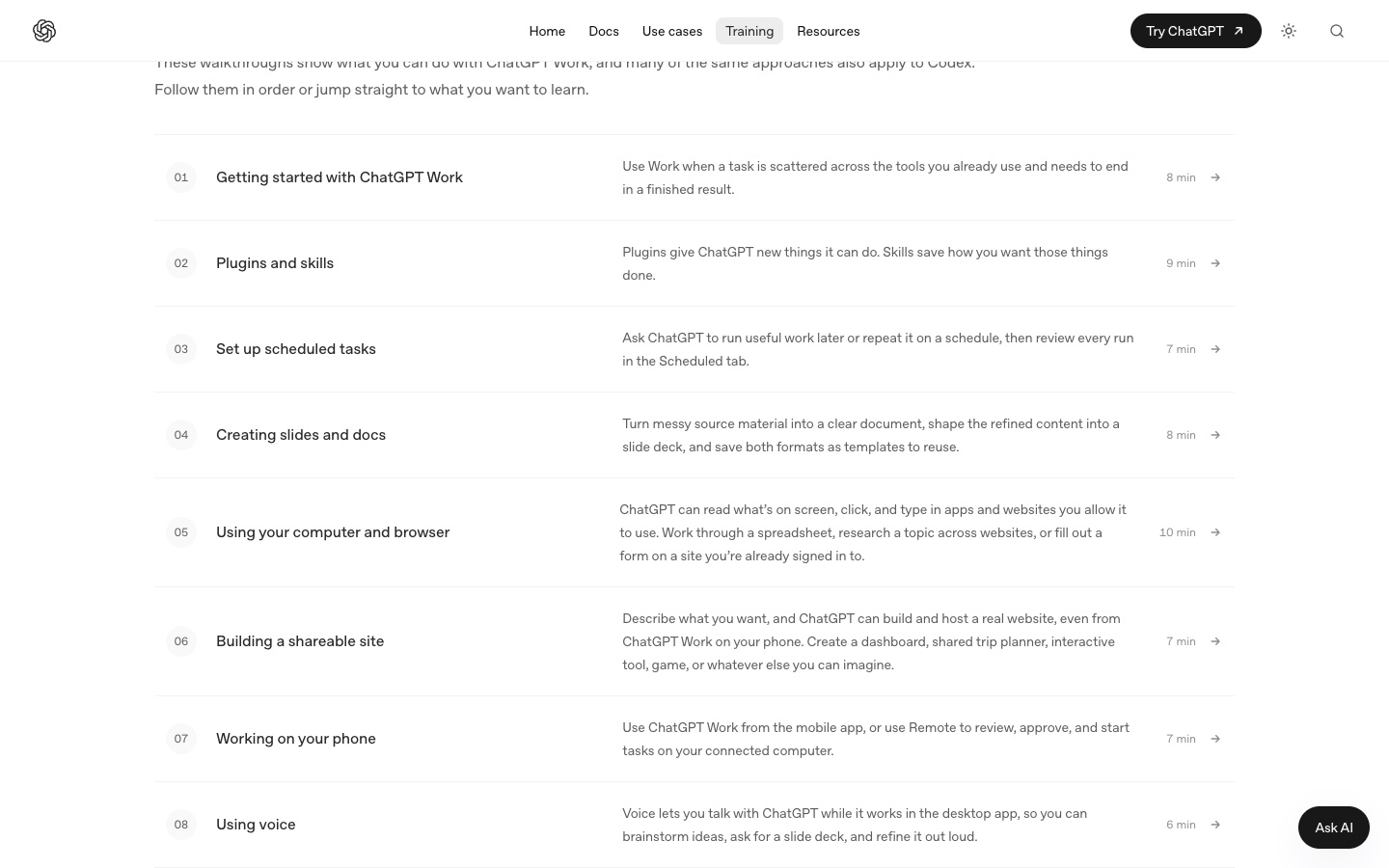 The eight walkthroughs, with the duration of each. You can go through them in order or jump straight to whatever you need right now. Screenshot: learn.chatgpt.com
If ChatGPT Work is completely new to you, I previously wrote a full guide to ChatGPT Work covering the launch, pricing, and capabilities. The guide you are reading now focuses on what the official site teaches and how to put it into practice.
What is ChatGPT Work?
ChatGPT Work is a mode of working in which you hand ChatGPT a task with a defined outcome: a document, a presentation, an analysis, a file, or a workflow, and it moves forward until it produces something you can check. Depending on the tools and permissions available to it, it draws on connected files and services. While it works you can follow along, add context, and change direction. OpenAI frames the distinction this way: use Chat when you want an answer, an explanation, or a short draft; use Work when you want the task completed.
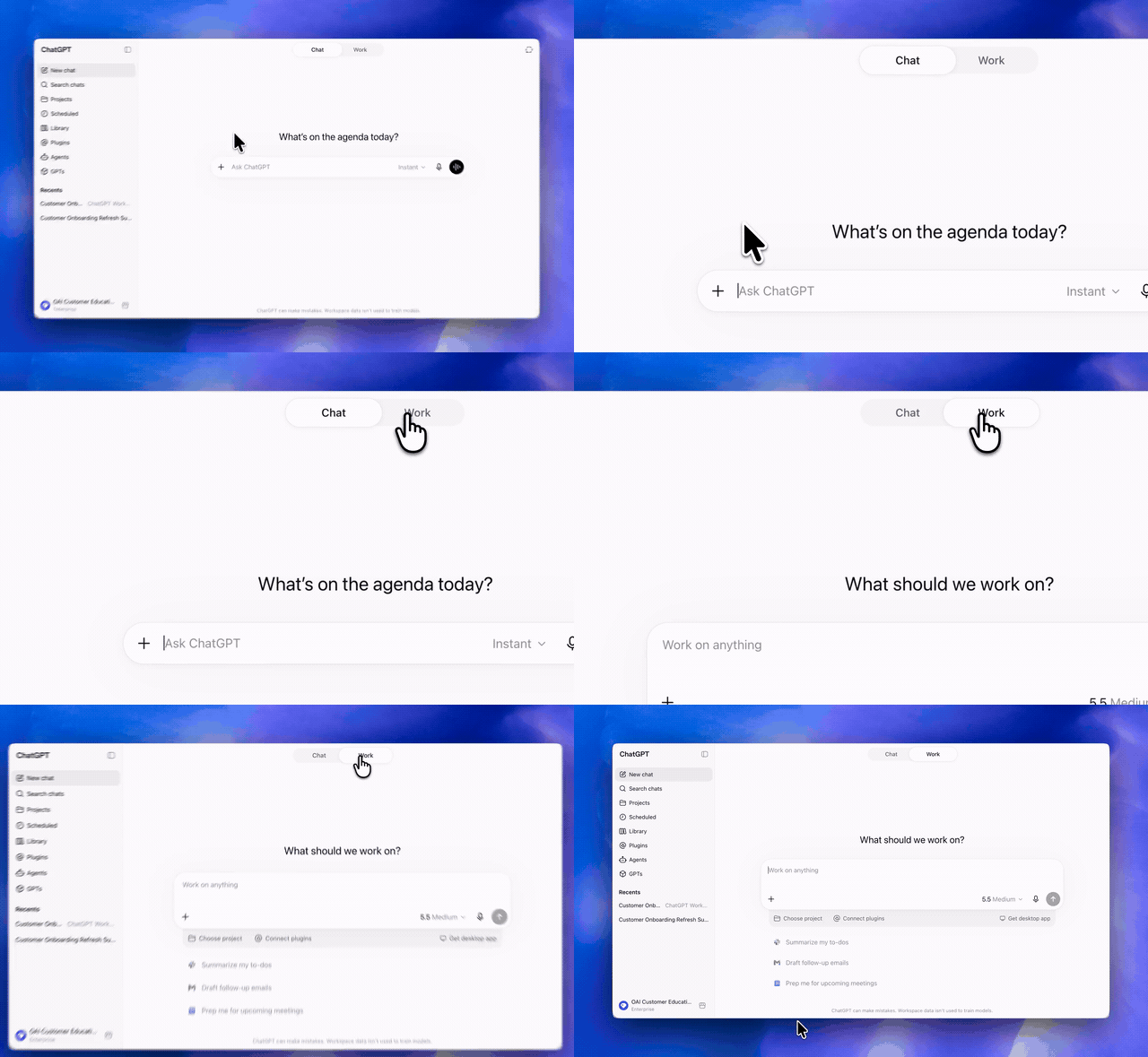 Switching from Chat to Work, from the official training video. The toggle sits above the input area. Credit: OpenAI, learn.chatgpt.com
For example, a solid request for a business owner might look like this:
Attached are a meeting summary and our services price list. Prepare a client proposal document: their need, the proposed service, deliverables, timeline, and the price from the price list. Flag any missing information. Produce a file ready for editing and do not send it to the client.
The request defines the source material, the output, and the limits of execution. That makes it easy to check whether the task was actually completed.
 The Work home screen in the desktop app. Note the sidebar: scheduled tasks, plugins, and agents, the three topics that keep coming up across the walkthroughs. Credit: OpenAI
What is Codex, and when do you use it?
Codex is the choice for software work, with the context of a code project and development tools. In the desktop interface you select it from ChatGPT's product switcher. Developers can also work through Codex CLI in the terminal or through a plugin for their development environment.
Examples of starter tasks the official site suggests in a similar spirit: fixing a button that overflows the screen, adding search to a list, improving an error message, or building a small prototype. The right task to start with is one you can describe in a sentence and verify in a few steps. For the full picture on the tool, including a comparison with Claude Code, there is a full Codex guide here.
Chat, Work, or Codex: which one to choose?
The simple rule: answers and ideas in Chat, business deliverables in Work, code changes in Codex. The table summarizes it:
| Your goal | Suggested starting point | Example request |
|---|---|---|
| Understand a topic or develop an idea | Chat | Explain how to build a client onboarding process |
| Produce a deliverable from source material | ChatGPT Work | Turn these notes into a client onboarding document |
| Analyze data and present conclusions | ChatGPT Work | Analyze the referrals table and prepare a report |
| Change an existing website or codebase | Codex | Fix the registration form in the project |
| Start building a small tool | Codex | Build a prototype for a service cost calculator |
This is a practical selection guide based on task type. There is overlap: OpenAI notes that Codex can handle non-coding work too, and that Work provides similar core capabilities in an experience designed for everyday tasks.
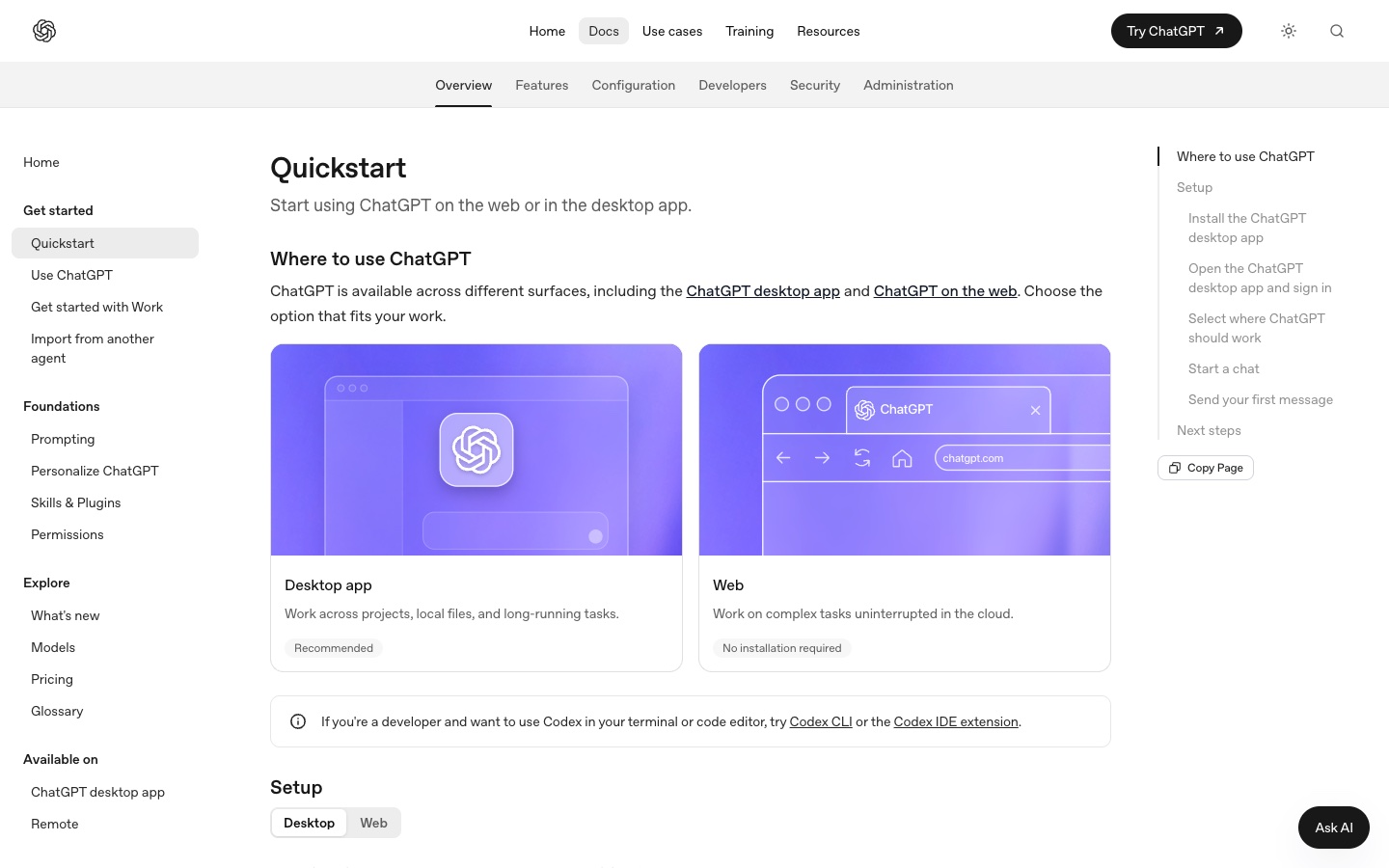 The Quick Start page. OpenAI recommends the desktop app for projects, local files, and longer tasks; the browser version requires no installation. Screenshot: learn.chatgpt.com
How to get started with ChatGPT Work: step by step
Five steps, and only one of them is writing:
- Open ChatGPT and sign in to your account.
- Start a new conversation and select Work, if the option is available in your interface.
- Attach the relevant files, notes, and links.
- Write what needs to be ready at the end and in what format.
- Send the request, follow the progress, and review the output.
In the desktop app, the documentation describes selecting ChatGPT and then switching to Work above the input area. That is also where you choose between Work locally, when you need access to files and applications on your computer, and Cloud, when you want the task to continue even after you close the app. For technical work, choose Codex. The location and names may vary between versions.
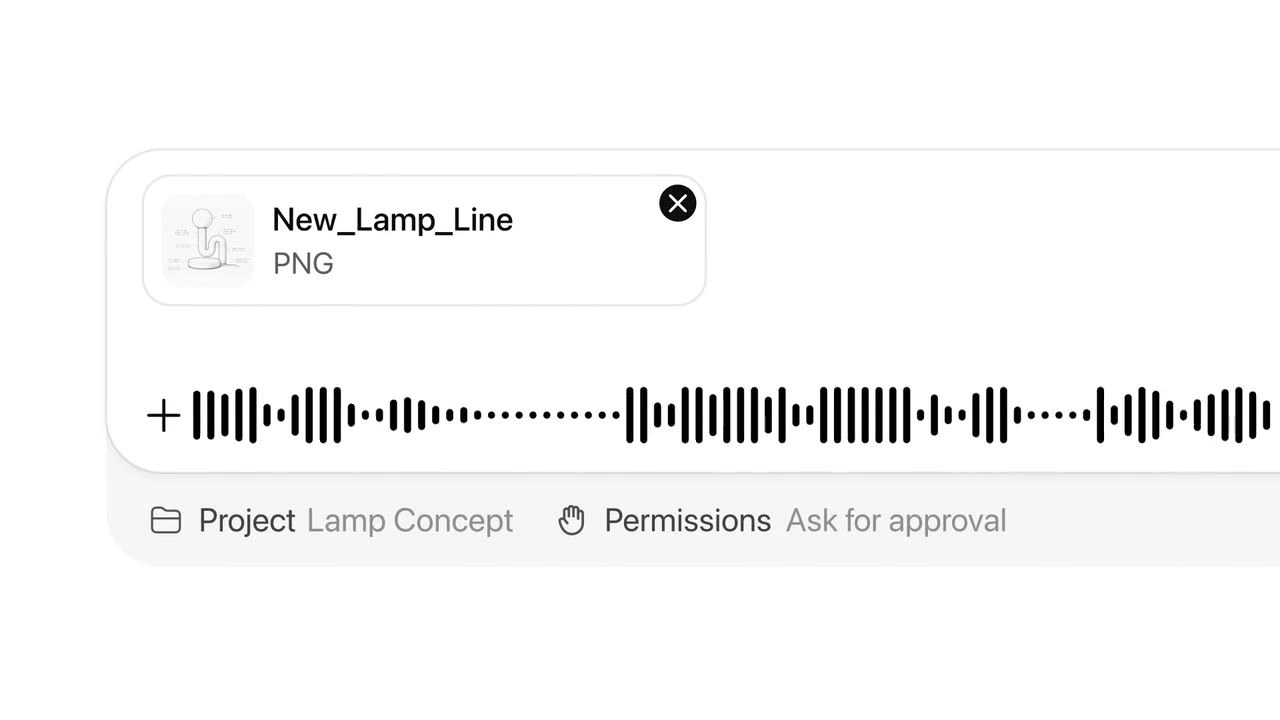 Attaching a file and a voice recording in the same request. Note the permissions bar at the bottom: "Ask for approval" is the right default when you are starting out. Credit: OpenAI
For a first attempt, use simple materials you know well. That way you can judge accuracy, not just how polished the result looks.
The first prompt worth trying
Attached are notes from a project I am managing. From them, prepare a working document in Hebrew with the project goal, decisions made, tasks, the person responsible for each task, and a target date. If a responsible party or date does not appear in the source, write "not set." Add open questions at the end and produce a file ready for editing.
After you receive the file, pay particular attention to names, dates, and tasks the system may have inferred on its own. A tidy output is not necessarily an accurate one.
How to write a request that leads to good work?
A fixed template with six components. Once all six are present, both you and the system know what is supposed to come out at the end:
| Component | What to write |
|---|---|
| Goal | What problem needs to be solved |
| Context | Who the audience is and what matters to them |
| Sources | Which files and links to rely on |
| Output | What to produce and in what format |
| Constraints | What must not be changed or invented |
| Verification | How we will know the result is correct |
Instead of "make me a presentation," you could ask:
Prepare a presentation in Hebrew for business owners with limited AI experience. The goal is to explain three practical uses in customer service. Base it on the attached document. Create eight slides with minimal text and one example per topic. Do not invent savings figures. Use right-to-left orientation and check that no text is cut off. Attach a file ready for editing.
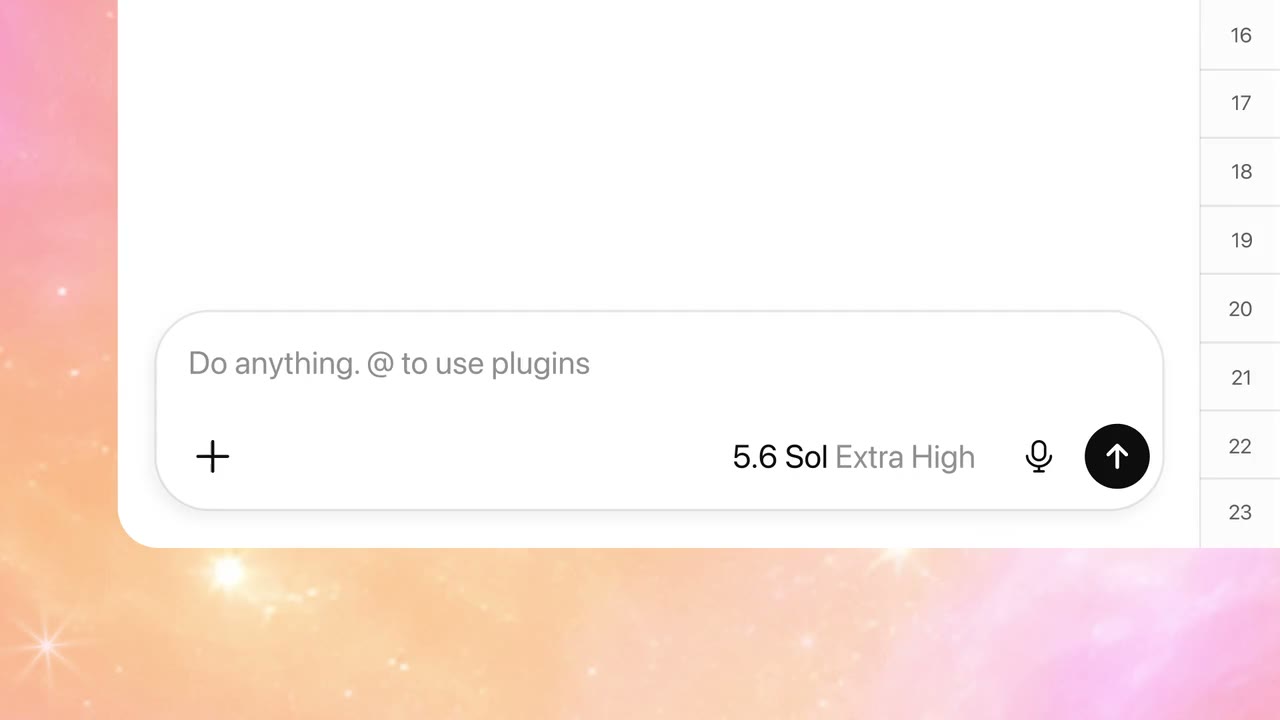 The Work input area. The @ sign invokes a plugin directly within the request, and on the side you choose the model and effort level. Credit: OpenAI
Documents and presentations: define the output upfront
First a content document, then a presentation. That way you confirm the message before investing in the design. One of the topics in the official track is turning source material into a document and then a presentation, and later reusing those as templates.
Read the attached materials and prepare a two-page document for company management. Include the current situation, the problem, three alternatives, and the decisions required. Note the source next to each data point. Separate information from the files from your own recommendations.
After reviewing the document:
Turn the approved document into a ten-slide presentation. Each slide should carry one central idea. Keep the numbers and meaning intact, use the design from the attached presentation, and add a slide for required decisions.
 Editing a slide in conversation: request a change and the presentation updates. The data in this example belongs to OpenAI and is not real data. Credit: OpenAI
For Hebrew, check text direction, mixing of English words, punctuation placement, and tables. Request the file format you need explicitly, and confirm that the file opens in the editor you will actually use.
Skills and Plugins: What's the Difference?
A Skill stores how to perform a recurring task. A Plugin adds a new capability, usually a connection to a service. A Skill packages instructions and resources: steps, templates, and examples. A Plugin is an installable package that can include Skills, service connections, or both. Connections work via MCP, a protocol that makes tools and data available to the model. If that term is new to you, there is a guide to recommended MCP servers here, covering what they actually do.
 The Skills and Plugins documentation page. The official definition: a Skill packages instructions for a task, a Plugin is an installable package that can include Skills and connections. Screenshot: learn.chatgpt.com
A suggested example: a Skill for a weekly marketing report would define which metrics to display, how to compare periods, and what the report structure looks like. A connection to the service where the data is stored would make retrieval possible, subject to permissions and connection capabilities.
To get started, search the plugin directory for the service you need (ChatGPT and Codex share a single plugin library), install the relevant plugin, and complete the account connection if required. Start with a small test:
Check which account you have access to and what can be read through this connection. Do not modify any data. Then find the file named [file name] and summarize its contents.
For a recurring process, once the Skill creation tool is available, you can ask:
Create a Skill for a weekly marketing report based on the attached example. The report should include spend, leads, and cost per lead, a comparison with the previous week, and three suggested actions. Flag missing data and do not present causation without evidence.
OpenAI describes creation using @skill-creator in ChatGPT or $skill-creator in Codex, followed by testing and refinement before reuse.
Watch the official videos
Plugins in ChatGPT
OpenAI · July 21, 2026
Schedule tasks with ChatGPT
OpenAI · July 15, 2026
Working in the Browser, on the Desktop, and Across Websites
The built-in browser lets ChatGPT open websites, gather information, and perform actions, and in the desktop app it can also click, type, and check page state. An important point from the documentation: the built-in browser uses a separate profile. It does not inherit the tabs, logins, or passwords from your regular browser, so when a task requires an account, you log into it directly inside ChatGPT.
A practical exercise for reviewing a website:
Open the landing page at [link] and review it as a new customer would. Check whether it is clear what is being offered, whether the call-to-action buttons lead to the right destination, and whether the form is comfortable on mobile. Present findings with the exact location on the page. Do not submit a real inquiry and do not modify the site.
You can also ask for help with a booking process, where the site and tools allow it:
Find three options for a team lunch in [location], on [date], for [number] people, with a total budget of [amount]. Check availability and cancellation terms where possible, and include links. Stop before making a reservation or any charge.
OpenAI describes confirmations for sensitive browser actions: submitting information, making purchases, changing permissions, and deleting data. There is also a review model that checks login requests before a password is entered, to detect impersonation attempts. Two limitations worth knowing upfront: some sites block automated browsers or require a CAPTCHA, and file uploads are not supported in the built-in browser. After an action is completed, ask for a confirmation or order number and verify the details.
Scheduled Tasks: Turning a Request into a Recurring Process
A scheduled task runs in the background at a fixed time or in response to an event in a connected app, and each run appears in the Scheduled area for review. The documentation describes two types: a standalone task that opens a new conversation on each run, and a task embedded in an existing conversation that retains its context. They can be triggered by time or by events in services like Gmail, Slack, and GitHub.
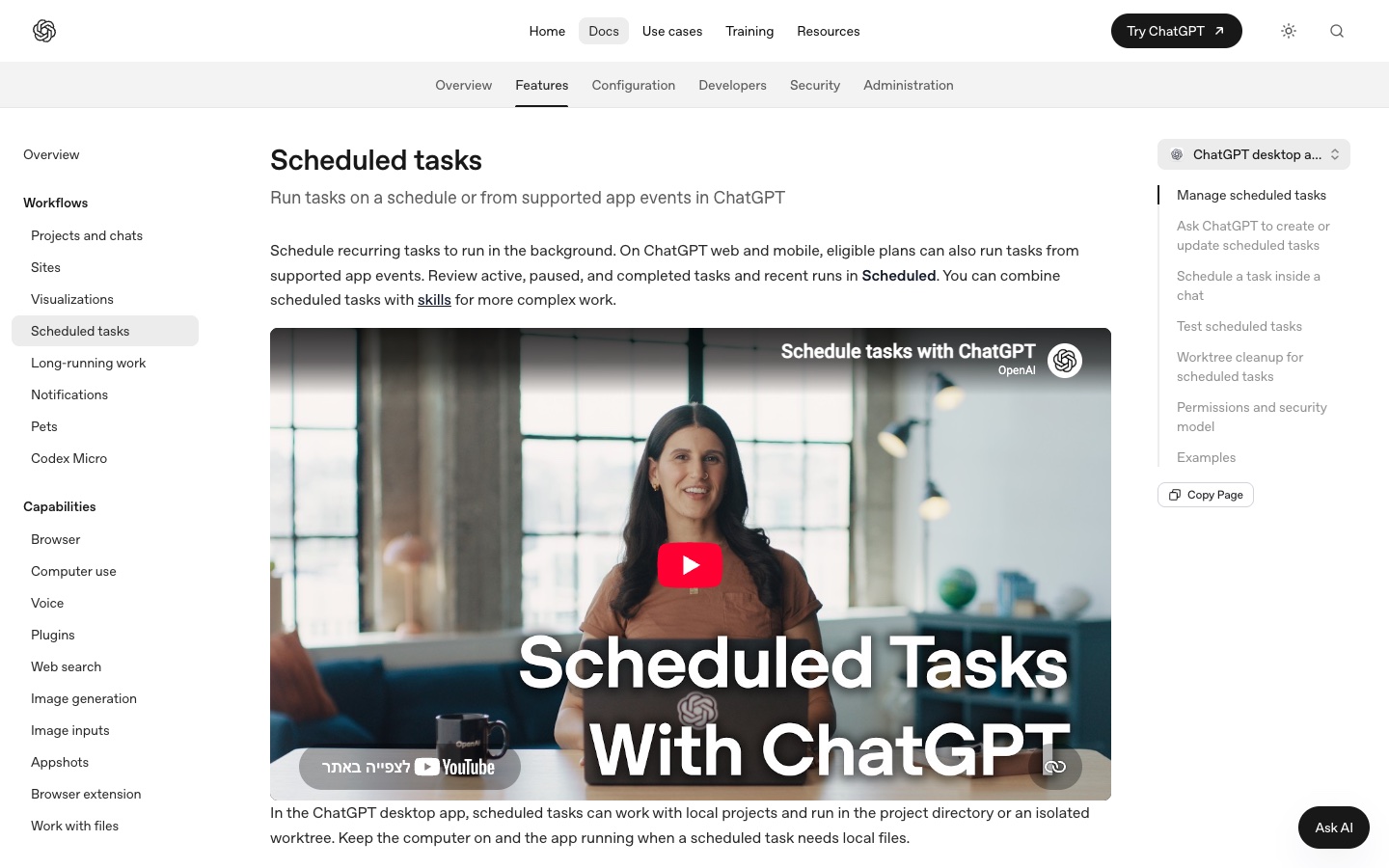 The Scheduled Tasks page. An important note from the documentation: a task that accesses local files requires the computer to stay on and the app to remain open. Screenshot: learn.chatgpt.com
A useful example for content creators and businesses in Israel:
Create a task to run every Sunday through Thursday at 07:00 in the Asia/Jerusalem timezone. Find three AI updates from the past 24 hours that are relevant to business owners in Israel. For each update, show what changed, the date, the primary source, and one article idea. Avoid repeating old news and flag when there is not enough information. Do not publish anything in my name.
After making the request, verify that a task was actually created and that the next scheduled run is correct. A promise in the conversation alone is not proof that scheduling exists. I made this mistake myself in another system: five sends were "scheduled" in a conversation, and not one went out, because the scheduling only lived as long as the conversation stayed open. Since then I always check the scheduled tasks list rather than trusting the confirmation message.
When a Cloud option is available, the documentation notes that cloud-based work can continue even after the application is closed or the computer is shut down. Local execution is chosen when access to files or applications on the computer is required.
Codex for Beginners: From the First Change to a Testable Result
A five-step practice path: understand, modify, test, summarize, and only then decide on deployment. To start, open the relevant code project in the Codex environment.
1. Understand the Project
Review the project and explain in Hebrew what it does, how to run it, and where the contact form is located. Do not modify any files at this stage. Note which instructions and tests already exist in the project.
2. Define a Small Change
Add validation to the contact form to check that the name and email fields are filled in and that the email format is valid. Display error messages in Hebrew next to the fields. Preserve the existing design and the existing form submission connection.
3. Test the Behavior
Test an empty form, an invalid email, and a valid submission in the test environment. Do not send a real inquiry to a customer. Show what was actually tested, what passed, and what could not be tested in the current environment.
4. Ask for a Summary Explanation
Explain what changed, which files were affected, how you tested the fix, and what limitations remain. Prepare the change for review before deployment.
5. Deploy Only After Verifying the Result
Before pushing to a live site, walk through the process yourself in a test environment. For a business project, adjust the review to match its complexity: data connections, permissions, payments, and data storage all require testing beyond how the page looks.
A working prototype is an important stage in development. Readiness for real use also requires defining the user audience, the operational infrastructure, and ongoing maintenance. Anyone who wants to go through this path with live guidance, with a real system running by the end of three hours, is welcome at the Intro to Claude Code session. The method is the same, the tool is different.
Can You Work from Your Phone?
Yes, in two ways: Work from the mobile app, or Remote to manage tasks running on a connected computer. Remote lets you start a task, send follow-up instructions, approve actions, and review results. Its availability depends on deployment and workspace settings.
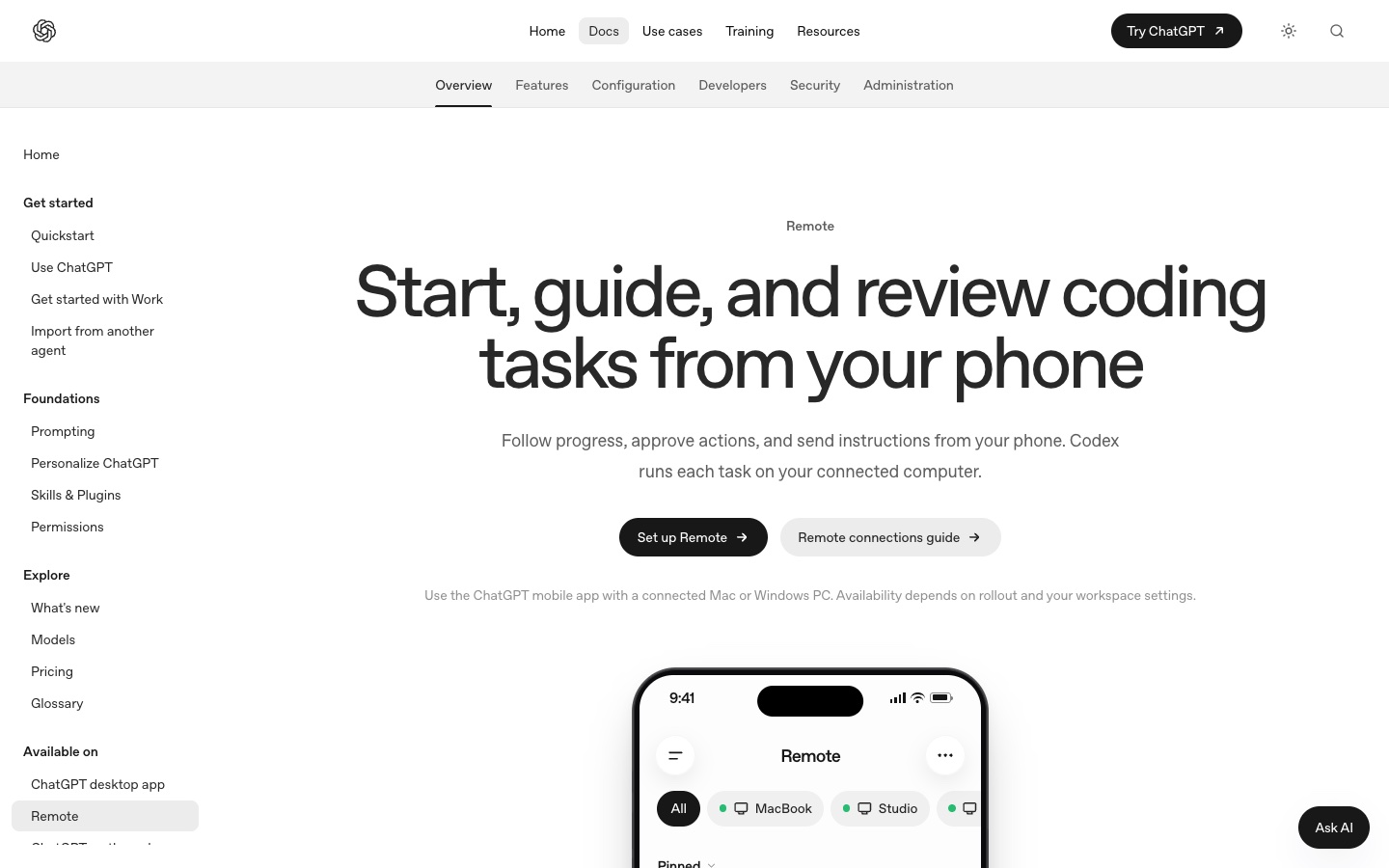 The Remote page in the documentation. Tasks run on the connected computer, and the phone is the remote: start, approve, and review. Screenshot: learn.chatgpt.com
According to the official guide, setup works as follows:
- On a Mac or Windows computer, open the ChatGPT application.
- Go to Settings, then Connections, then Control this Mac or PC, and choose Set up or Add.
- Complete the required authorization and authentication.
- Scan the QR code with your phone and sign in to the same account and workspace.
- In the mobile app, open Remote, select the computer, and start or continue a task.
The executing computer must stay awake and connected to the internet, and OpenAI emphasizes: only connect devices you own and trust.
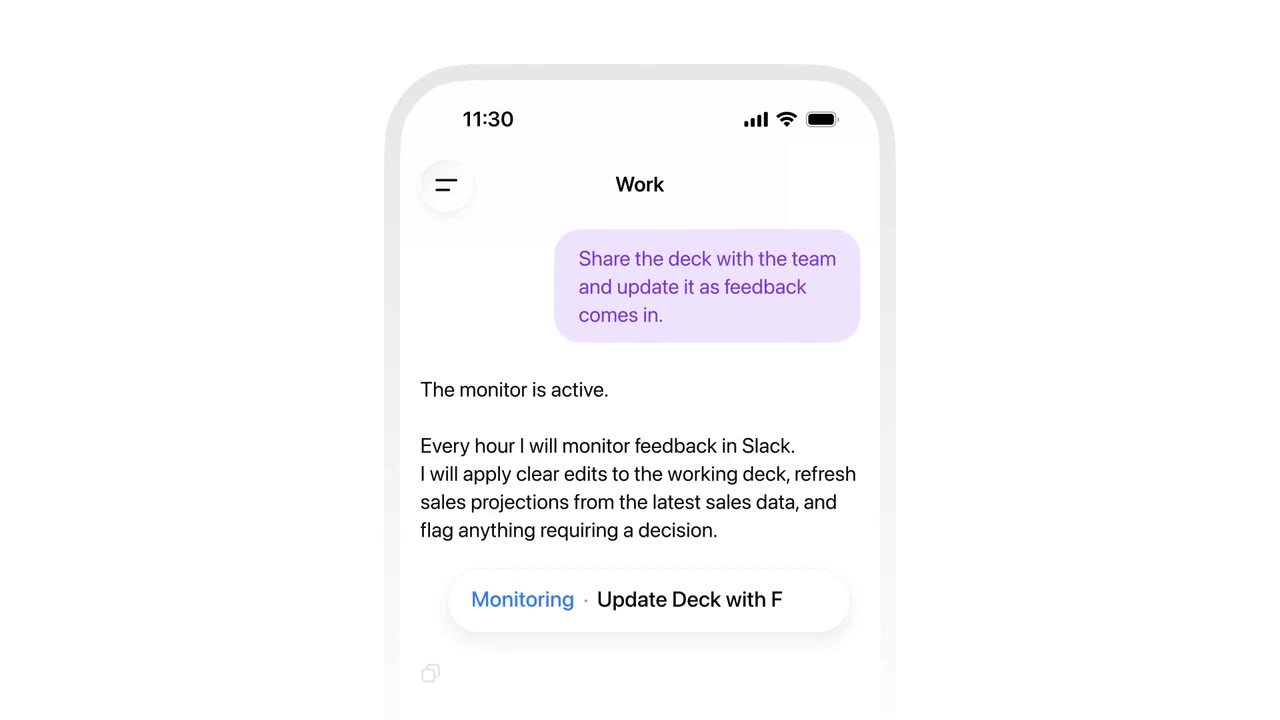 Work on mobile, from the tutorial video: a monitoring task running every hour and reporting back. Credit: OpenAI
An example request from the phone:
In the landing page project, check why the sign-up button is getting cut off on a narrow screen. Fix the layout, test it again, and show me a screenshot of the result. Stop before publishing.
What About Voice Instructions?
The official guide shows voice use in the desktop application to talk with ChatGPT while it works: developing an idea, requesting a deliverable, and directing corrections out loud. When a voice option is available in your interface, you can try:
I want to prepare a short presentation for a client meeting. I will walk through the background and his three problems now. Then organize the points and suggest a structure. Wait until I say I am done before you start preparing the presentation.
Even with a voice instruction, it is worth specifying file names, the goal of the task, and the desired output. Before any external action, double-check names, amounts, and dates that were transcribed. Do not assume from a desktop demonstration that all voice scenarios are available in every mobile interface.
Four Exercises You Can Apply in a Business
Four tasks that come up in almost every business, each with a ready-to-copy request. Execution involving an external service depends on the appropriate connection and permissions.
Preparing for a Sales Meeting
Read the attached conversation summaries and prepare a meeting prep sheet: the client's goal, what has already been promised, objections, five follow-up questions, and a possible next step. Flag contradictions between the summaries and do not invent information about the client.
Analyzing Leads
Analyze the attached leads file by source, date, and status. Show how many leads came in, how many became meetings, and how many became deals, based on the available data. Explain how you calculated each metric and flag records where information is missing.
Building a Content Calendar
Prepare a content calendar for next month from the attached list of client questions. For each item, show the topic, audience, central question, format, and call to action. Create a table that can be edited. Do not invent client stories or business results.
Prototyping a Business Tool
Build a Hebrew-language prototype of a service cost calculator based on hours worked and an hourly rate. Display the formula and the total. Add validation for missing input and negative numbers, and optimize for mobile. Use demo data only and prepare a preview.
Anyone who wants to go deeper on the first exercise will find a complete guide here on building an AI agent that handles leads, using the same logic of a testable deliverable.
What This Means for Your Business
This site is a signal. OpenAI is not teaching "how to ask good questions." It is teaching "how to hand off a task and evaluate the output." That is exactly the gap I see in organizations: most employees use AI as a glorified search engine, while very few actually delegate complete work to it, with source materials, a defined output format and a clear success criterion.
Before you lock your team into one tool, it is worth knowing when a different tool actually does the job better, especially for writing in Hebrew, analyzing long documents, and working with agents. I broke this down in depth in the comparison between Claude and ChatGPT, including when each one is the right choice.
Three questions for a two-minute self-assessment:
- Is there a task your team repeats every week that ends with a file? That is your first candidate for Work.
- Can anyone on your team describe what a "correct output" looks like, before the task is sent? If not, that is the part to solve first, not the tool.
- Does the person receiving the output know how to verify it? A well-formatted document that no one has validated is a risk, not a saving.
Frequently Asked Questions
Do you need to know how to code to get started with Work?
For the document, analysis and planning exercises here, there is no need to write code. You do need to know your materials and be able to judge whether the result actually serves the goal.
Can Codex help people who are not developers?
You can start with a small task described in plain language. The more complex the system, the more you need either the ability to review it yourself or a developer to look it over.
Are all the tools available in my account?
Do not assume that every capability shown on a training page is active for every user. Check what appears in your account, which integrations have been installed and what your workspace allows. For Remote, for example, OpenAI explicitly notes a dependency on deployment and organizational settings, and cloud browsing is not available on the Free and Go plans.
Do you need to leave your computer on?
For Remote, yes: the connected machine executes the task. Cloud execution is a separate path. When it is available and selected, it can continue running even when your computer is off.
How do you know a task was actually completed?
Check the output: open the file, run the form, verify the calculation, or look for a confirmation. Ask the system to distinguish between what it actually executed and what it only prepared or suggested.
Where should you start?
Pick a task you repeat regularly that has a simple, verifiable result, such as turning a meeting summary into an action list. Run it with real materials, correct the output and save the instructions that worked. Only then scale the process.
Your Exercise for Today
Choose one task you perform every week. Gather your source materials, define the output and copy the following request:
I want to complete the following task: [the task]. The source materials are [the files or links]. The required output is [the format and content]. The target audience is [the audience]. The constraints are [what to preserve and what to avoid]. Start from the available materials, flag any missing information and, when finished, present the output, what you verified and what still requires a decision from me.
Time your own review and correction process as well. That is how you identify where AI actually saves work, and choose the next process worth improving.
Sources
- ChatGPT Training, the official training page
- Get started with ChatGPT Work
- Quickstart
- Skills & Plugins
- Browser
- Scheduled tasks
- Codex Remote
The screenshots in this article are from learn.chatgpt.com as of September 8, 2026, and the frames are from OpenAI's official training videos, used for coverage and educational purposes. The interface and feature names may change between versions.
Yaakov Tzedek is an AI lecturer, consultant and organizational AI implementation specialist, and leads the largest Claude Code community in Israel.
Frequently asked questions

Yaakov Tzedek
An Israeli AI lecturer, consultant and implementer who has supported 100+ organizations in AI implementation and lectured for 200+. Official content partner of Meta, Google, Canva and TikTok, featured on Israel's Channel 13.
More about Yaakov →