- Install Claude Code in under 5 minutes: one command, sign in, and you're running. Full guide for Mac, Windows, and Linux, including common troubleshooting fixes.
Claude Code works exactly the same way on Mac, Windows (via WSL), and Linux. Same install command, same experience.
To install Claude Code you need three things: Node.js, a paid Claude subscription, and a terminal. The installation itself takes less than five minutes, and the process is nearly identical on Mac, Linux, and Windows (via WSL). Here is the complete guide.
Prerequisites
Before installing, make sure you have:
- Node.js (a current version), you can check with
node -v - A paid Claude subscription: Pro, Max, Team, or Enterprise
- A terminal: Terminal on Mac, or WSL on Windows
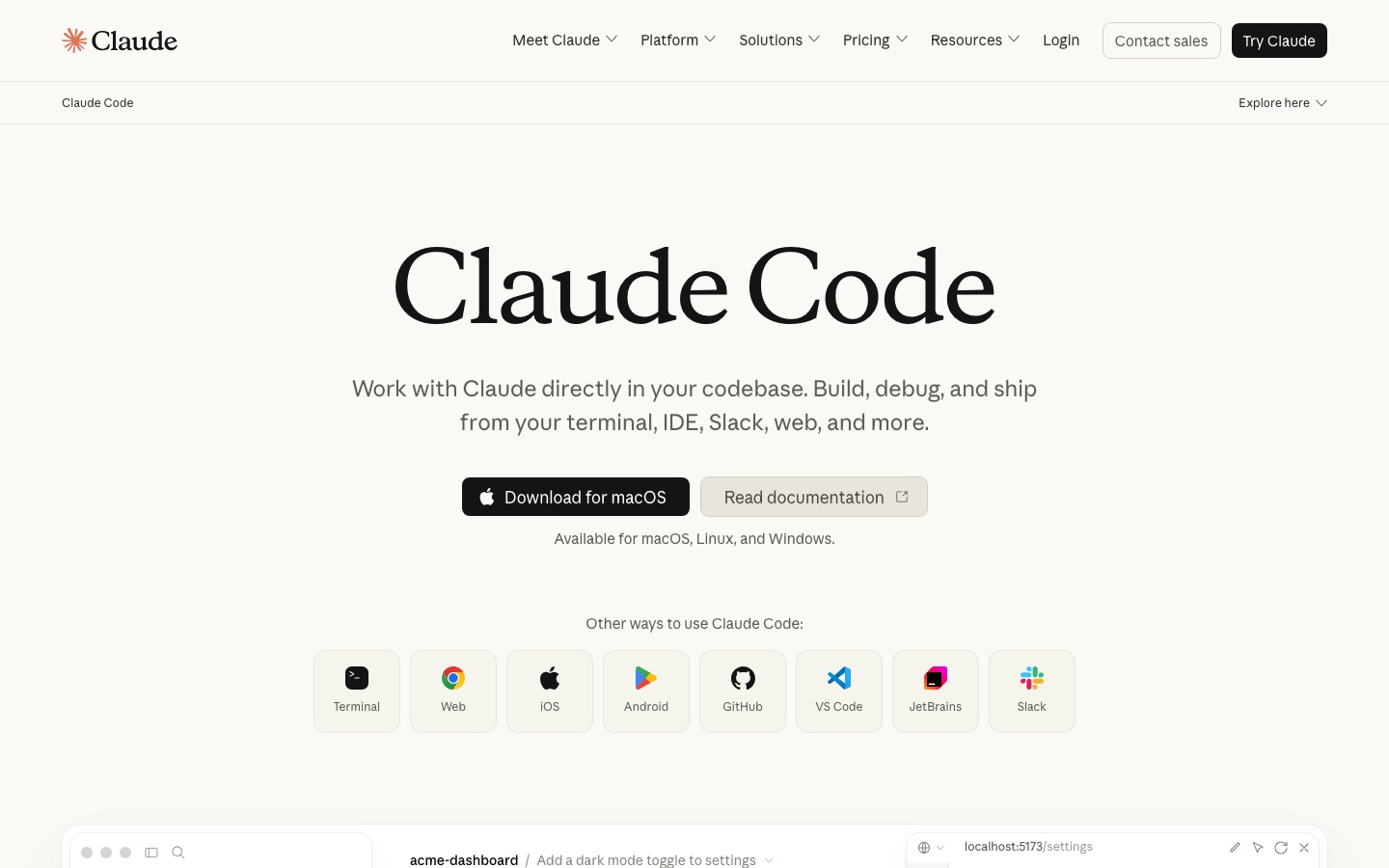 The official Claude Code website, photographed in September 2026. Credit: Claude Code
Installation Methods: Which One Should You Choose?
| Installation method | Best for | Notes |
|---|---|---|
| Anthropic's official install script | Most Mac and Linux users | The simplest approach, one command in the terminal |
| Global install via npm | Anyone already working with Node.js | npm install -g @anthropic-ai/claude-code |
| WSL on Windows | Windows users | Run either of the methods above inside a Linux terminal |
Not sure which to pick? Go with the official script. It also handles automatic updates down the road.
Installing on Mac and Linux
Open a terminal and run Anthropic's official install command. After installation, run claude inside your project folder and the login flow will open automatically in your browser.
# Check Node
node -v

# First run inside your project folder
claude
Installing on Windows
On Windows, the recommended approach is WSL (Windows Subsystem for Linux). Install WSL, open a Linux terminal, and follow the same steps as on Mac/Linux. This gives you the same stable experience.
Logging In to Your Account
On the first run, Claude Code will open a device login flow in your browser. Approve the code and that's it. The tool is connected to your Claude account and ready to use.
Verifying the Installation
Inside a project, give Claude a simple natural-language task, for example: "Explain what this file does." If it reads the files and responds, the installation was successful.
Troubleshooting Common Issues
Most installation problems are recurring, and the fixes are straightforward:
claude: command not found: Close and reopen your terminal. If that doesn't help, the install directory is probably not on your PATH. Reinstall using the official script, which sets that up for you.- Outdated Node version: If the npm installation fails with a version error, update Node.js to a current version and run it again.
- Permission errors (EACCES) with npm: Do not run with sudo. It is better to switch to the official install script, or configure npm to use a global packages folder inside your user directory.
- Login page doesn't open in the browser: Claude Code also displays a link in the terminal. Copy it manually into your browser and complete the authorization there.
- On Windows, "it's not working": Make sure you are running inside a WSL terminal (Ubuntu or similar) and not in PowerShell or CMD. Both installation and execution need to happen in the Linux environment.
- Hebrew displaying backwards in the terminal: This is a limitation of terminals with right-to-left text, not an installation issue. There are solutions for it, detailed in the guide on Hebrew and RTL in Claude.
Next Steps
Now that you have it installed, it is worth understanding what you can actually do with the tool. Read the complete Claude Code guide in Hebrew, add useful Skills, and connect external tools using the MCP guide in Hebrew.
Want your team working with Claude Code in practice? Join a hands-on AI workshop or talk to us about an implementation engagement.
Frequently asked questions

Yaakov Tzedek
An Israeli AI lecturer, consultant and implementer who has supported 100+ organizations in AI implementation and lectured for 200+. Official content partner of Meta, Google, Canva and TikTok, featured on Israel's Channel 13.
More about Yaakov →