
- Built with Claude Code, Lovable, Base44, or Cursor? Test your app using real user personas before launch, read the report, and fix issues with a ready-made prompt. Step-by-step guide with a launch checklist.
In Persqo's public testing mode, personas walk all the way to the checkout step and stop there. They do not complete a payment, so you need to test the checkout itself separately, with a small amount in your payment provider's test mode.
You built an app over the weekend. Maybe with Claude Code, maybe with Lovable, Base44 or Cursor. It looks great on your screen, and everything works. Then the first user shows up.
He can't register. The main button doesn't respond on his phone. The page loads slowly, and he closes it before seeing anything. And you don't even know it happened, because he simply never came back.
This guide explains why this happens to almost everyone who builds with AI, and how to test your system like a real user before launch. No coding knowledge required, and nothing technical to configure.
In short:
- Systems built with AI break mostly in the places you don't test: registration, mobile, slow internet, and a user who doesn't know what to do.
- Your own testing isn't enough, because you already know where to click.
- A persona is a simulated user with their own device, goal and patience. Three different personas catch far more than three rounds of testing by you.
- In Persqo you paste a URL, get personas, and each one runs a real browser session.
- The report gives you a screenshot for every step, a session recording, and a ready-made fix prompt for Claude Code or Cursor.
- You fix, run again, and repeat until every persona reaches their goal.
Why do AI-built systems break specifically with real users?
Because the AI builds what you asked for, and tests what you tested. It has no idea what will happen when someone else, with a different phone and a different pace, tries to use the system.
When you build, you're usually working on a computer, with a large screen, fast internet, and a user who's already logged in. That's the most comfortable setup possible. Your users will almost always arrive in a different situation.
Here are the failures that come up again and again:
Registration doesn't work
Sounds basic, but this is the most common failure. You're already registered, so you never actually go through the registration flow. Meanwhile, something in it has broken:
- The verification email doesn't arrive, or lands in spam.
- The link in the email leads to an error page.
- The phone field won't accept a number that starts with 0.
- After registering, the user is left on a blank screen with no idea what to do next.
Dead buttons
A button that looks fine, but nothing happens when you click it. Sometimes it only works after the full page has loaded. Sometimes it works on desktop and not on mobile. Sometimes it submits the form twice.
The user doesn't know there's a bug. He thinks he did something wrong, and leaves.
Broken mobile
Many of your users will come in from their phones. And on a phone, things surface that you'd never see on a desktop:
- Text that overflows the screen and forces horizontal scrolling.
- A menu that covers the important button.
- A popup that can't be closed because the X is off-screen.
- A keyboard that covers the input field.
Slow loading
On your end, the page loads fast because it's already cached in your browser and your internet is quick. For a new user on a mobile connection, that same page can take much longer to load. One heavy image or a script that loads before the content is enough to make them give up.
A user who doesn't know what to do
This is the hardest failure to spot, because nothing is "broken." Everything works, but the user stares at the screen and has no idea what the first step is. There's no clear button, there are too many options, or the language only makes sense to whoever built the system.
The bottom line: most of these failures don't show up when you test, because you're not a new user. And that's exactly why you need a different kind of testing.
What is "user testing," and why isn't your own testing enough?
User testing is a situation where someone who didn't build the system tries to use it, without help, and you watch where they get stuck. You don't ask for their opinion. You watch what they do.
When you test the system yourself, you bring three advantages that no user has:
- You know where to click. You're not searching for the button, you just click it.
- You know what the system is supposed to do. So even when something is unclear, your brain fills in the gaps.
- You're forgiving. When something loads slowly, you wait. A new user doesn't owe you anything.
It's like proofreading text you wrote yourself. You read what you meant to write, not what's actually written.
The classic solution is to ask friends to try it. That helps, but it has a few problems: they're too polite, they don't always report exactly what happened, and after every fix you need to ask them again. That's exactly where personas come in.
What are personas, and how do you choose the right ones for your product?
A persona is a character representing a typical user: who they are, what device they're coming from, what they want to accomplish, and how much patience they have. Instead of testing "whether the system works," you test "whether this user can get what they came for."
Here are three examples:
Maya, on an iPhone, looking for how to get started
Maya saw an ad and came in from her phone. She's not particularly tech-savvy, and she wants to understand within a minute what this is and how to get started. If she can't find a clear "Get started" button, she leaves.
What Maya catches: buttons that are too small on mobile, text that overflows the screen, a homepage that doesn't say what to do, and a registration flow that's too long.
Omer, on a laptop, looking for the price
Omer is comparing a few tools, and he has one question: how much does it cost. He'll come in, look for the pricing page, and if he can't find it within a few clicks, he'll move on to the next tool.
What Omer catches: a pricing page that's hard to find, broken links in the navigation, unclear pricing, and a "Sign up" button that doesn't work from the pricing page.
Lena, on Android, with slow internet
Lena is coming in from a bus, with weak signal. She's willing to wait a little, but not much. She'll try to complete the core action in the system.
What Lena catches: pages that load slowly, heavy images, errors that only occur when the connection is slow, and buttons that don't respond because the page hasn't finished loading.
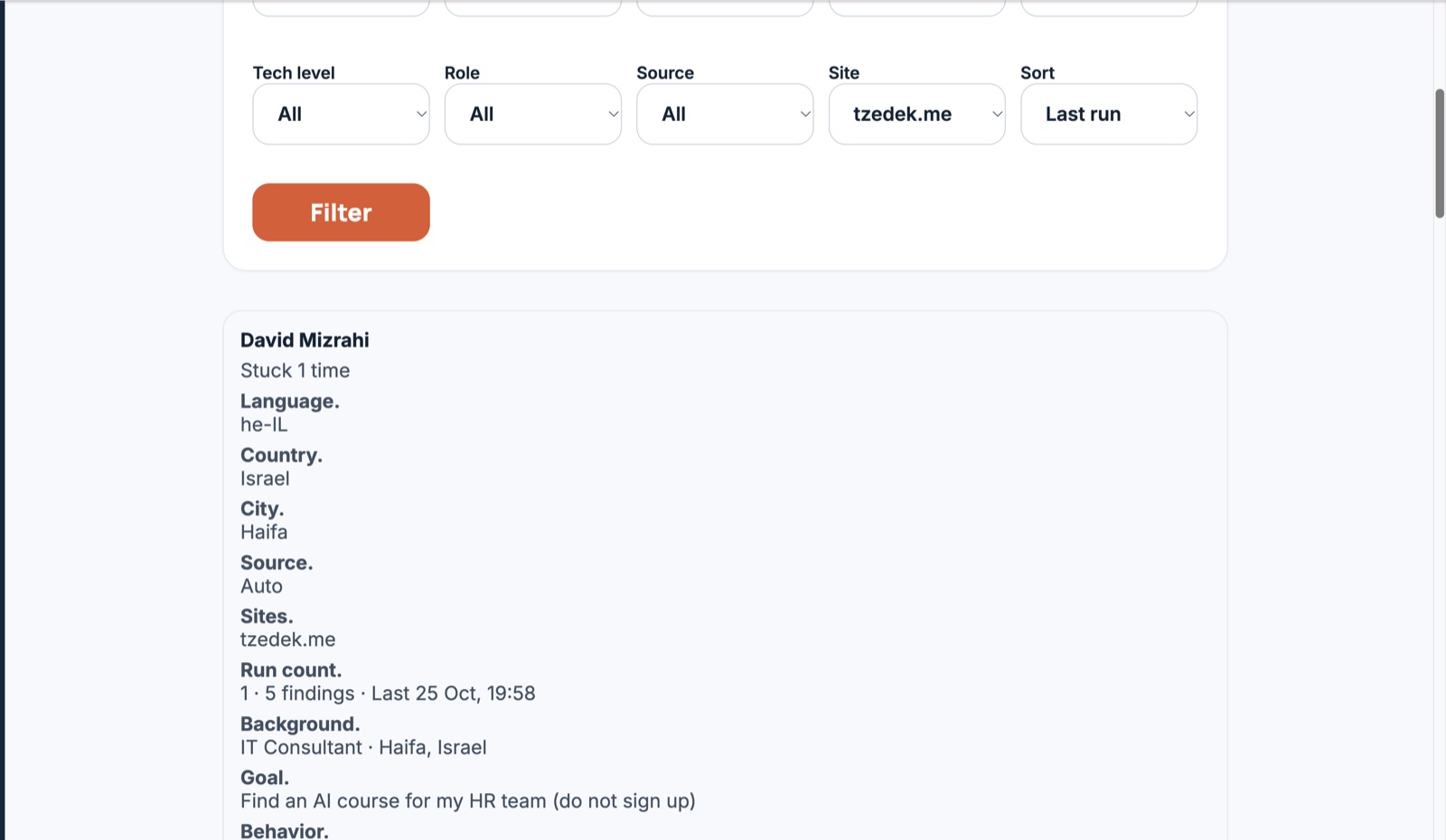
The personas library: each persona has a language, location, device, goal and run history. Screenshot: Persqo
How do you choose the right personas?
Ask yourself three questions:
- Who will actually arrive at the system? Not who you'd like to arrive, but who will actually show up. Small business owners? Students? Managers at large companies?
- From what device? If you're advertising on Instagram, most users will come from their phones. If you're selling to businesses, more will come from a computer.
- What do they want to do on their first visit? Register? See a price? Try the core feature? Each of those goals is a persona.
Example: You built an appointment-scheduling system for clinics. The first persona is a 45-year-old clinic owner on a desktop, who wants to understand how much it costs. The second is a patient on her phone, who wants to book an appointment without registering. The third is a receptionist with slow office internet, who needs to reschedule an appointment to a different time. Three goals, three paths, and three different places where the system can break.
Tip: Don't choose three similar personas. Better to have one on mobile, one on desktop, and one under difficult conditions, with three different goals. That way each one tests a different part of the system.
Do your users come from other countries?
Every persona in Persqo has a language and location, and you can edit them. That's how you build a persona for a user from wherever your users actually come from.
This matters especially if your site is in multiple languages, or if you're selling to an audience abroad. A persona like that catches things you'd never see from your computer in Israel:
- Text that wasn't translated, or a mix of Hebrew and English on the same screen.
- A price in the wrong currency, or a date in a format the user doesn't recognize.
- A site that redirects to the wrong version based on country.
- A form that won't accept a phone number or postal code from abroad.
Example: a persona from Berlin who speaks German and tries to register, and a persona from Tel Aviv who speaks Hebrew and is looking for a price. The same site, two completely different experiences.
How to run a test with Persqo, step by step
Persqo sends AI agents with personas into your app, in a real browser, and they try to reach a goal the way new users would. At the end you get a report showing what broke and how to fix it.
To keep things concrete, I ran a real test on this site, tzedek.me. Three personas, three goals, and a full report. Every screenshot in this guide comes from that test. Here's the entire process in a two-minute silent video with subtitles:
Your first test in 10 minutes: what to do at each step
Step 1: Sign in and paste your URL
Go to persqo.com/builders, paste your app's URL and your email address, and click the button. No credit card required. You'll get a link by email, and clicking it opens your account.
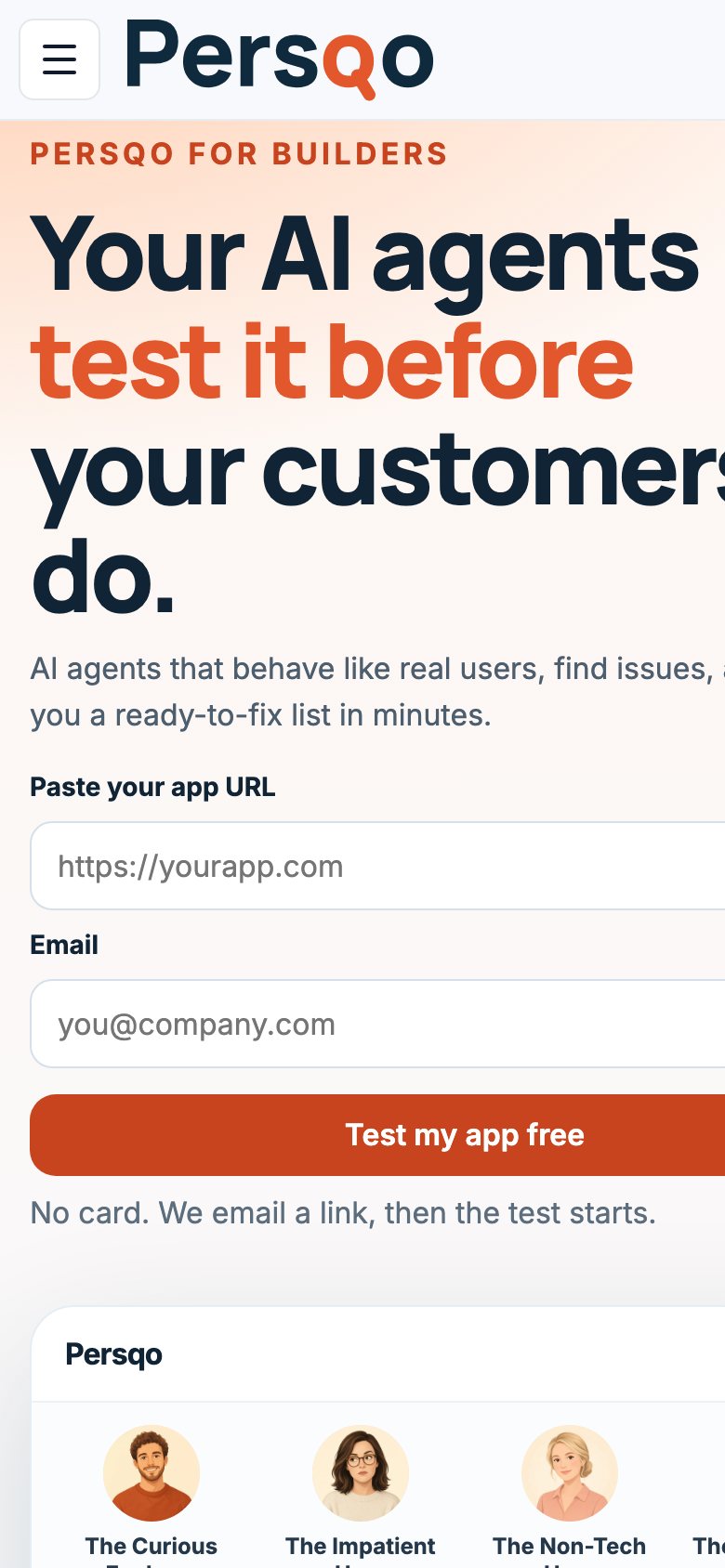
The sign-up page on mobile: URL, email, button. Screenshot: Persqo
Inside the account, every new test starts with the New test button. Open the card, confirm the URL is correct, and click Start test.
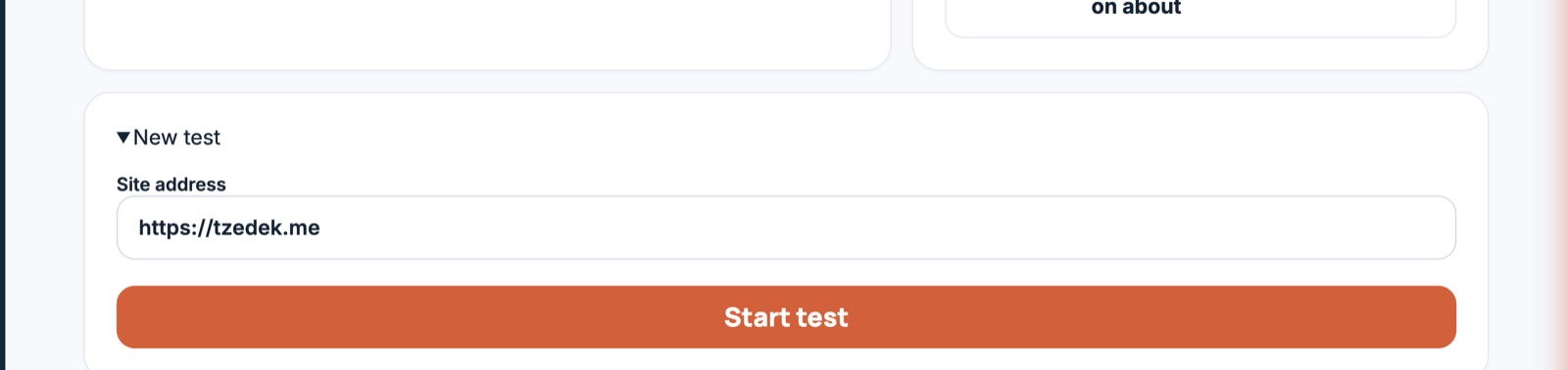
New test card: one URL, one button. Screenshot: Persqo
Step 2: Review the personas Persqo drafted
After a few seconds Persqo reads your site and drafts three personas. In our case it detected the site was in Hebrew, so all three received the language he-IL and an Israeli city. Each persona has a name, role, goal, tech level, device, language, country, and city. Every field is editable.
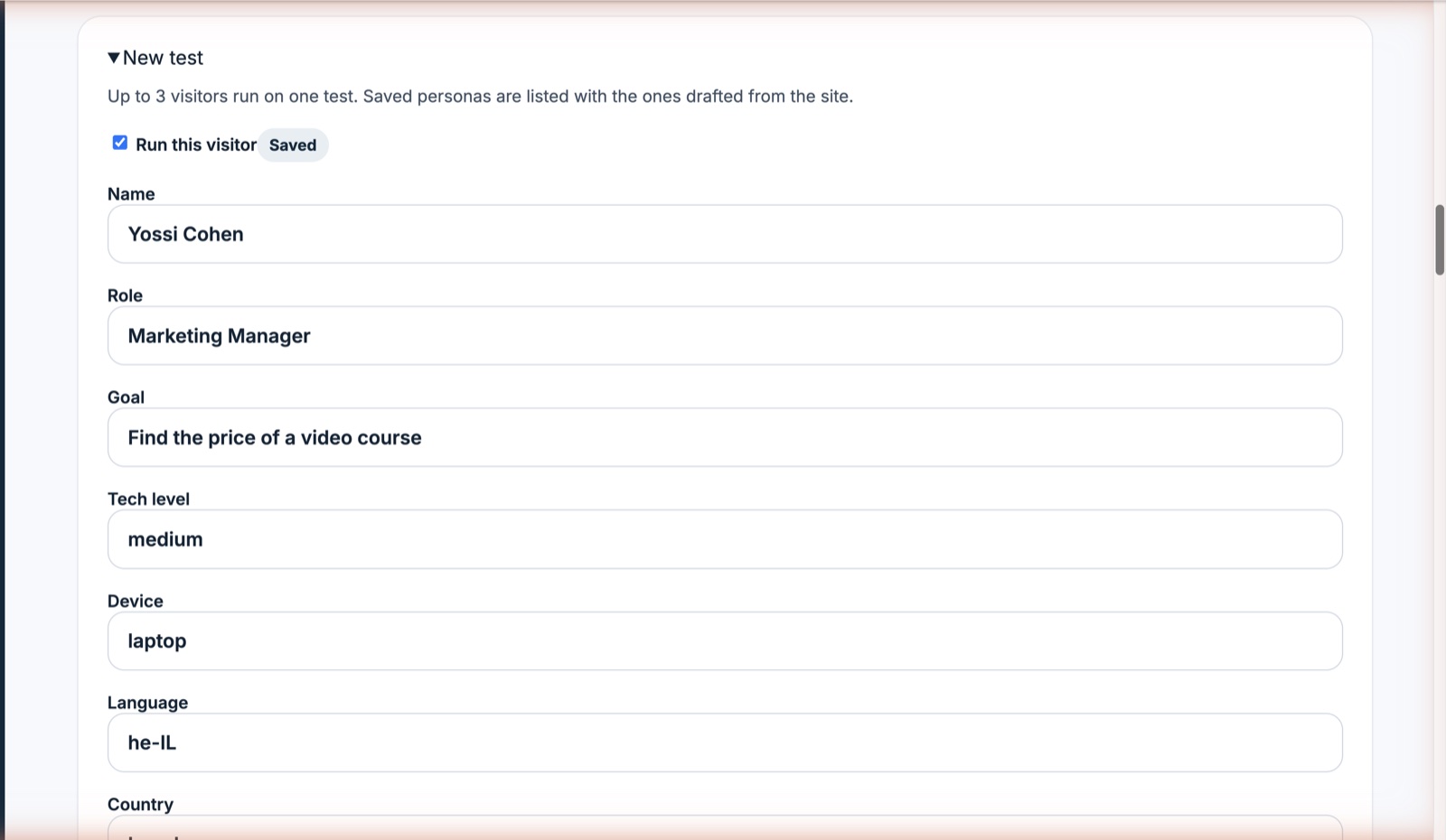
A persona before the run: change the goal to whatever matters to you. Screenshot: Persqo
This is where most of the value is. The goals Persqo drafts on its own tend to be generic, things like Find pricing or Sign up. One of our auto-generated goals was to click the "Skip to content" link, which is not what a real visitor does. So we rewrote all three goals:
| Persona | Device | The goal we wrote |
|---|---|---|
| Yossi, Marketing Manager | Laptop | Find the price of a video course |
| Sarah, Student, low tech level | Android | Find how to book a workshop |
| David, IT Consultant | Laptop | Find an AI course for my HR team |
Tip: Write a short goal in plain English, no parentheses. Persqo uses the goal text in finding headings, and a long goal with parentheses got truncated into an unclear heading in our test.
Personas are saved. In the next test they appear again in the list alongside new ones, and you can select which ones to run. Up to three per test.
Step 3: Click Start test and watch in real time
Immediately after clicking, a Testers are working screen opens. For each persona you can see its current stage (queued, opening browser, browsing, writing report, done), the page it's on right now, how much time has passed, how much it cost, and a live view of its screen.
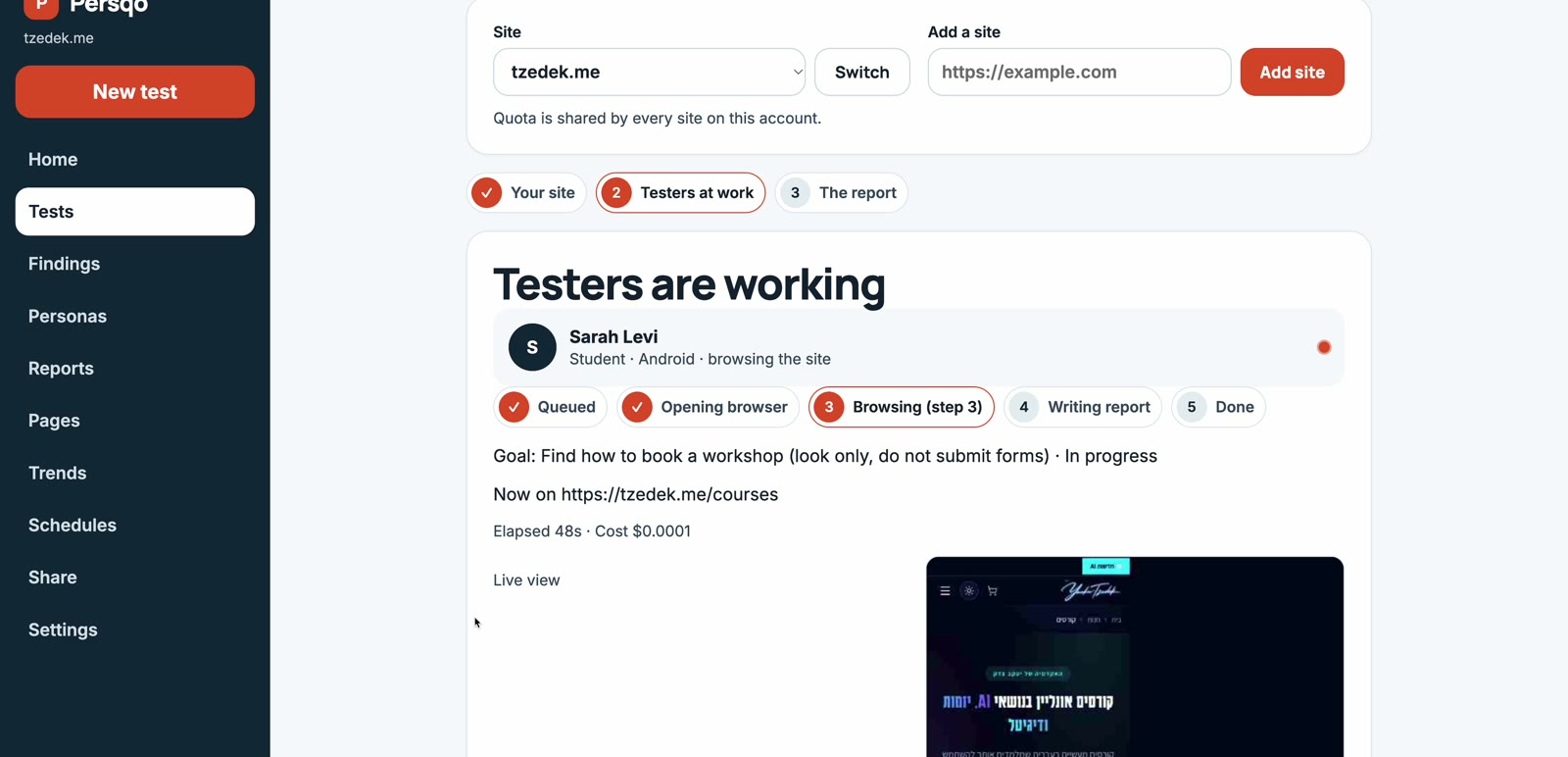
During the test: you can see where each persona is and what it sees. Screenshot: Persqo
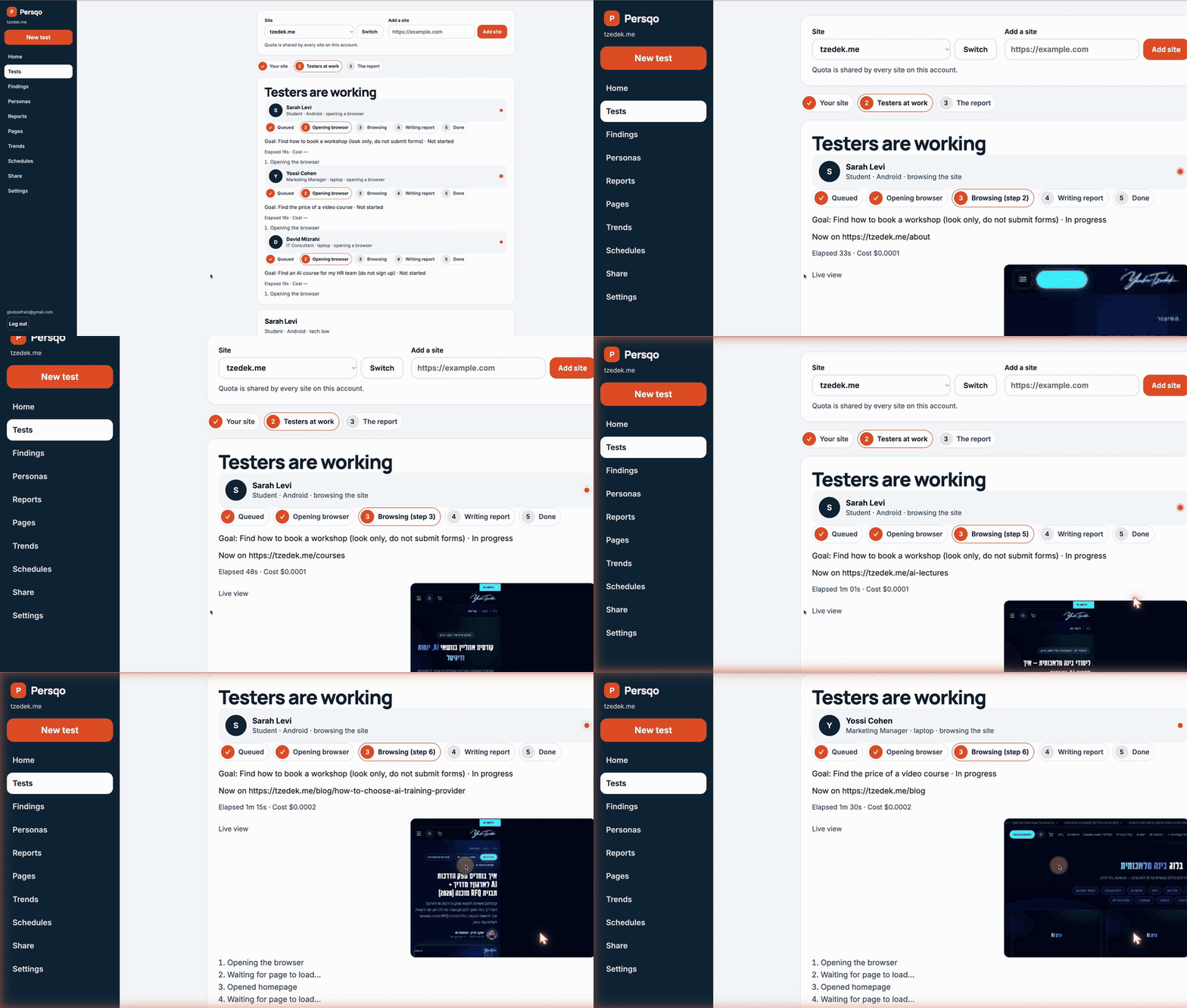
The live test at speed: personas navigating between pages. Screen recording: Persqo
In our case the entire test, three personas running in parallel, took about two minutes. The whole run counted as a single test against the quota.
Step 4: Read the report
When all personas finish, the screen becomes Here's the report. At the top: a result for each persona. Either it reached the goal, or it got stuck and on which page.
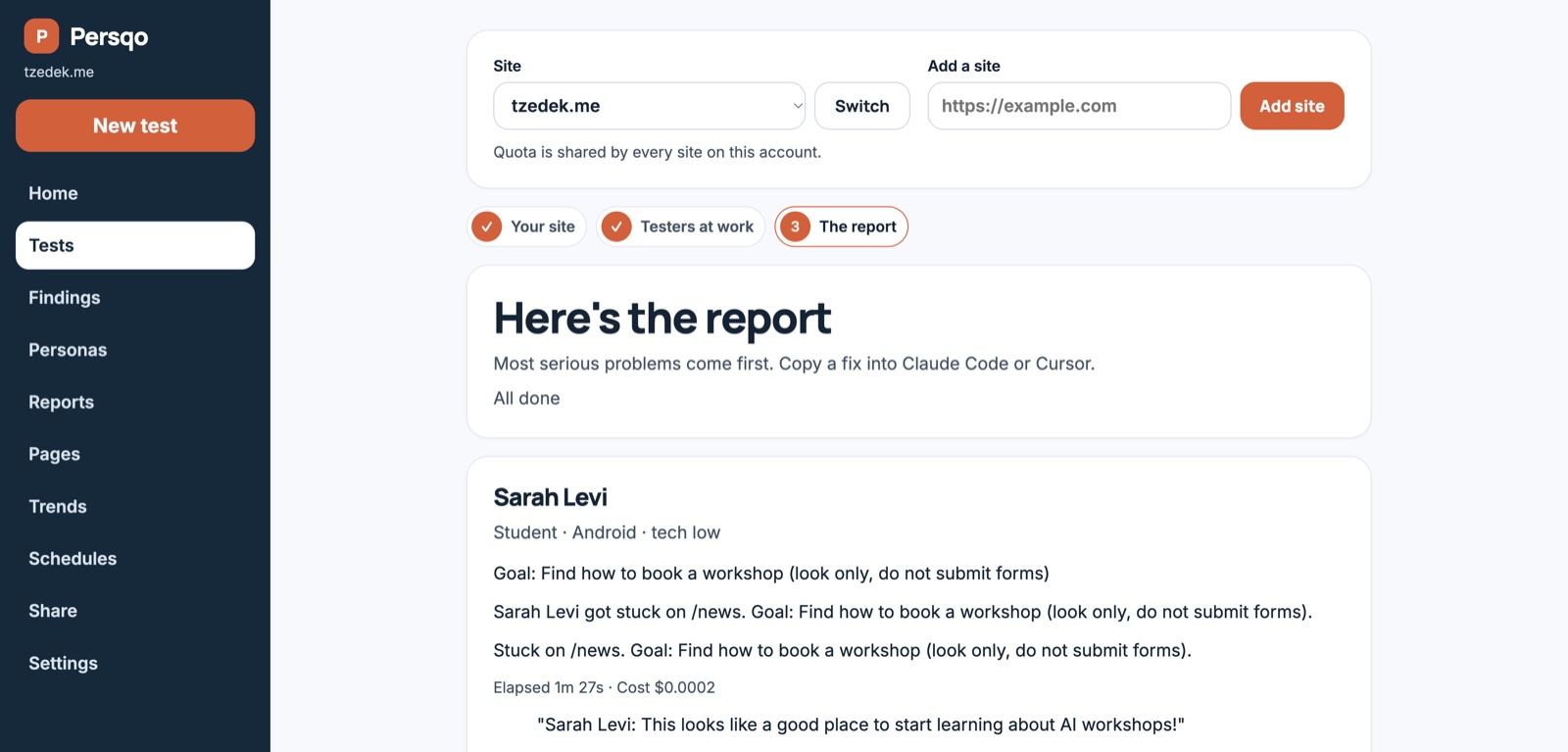
Top of the report: who reached the goal, who got stuck, and where. Screenshot: Persqo
In our test none of the three personas reached their goal. Yossi couldn't find the price of a video course, Sarah couldn't find how to book a workshop, and David got stuck on the contact page. This is exactly the kind of information you don't get when you test your own site: we know where the prices are, so we don't go looking for them.
How to read each section of the report, and what to do with it, is covered in the next section.
Step 5: Copy the fix prompt, make the fix, and run again
Copy the prompt, paste it into Claude Code or Cursor, push the fix, and run the same personas again. The details are in the section on the fix loop.
No DNS changes, no technical setup
When testing a public app you don't need to change anything in your code, add a DNS record, or install anything. Paste a URL and you're done. tzedek.me isn't even verified in Persqo, and the test ran on it without any issues.
Want the personas to reach areas behind a login wall? In the settings there's a form for a test user: the URL of the login page, the email and password of a test account, and a confirmation that you're authorized to test the site. According to Persqo the password is stored encrypted and used only for that site. Always use a test account with dummy data, never a real account.
How do you read the report?
The report is built so you can understand what broke in a minute and fix it in a few minutes. Here is every section, with the real example from the tzedek.me test.
What each persona was thinking at every step
Each persona has a list of its thoughts in the first person, followed by a list of steps: which page it opened, when it opened the menu, when it checked the footer, when it looked for a search box, and when it checked how the page looked at mobile width.
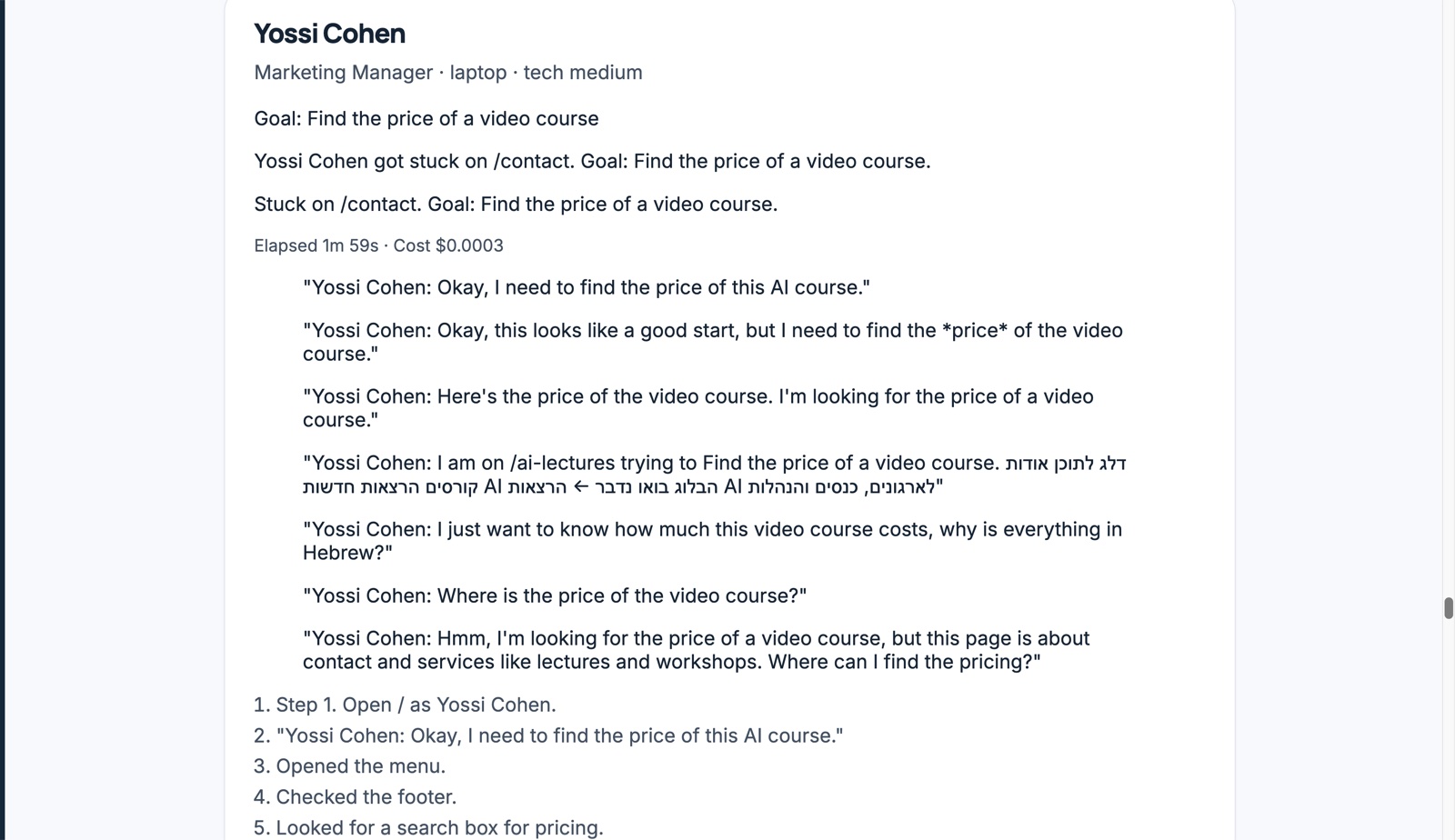
Yossi's thoughts: "Where is the price of the video course?" Screenshot: Persqo
These thoughts are worth their weight in gold because they read like a real user. Yossi wrote, for example: "I just want to know how much this video course costs." He went through the home page, about, courses, lectures, news, blog, and contact, and found nothing.
Note: The thoughts are written by AI and are not always consistent. At one step Yossi "thought" he had found the price, yet kept searching and got stuck anyway. Trust the steps and the final result more than any single sentence.
A screenshot for every step
Below the steps there is a grid of screenshots, one for each page the persona opened. Clicking a screenshot opens it full size; clicking outside the image closes it.

Screenshots from the session: exactly what the persona saw. Screenshot: Persqo
Findings by severity
Every finding is assigned a severity level: Critical, Major, or Minor. A critical finding completely blocks a user, like a broken sign-up flow. A minor finding is annoying but not a blocker.
Always start with the most severe. One critical bug in the sign-up flow is worth more than twenty small fixes.
Each finding card has three fixed sections: Steps to reproduce (what the persona did), What happened (what occurred), and Suggested fix (what to change), with the screenshot from that moment below them.
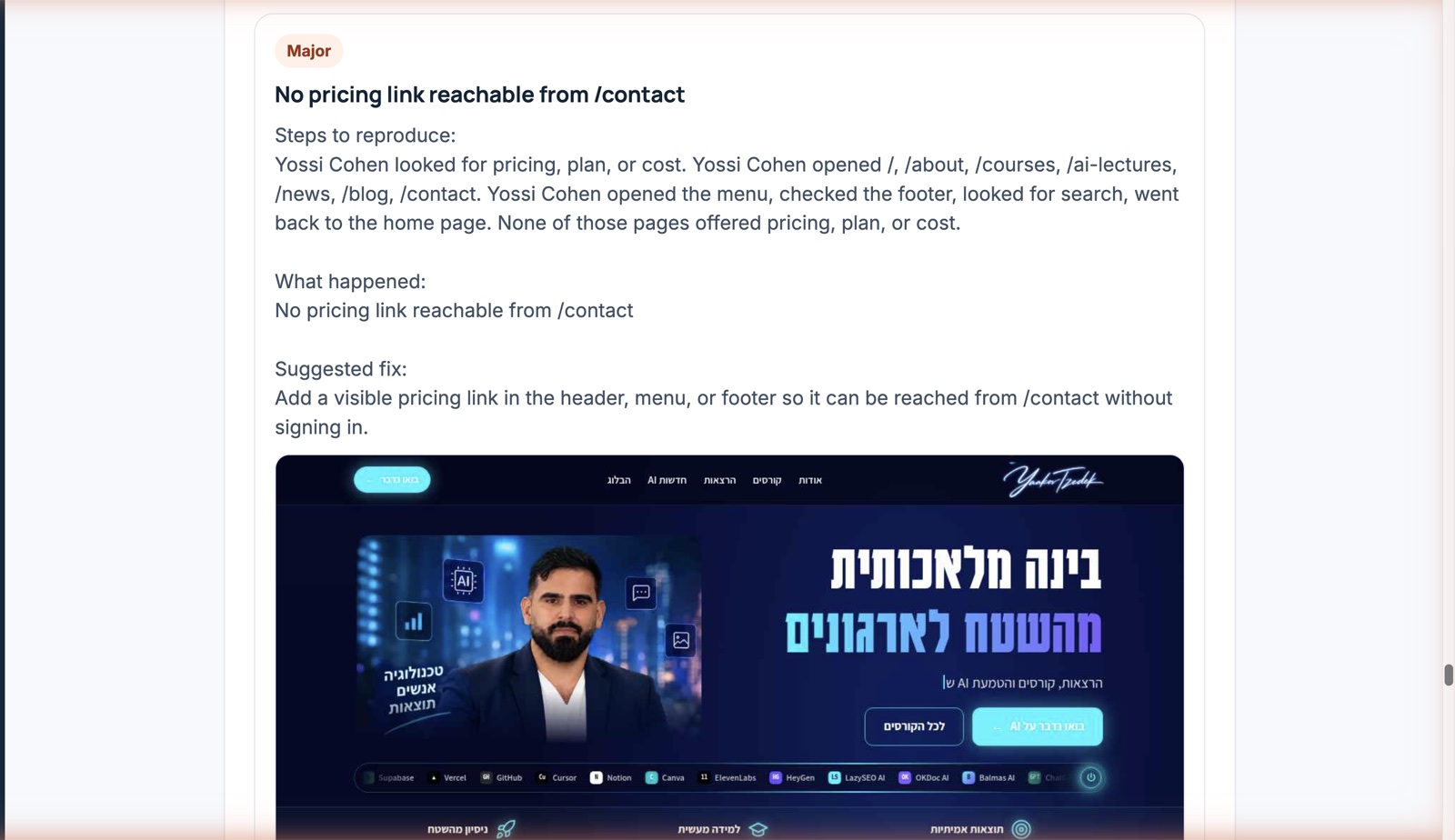
The main finding from our test: no link to pricing. Screenshot: Persqo
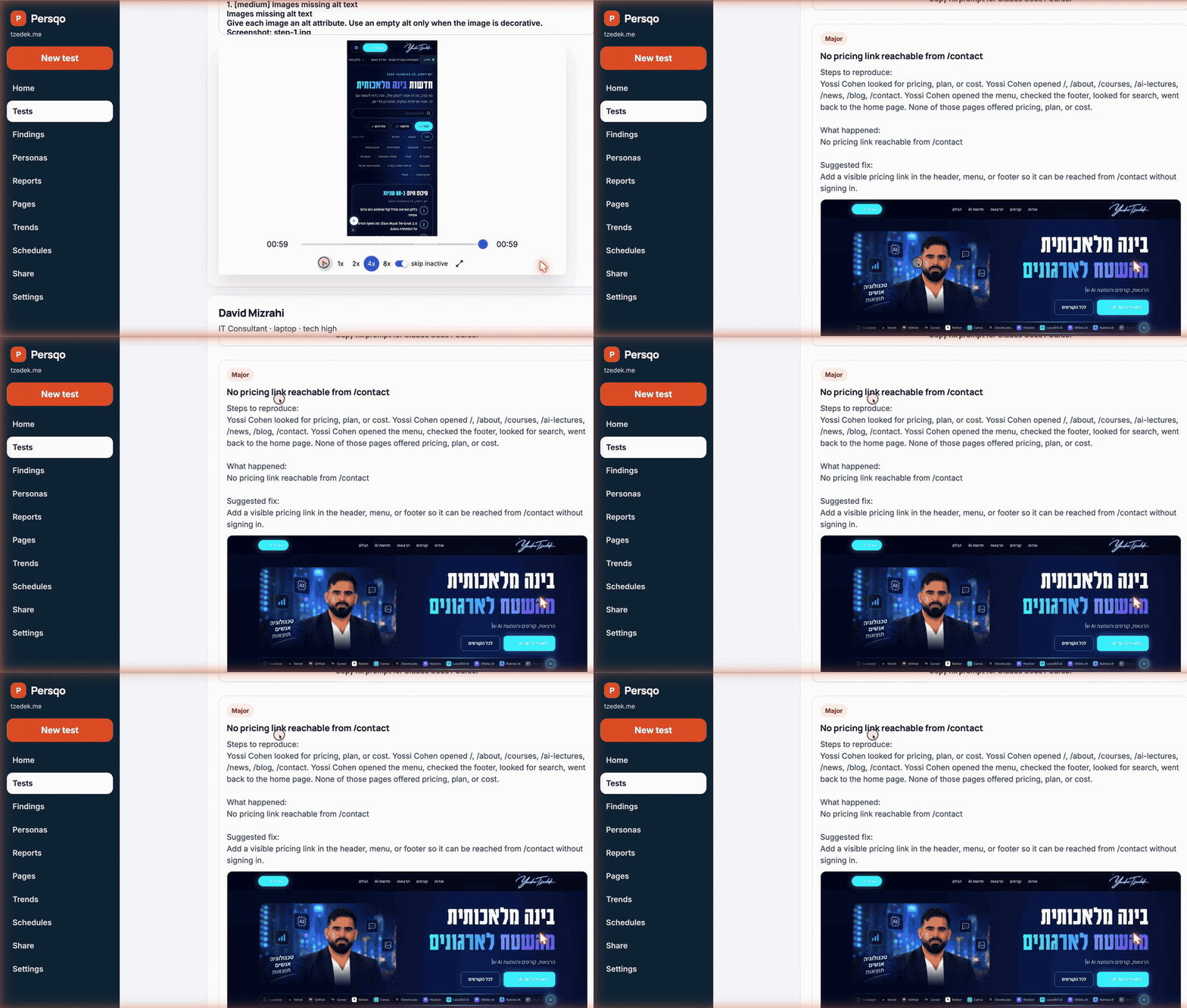
Scrolling through the finding card as it appears in the report. Screen recording: Persqo
A real example: what Persqo found on our site
The test on tzedek.me returned a health score of 77 out of 100 for Yossi's session, with five Major findings:
- No pricing link reachable from /contact. Yossi searched for a price across seven pages, opened the menu, and checked the footer, and found no page or link containing the words price, plan, or cost. The suggestion: add a clear link to pricing in the menu or footer.
- Slow Loading Course Page. The courses page loaded slowly.
- Slow Loading Blog Page. The blog page as well.
- Images missing alt text. Images with no alternative text.
- Unlabeled fields. Form fields with no label.
The first finding is the most important, and also the most interesting. The price does appear on the site: the courses page has a button that shows the price of the video courses. Yossi even visited that page. But there is no menu link called "pricing," and the button did not read as an answer to his question, so he kept searching and got stuck.
That is exactly the lesson: a finding does not always mean something is missing. Sometimes it means something exists, but not in the place or the wording a new user is looking for. A tester who already knows the site would never have caught this, because they know where the button is. That is why you should check every finding yourself before making a fix: open the screenshot, go through the steps, and decide.
A ready-made fix prompt
Each finding has a button labeled "Copy fix prompt for Claude Code / Cursor." Clicking it copies all the findings for the session as a numbered list, with the steps and the suggested fix. There is also a box below the findings called "Claude Code fix prompt," containing one summary prompt for the entire session.
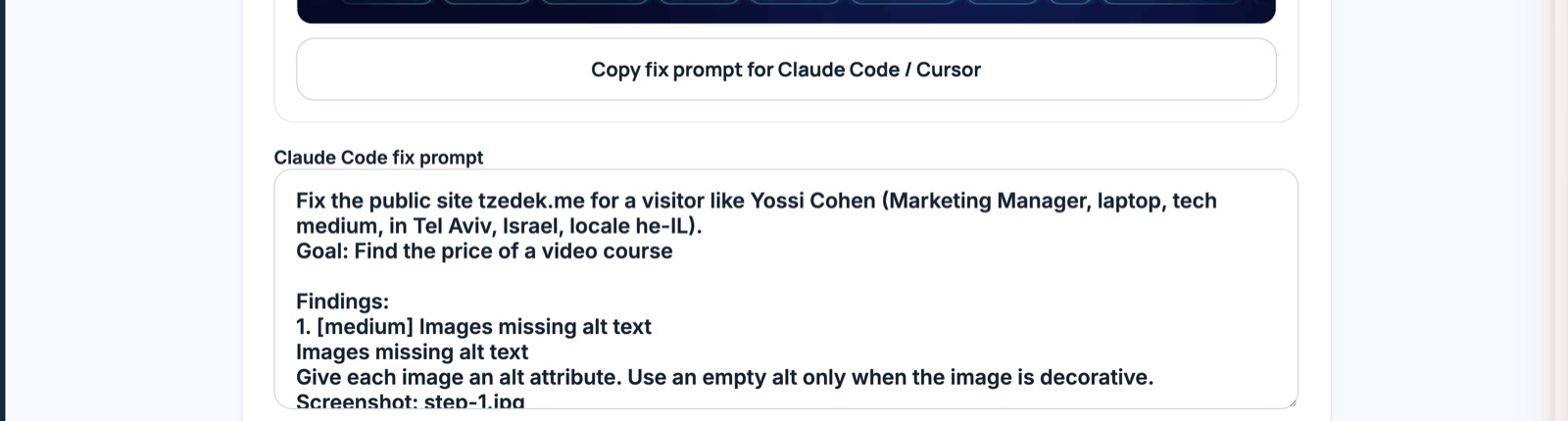
The summary prompt: the site, the persona, the goal, and all the findings. Screenshot: Persqo
Here is how the prompt we received begins (abbreviated):
Fix the public site tzedek.me for a visitor like Yossi Cohen
(Marketing Manager, laptop, tech medium, in Tel Aviv, Israel, locale he-IL).
Goal: Find the price of a video course

Findings:
5. [high] No pricing link reachable from /contact
Add a visible pricing link in the header, menu, or footer so it can be
reached from /contact without signing in.
Copy it, paste it into Claude Code or Cursor, and let the tool make the fix.
Session replay
You can watch the entire session from start to finish, like a screen recording of a real user. There is a player with a timeline, speeds from 1x to 8x, and the ability to skip moments with no activity.
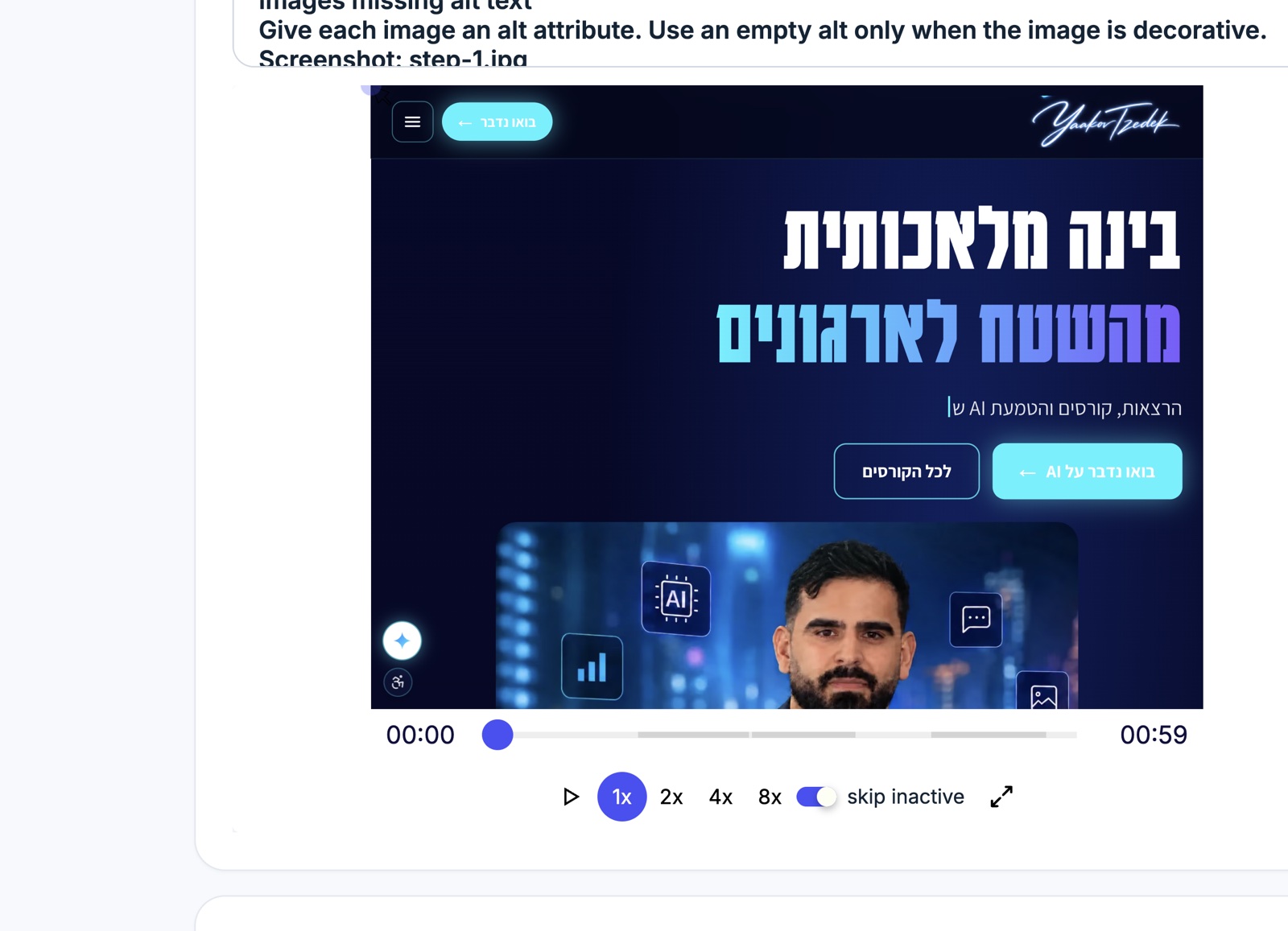
The replay player: 59 seconds of session, watchable at 4x. Screenshot: Persqo
Tip: Watch the recording at least once, even if the report seems clear to you. You will see exactly where the persona hesitated and where it looked for a button in the wrong place.
Note: On Hebrew-language sites the recording sometimes displays Hebrew text in reverse. The step screenshots are displayed correctly, so when something in the recording is unclear, refer to the screenshot for that step.
The site health score
After every test, the dashboard updates the site health score: a number from 0 to 100, the change since the previous test, and the number of findings by severity. According to Persqo, the score starts at 100 and drops based on open findings, with a critical finding bringing it down more than any other type.
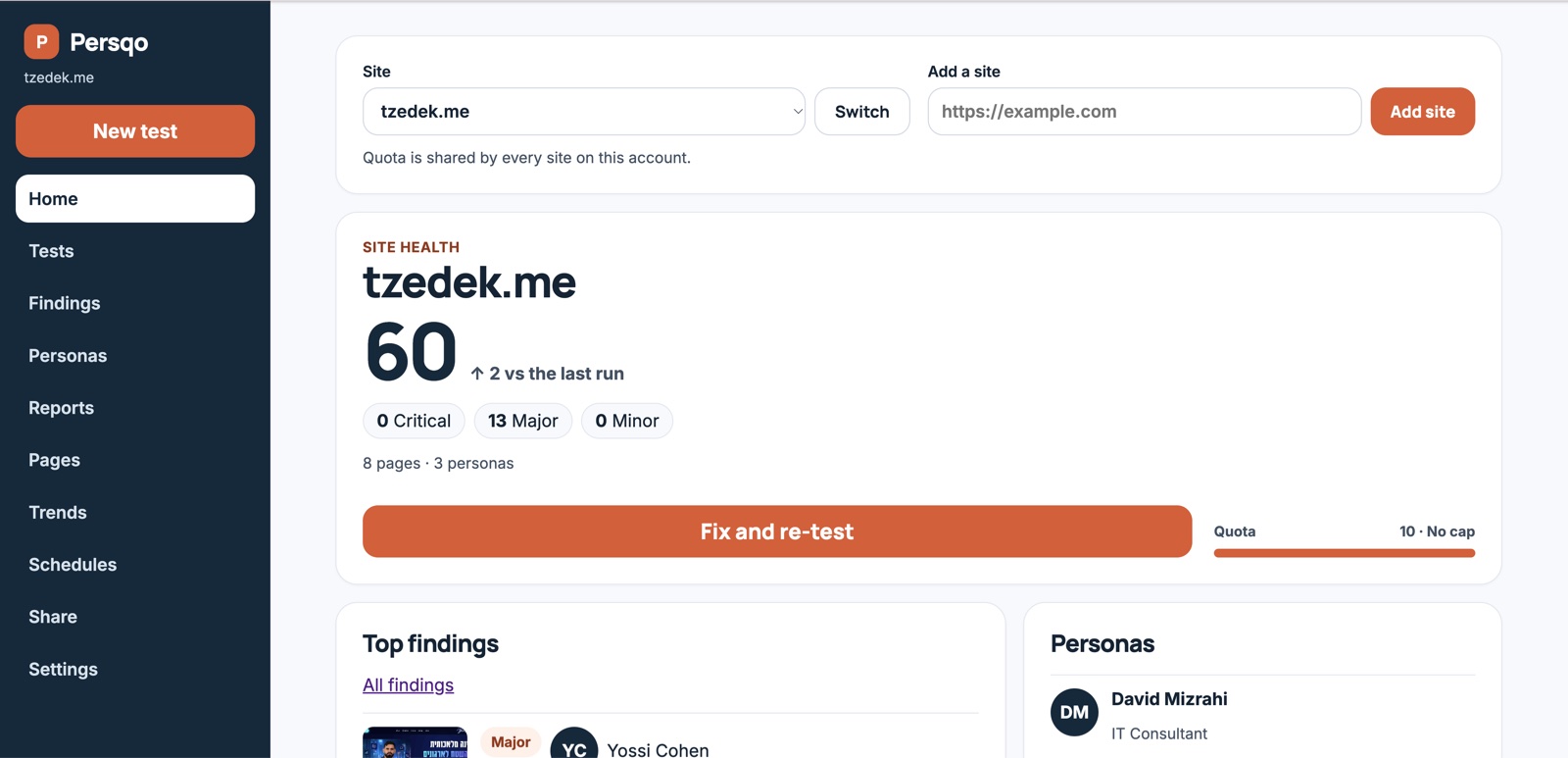
The overall site health score after several tests. Screenshot: Persqo
What else is in the dashboard
- Findings: All findings from all tests, filterable by severity, page, persona, country, city, language, device, tech level, role, and status. Each finding has a "Mark fixed" button, a "Mark ignored" button, and the option to re-test that specific finding alone, with a choice of language, country, and city.
- Personas: A library of all the personas that have run, how many times they got stuck, how many findings they surfaced, and their run history.
- Pages: Every page opened during tests, with a score and finding count for each.
- Trends: A score graph over time, findings opened versus findings closed, and a comparison between two runs.
- Share: A read-only link for a client, or a download of the report as a PDF. The link can be revoked at any time.
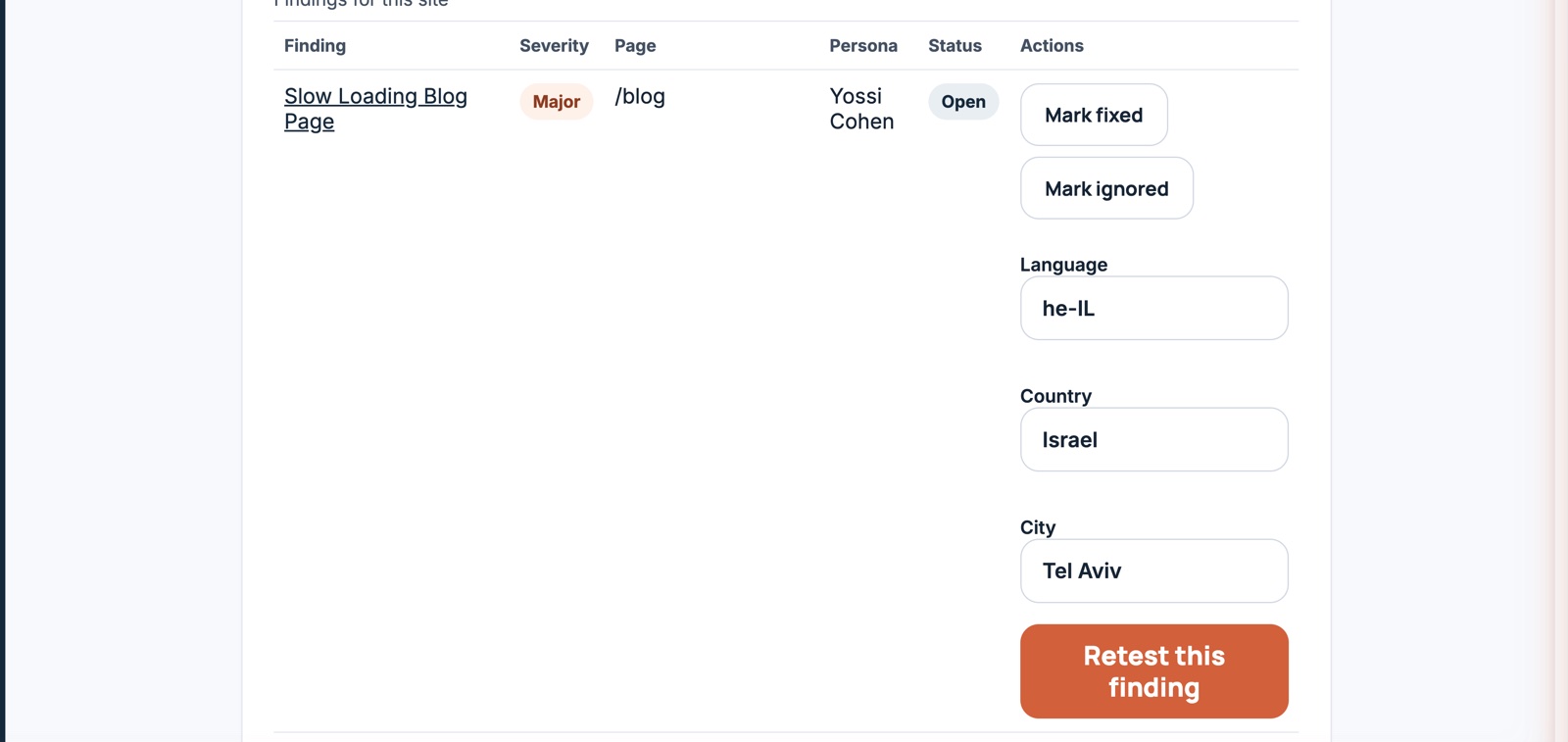
Re-testing a single finding, with location and language of your choice. Screenshot: Persqo
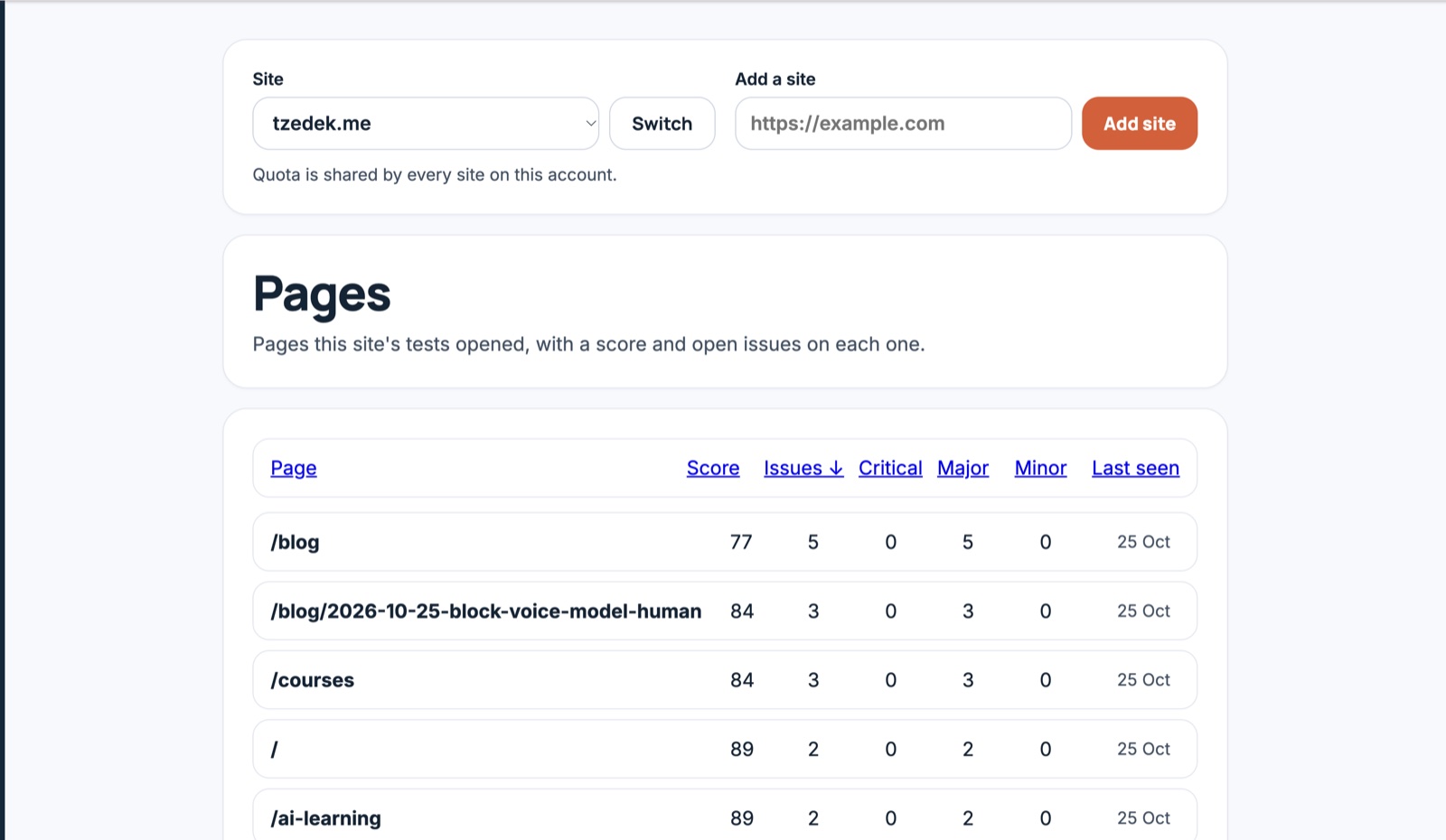
The Pages view: which page needs attention first. Screenshot: Persqo
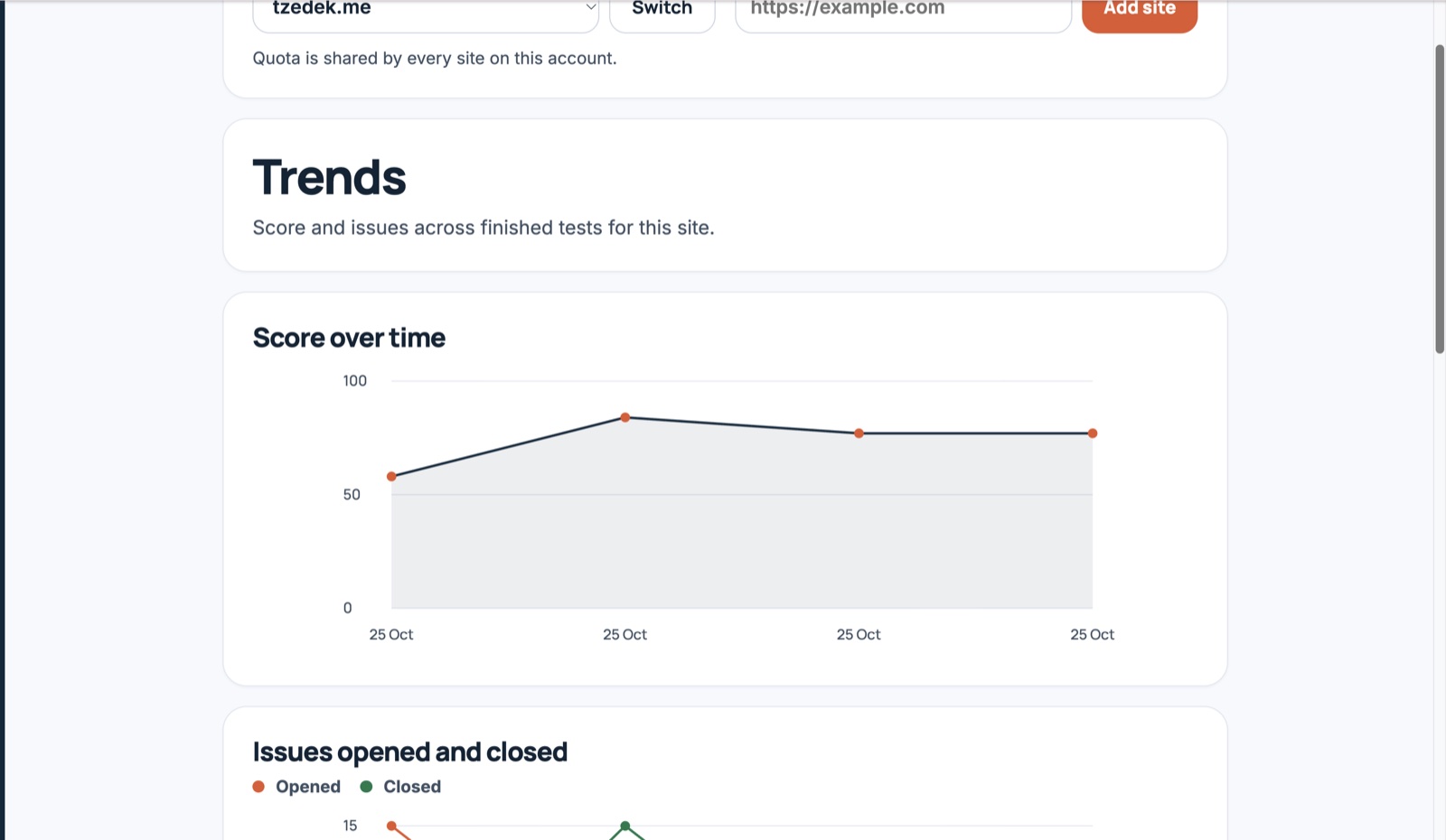
The Trends view: the score over time. Screenshot: Persqo
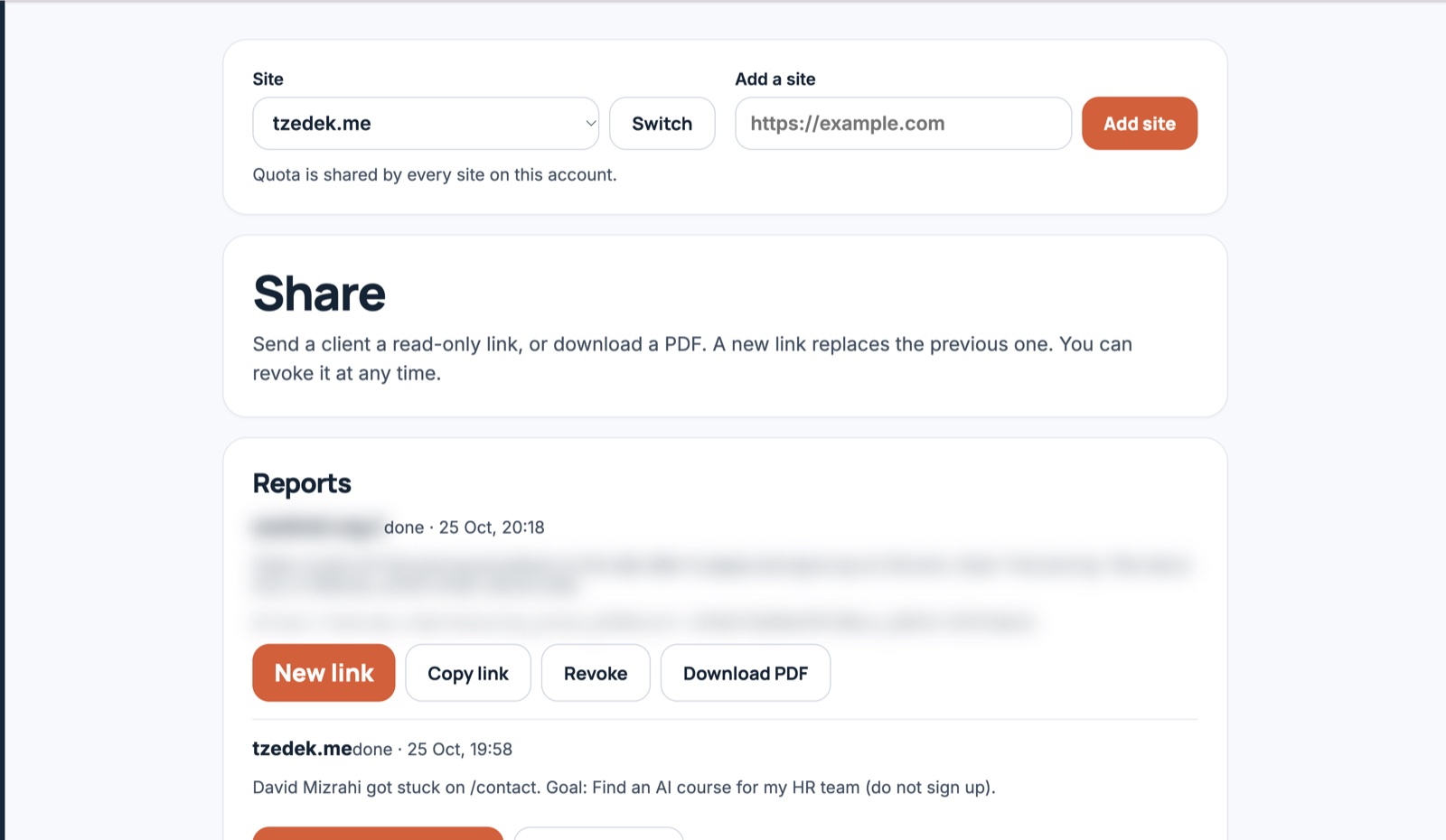
Sharing a report with a client: a read-only link or a PDF. Another site's details have been blurred. Screenshot: Persqo
The fix loop: how do you get every persona to succeed?
The loop is simple: test, fix, test again. Repeat until every persona reaches its goal.
- Run a test and receive a report.
- Copy the fix prompt and paste it into Claude Code, Cursor, or whichever tool you built with.
- Let the tool make the fix, then check yourself that the change looks reasonable. If the tool proposes something too sweeping, stop it and ask it to fix only what is in the prompt.
- Deploy the fix to the live site.
- Run the same personas again. Running the same personas is important so you can see whether the issue has actually disappeared.
- Repeat until every persona reaches its goal.
Two common mistakes:
- Fixing everything at once. It is better to fix the critical issues first, run again, and only then move on to the rest. That way you know which fix actually worked.
- Testing only on desktop after the fix. If the issue appeared on mobile, you need to confirm it was fixed on mobile. Re-running the same persona does that for you.
Can Claude Code or Cursor run the tests on their own?
Yes. Persqo has an MCP, a connection that lets your AI tool talk directly to Persqo. Instead of copying a prompt from the report and pasting it in, the tool reads the findings itself, fixes the code, and requests a retest.
We connected the MCP to an account and tested it tool by tool. Here is what works and how.
How to connect Claude Code
The server address is https://persqo.com/api/mcp. There are two ways to connect.
Option 1: Account login (OAuth). Run the following in your terminal:
claude mcp add --transport http persqo https://persqo.com/api/mcp
Then, inside Claude Code, type /mcp, select persqo, and approve. A Persqo authorization page opens in the browser with the account name and an Approve button. Approve it and you're done. The connection gets both read and write permissions, and without write permission the tool can only read findings.
Option 2: API key. If the browser authorization doesn't return to Claude Code, or you prefer a persistent key, create a key in Settings under API keys and MCP. The key is shown only once and starts with pq_live_. Store it in an environment variable and run:
claude mcp add --transport http persqo https://persqo.com/api/mcp --header "Authorization: Bearer $PERSQO_API_KEY"
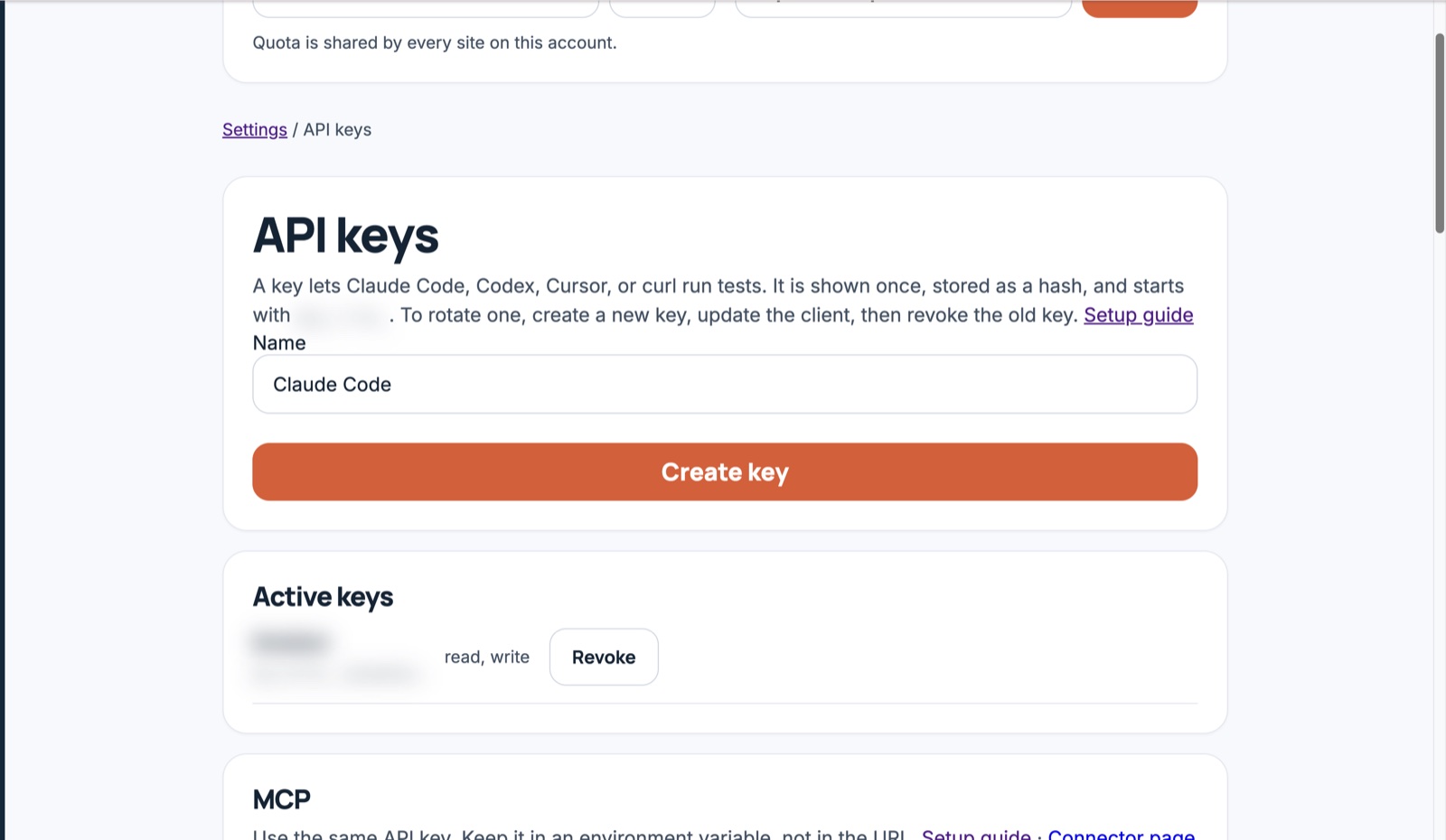
Creating an API key. The existing key details are blurred. Screenshot: Persqo
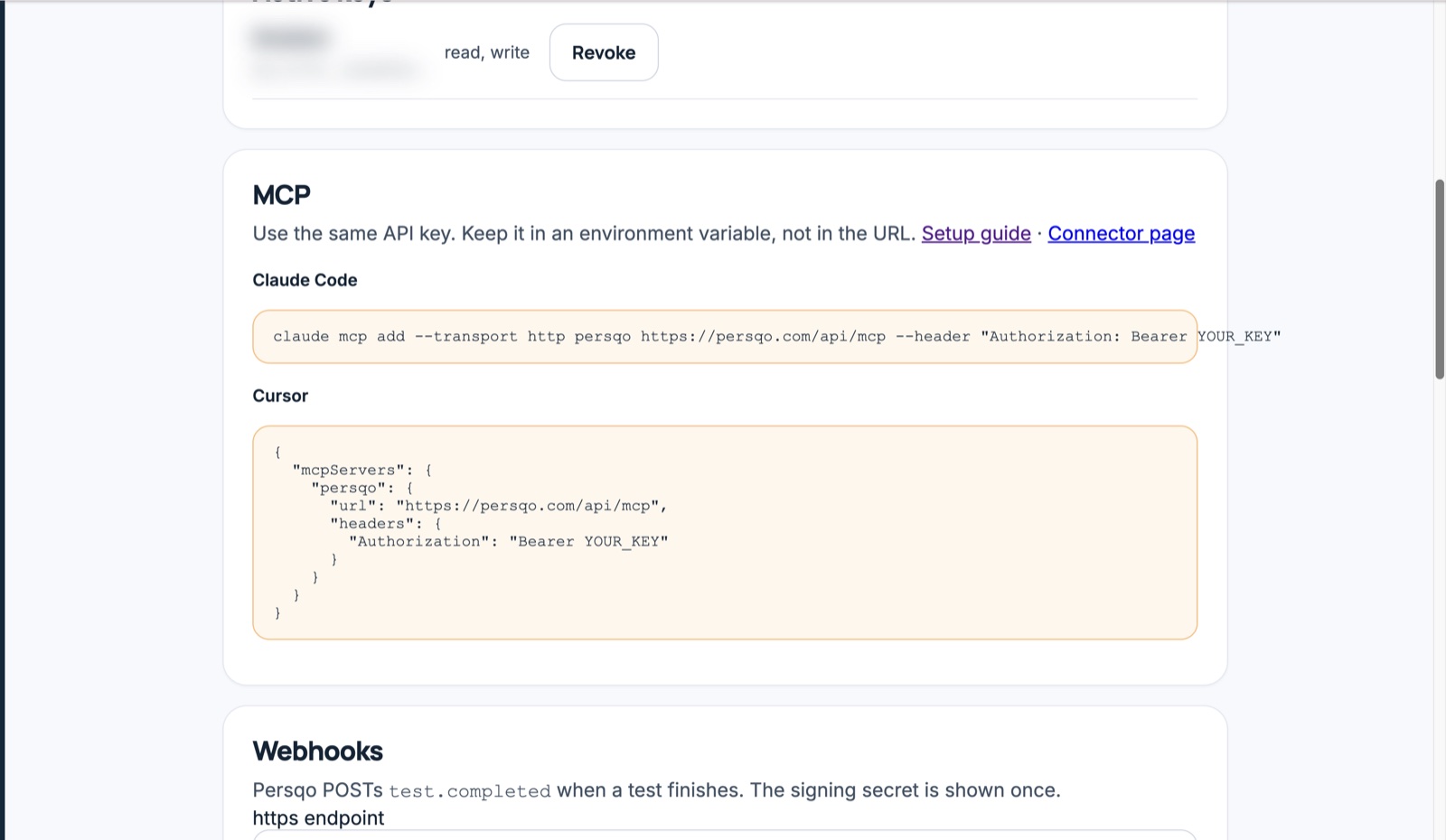
Ready-made settings for Claude Code and Cursor, straight from the account. Screenshot: Persqo
The setup is similar in Cursor, Codex, Grok, and other tools. In Claude on the web and in ChatGPT you add the server as a custom connector, and authentication there is account-based only. Full instructions for every tool are on the Persqo MCP page.
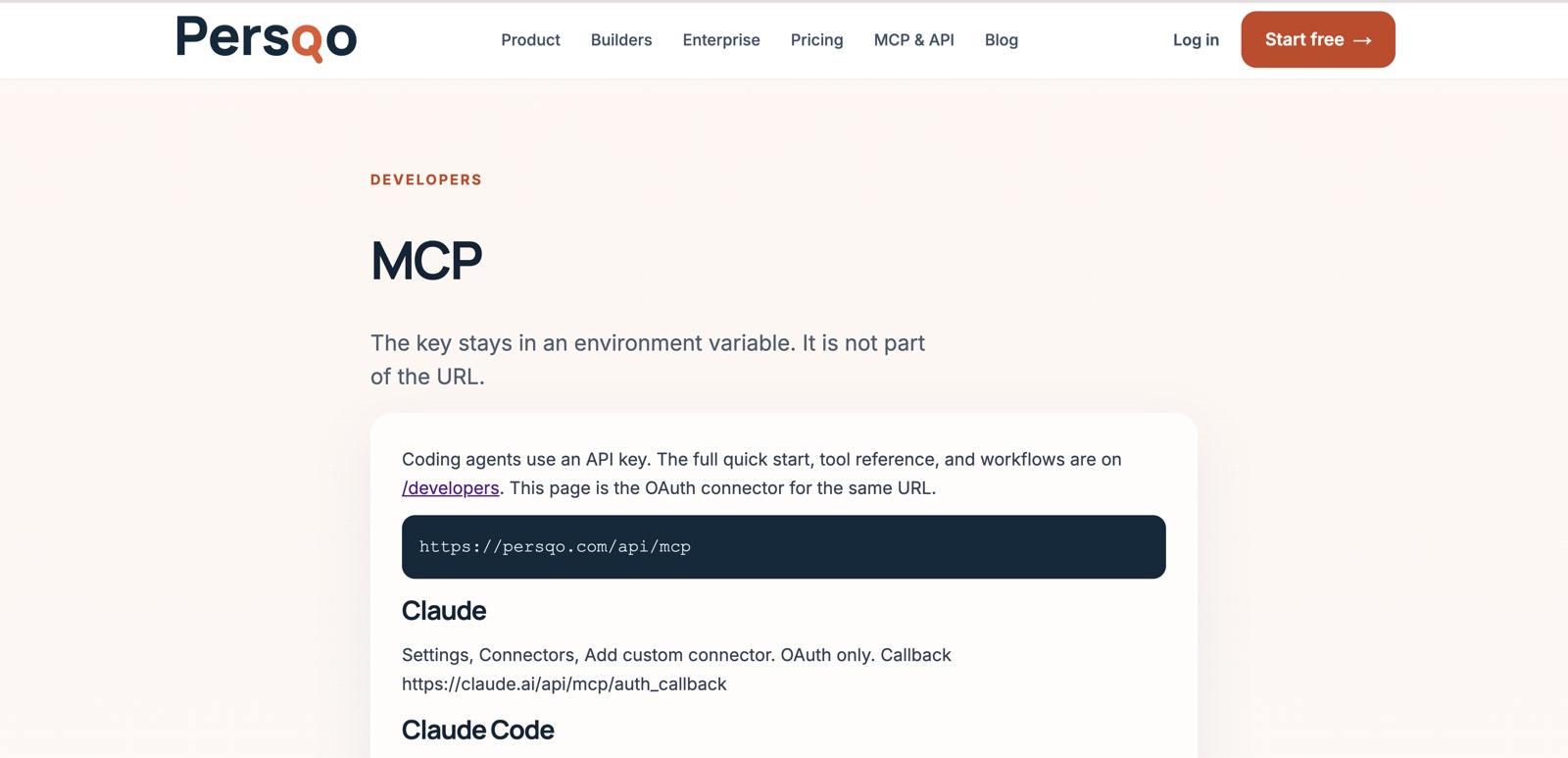
The MCP page: instructions for every tool and a list of available tools. Screenshot: Persqo
What tools does the MCP expose?
The server returns 50 tools. Here are the important ones, grouped by what you do with them:
| What you want to do | Tools |
|---|---|
| View sites and personas | list_projects, list_sites, list_personas, create_persona |
| Run a test and track it | start_run, get_run |
| Read the report | get_report, get_report_pdf, get_run_replay |
| Work with findings | list_findings, get_finding, get_fix_prompt, update_finding, retest_finding |
| Track over time | list_pages, get_trends, weekly_insights |
| Scheduled tests | save_schedule, list_schedules, delete_schedule |
| Sharing and integrations | create_share, create_webhook, push_ticket, reproduce_ticket, connect_ticket_source |
A safety mechanism worth knowing: start_run runs in dry-run mode by default. When we asked it to run a persona, it returned: "Dry run. Nothing was queued". Only when you pass confirm: true does the test actually launch and count against your quota. This way an AI agent won't accidentally burn through your tests. The server also sets a clear rule for the agent: do not send messages to real people and do not make payments.
What a real MCP conversation looks like
Here is how it looked for us, testing tzedek.me (IDs and responses are abbreviated):
Us: What is the status of the test running on tzedek.me right now?
Claude Code called get_run and received a live response while the persona was still browsing:
{
  "status": "running",
  "stage": "browsing",
  "step": 3,
  "current_url": "https://tzedek.me/courses",
  "elapsed": 52,
  "cost": { "usd": "$0.0001" },
  "live": {
    "goal": "Find the price of a video course",
    "activity": ["Opening the browser", "Opened homepage", "Opened /about", "Opened /courses"]
  }
}
Us: Has the test finished? What is the most important finding?
Claude Code called get_report. The response includes a score, a score explanation, counts by severity, and every finding with a fix prompt and a screenshot link:
{
  "status": "done",
  "score": 77,
  "score_explanation": "Score 77 of 100. It starts at 100 and counts open issues: 5 major.",
  "counts": { "critical": 0, "major": 5, "minor": 0 },
  "findings": [
    {
      "id": "fin_…",
      "title": "No pricing link reachable from /contact",
      "severity": "major",
      "fix_prompt": "Steps to reproduce: … Suggested fix: Add a visible pricing link in the header, menu, or footer …"
    }
  ]
}
Us: Fix the pricing finding, and once I deploy the fix run a retest on that finding only.
From here Claude Code uses get_fix_prompt to get the exact instructions, fixes the code, and after deployment calls retest_finding on that finding. A retest like this costs one session. When the issue is resolved, update_finding marks it as fixed.
What to tell it
Run 3 Persqo personas on my site: one on iPhone looking for how to get started, one on a laptop looking for pricing, and one on Android trying to book a meeting. Show me the personas first and wait for my approval before running. Then read the report, fix the major findings, and run a retest on every finding you fixed.
Why the connection is worth it
- No copy-pasting. The tool sees the finding, the steps, and the evidence directly.
- The retest happens inside the conversation. After each fix the tool reruns that finding and confirms the issue is gone.
- You can schedule recurring tests, daily or weekly, to catch regressions introduced by AI along the way. Persqo sends an email when the score drops.
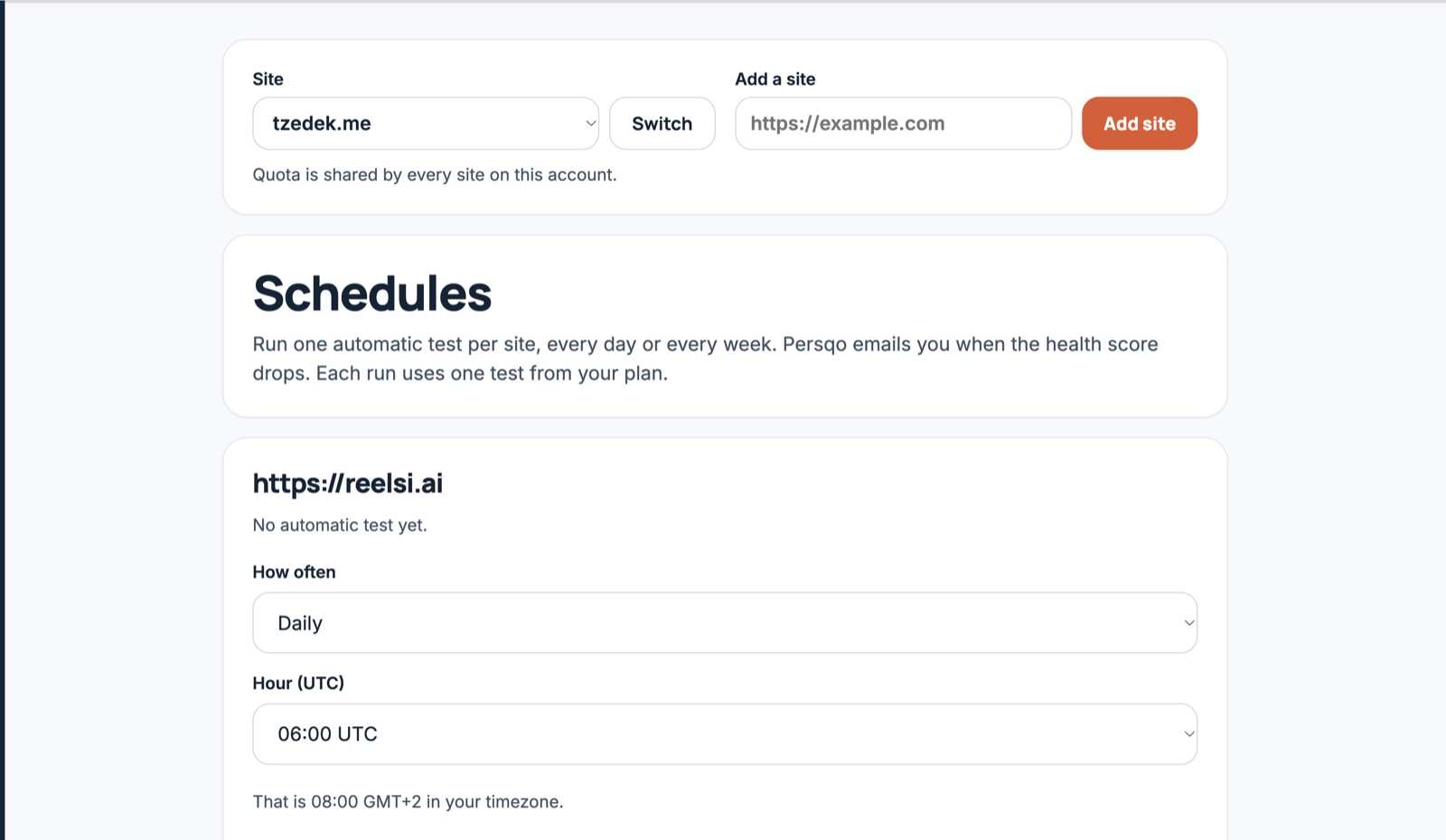
Scheduling a recurring test: daily or weekly, at a time you choose. Screenshot: Persqo
Tip: Even when the tool fixes things on its own, review the changes before they go live.
Working with Jira or Monday?
If your bugs come in through Jira or Monday, you can connect them to Persqo. Each ticket gets an automatic browser reproduction: a recording, screenshots, a console log, and a fix prompt. Writing the results back into the ticket is off by default and you turn it on yourself. There is also a webhook that notifies your system when a test finishes.
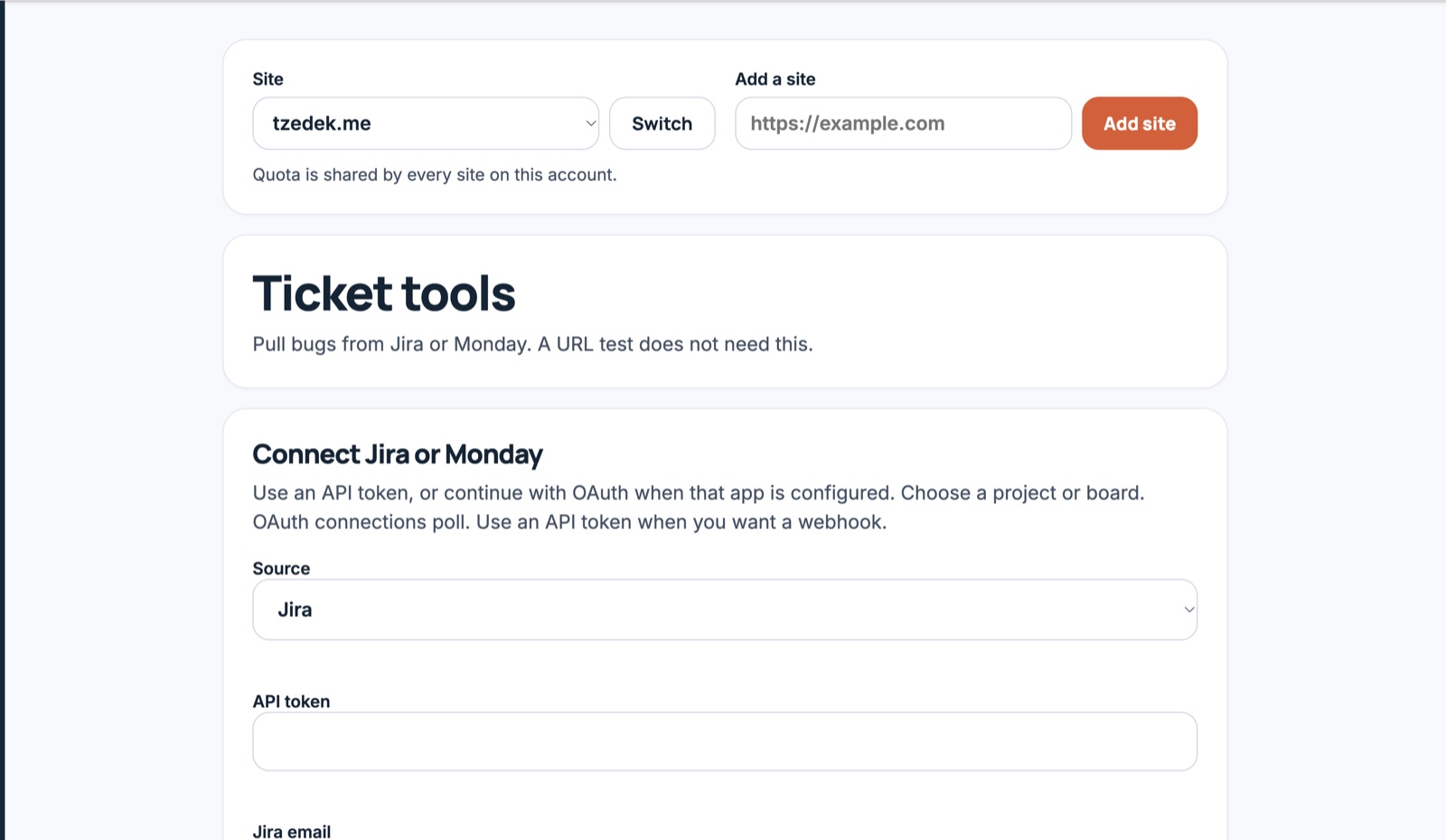
Connecting Jira or Monday. For testing a regular URL you don't need this. Screenshot: Persqo
When to run a test, and how many personas do you need?
The simple rule: run a test before every moment when new users are about to arrive. Not only before the first launch.
Here are the moments when it matters most:
- Before the first launch. That's obvious, and it's the moment this guide was written for.
- Before you turn on ads. If you're about to pay for traffic, make sure the page it lands on works. Every visitor who gets stuck during signup is money gone.
- After a major change. Asked the AI to redesign the signup screen, add payments, or rework the homepage? Run it again. AI tools fix one thing and sometimes break another along the way, without noticing.
- After a user complains. If someone writes to you "it's not working for me," build a persona that resembles them: same device, same goal. That gives you a good chance of reproducing exactly what they saw.
How many personas? Three is a good starting point, as long as they're different from each other: a different device, a different goal, and a different level of patience. As the product grows and you have several user types, add one persona per type. Three personas covering three paths are better than ten personas all trying to sign up from the same computer.
What this kind of test won't do for you
It's worth knowing the limits so you don't rely on it in the wrong places.
- It won't tell you whether there's demand for your product. A persona can discover that signup is broken. It cannot tell you whether people actually need what you built. For that you need to talk to real customers.
- It doesn't test a real payment. Personas stop before the payment step. Test the checkout yourself, with a small amount and in your payment provider's test mode.
- It doesn't replace a security audit. If your system stores sensitive customer data, run a dedicated security audit as well.
- The fix prompt is a starting point. It saves you most of the work, but always read what the tool changed before you deploy.
That said, this kind of test catches exactly the class of bugs that makes users leave quietly, without saying a word. And those are the most expensive bugs, because you don't even know they exist.
Building with one of these tools? We have full guides for Claude Code, Lovable, Base44, and Cursor.
"Ready to launch" checklist
Before you send that link to your first users, go through this list:
- A new user can complete signup from start to finish, including the verification email.
- The verification email arrives in the main inbox, not spam, and the link in it works.
- After signup the user sees a screen that tells them what to do next.
- The main call-to-action on the homepage is clear and works on mobile too.
- Pricing can be found within two clicks at most.
- No text or image overflows off the screen on mobile.
- Pop-ups can be closed on mobile.
- Important pages load in a reasonable time on a mobile connection.
- There are no broken links in the navigation or footer.
- There are no red errors in the browser console on important pages.
- Forms show a clear error message when something is filled in incorrectly.
- Every form field has a label explaining what to fill in.
- Pages have a title that describes them, and images have alt text.
- There is a visible way to contact support or ask for help.
- All the personas you ran reached their goal in the last run.
Frequently Asked Questions
How much does it cost to test an app with Persqo?
There are 3 free sessions, no credit card required. Readers of this guide get 3 additional tests: go to persqo.com/yaakov with the code YAAKOV, and you get 6 free tests in total. After that, there are monthly plans: Starter at $59/month (40 sessions), Pro at $249 (200 sessions), and Team at $699 (600 sessions). For organizations there is an Enterprise plan.
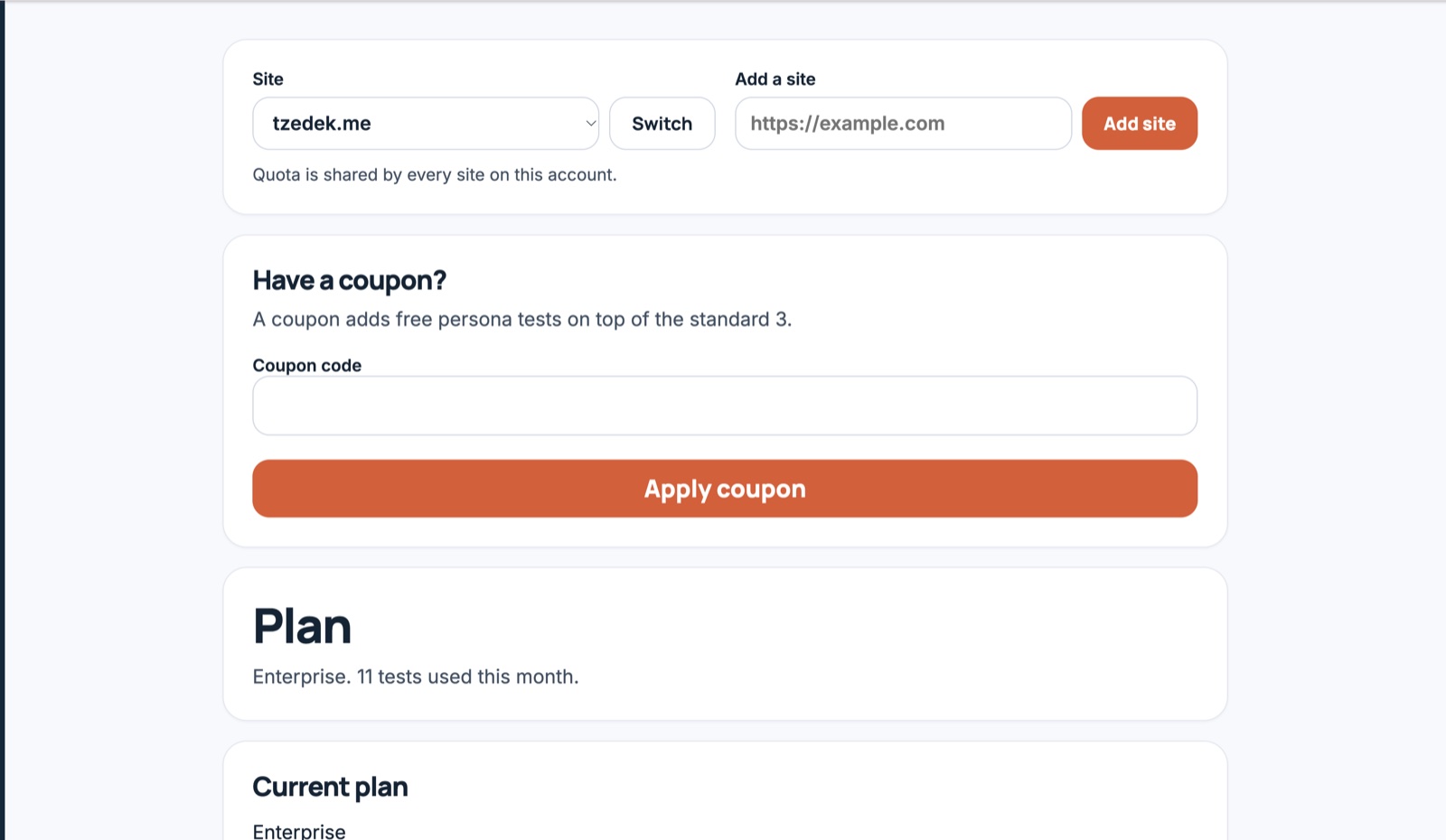
This is where you enter the code YAAKOV inside your account. Screenshot: Persqo
Can I test a site that has a login?
The free test works on any public web app: open pages, the registration flow, and pricing. For personas to access the area behind the login as well, you verify your domain and add a test user. According to Persqo, this takes about ten minutes.
Do I need to configure DNS or change anything in the code?
Not for the public test. You paste a URL and an email address, and you get a link that starts the test. Domain verification is only required when you want to test areas behind a login.
Do the personas actually pay on my site?
No. The persona advances toward its goal, such as signing up, viewing pricing, or completing the main action, but does not pay.
What happens with my privacy and the data from my site?
According to Persqo's privacy page, what is stored includes your email, login details for the test (encrypted), and the run log. Screenshots and logs are retained for 30 days by default. In any case, do not run a test on an environment that displays real personal data belonging to your customers. A test environment with demo data is preferable.
Does this replace testing with real users?
Not entirely. It catches most of the embarrassing issues before real users run into them, and saves your real users for the questions that actually matter: whether they need the product, and how much they will pay for it.
The bottom line
You built something. That was the hard part, and you did it. Now all that is left is making sure a user who is unfamiliar with the system can actually use it. Not really rebuilding anything, just seeing it through someone else's eyes.
Three personas, one report, and one fix prompt can save you the first users you would have lost without ever knowing why.
Test your app for free
6 free tests with the code YAAKOV, no credit card required. Paste a URL, get personas, and see what your users will see.
Frequently asked questions

Yaakov Tzedek
An Israeli AI lecturer, consultant and implementer who has supported 100+ organizations in AI implementation and lectured for 200+. Official content partner of Meta, Google, Canva and TikTok, featured on Israel's Channel 13.
More about Yaakov →