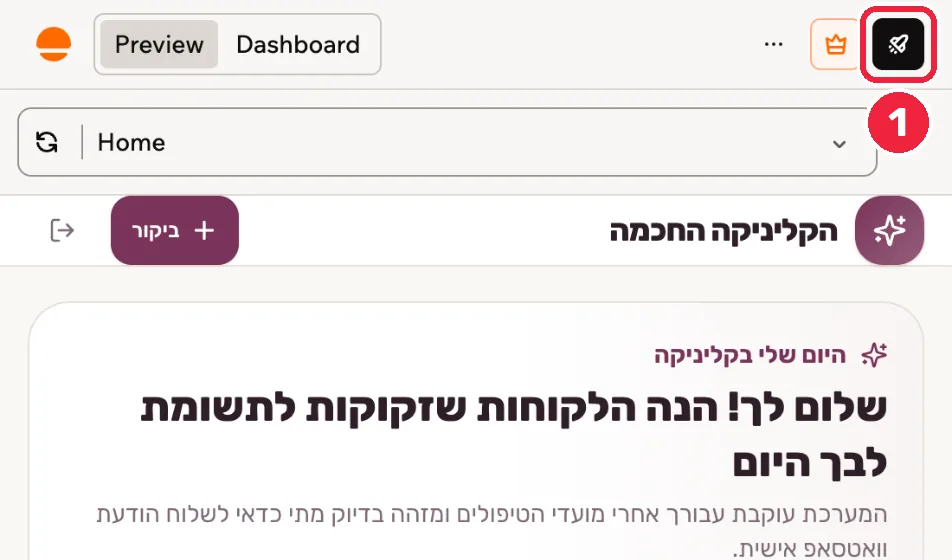
- Copy the public link of what you built, in Base44 or in Claude.
- Paste it into the test, write a simple goal like "book an appointment," and virtual customers try to reach it.
- Copy the fix from the report into the chat where you built, publish again, and test again.
When you open your own app, you already know where to tap. A new client doesn't. That's exactly why the friction that costs you the most bookings is the friction you never notice yourself.
You built a clinic app in an hour. It looks great on your phone, and the buttons work. But you are not your customer.
A customer who arrives from Instagram does not send you a message saying "the button doesn't work." She closes the page and moves on to the next cosmetician, and you don't even know she was there.
This guide has a screenshot for every click. The red number in the image is the order: 1 first, then 2. Buttons appear in English, exactly as they look on your screen.
In short
- Copy the public link of what you built, in Base44 or in Claude.
- Paste it into the test, write a simple goal like "book an appointment," and virtual customers try to reach it.
- Copy the fix from the report into the chat where you built, publish again, and test again.
Step 1: Copy the link of what you built
The test needs a link anyone can open, without a password. If the link asks for login, the virtual customers will stop at the login screen exactly like a real customer would.
You built in Base44 (for example, "The Smart Clinic")
Open the app in Base44. In the top corner there is a black button with a rocket icon. That is the publish button.
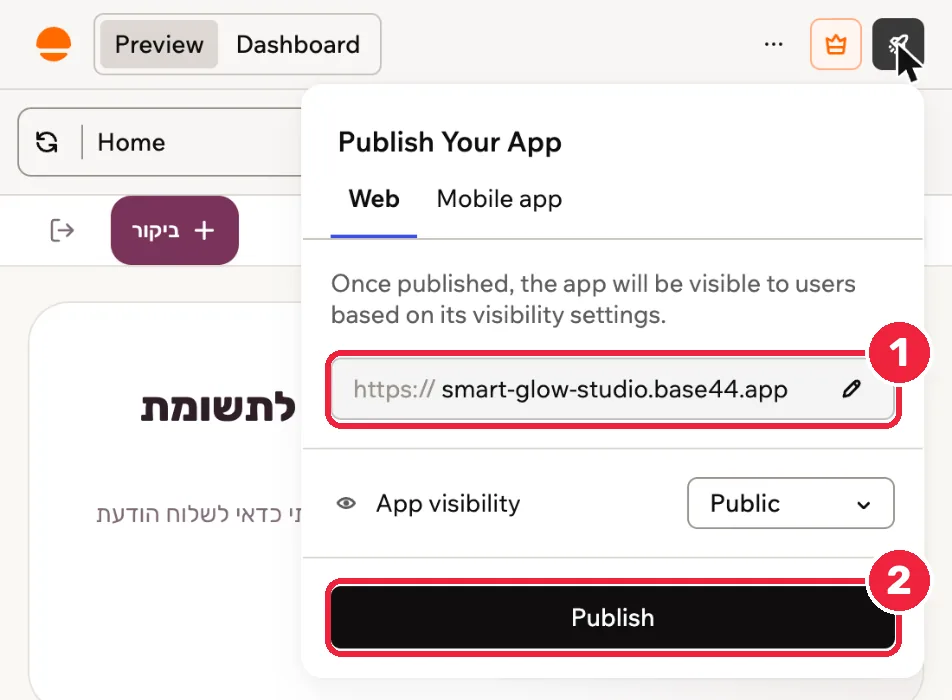
A Publish Your App window will open. The top row shows the app address, ending in .base44.app. That is your link.
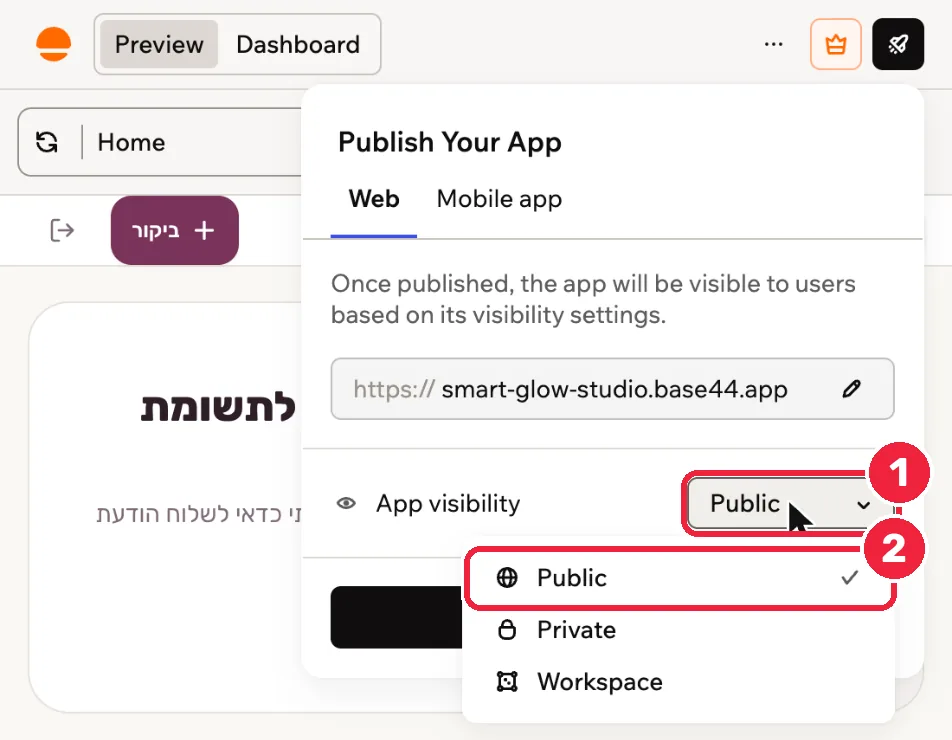
Most important: the App visibility row must say Public. If it says Private or Workspace, click the arrow and choose Public. Otherwise customers, and the test, will get a login screen.
A quick sanity check: open the link in an incognito window on your phone. If it opens without asking for login, it is ready to test.
You built in Claude (a page or tool created in a chat)
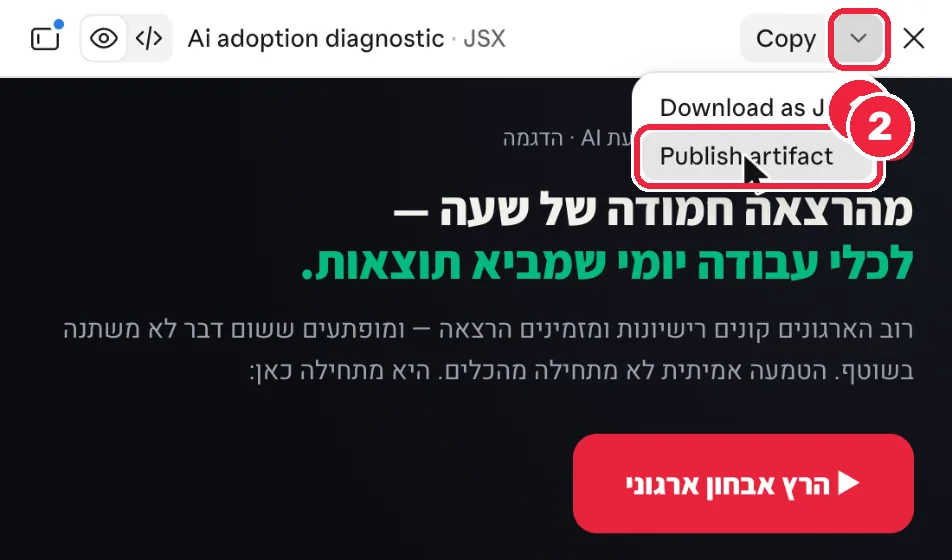
Open the page created in the chat (the artifact). At the top, next to the Copy button, there is a small arrow. Click it and choose Publish artifact.
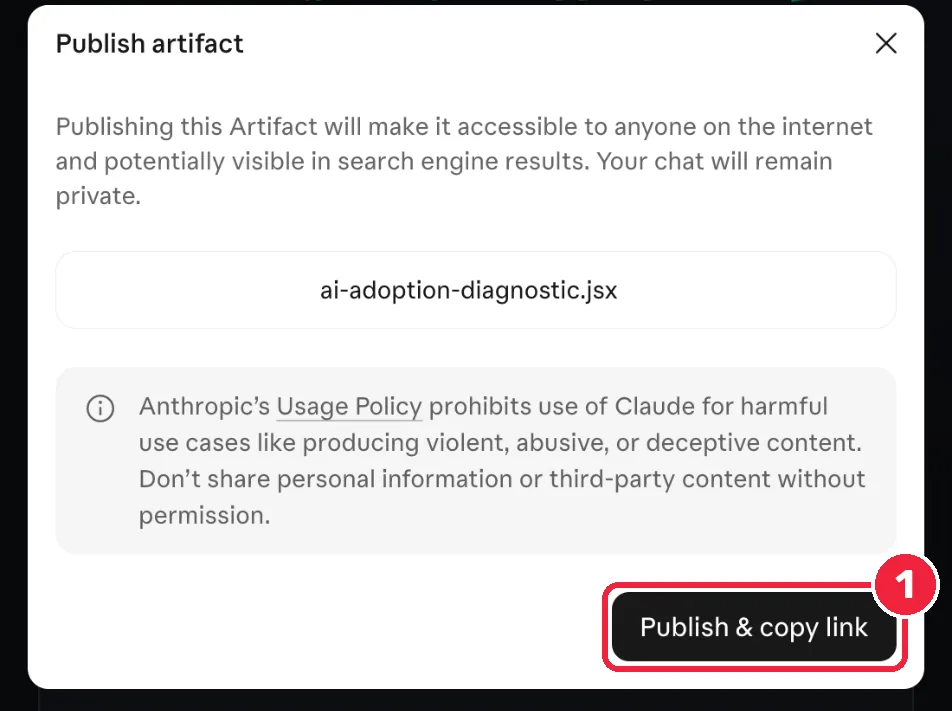
In the window that opens, click Publish & copy link. The link is already copied and you can paste it into the test.
Note: Claude's regular Share button gives a link that requires a Claude account, so the test will stop at the login screen. For testing you need Publish artifact. And if the page you built in Claude has already been published to your website or to Base44, test that address instead, because that is the link your customers are actually opening.
Step 2: Open a test, paste the link, and choose a goal
Click the purple button "Test what I built." It opens the signup page with the code BEAUTY20 already filled in.
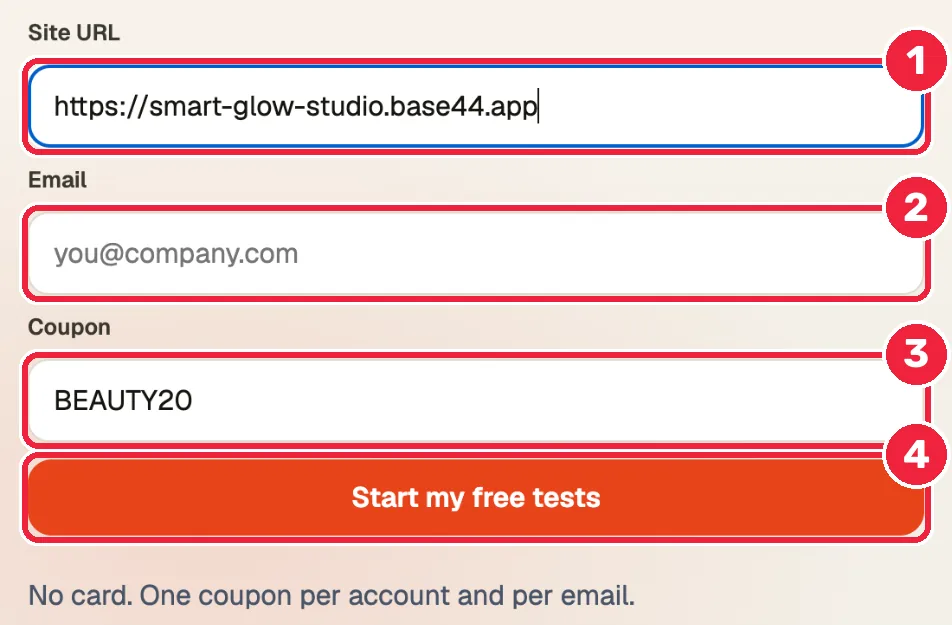
Open the email and click the login link. It activates the code and starts a first general test. (Didn't arrive? Check spam and promotions.)
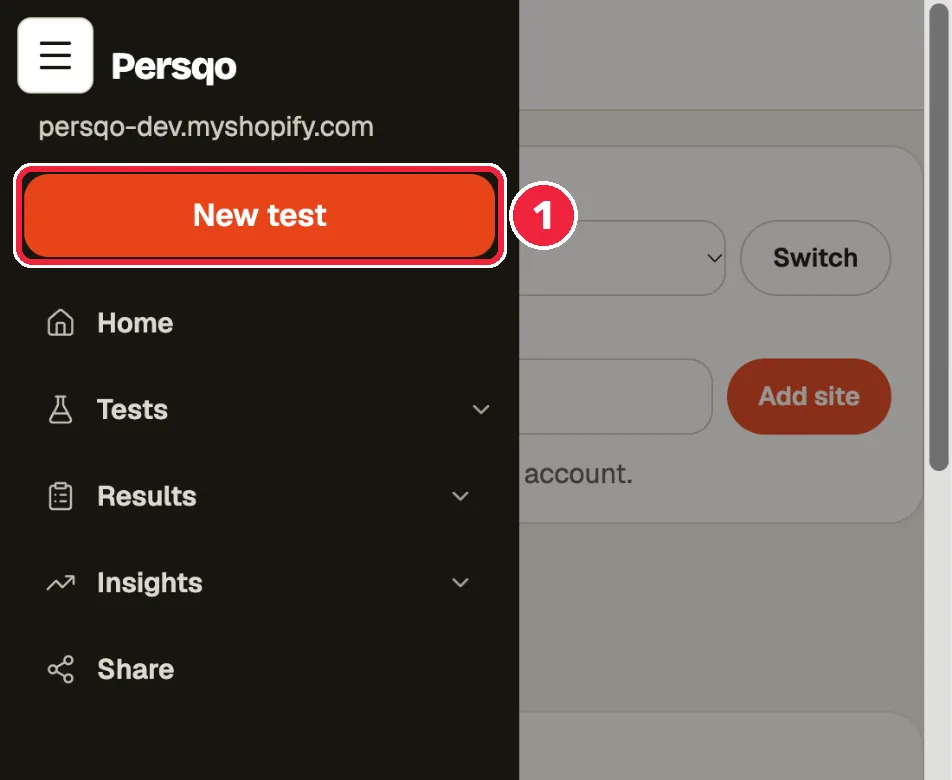
To test a specific goal, open the menu (the three lines at the top) and click New test. Make sure UI/UX test is selected.
Under Where visitors start, paste the link. Under What they try to do, choose Custom goal and write what the customer needs to successfully do, in any language including Hebrew.
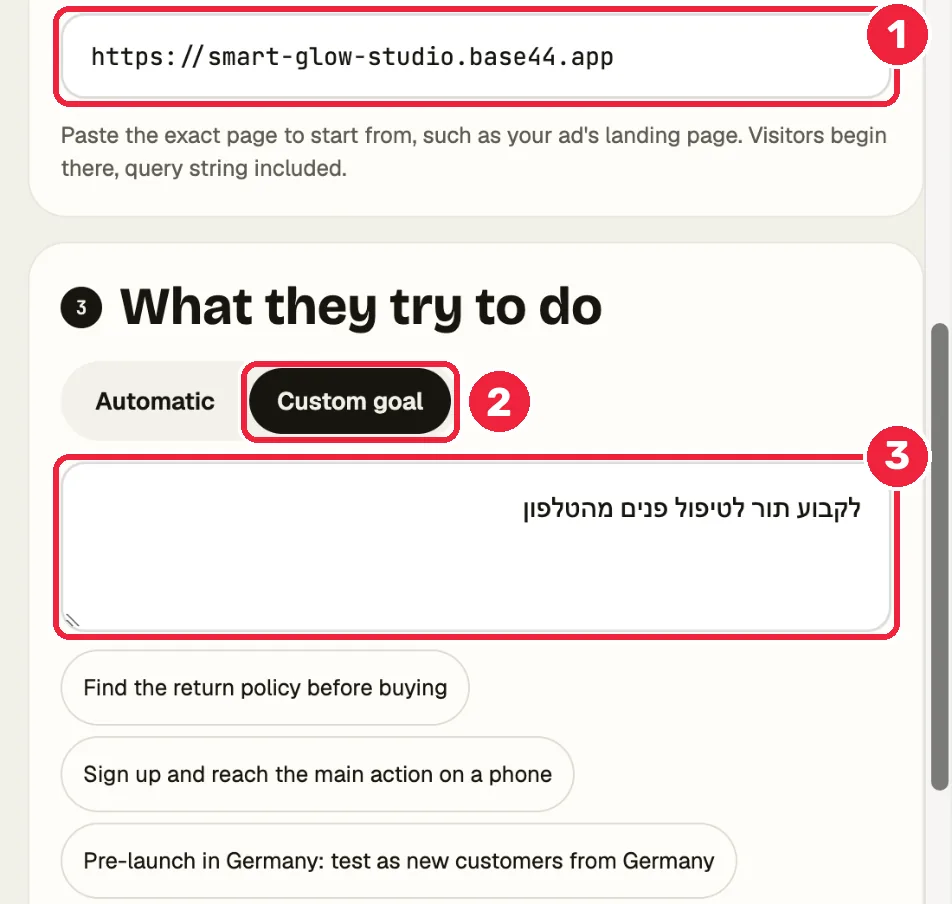
Goal ideas: "book a facial appointment from the phone," "leave details for a consultation call," "find out how much a treatment costs."
Scroll down and click Start test. The test offers up to 3 virtual customers, and you can change the goal for each one before it starts.
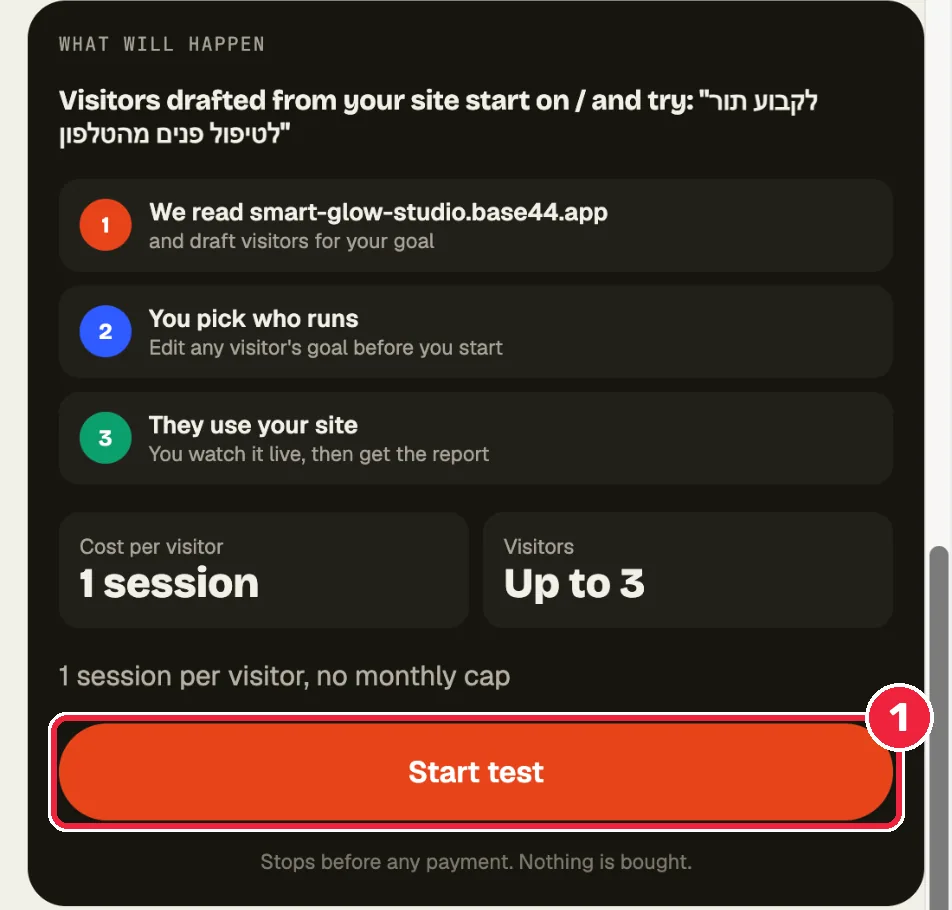
The test runs on its own for a few minutes. You can watch it in real time, or close the window and come back to the report.
Step 3: Read the report
The report is built from findings, and each finding is a place where a customer got stuck. Each finding shows its severity:
- Critical: something that stops a customer completely, for example a booking button that does not work. Fix these first.
- Major: something that confuses or drives customers away, for example a price that changes at checkout. Fix these right after.
- Minor: polish, for example an image without a description.
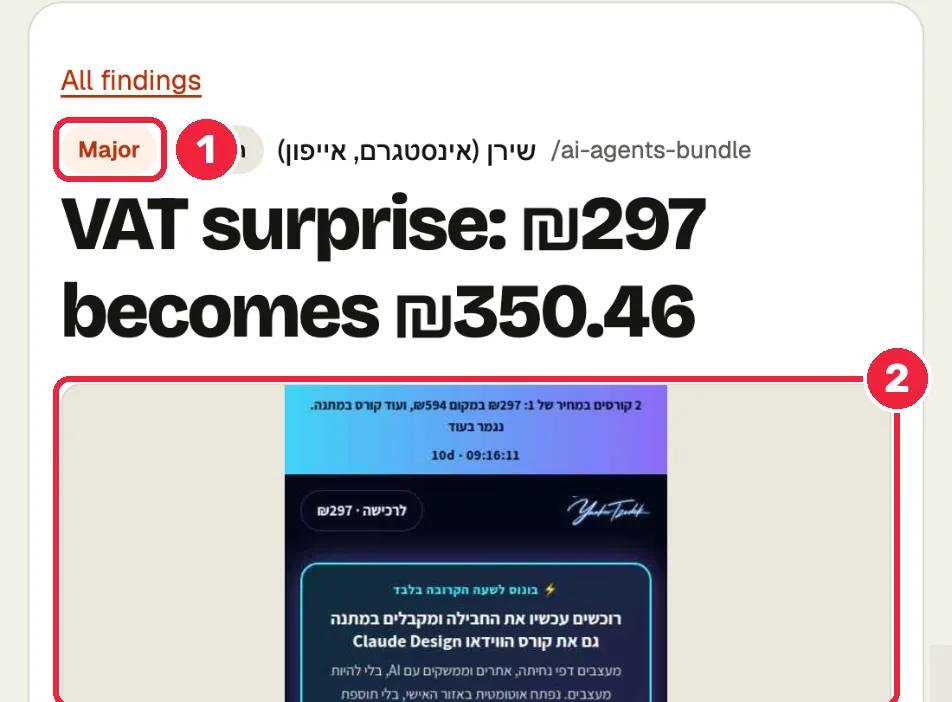
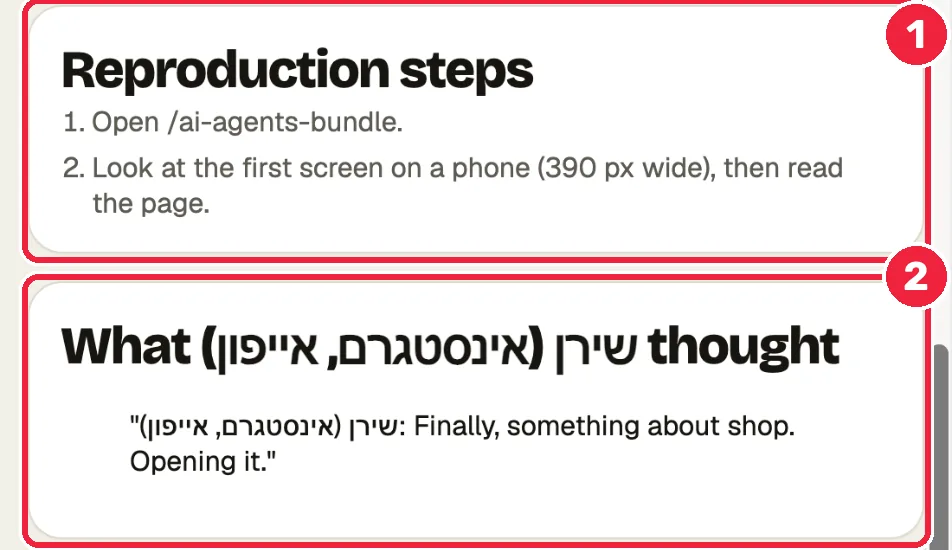
Below the screenshot there are Reproduction steps, what the customer did step by step, and what she was thinking at that moment. This lets you understand the problem without any technical knowledge.
Step 4: Copy the fix and paste it into the chat where you built
This is where the magic happens: you do not need to understand what is broken. Copy, paste, and Base44 or Claude fix it on their own.
In the finding, under Fix prompts, there is a button for each tool. Built in Base44? Click Copy fix prompt for Base44. Built in Claude? Click Copy fix prompt for Claude Code, it also works in the regular Claude chat.
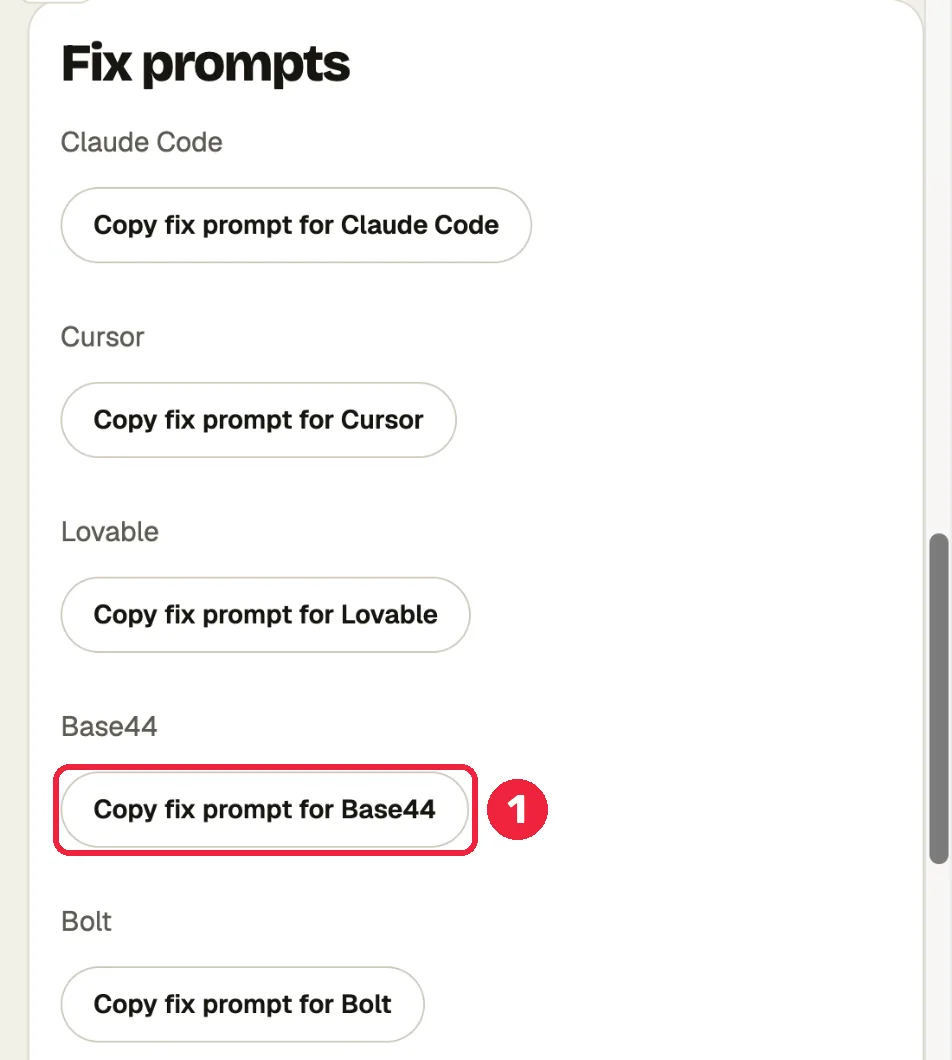
Go back to the same chat where you built. In Base44, click Chat to Edit at the bottom, paste into the box, and send with the arrow.
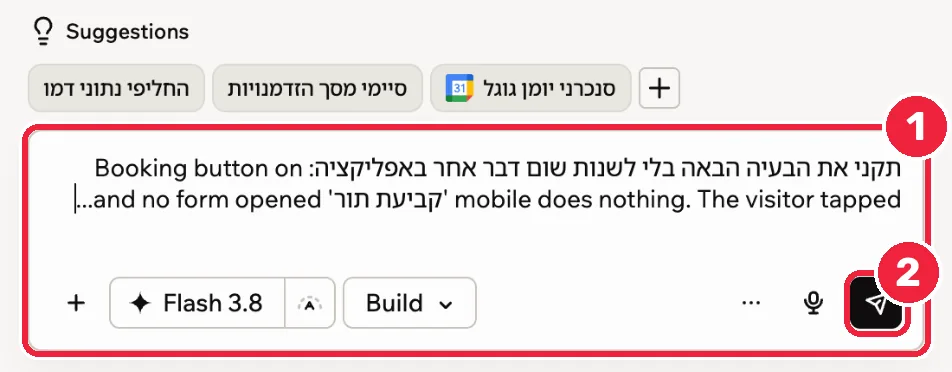
In Claude, go back to the same conversation where the page was created, paste into the box at the bottom, and send.
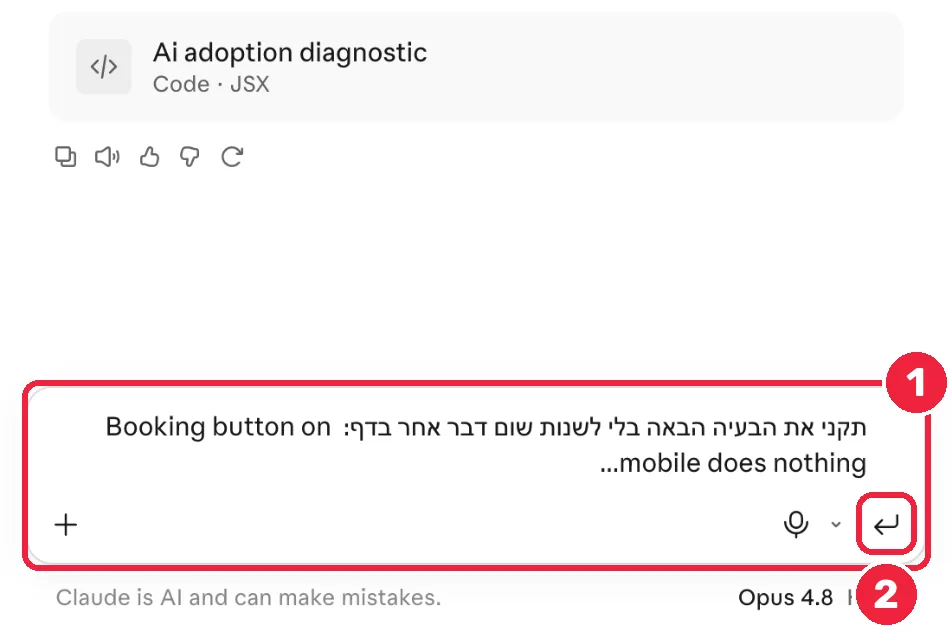
This is what a fix prompt looks like. The first line preserves the fix so it does not break other things, and you replace the English section with whatever appears in your report:
Publish again. In Base44, the live app only changes after you click the rocket again and then click Publish (as in the second image). In Claude, open the link again and confirm it shows the new version.
What if the prompt is locked? On the free tests you can see the problem, the screenshot, and why it is costing you customers, and the ready-made fix prompt appears blurred with a Get the fix prompt button. It unlocks on a paid plan. Until then you can work with the same approach: copy the Reproduction steps and the description of what happened from the report, paste them below the first line of the prompt above, and send. Base44 and Claude both understand a finding written in English just fine.
Step 5: Test again
Go back to the finding and scroll to the bottom. Click Retest this finding, and the virtual customer will try exactly the same thing again. When the finding does not come back, the fix worked.
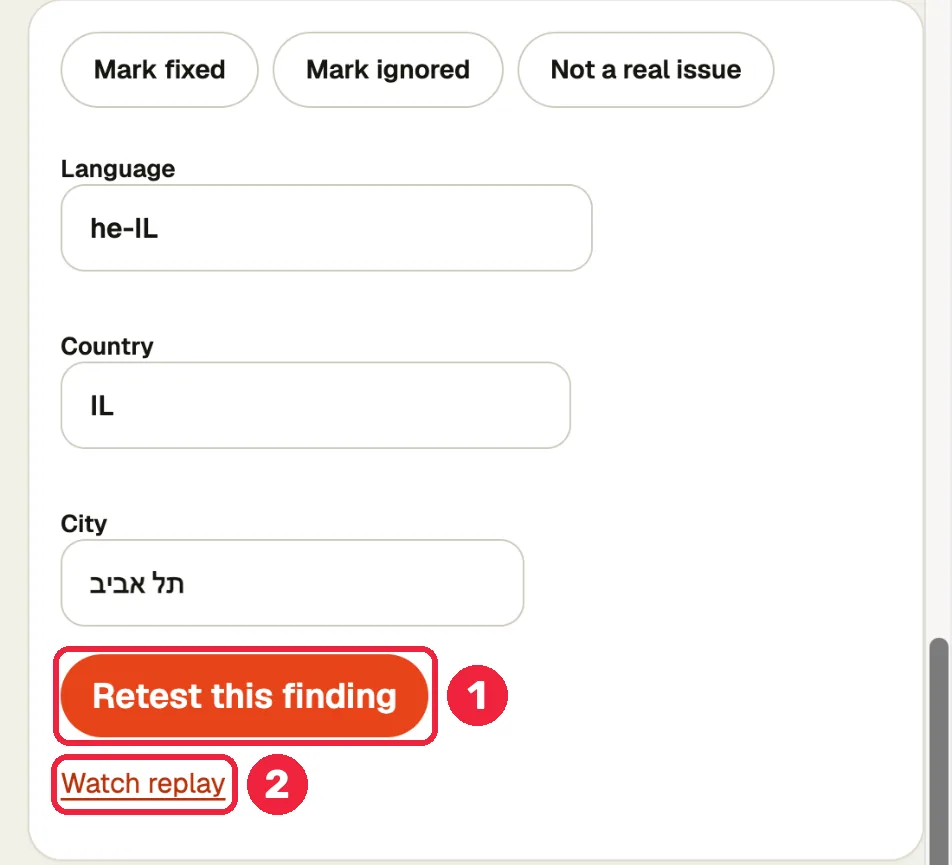
The cycle that brings back bookings
Test, fix, publish, test again. Each cycle takes about fifteen minutes, and with each one another customer who would have gotten stuck makes it all the way through and books an appointment.
Frequently asked questions

Yaakov Tzedek
An Israeli AI lecturer, consultant and implementer who has supported 100+ organizations in AI implementation and lectured for 200+. Official content partner of Meta, Google, Canva and TikTok, featured on Israel's Channel 13.
More about Yaakov →