- A complete guide to building your own appointment scheduling system with Claude Code: slot picker synced to Google Calendar, unique Zoom links, WhatsApp alerts via green-api, emails with Resend, and automatic reminders. No Calendly, no subscriptions.
The entire system described in this guide, payments, calendar, Zoom, WhatsApp, emails, and reminders, was built with Claude Code in a single workday, without writing a single line of code by hand.
We wanted customers to be able to buy a private lesson, pick an open slot from our real calendar, and automatically receive a Zoom meeting, a confirmation email, and a WhatsApp notification, with no Calendly and no assistant. We built it with Claude Code in a single workday, and it's running in production today. In this guide we break down exactly how, including every integration: Google Calendar, Zoom, green-api (WhatsApp), Resend (email), and the traps we fell into so you don't have to.
What the System Does (The Full Flow)
- The customer buys hours on a sales page (ours offers one hour, two hours, or more), with automatic payment processing and invoicing.
- They receive a personal booking link by email (and WhatsApp), no registration and no password required.
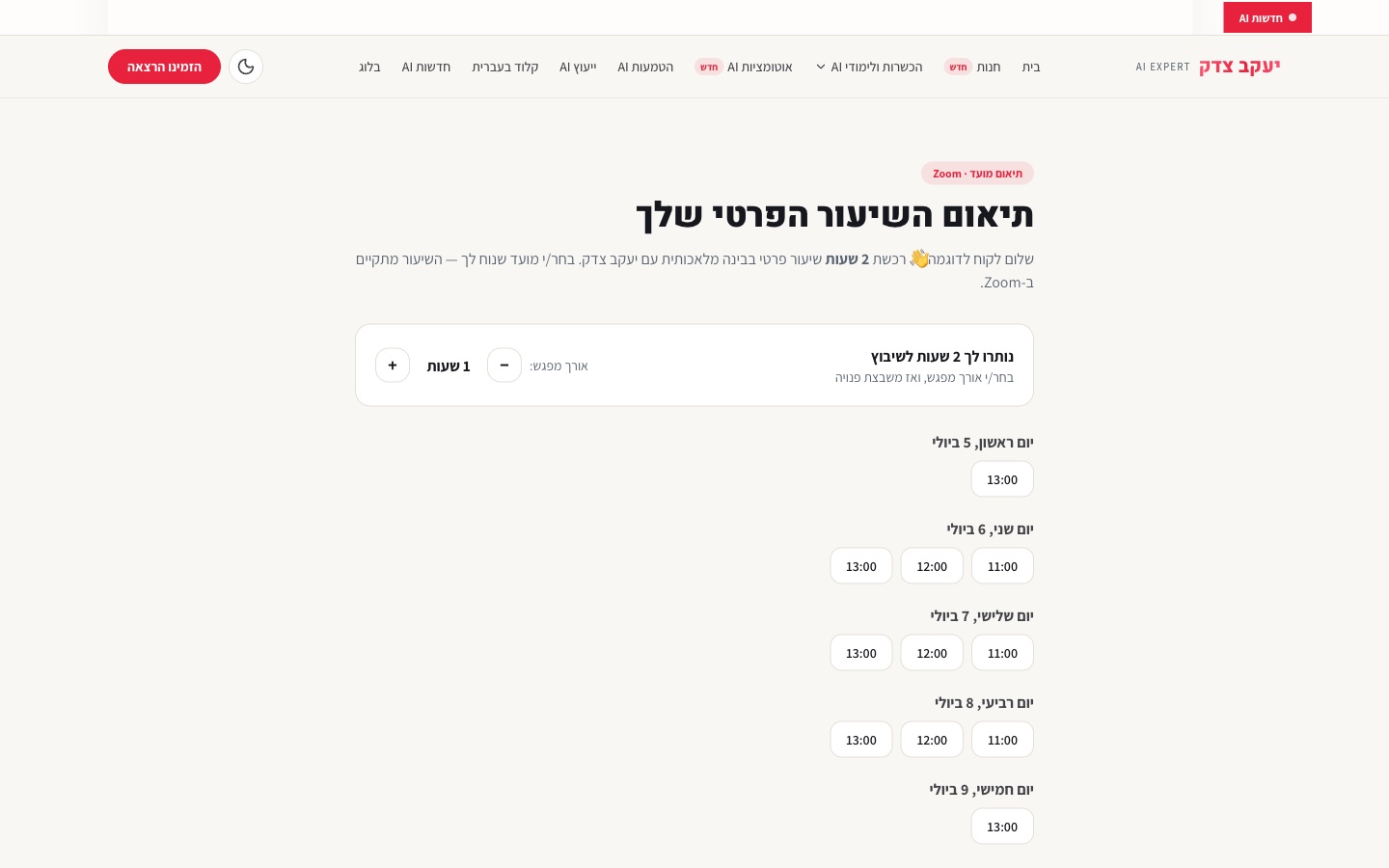
- At that link, a slot picker waits, displaying only times you are genuinely available, synced to Google Calendar in real time.
- The moment they choose: a unique Zoom meeting is created, an event is added to the calendar, the customer receives an email with the link (and sees it on screen too), and you receive a WhatsApp message and an email.
- The day before the meeting, an automatic reminder goes to the customer with the Zoom link.
Everything is built on Next.js + Supabase Storage (no tables, no migrations, just JSON files in a bucket), exactly as we did in our newsletter system.
The Architecture: "Credits" Instead of User Accounts
The most important decision in the system: there are no user accounts. Every purchase creates a "credit," a JSON file with a unique token:
{
  "token": "9625677b-b238-...",
  "customer": { "name": "...", "email": "...", "phone": "..." },
  "hoursTotal": 2,
  "hoursUsed": 0,
  "amountPaidIls": 826
}
The token itself is the booking link: /book/<token>. The customer can split the hours across multiple sessions, and each booking deducts from the balance. Simple, secure (the token is random and long), and no password management. Important: the booking page is marked noindex so Google does not index personal links.
Integration 1: Google Calendar, With a Service Account (Not OAuth!)
This was the first trap we fell into. We tried regular OAuth and discovered that a "Desktop" client type does not support redirecting to a website. The right solution for a single person's calendar: a Service Account.
- In Google Cloud Console, create a Service Account and download the JSON key.
- Share the calendar with the Service Account's email address (in calendar settings, "Share with specific people," with "Make changes to events" permission).
- Put the JSON in an environment variable and sign a JWT (RS256 algorithm) to get an access token, with no external library, using only
node:crypto.
Busy times are pulled from the FreeBusy API, a single query that returns all busy blocks within a range:
const busy = await fetch("https://www.googleapis.com/calendar/v3/freeBusy", {
  method: "POST",
  headers: { authorization: `Bearer ${token}` },
  body: JSON.stringify({ timeMin, timeMax, items: [{ id: CALENDAR_ID }] }),
});
⚠️ Trap: A Service Account cannot invite external attendees to an event (without special organizational permissions). The solution: create the event without attendees, put the Zoom link in the event description, and send the customer a separate email.
Integration 2: Calculating Available Slots
The heart of the system is a function that takes the busy times plus your availability rules and returns open slots. The availability rules are stored as a config you can edit from the admin panel:
{
  days: [0, 1, 2, 3, 4],   // Sunday through Thursday (0 = Sunday)
  startHour: 11, endHour: 16, // the meeting must end by 16:00
  bufferMinutes: 15,        // buffer around existing meetings
  minNoticeHours: 24,       // cannot book for one hour from now
  maxDaysAhead: 30,
  timezone: "Asia/Jerusalem"
}
A critical tip for calculating Israel time without libraries: convert "wall time" to UTC via Intl.DateTimeFormat (the offset trick). And another one: at the moment of booking, check the calendar again to confirm the slot is still free, otherwise two customers will grab the same hour (respond with "that slot was just taken, please choose another time").
Integration 3: Zoom, a Unique Meeting for Every Booking
Not a fixed Zoom link. A new meeting for every booking, with a waiting room. This is done with a Server-to-Server OAuth app (no authorization screens):
- In Zoom Marketplace, create a Server-to-Server OAuth app and activate it.
- Add the
meeting:write:meeting:adminscope. - Get a token using
grant_type=account_credentialsand Basic Auth with the Client ID and Secret. - Create a meeting:
POST /v2/users/me/meetingswith a topic, time, duration, and timezone, and receive a uniquejoin_url.
⚠️ Resilience principle: If Zoom is momentarily unavailable, the booking does not fail. We built a fallback chain: unique meeting, then a fixed Zoom link from the environment, then no link (completed manually). Payment and booking never fail because of a third-party service.
Integration 4: WhatsApp With green-api
green-api connects a regular WhatsApp number to an API in two lines. Scan a QR code once and you get an Instance ID and Token. Sending a message:
await fetch(`https://api.green-api.com/waInstance${ID}/sendMessage/${TOKEN}`, {
  method: "POST",
  body: JSON.stringify({ chatId: "9725XXXXXXXX@c.us", message: "🎓 רכישה חדשה!" }),
});
For us, WhatsApp serves two purposes: notifications to the business owner (every purchase and booking arrives on the phone within seconds) and messages to customers, for example sending the booking link to someone who purchased but has not yet scheduled.
Integration 5: Emails With Resend and Reminders
All emails (booking link, appointment confirmation with Zoom link, day-before reminder) are sent with Resend, plain HTML with dir="rtl". Two important lessons from production:
- Notifications never bring down the flow. Every email send is wrapped in a try/catch. If the email fails, the purchase and the booking still succeed.
- Don't rely on a single channel. When our monthly email quota ran out, emails failed silently and a real customer never received her booking link. What saved us: the Zoom link is displayed on screen after booking, saved in the calendar event, and owner notifications also run via WhatsApp. Redundancy equals resilience.
Reminders run as a daily cron job (configured in vercel.json): it scans tomorrow's bookings that have not yet received a reminder, sends an email with the Zoom link, and marks them as reminded.
A Shortcut: The Ready-Made Setup Kit
Want to skip rediscovering every trap from scratch? We packaged the entire system into a ready-made Skill kit for Claude Code. Copy it to .claude/skills/, ask Claude to build, and it already knows the full architecture, all the integrations, and all the pitfalls. It includes the actual code files (slot calculation, calendar, Zoom, WhatsApp), an installation guide, and a .env.example. Details further down the page. ⬇
How to Actually Build All This With Claude Code
This is the most important part to understand: we did not write the code, we directed Claude Code. Here is what that looks like:
- Start with free-form planning: "I want people to be able to buy lesson hours, pick a time from my calendar, get a Zoom link and an email, and have me get a WhatsApp notification." Claude asks clarifying questions (how to split hours? which hours are available?) and builds a plan.
- Hand it the keys safely: environment variables, not in code. Claude sets them in Vercel via the CLI.
- It builds one integration at a time and validates each one separately: a real calendar read, a real Zoom meeting creation, a real WhatsApp send, before connecting everything together.
- A real end-to-end test: a test purchase with a card, a real booking, confirming every notification arrived.
- Then fix what broke: including real bugs we caught ourselves, an asynchronous permission check missing an
await(a security hole!), and a Zoom scope of the wrong type.
Want to learn to work this way? That is exactly what we teach in the Claude Code workshop for organizations and in private lessons, building on your actual real-world tasks.
Common Mistakes (We Made Them So You Don't Have To)
- OAuth instead of a Service Account for a single person's calendar: unnecessary complexity that also breaks.
- Forgetting to share the calendar with the Service Account's email address: everything is configured correctly and nothing works.
- Relying solely on email to deliver the Zoom link: a quota that runs out silently kills delivery.
- Not re-validating the slot at booking time: a race condition that doubles up bookings.
- Missing
awaiton the auth check:verifySessionis async; without it, every request appears "authenticated."
The Bottom Line
A complete meeting scheduling system, with payment processing, a synced calendar, unique Zoom meetings, WhatsApp, emails, and reminders, is no longer a months-long project or a lifetime of monthly subscriptions. With Claude Code and this guide, it is a single workday. You can see the result live: book a private lesson.
Want us to build one for you, or teach your team to build it themselves? Get in touch or jump to the Claude Code workshop.
Frequently asked questions

Yaakov Tzedek
An Israeli AI lecturer, consultant and implementer who has supported 100+ organizations in AI implementation and lectured for 200+. Official content partner of Meta, Google, Canva and TikTok, featured on Israel's Channel 13.
More about Yaakov →