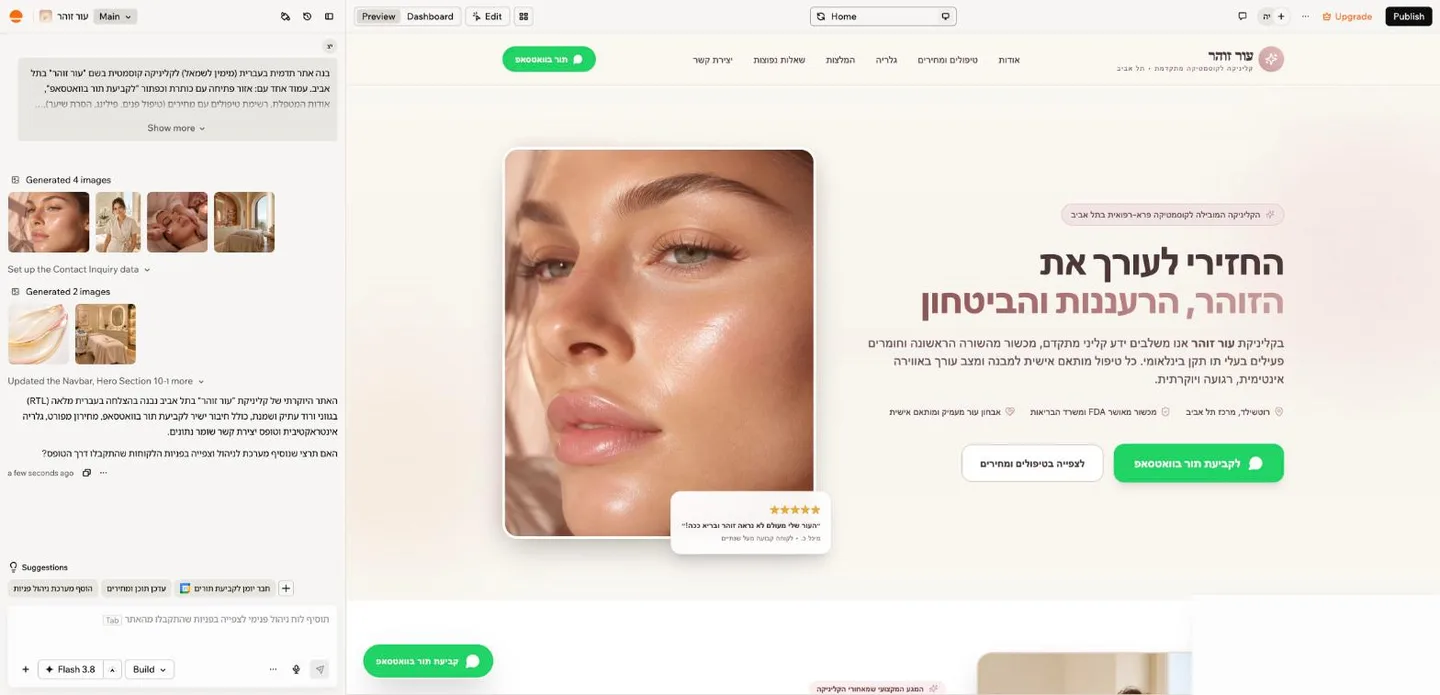
- A practical guide to building a business website in Base44 without coding: sign-up, writing your brief, chat-based edits, lead form, domain, and publishing. Screenshots at every step.
To build a website on Base44, you sign up for free, write one paragraph in Hebrew describing the site, and the AI builds it in a matter of minutes: design, copy, images, and a contact form. Then you refine it in the chat and publish. In this guide we built a branding site for a cosmetic clinic from scratch and captured every screen along the way.
In short: Sign up (1 minute) → describe the site in Hebrew (2 minutes) → automatic build (about 5 minutes) → review and chat edits → leads form in the dashboard → domain → publish. Every step happens inside one interface, with zero lines of code.
Who is this guide for?
This guide is written for small-business owners who want a simple, good-looking branding site: aestheticians, therapists, consultants, studios, and service providers of all kinds. No technical knowledge required. If you want a deeper look at Base44, including apps and databases, we also have the complete Base44 guide.
Step 1: Sign up for Base44
Go to the Base44 registration page and sign up with a Google, GitHub, Apple, or email-and-password account. Registering through that link adds 30 bonus credits on top of what the free plan already includes.
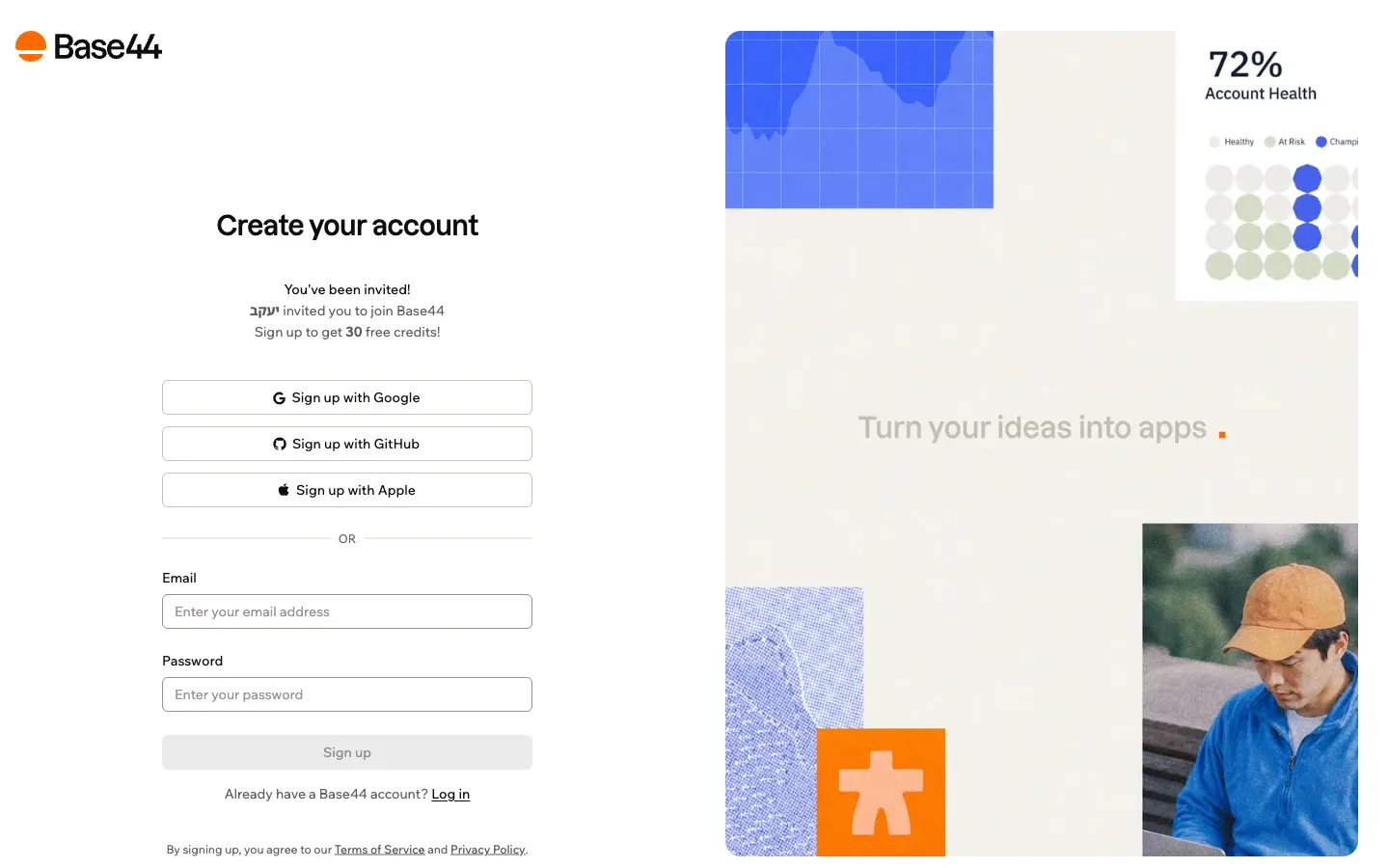 The registration page via an invitation link: 30 bonus credits from the moment you arrive.
The fastest option is Sign up with Google: one click, pick your Gmail account, and you're in. If you sign up with email and password, you'll receive a verification email and need to click the link before continuing.
How much does it cost?
You can build your first site for free. Base44 runs on credits: each message you send to the AI consumes roughly one credit.
| Plan | Price (billed annually) | Monthly message credits | Custom domain |
|---|---|---|---|
| Free | $0 | 25 | No |
| Starter | $16/month | 100 | Yes |
| Builder | $40/month | 250 | Yes |
Prices verified on October 15, 2026, on the Base44 pricing page. Monthly billing is about 20% higher.
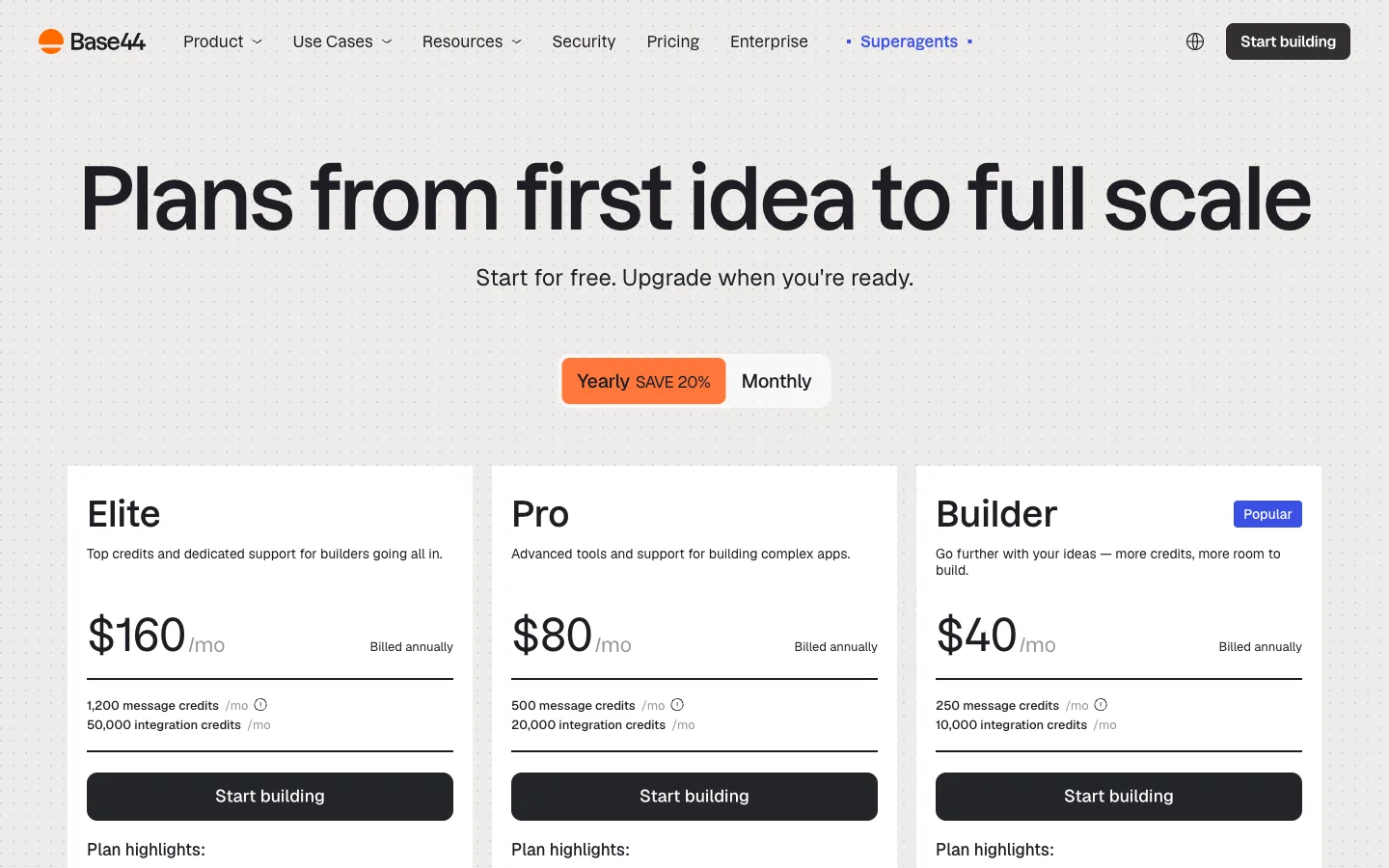 The pricing page. The Free and Starter plans appear further down the page.
Our tip: start on the free plan, build the site, and upgrade to Starter only when the time comes to connect a domain.
Step 2: Write what you want on the site
After signing up, you'll see a screen with a single field: "What will you build next?" Write a description of the site there, in Hebrew. This is the most important step in the guide. The more precise the description, the closer the first version will be to what you had in mind.
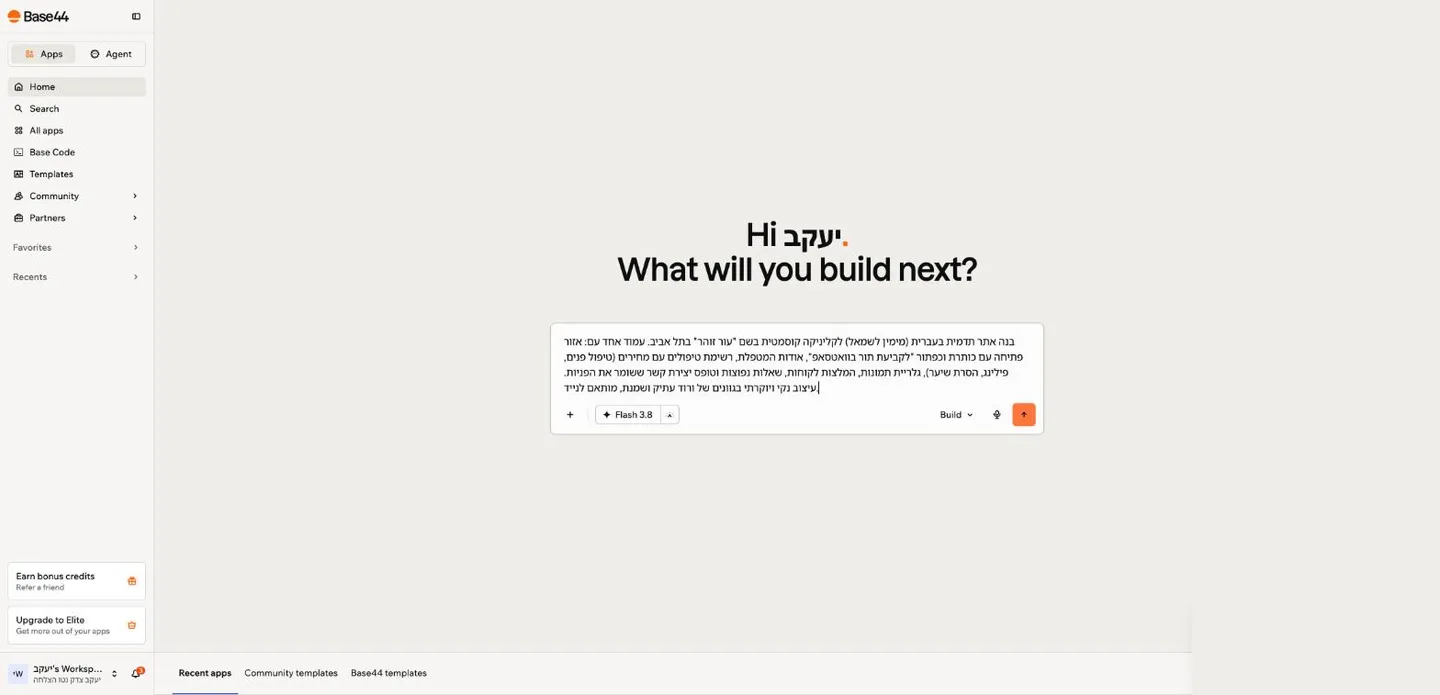 We wrote one paragraph in Hebrew. That's all it takes to get started.
Here is the description we used. Feel free to copy it and replace the details with your own business information:
Build a Hebrew branding website (right-to-left) for a cosmetic clinic called "Or Zohar" in Tel Aviv. A single page with: a hero section with a headline and a "Book an appointment on WhatsApp" button, an about-the-therapist section, a list of treatments with prices (facial treatment, peeling, hair removal), a photo gallery, client testimonials, an FAQ section, and a contact form that saves inquiries. Clean, luxurious design in shades of dusty rose and cream, mobile-friendly.
What a good description must include:
- Language and direction: "In Hebrew, right-to-left."
- Business type, name, and city.
- A list of the sections on the site, in the order you want them.
- The action you want visitors to take: WhatsApp button, form, phone number.
- Style and colors: two words are enough ("clean and luxurious, dusty rose and cream").
- "Mobile-friendly", because most of your clients will arrive from their phones.
Click the orange arrow and the build begins.
Step 3: Base44 builds the site
During the build, the left panel shows you exactly what the AI is doing: generating images, creating a leads table, and writing each section of the site one by one. For us, the entire process took about 6 minutes.
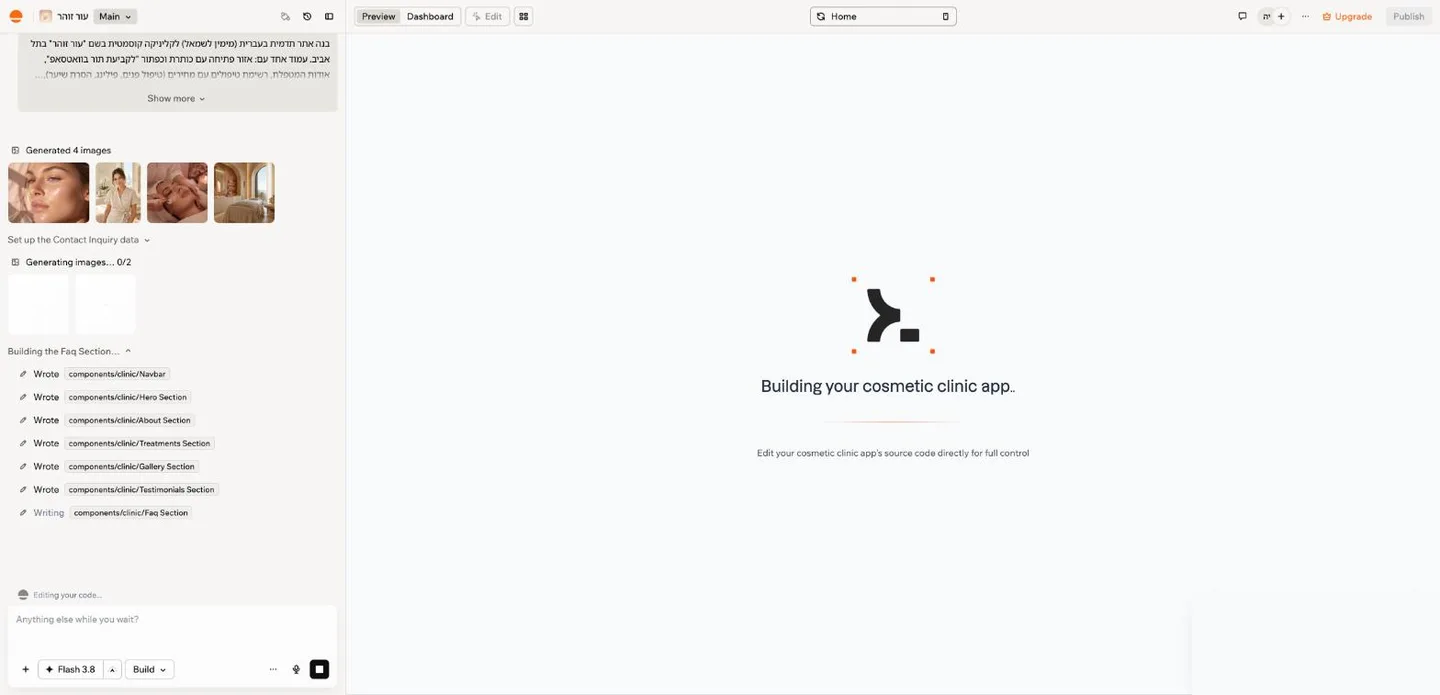 The AI generated 6 images for the site, created a table for storing inquiries, and then wrote each section in sequence.
Notice two things Base44 did on its own, without being asked:
- It created original images for the site (facial close-ups, the therapist, the treatment room). You can replace these with real photos later, and it's a good idea to do so.
- It set up a data table for the contact form, so every inquiry is saved and nothing gets lost.
Step 4: Review the site on desktop and mobile
When the build is complete, the site appears in a preview on the right side of the screen. A small button in the address bar at the top toggles between desktop and mobile view.
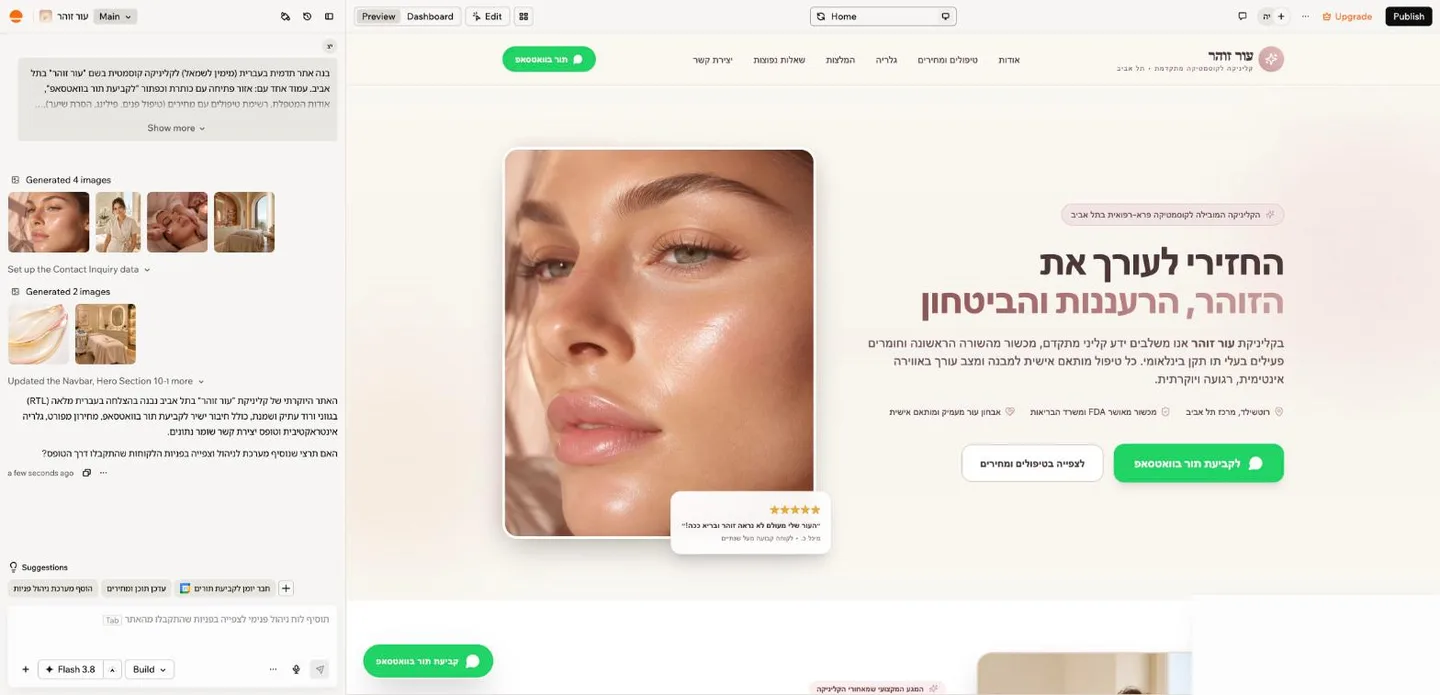 The site in desktop view, after one attempt.
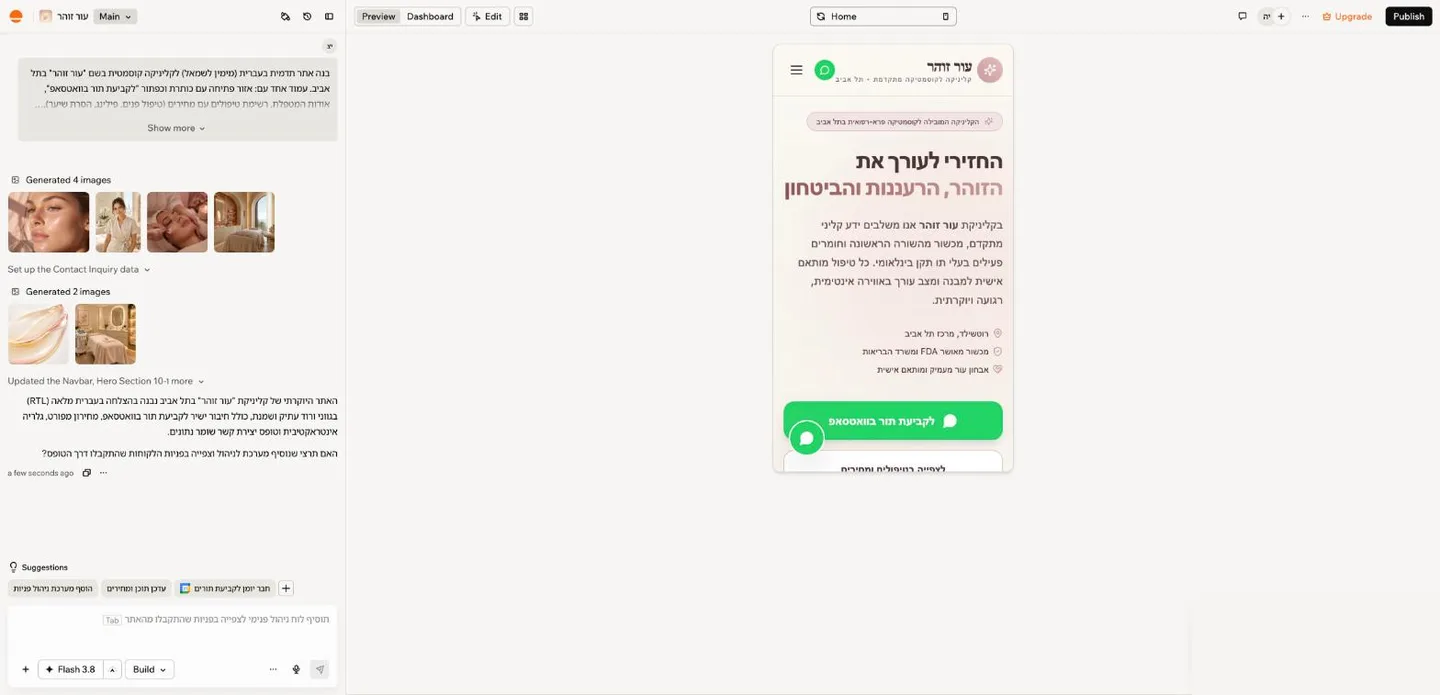 And in mobile view. Always check both before publishing.
The moment the site almost went live with an error
When we read through the site word by word, we found that the AI had added the phrase "FDA and Ministry of Health approved equipment" to the hero section. We never asked for that, and there is no way to verify whether it is true for this clinic. This is not a rare glitch: AI models fill in gaps with copy that sounds plausible.
The rule: before publishing, read every single word on the site. Pay special attention to numbers, prices, certifications, credentials, and testimonials. The testimonials on the site (such as "Michal K.") are examples the AI invented. Replace them with real client testimonials.
Step 5: Edit in the chat with a plain sentence
Every edit is made in the same chat panel on the left: write what you want changed, and the AI updates the site. No need to find the code or locate the component.
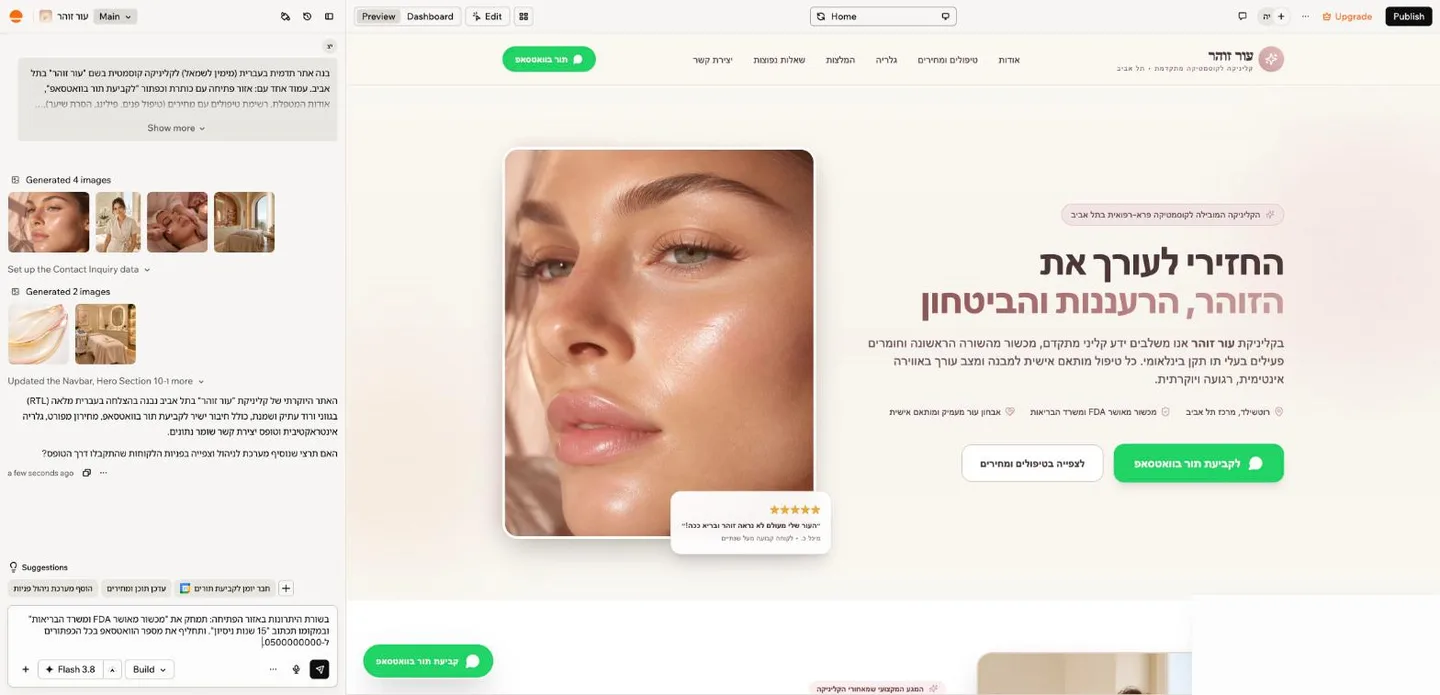 One edit request, two changes: copy and phone number.
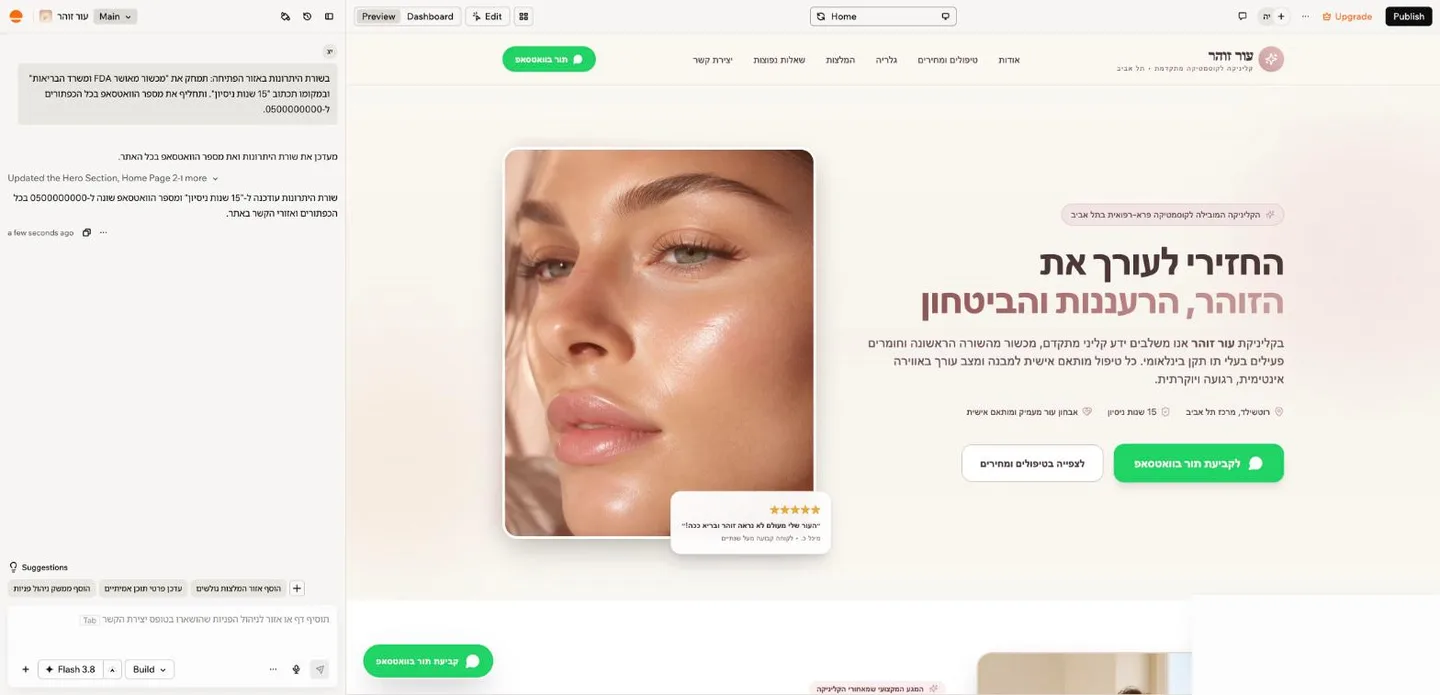 In under a minute: the copy was replaced and the WhatsApp number was updated across every button on the site.
Examples of edit requests that work well:
- "Replace the WhatsApp number on all buttons with 050..." (important: without your real number, the buttons won't work).
- "In the treatments section, add a skin-tightening treatment for 450 ILS."
- "Replace the hero image with the photo I'm uploading" (upload the image using the + button next to the chat field).
- "Make the main headline shorter, no more than 6 words."
The Edit button at the top of the screen also allows visual editing: click any text directly on the site and change it in place, without spending a credit on a message.
Step 6: Where to see the leads from your site
Everyone who fills in the contact form is saved in the site's dashboard under Data. Click Dashboard at the top of the screen.
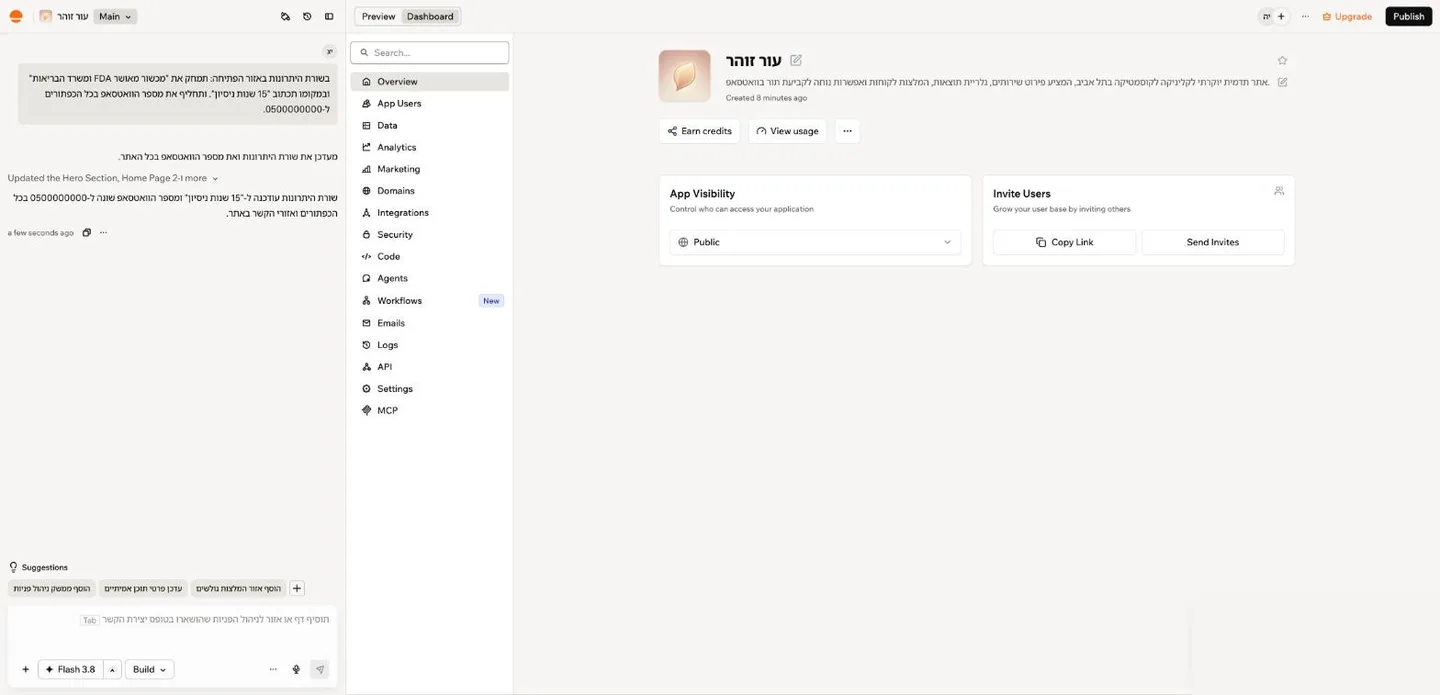 The dashboard: everything around your site, in one place.
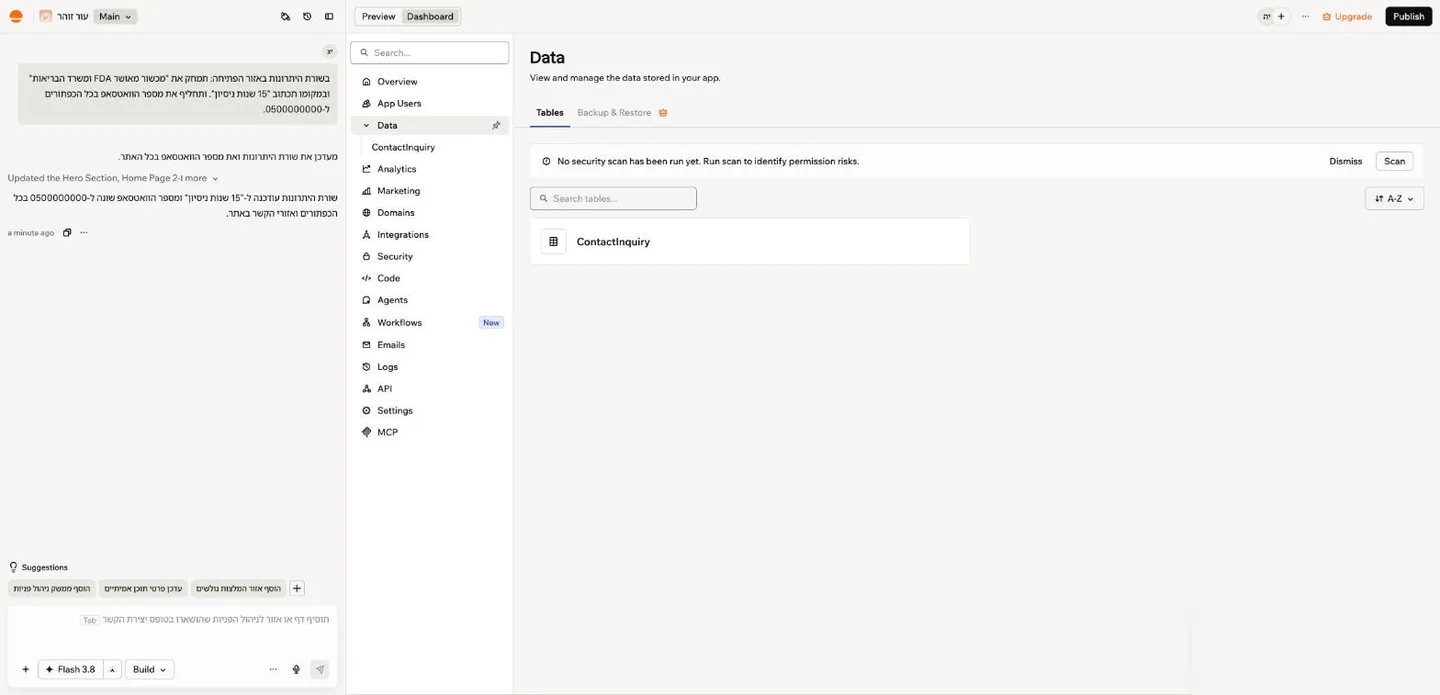 The ContactInquiry table: this is where every lead from your site will appear.
There are two more screens in the dashboard worth knowing:
- Analytics: how many people visited your site.
- Marketing → SEO & GEO: a check of how search engines and AI assistants read your site, with recommendations for improvement. There's also a tool for writing social-media posts.
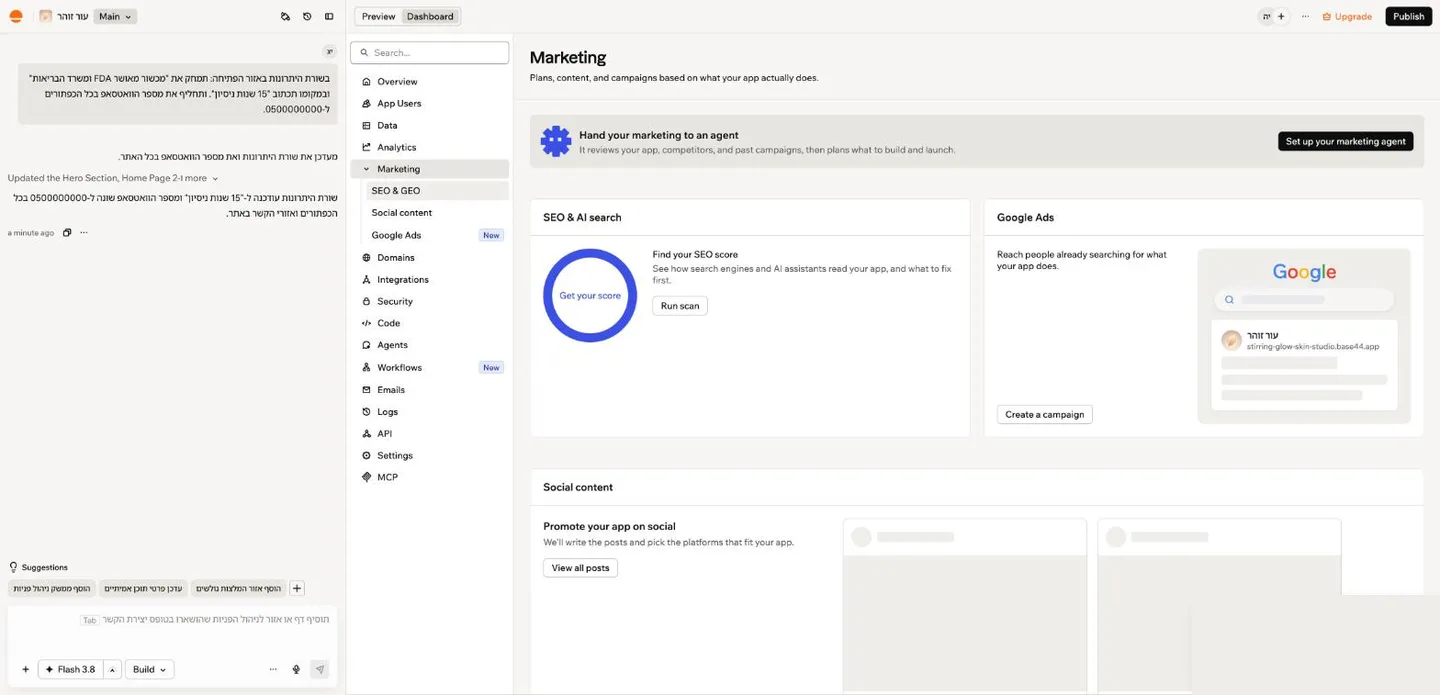 Built-in SEO check: clicking Run scan shows you what to fix so people can find you on Google.
Step 7: Your site's address and custom domain
Every Base44 site gets a free address in the format your-name.base44.app, and you can connect your own domain to it. Go to Dashboard → Domains.
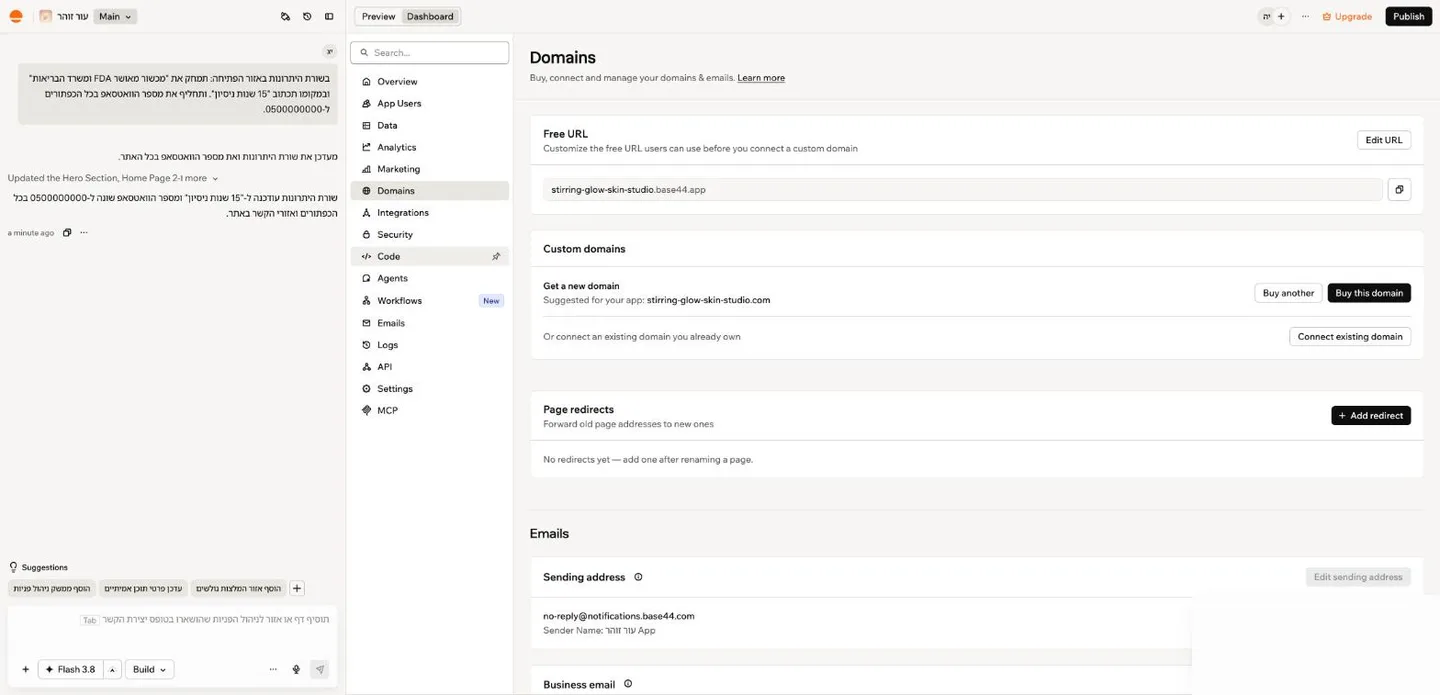 The domains screen: change the free address, buy a domain, or connect an existing one.
There are three options here:
- Edit URL: change the free address to a clear name (for example
or-zohar.base44.app). This is free, and it's worth doing even if you're not connecting a custom domain. - Buy this domain: purchase a new domain directly through Base44. On paid plans, the first domain is free for a year.
- Connect existing domain: if you already have a domain (for example at GoDaddy or an Israeli domain registrar), connect it by following the instructions shown on screen.
Step 8: Publish the site
Click Publish in the top-right corner, confirm that the address is correct and that visibility is set to Public, then click Publish again. From that moment the site is live and anyone can visit it.
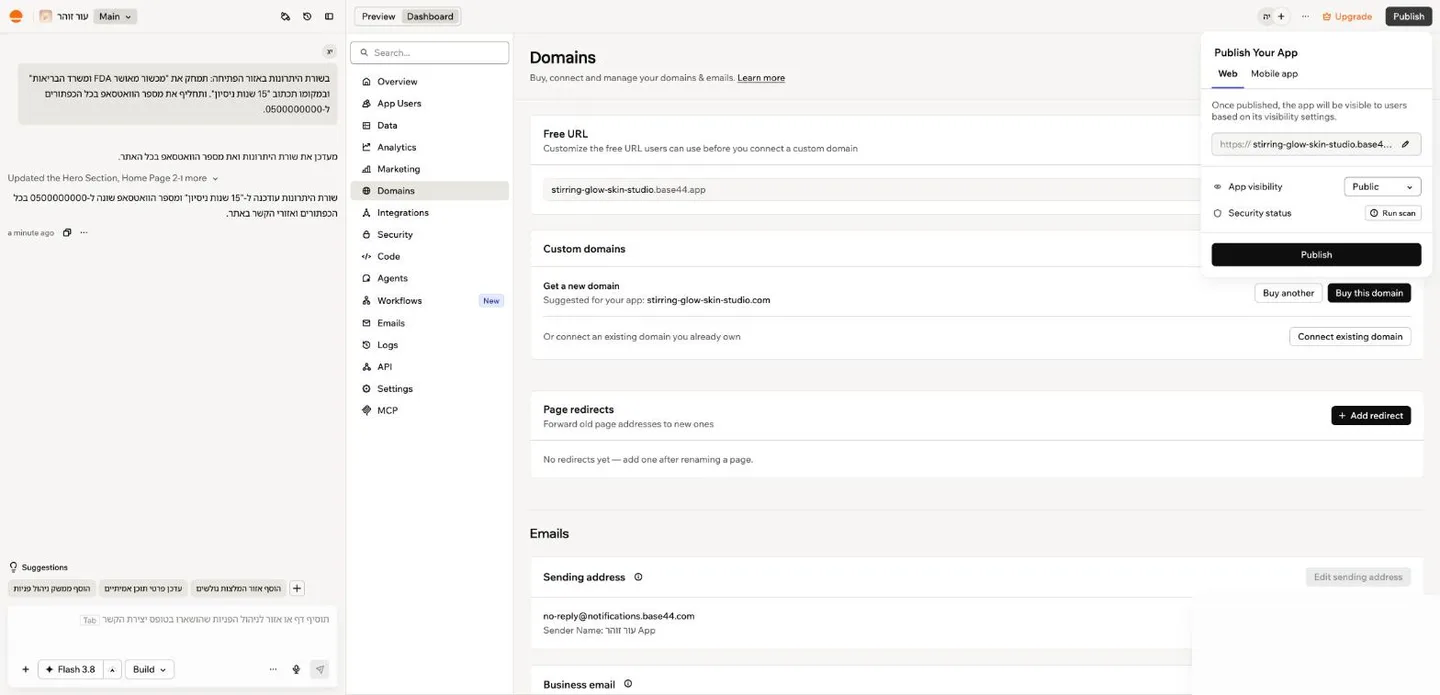 The publish window. The Run scan button checks security settings before the site goes live.
Changes after publishing: any edit you make in the chat is saved as a draft. For visitors to see it, click Publish again.
Checklist before you publish
- I read every word on the site and deleted any claims the AI invented (certifications, numbers, years of experience).
- I replaced the AI-written testimonials with real ones.
- The WhatsApp number and phone number are correct, and I confirmed the button actually opens a conversation.
- The prices are correct and up to date.
- I submitted a sample inquiry through the form and it appeared in Data.
- I checked the site in mobile view.
- I replaced at least the hero image with a real photo of the business.
What's next?
A branding site is just the beginning. In Base44 you can add a scheduling calendar, a customer portal, or a lead management system to the same site. A few guides to continue from here:
- The complete Base44 guide: every screen, the database, users, and integrations.
- How to speed up a Base44 site: once the site is live and you want it to load fast and show up in Google.
- Connecting Google Calendar to Base44: booking appointments directly from the site.
- Payments in Base44 from Israel: when you want to charge for something on the site.
Want to learn Base44 in a structured way, with video lessons on the actual screens? The Base44 video course starts with three free lessons.
Frequently asked questions

Yaakov Tzedek
An Israeli AI lecturer, consultant and implementer who has supported 100+ organizations in AI implementation and lectured for 200+. Official content partner of Meta, Google, Canva and TikTok, featured on Israel's Channel 13.
More about Yaakov →